
Onboarding Wizard
A guided 3-step setup launches automatically the first time you open the plugin after activation. It gets you from "just installed" to "Turnstile is live" in about 60 seconds.
When It Runs
| Trigger | Behavior |
|---|---|
| Right after plugin activation | A transient wkcft_show_onboarding is set for 30 days |
| First admin page load | A banner prompts you to start the wizard |
URL ?page=wkcft-onboarding | Always launches the wizard — use this to re-run it |
| After API keys are saved AND forms are picked | Transient clears, banner disappears |
The 3 Steps
Step 1 — API Keys
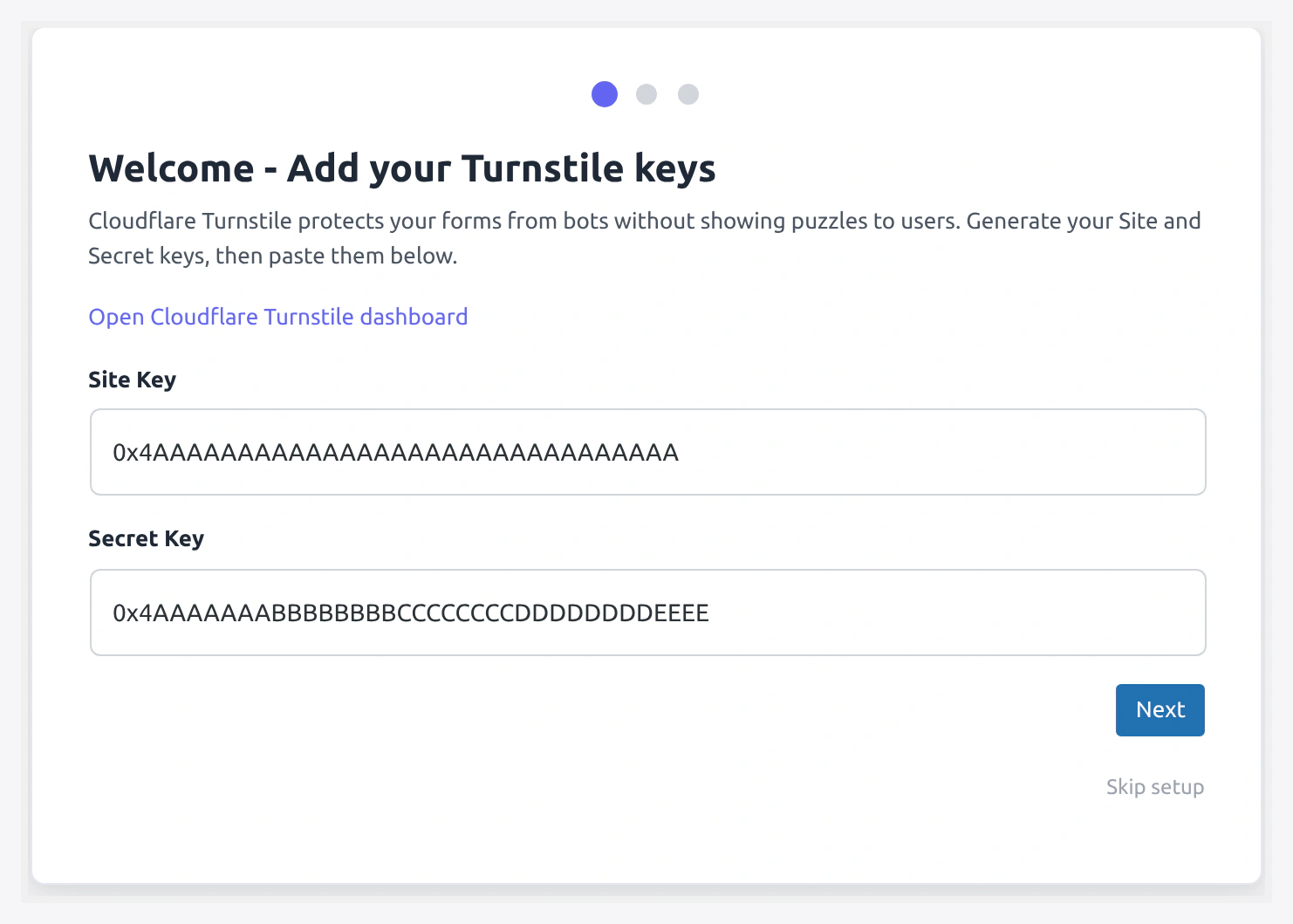
What you do:
- Paste the Site Key (starts with
0x4AAA...) - Paste the Secret Key (same format — do not share this one)
- Click Test Connection — the plugin pings Cloudflare and shows a green check or red error
- Click Next when the test passes
Do not have keys yet? Click Get Keys to jump to the Cloudflare dashboard. See Get Turnstile Keys for the full walkthrough.
Step 2 — Pick Forms
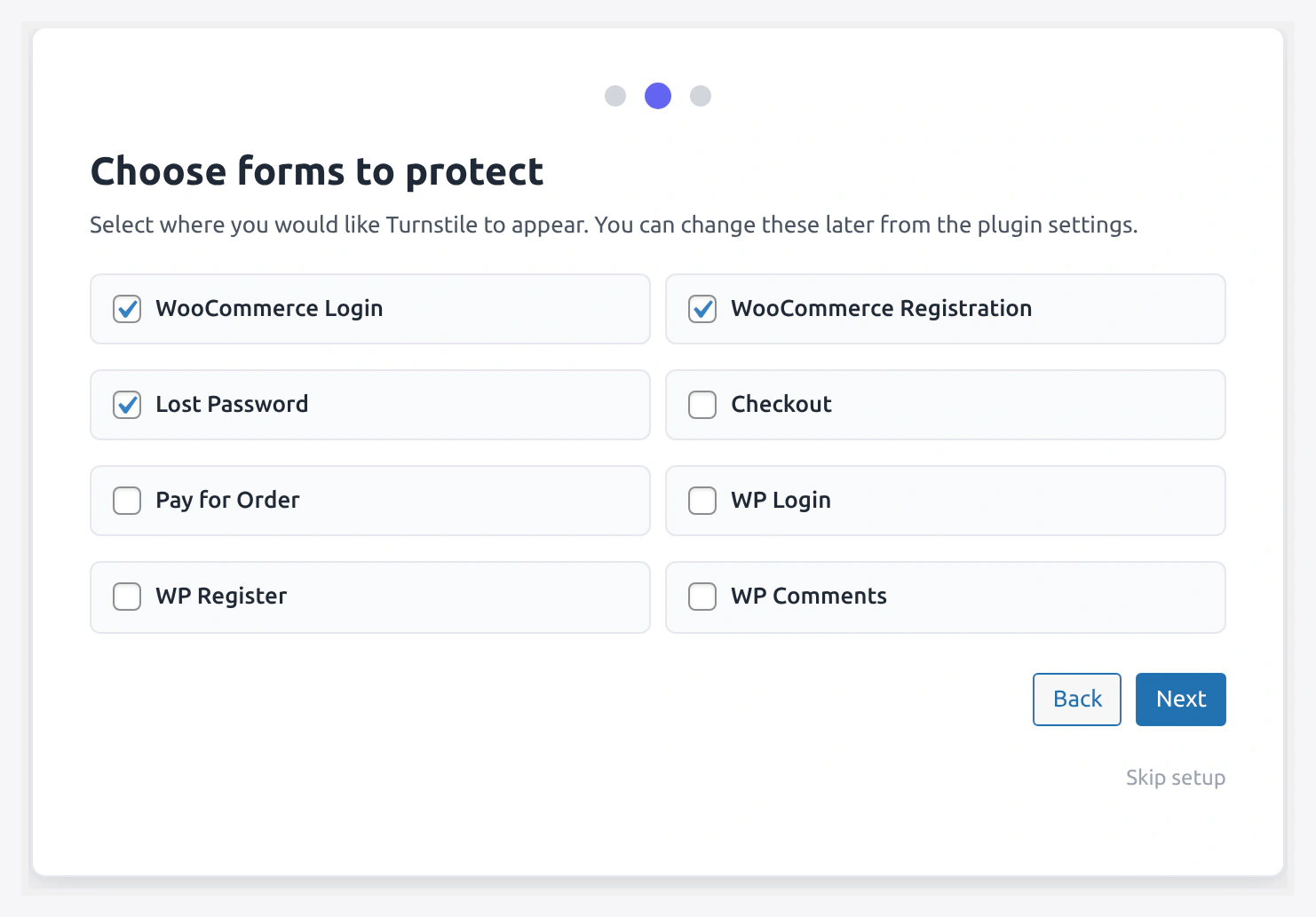
What you do:
Tick the forms you want Turnstile on. Default selection:
- [x] WooCommerce Login
- [x] WooCommerce Registration
- [x] WooCommerce Lost Password
- [x] WooCommerce Checkout
Optional extras:
- [ ] Pay for Order
- [ ] WP Login
- [ ] WP Register
- [ ] WP Comments
Click Next.
Start with the minimum
Tick only the 4 default WooCommerce forms to start. You can enable more later from the settings tabs. This avoids any chance of widget conflicts on a third-party form.
Step 3 — Finish
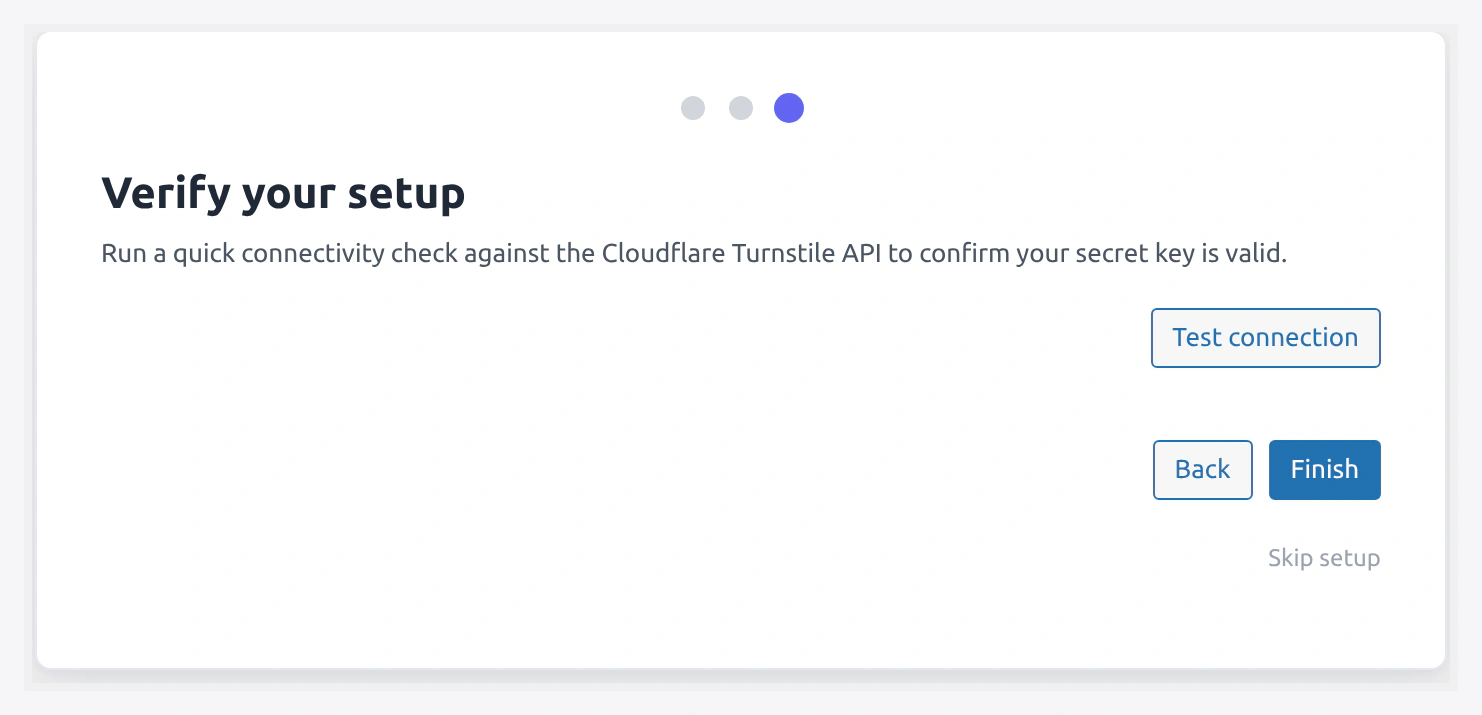
What you see:
- Summary of which forms are now protected
- A Test a form button that opens your WooCommerce login in a new tab
- A Finish button that saves and redirects to the main settings page
Click Finish. You land on WooCommerce → Turnstile Settings → API Settings tab with a "Setup complete" banner.
What the Wizard Sets Under the Hood
| Setting | Value After Wizard |
|---|---|
wkcft_site_key | Your pasted Site Key |
wkcft_secret_key | Your pasted Secret Key |
wkcft_login, wkcft_register, wkcft_password_reset, wkcft_block_checkout | yes if ticked |
wkcft_theme | light (default) |
wkcft_appearance | always (default) |
wkcft_load_mode | instant (default) |
wkcft_error_message | Please complete the security check. |
wkcft_show_onboarding transient | Deleted |
Dismissing the Wizard
If you prefer manual setup:
- Click Skip on any step
- The banner stays on screen until you either enter keys or explicitly dismiss
- Dismiss for now — hides the banner for 30 days
- To re-launch the wizard any time: visit
wp-admin/admin.php?page=wkcft-onboarding&step=1
Re-running the Wizard
Some reasons to re-run:
- You rotated your Cloudflare Secret Key
- You want to reset your initial form selection
- You installed the plugin on a staging site and need to re-enter keys
Just visit the URL directly:
https://yoursite.com/wp-admin/admin.php?page=wkcft-onboarding&step=1
AJAX Actions
For developers who want to hook into the wizard:
| Action | Purpose |
|---|---|
wp_ajax_wkcft_onboarding_save | Saves step data — fires on Next button |
wp_ajax_wkcft_onboarding_dismiss | Dismisses the wizard — fires on Skip button |
Nonce: wkcft_onboarding.
Capability required: manage_woocommerce.
What to Do After the Wizard
- Test — Open a protected form in incognito, verify the widget appears
- Customize — Design Studio to match your theme colors
- Add rules — Conditional Rules to skip yourself
- Watch — Analytics for first bot hits
Related Pages
- First-Time Setup — Manual version of this wizard
- Get Turnstile Keys — Before Step 1
- Quick Start — Full 5-minute flow