
Endpoints and URLs
The module publishes two addresses on your own site. Neither is a WordPress page, so you will not find them under Pages; they are handled directly by the module and open as standalone screens with no theme header or footer around them.
| Screen | Default address | Who opens it |
|---|---|---|
| Kitchen display | https://yourstore.com/kitchen | Kitchen staff, after signing in |
| Customer screen | https://yourstore.com/customer-screen?kcs_pos_outlet=1 | A wall display, no sign in |
Renaming the addresses
Go to Restaurant POS → Settings → Endpoints. The module adds two fields at the bottom of that tab.
| Field | Description | Default |
|---|---|---|
| Kitchen Endpoint | The path the kitchen display answers on | kitchen |
| Customer Screen Endpoint | The path the customer screen answers on | customer-screen |
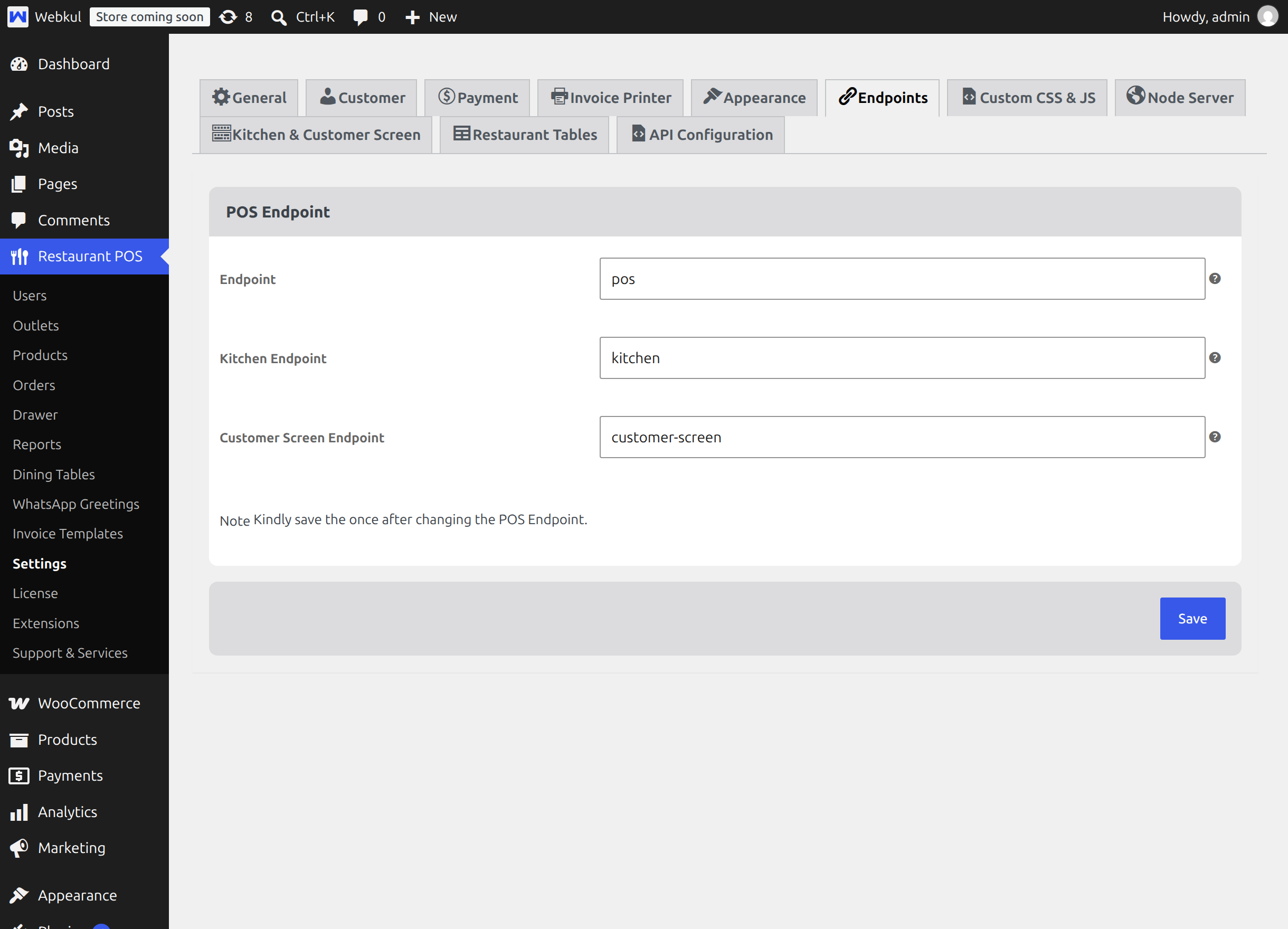
Enter a plain word with no slashes, for example kds or orders-ready, and save. The new address takes effect immediately.
Tips
If a new address returns a "not found" page, go to Settings → Permalinks in WordPress and select Save Changes once. That refreshes the rewrite rules without changing anything else.
Two things to keep in mind when renaming:
- Choose a word that no page, post or product slug already uses, or the two will compete for the address.
- A kitchen tablet with the display already installed as an app will still point at the old address. Reinstall the app after a rename.
The customer screen address per outlet
The customer screen always needs to know which outlet it is showing, and it takes that from the kcs_pos_outlet value in the address.
https://yourstore.com/customer-screen?kcs_pos_outlet=1
You never have to build that address by hand. Go to Restaurant POS → Outlets; the module adds a Customer Screen column with an Open button on each row, and the button opens that outlet's display in a new tab with the correct value already in place.
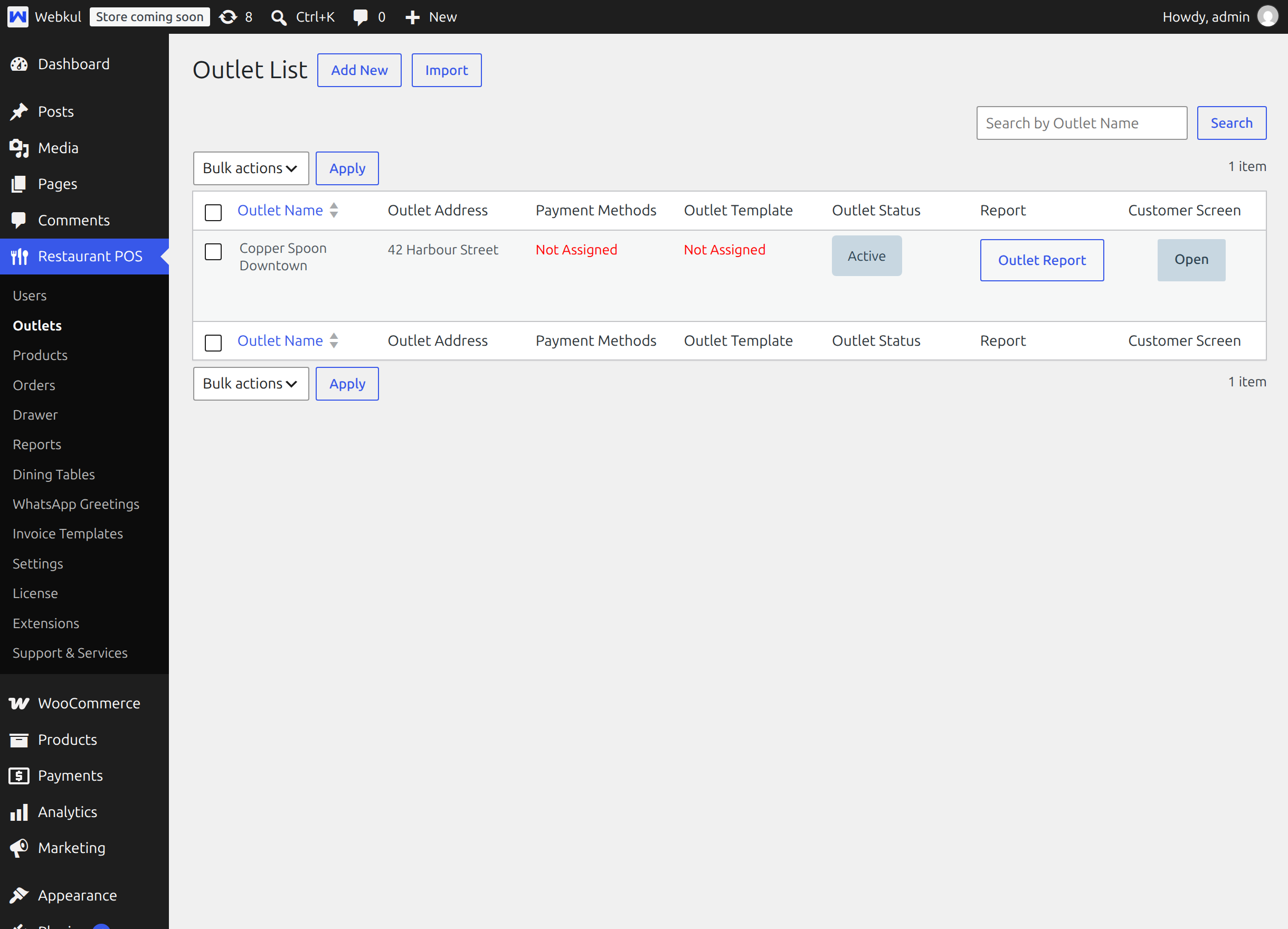
Copy that address from the browser and open it on the display in the dining room.
Note
Without kcs_pos_outlet, the customer screen has no outlet to read and shows a plain welcome message instead of your artwork and order lists. Always open it through the Open button, or keep the full address in the display's bookmarks.
The kitchen address
The kitchen display needs no parameter. Each Kitchen User is already mapped to an outlet from the Point of Sale user screen, and the board shows that outlet's tickets. See Kitchen Users.
Next step
Continue with Kitchen Users.