
Kitchen Users
The kitchen display is not open to the public. Somebody has to sign in, and only an account holding the Kitchen User role is let through.
That role is created for you when the plugin is activated. You do not have to add it by hand.
What a Kitchen User can do
| Can | Cannot |
|---|---|
| Sign in at the kitchen address and work the order board | Open the WordPress admin |
| Move tickets between On Hold, Preparing, Completed and Sent | Use the Point of Sale till |
| Read the kitchen note on a ticket | See or change any setting |
| Switch the board between light and dark, and go full screen | See another outlet's tickets |
The role is deliberately narrow. It is safe to hand out to kitchen staff on a shared tablet.
Create a Kitchen User
- Go to Restaurant POS → Users and select Add New.
- Fill in the account details as you would for any Point of Sale user — username, email, password and the Outlet the person works at.
- In the User Role field, choose Kitchen User.
- Save.
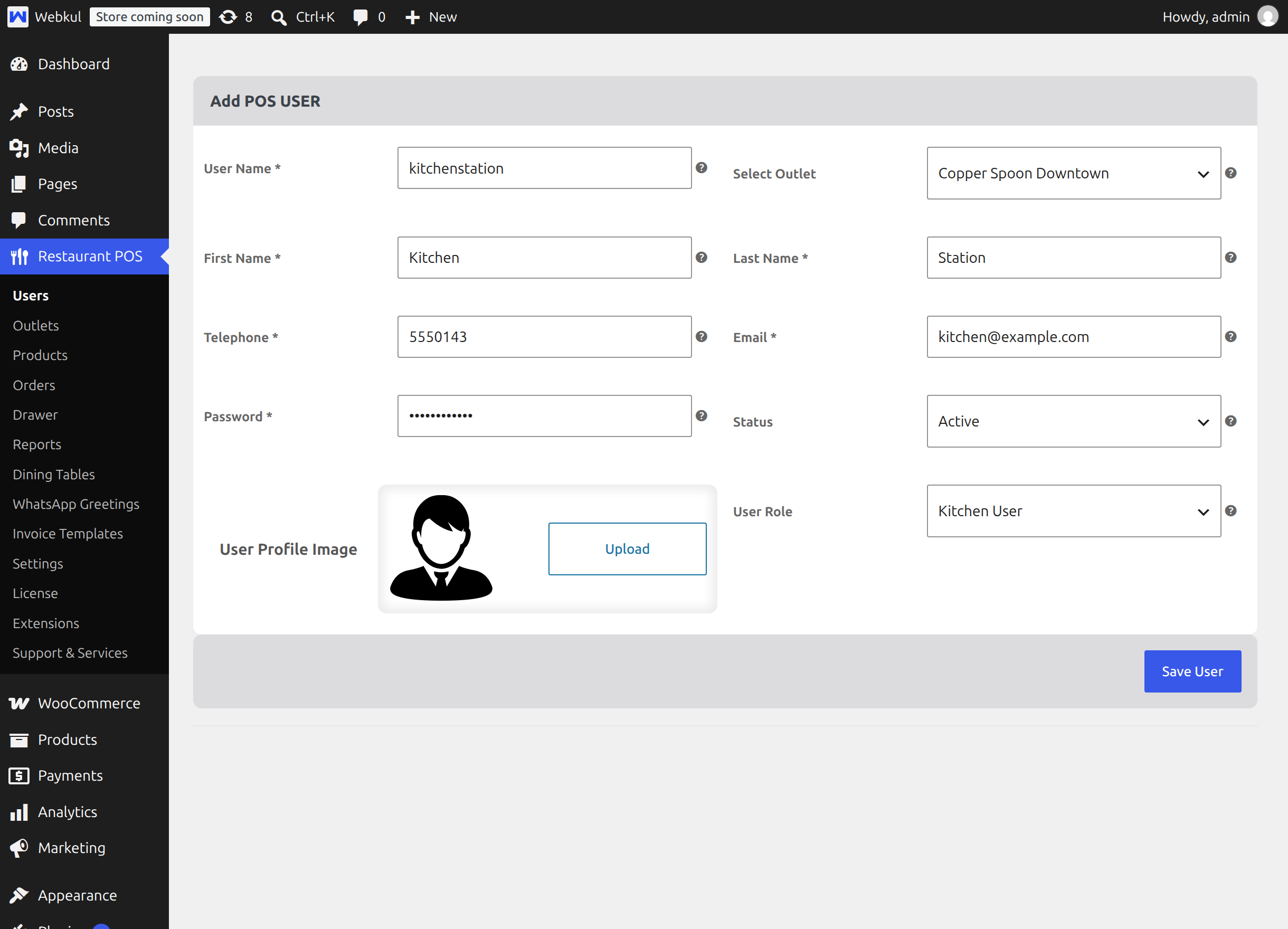
The User Role field offers two choices:
| Choice | Result |
|---|---|
| Pos User | An ordinary till operator. This is the default. |
| Kitchen User | An account that can only reach the kitchen display. |
Important
The Outlet you choose matters. The kitchen board shows the tickets of the outlet the signed in user is mapped to. A Kitchen User with no outlet sees an empty board even when the kitchen is busy.
Review the accounts you have
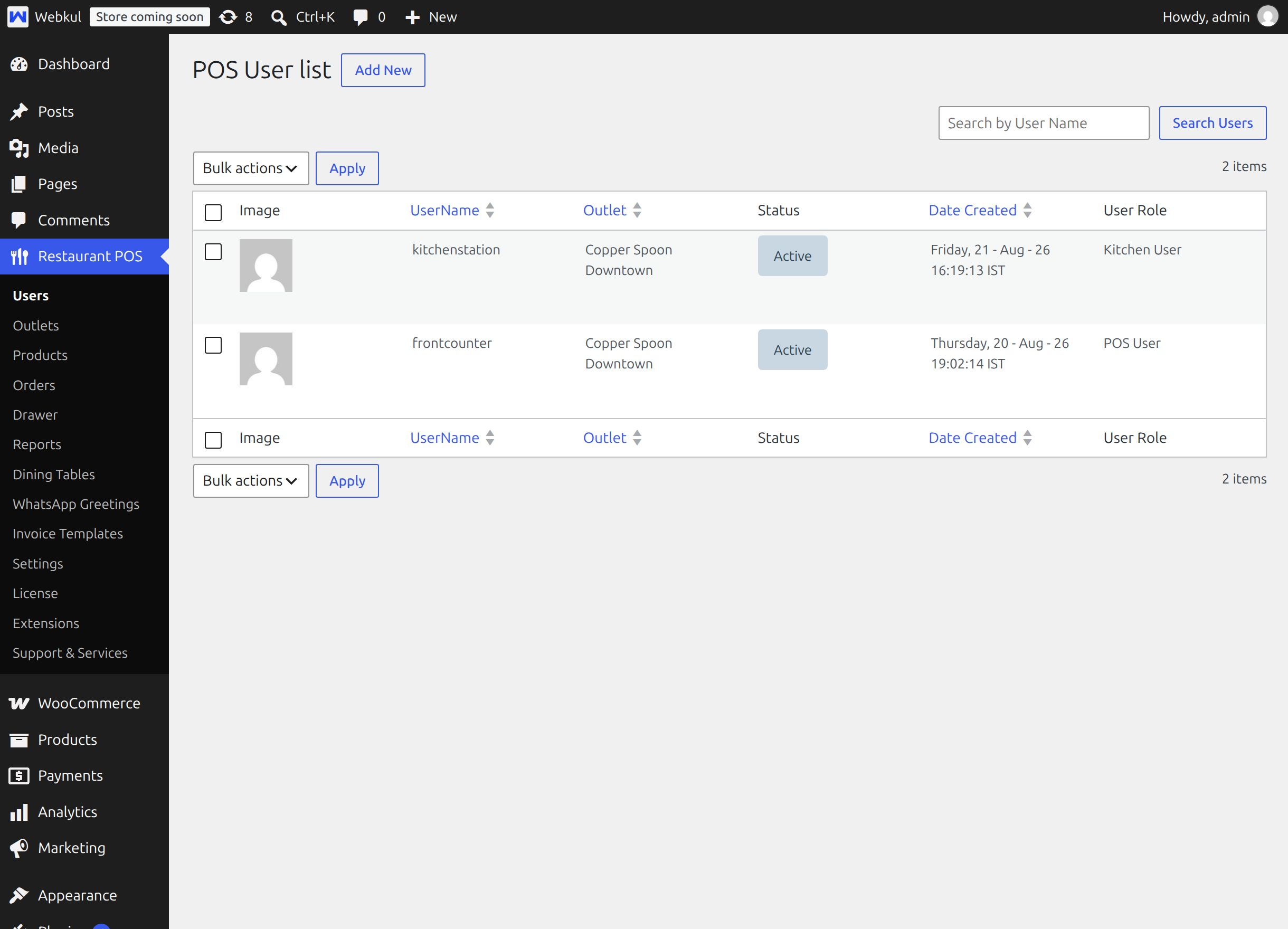
Restaurant POS → Users lists both kinds of account together, with a User Role column added by this module so you can tell them apart at a glance.
Change an existing account's role
Open the account from Restaurant POS → Users, change User Role and save. The change applies immediately; the person is signed out of the screen they no longer have access to the next time they load it.
Delete a Kitchen User
Use the delete action on the Point of Sale user list. Deleting a Kitchen User removes the WordPress account and clears that person from the outlet mapping, and the admin confirms with "User deleted successfully." If you try the same action on an account that is neither a POS User nor a Kitchen User, the admin answers "Not a valid pos user." and nothing is deleted.
Signing in
Send the kitchen staff to your kitchen address, for example https://yourstore.com/kitchen. They see a sign in card, enter the username and password, and land straight on the board.
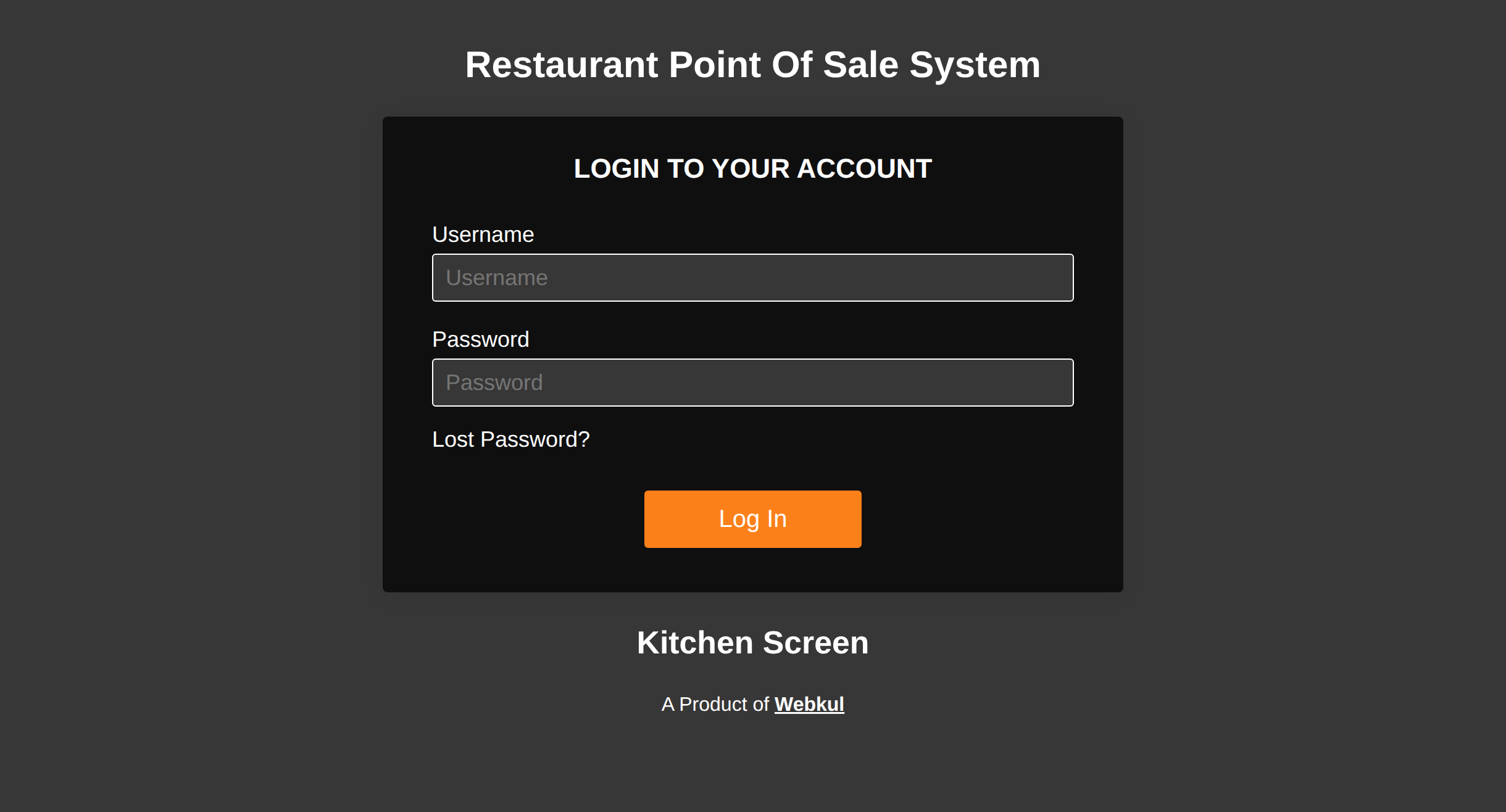
Two messages can appear on that card:
- Error : Invalid username and password. — the username or password is wrong.
- You are not allowed to access this page. — the person is signed in, but with an account that does not hold the Kitchen User role. Sign out and sign in with a Kitchen User account.
Next step
Continue with Customer Screen Setup.