
Overview
Kitchen and Customer Screen for Restaurant POS extends WooCommerce Point of Sale with the two displays a restaurant needs behind the till: a kitchen board and a customer facing order screen.
Nothing about your storefront changes. This module never touches the shop, the cart or the checkout your online customers use. It works entirely inside the Point of Sale and on two new addresses of its own.
What it adds
| Addition | Where it appears |
|---|---|
| Add To Prepare button in the POS cart | The POS cart, for a seated table |
| Add To Prepare checkbox on the payment page | The POS payment page, for take away |
| Kitchen Orders, Sent Orders and All Orders tabs | Inside the POS, under Dining Tables |
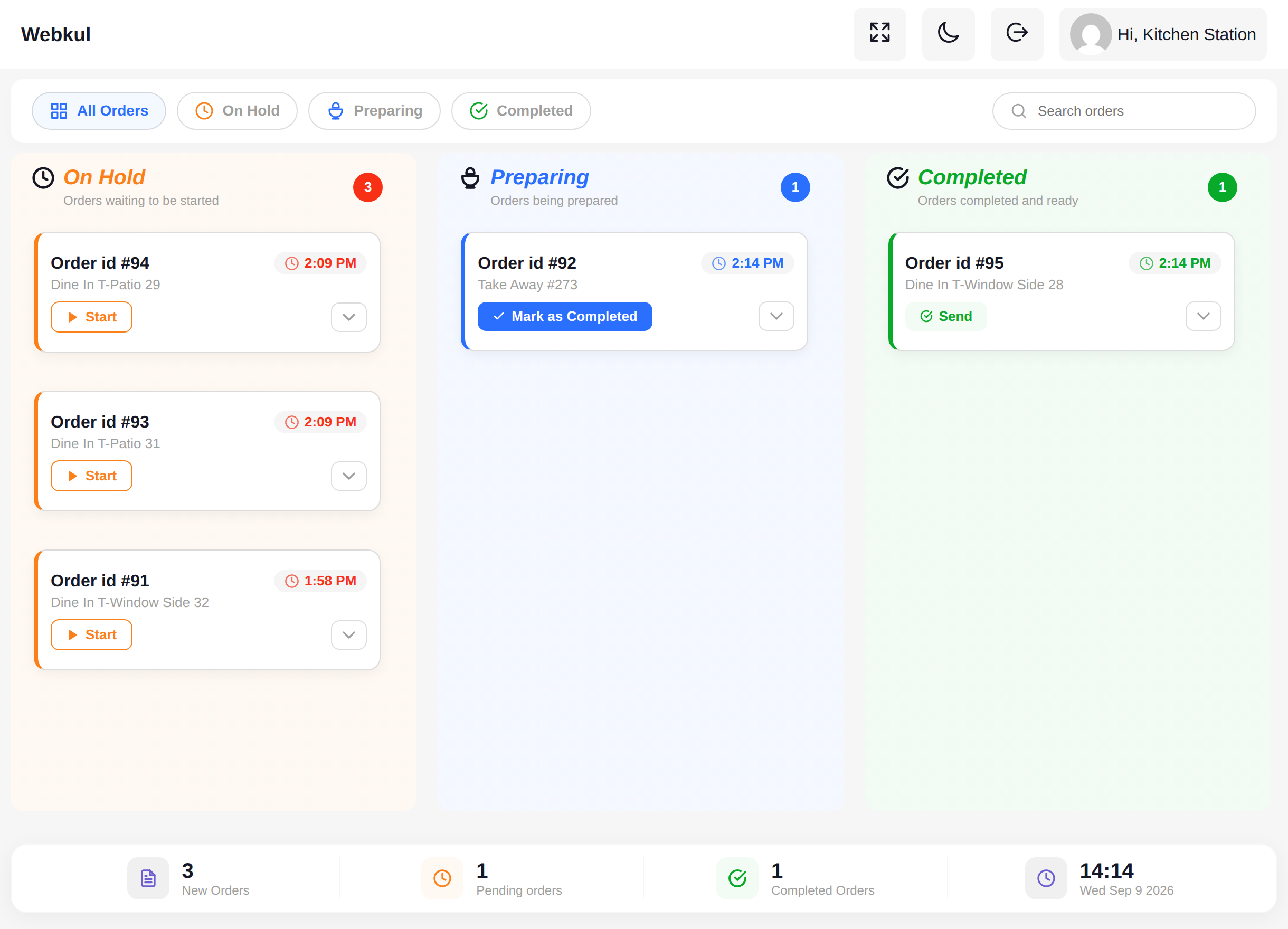
A kitchen display at /kitchen | Its own address, outside the WordPress admin |
A customer screen at /customer-screen | Its own address, one view per outlet |
| A Kitchen User role | WordPress users, created from the POS user screen |
| A Kitchen & Customer Screen settings tab | Restaurant POS → Settings |
| A Customer Screen tab on every outlet | Restaurant POS → Outlets → edit an outlet |
How a ticket travels
- The cashier builds a cart. For a seated table they open the table from Dining Tables and add the dishes. For a take away they simply build the cart.
- The cashier sends it to the kitchen. A dine in cart uses the Add To Prepare button and can carry a note. A take away is sent by ticking Add To Prepare on the payment page, so the ticket reaches the kitchen the moment the order is paid.
- The kitchen sees it appear. The ticket lands in the On Hold column of the kitchen display within a second, with the table name or the take away order number, the items, the quantities and the note.
- The kitchen works it. Start moves the ticket to Preparing, Mark as Completed moves it to Completed, and Send hands it out and clears it from the board.
- The diner watches. From the moment the ticket is being cooked, the customer screen lists its order number under Preparing, then moves it under Completed when the plate is ready.
- The cashier raises the bill. For a seated table, the Sent Orders tab has a Create Bill button that loads the ticket back into the POS cart and jumps to the payment page.
Who uses which screen
- The store owner works in the WordPress admin. Everything they need is under Restaurant POS: the licence, the settings tab, the endpoints, the users and the outlet customer screen.
- The cashier works in the POS at
/posand never needs the WordPress admin. Their guide is Sending Orders From The POS. - The kitchen signs in at
/kitchenwith a Kitchen User account and sees nothing but the board. Their guide is Kitchen Screen. - The diner looks at a wall mounted screen. Nobody signs in on that display.
Where the tickets are kept
Kitchen tickets are not WordPress posts and they are not WooCommerce orders. They are records in whichever live channel you choose, so that every open screen can be updated at once without polling.
- Firebase stores the day's tickets in a Firebase Realtime Database you own, keyed by date and outlet. Yesterday's tickets are removed automatically the first time a screen connects on a new day.
- Socket stores the tickets in your own WordPress database and pushes changes over the Point of Sale Node server running on your server. Nothing is removed by date.
Choose one on the Real Time Connection page. The screens, buttons and statuses are the same either way; the differences — ticket numbering, clearing old tickets and what your server needs — are compared on that page.
Note
A kitchen ticket is separate from the WooCommerce order. A dine in ticket reaches the kitchen before any WooCommerce order exists, because the bill is raised when the table finishes. A take away ticket is created after payment, so it carries the WooCommerce order number. The Order Lifecycle page explains the numbering.
Next step
Read Installation to check that everything the module depends on is in place.