
Exclude Products
Exclude Products keeps chosen products out of the sync. There are two separate lists: one for products already in your store that must not be updated, and one for Printify products that must never be imported.
- Admin: Marketplace → Printify Connect → Settings → Exclude Products
- Vendor: My Account → Printify Connector → Settings → Exclude Products
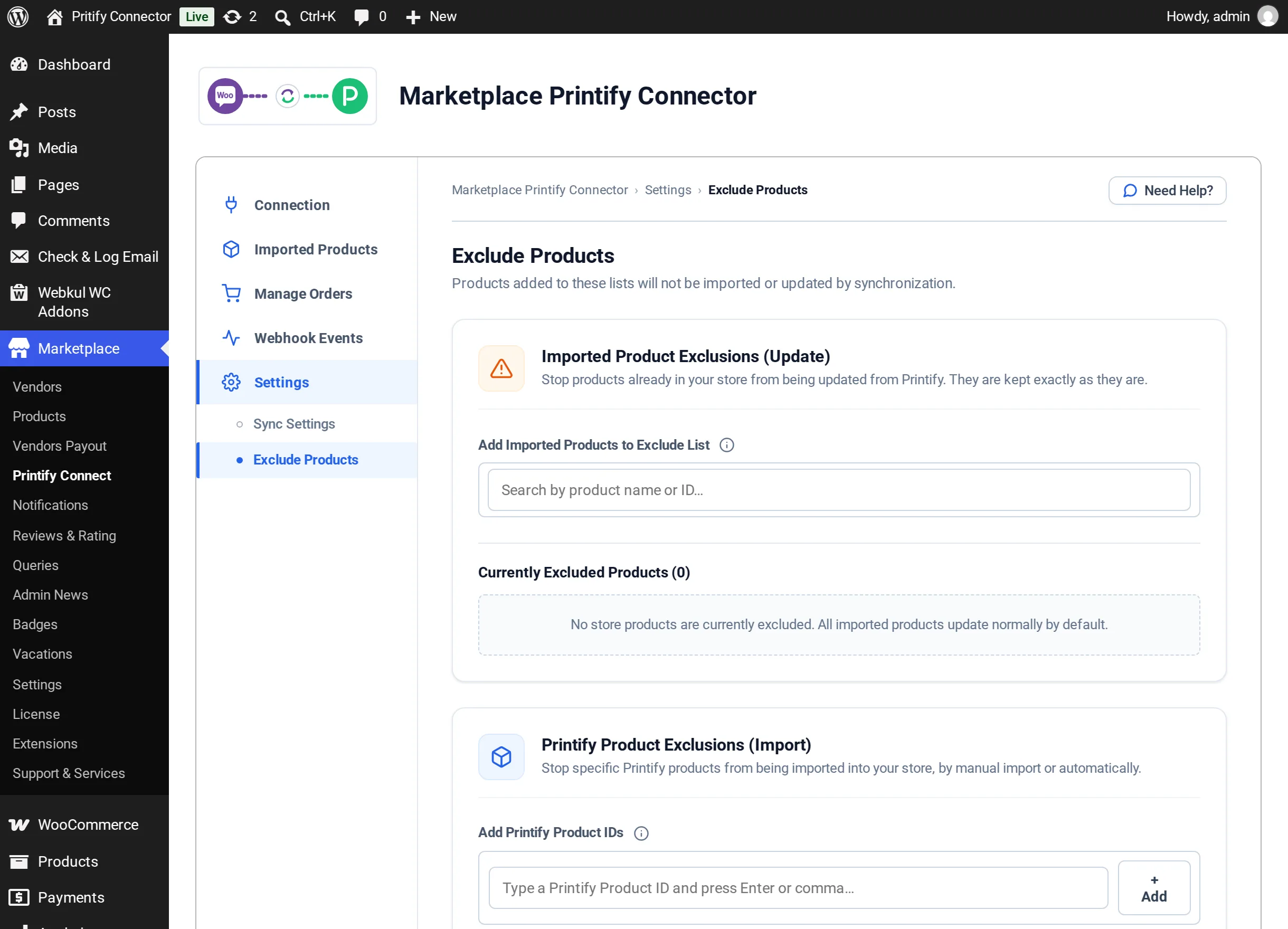
Imported Product Exclusions (Update)
Use this list for products you have edited in WooCommerce and want to keep exactly as they are.
- In Add Imported Products to Exclude List, search by product name, store ID or Printify ID.
- Choose the product from the results. Products already on the list are marked already excluded.
- Select Save Exclusion Settings.
The products appear under Currently Excluded Products with their image, title, product ID, SKU and Printify product ID. Neither automatic updates nor Update from Printify change them.
To let a product update again, select Remove / Allow Update, or tick several and select Remove Selected / Allow Update, then save.
You can also exclude and include products with the Exclude from Sync toggle and bulk actions on Imported Products.
Printify Product Exclusions (Import)
Use this list for Printify products that should never be brought into your store, by manual import or automatically.
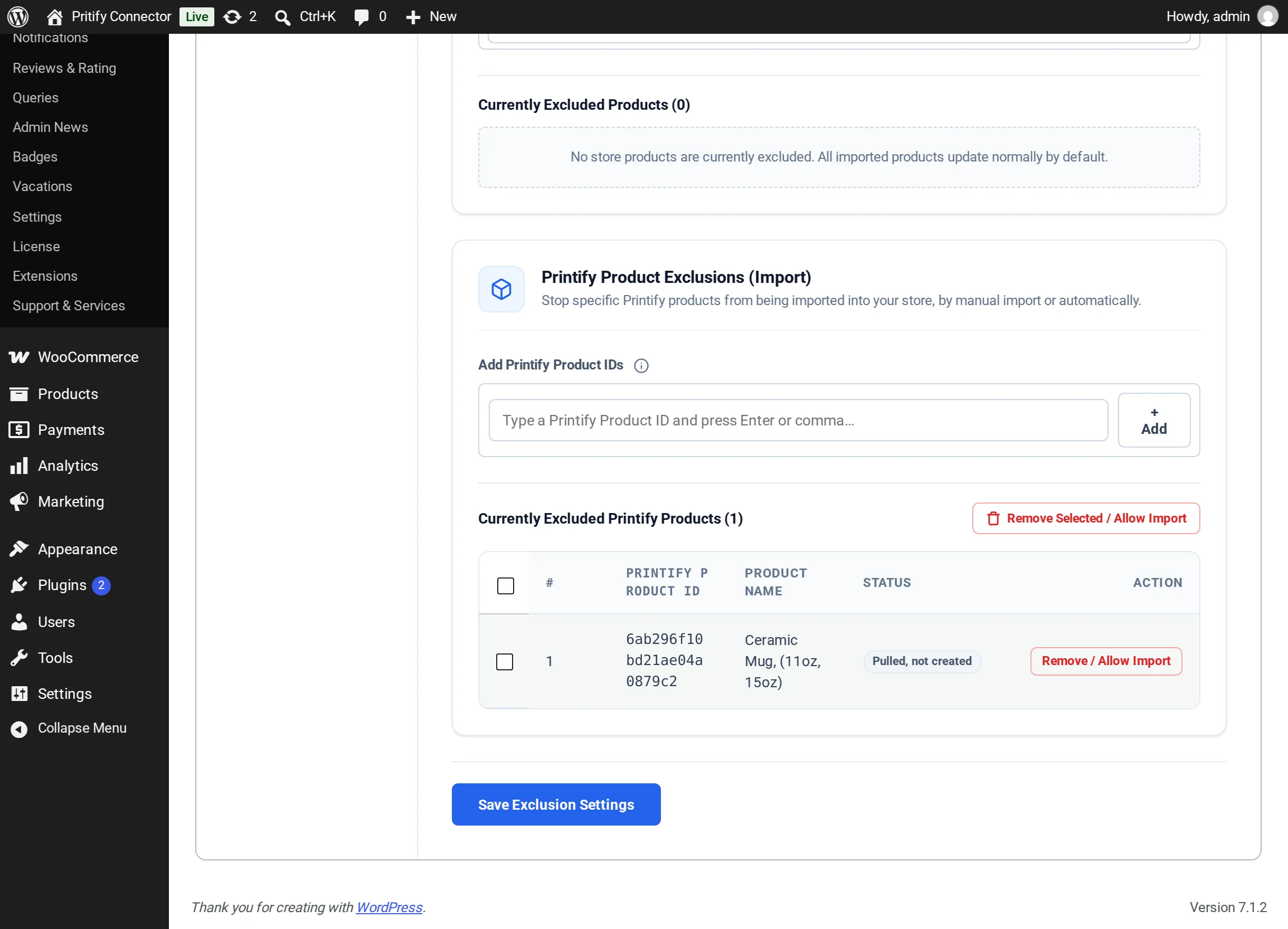
- In Add Printify Product IDs, type or paste a Printify product ID and press Enter or a comma, or select + Add. Each ID is the 24-character ID shown in the product's URL in Printify.
- Select Save Exclusion Settings.
Each excluded ID shows a status:
| Status | Meaning |
|---|---|
| In store | The product was already created in your store |
| Pulled, not created | The product was pulled in but not created |
| Not imported | The product has not been imported |
Select Remove / Allow Import (or Remove Selected / Allow Import) and save to let a product be imported again. It goes back to the products waiting to be created.
If you type something that is not a Printify product ID, the screen shows Not a Printify Product ID.
Notes
- A vendor can exclude only products they imported themselves.
- Disconnecting the Printify account clears both lists.