Imported Products
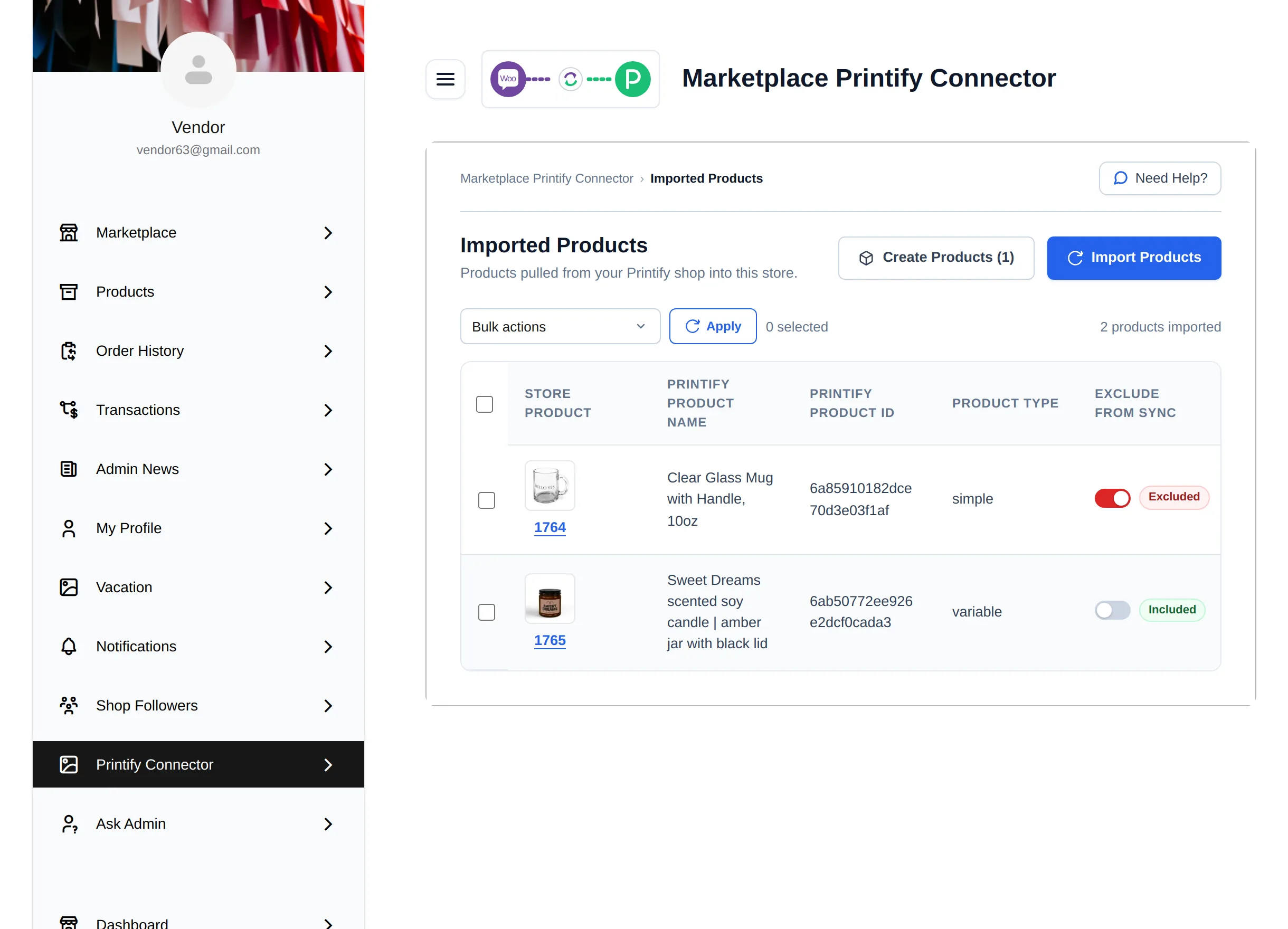
Imported Products is where you bring products from your Printify shop into WooCommerce and manage the ones already linked.
- Admin: Marketplace → Printify Connect → Imported Products
- Vendor: My Account → Printify Connector → Imported Products
Import products in two steps
Products come in two steps so that nothing is created in your store until you ask for it.
Step 1 — Import Products
Select Import Products. The connector reads every product in your Printify shop and holds the new ones ready to create. A progress panel shows how many products were checked, how many are new, how many were already pulled in and how many were skipped because they are on your exclude list.
Step 2 — Create Products
The Create Products (N) button shows how many pulled products are waiting. Select it to create them as WooCommerce products.
- Creation runs in the background. A progress card shows Created, Waiting, Skipped and Failed counts, and it is safe to close the page.
- Select Stop to pause creation, or Retry failed to try failed products again.
- If a product fails, the card lists the reason under Why they failed.
- When only images are still downloading, the button reads Finish Images (N). The image notice has Pause and Resume buttons.
When Auto Import Products is enabled in Sync Settings, products created in Printify are imported and created automatically, so this step is only needed for existing products.
What each product gets
| Printify data | In WooCommerce |
|---|---|
| Title and description | Product name and description |
| Variants | A simple product for one variant, a variable product with attributes and variations for several. Only variants enabled in Printify are created. |
| Price | Regular price |
| SKU | SKU, unless another product already uses it |
| Weight | Weight, converted to the store's weight unit |
| Images | Product images, imported as chosen in Import Images |
Every product is placed in the Default Category and saved as Draft or Published according to Import Products As. Stock is not managed, so products stay in stock. Products belong to the person who imported them, so a vendor's products appear in that vendor's store.
The products table
| Column | Shows |
|---|---|
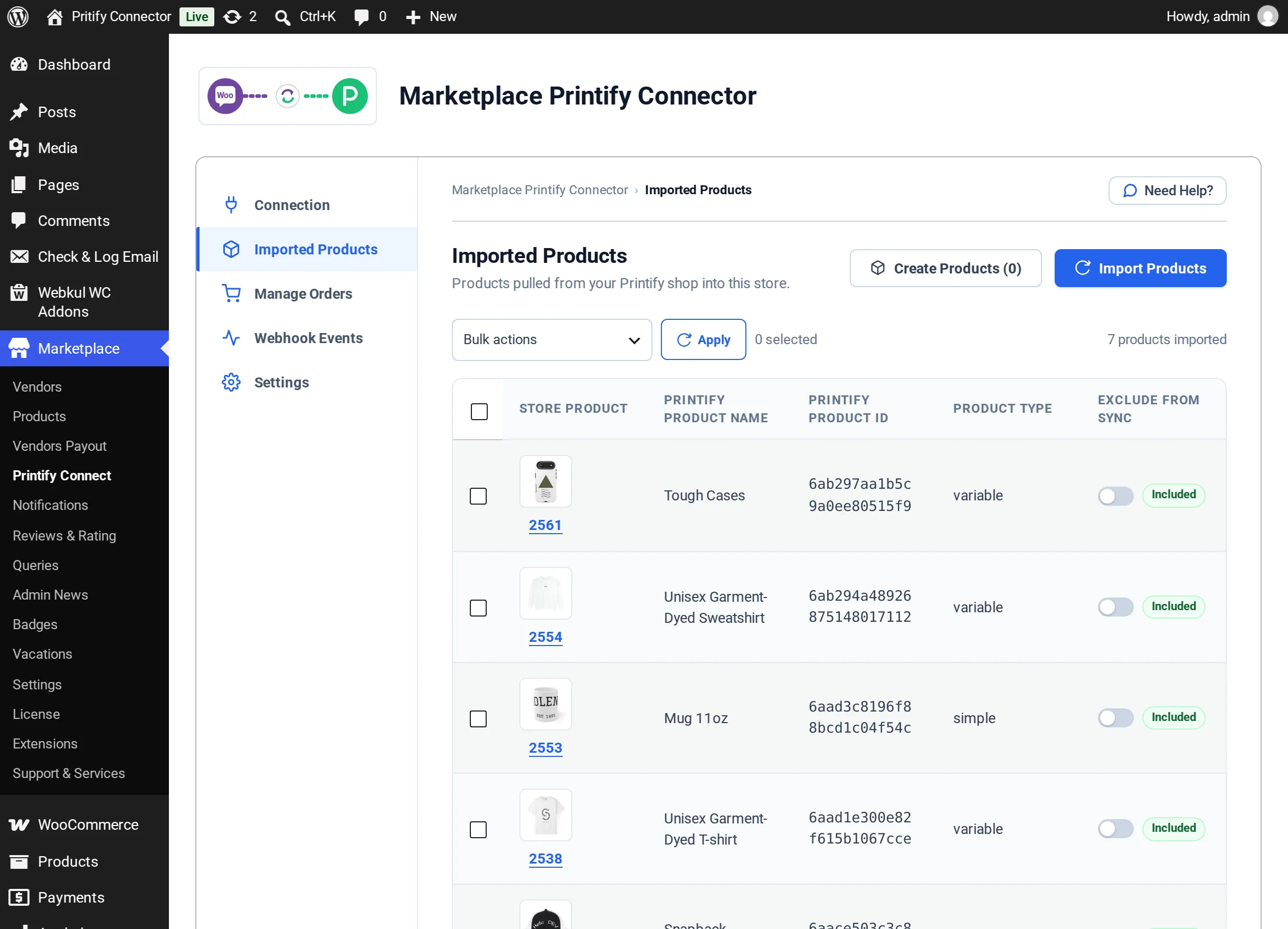
| Store Product | Thumbnail and ID of the WooCommerce product, linked to its edit page |
| Printify Product Name | The name in Printify, with an image badge while images import or if they failed |
| Printify Product ID | Printify's 24-character product ID |
| Product Type | simple or variable |
| Exclude from Sync | Toggle between Included and Excluded |
The table shows 10 products per page.
Bulk actions
Tick one or more products, choose a bulk action and select Apply.
| Action | Result |
|---|---|
| Update from Printify | Replaces the fields selected in Select Fields to Update from Printify with Printify's latest values |
| Exclude from Sync | Stops these products being updated from Printify |
| Include in Sync | Lets excluded products update again |
| Delete permanently | Deletes the WooCommerce products and their Printify link |
Update from Printify
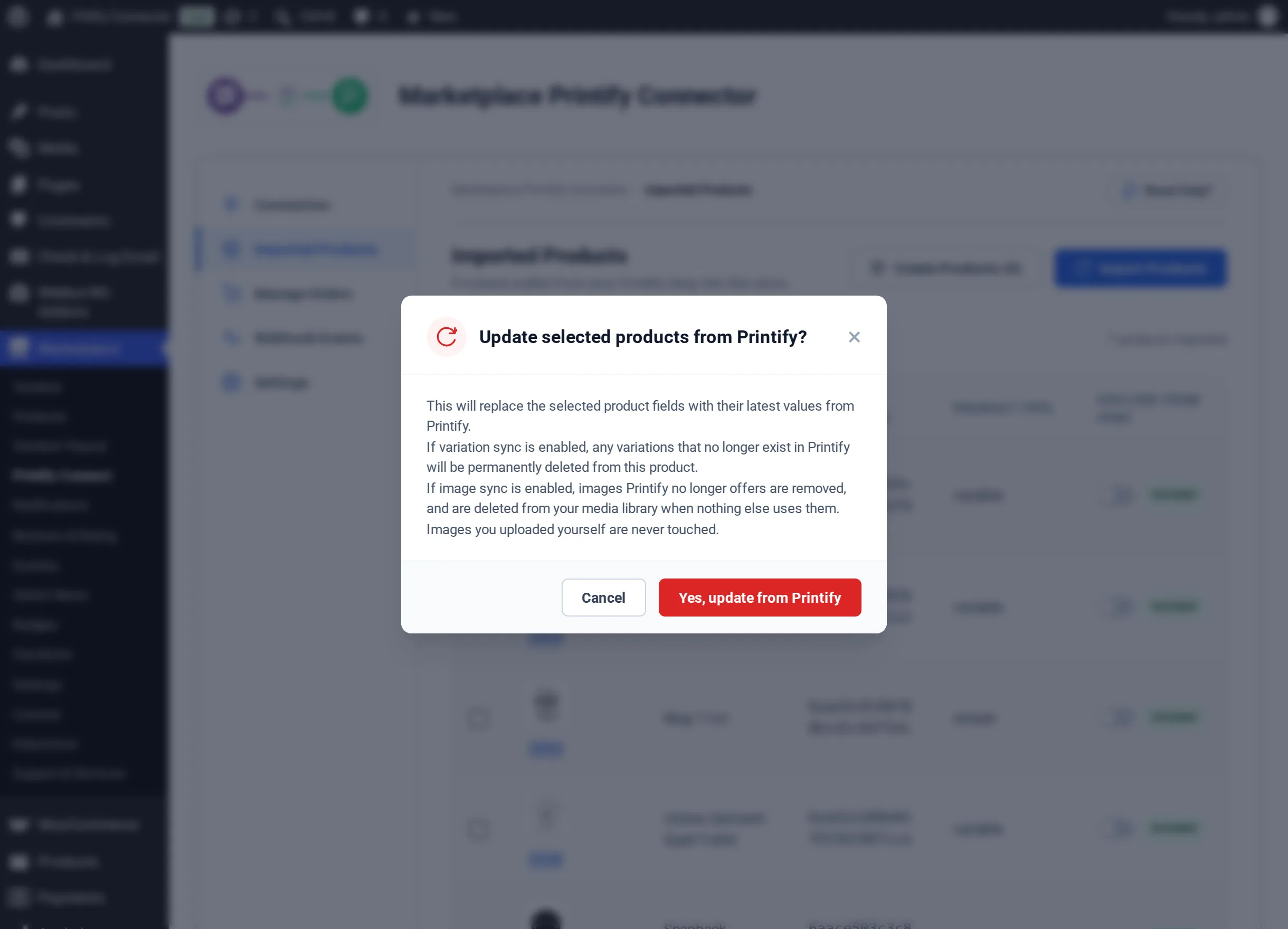
Confirm with Yes, update from Printify. Keep in mind:
- If Variations is selected, variations that no longer exist in Printify are permanently deleted from the product.
- If Images is selected, images Printify no longer offers are removed, and deleted from the media library when nothing else uses them. Images you uploaded yourself are never touched.
- Excluded products are skipped.
- If a product's options changed in Printify (for example a new size option), it is left untouched. Delete it here and import it again.
Delete permanently
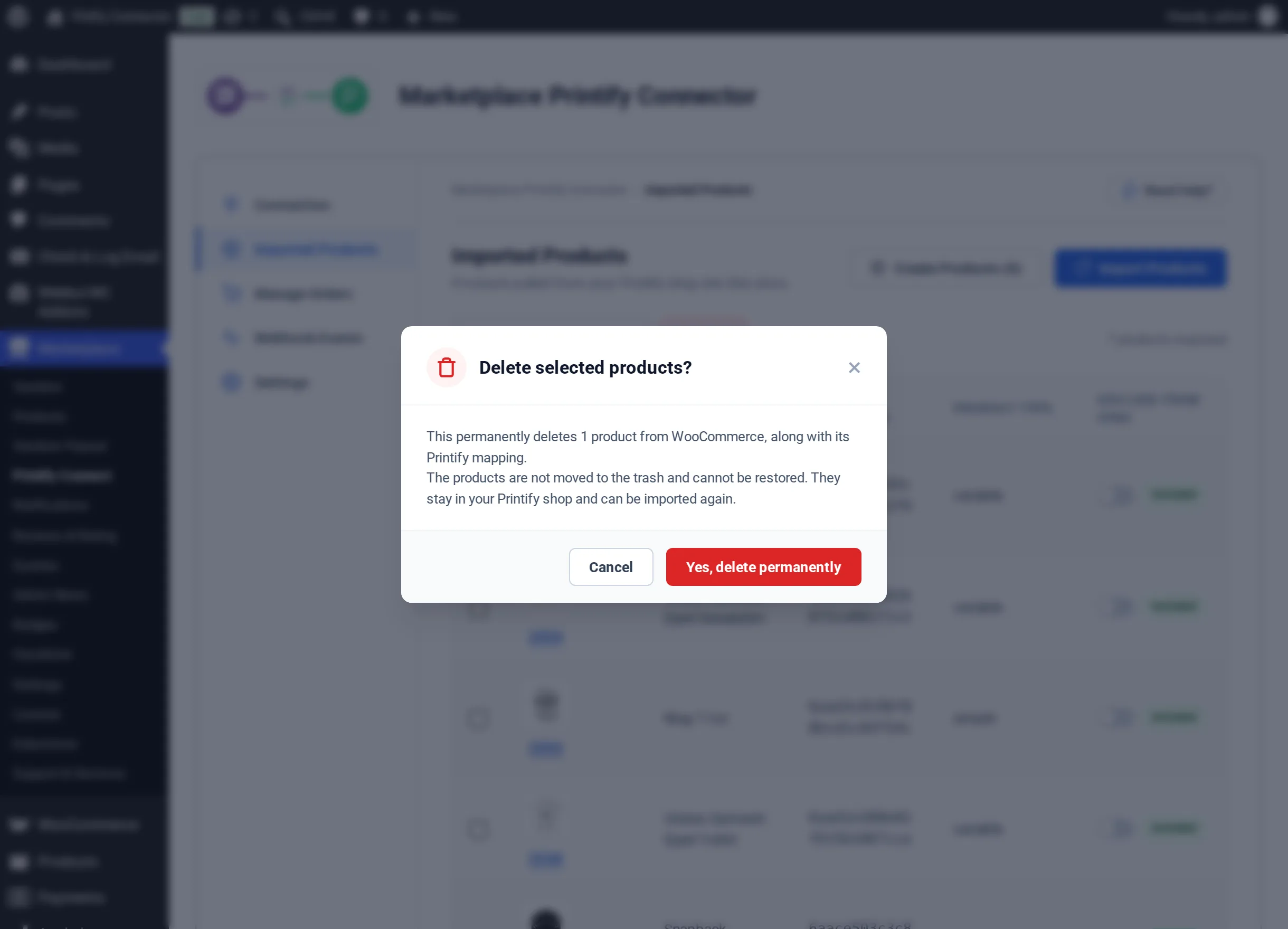
Confirm with Yes, delete permanently. The products are not moved to Trash and cannot be restored. They stay in your Printify shop and can be imported again.
Vendors
Vendors import and manage their own products on the same screen.