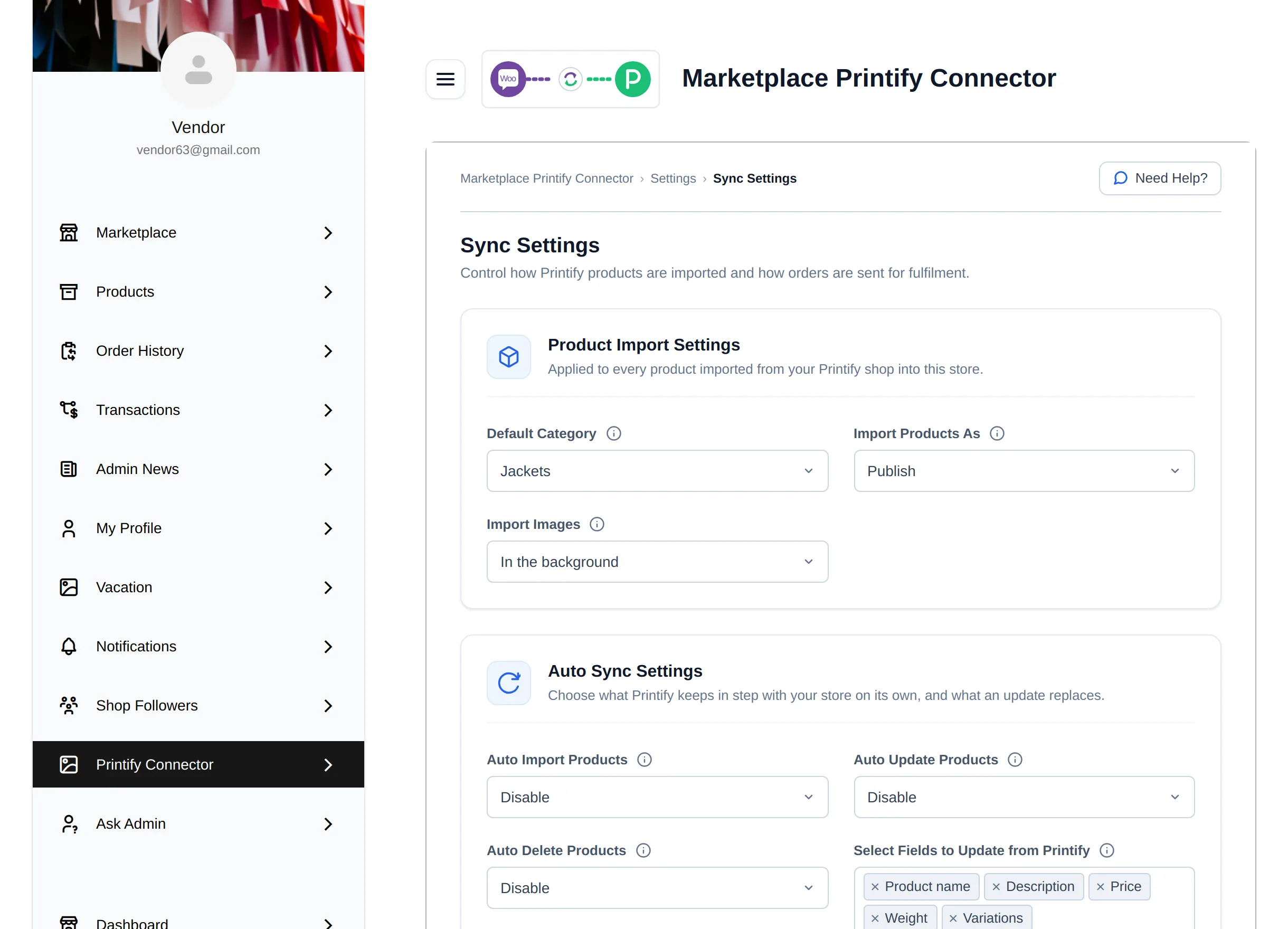
Sync Settings
Sync Settings decides how Printify products are imported, what Printify may change automatically and how orders move between the two platforms. The admin and each vendor have their own settings.
- Admin: Marketplace → Printify Connect → Settings → Sync Settings
- Vendor: My Account → Printify Connector → Settings → Sync Settings
Change what you need and select Save Sync Settings. The message Settings saved. confirms it. Hover the ⓘ icon next to any field for a short explanation.
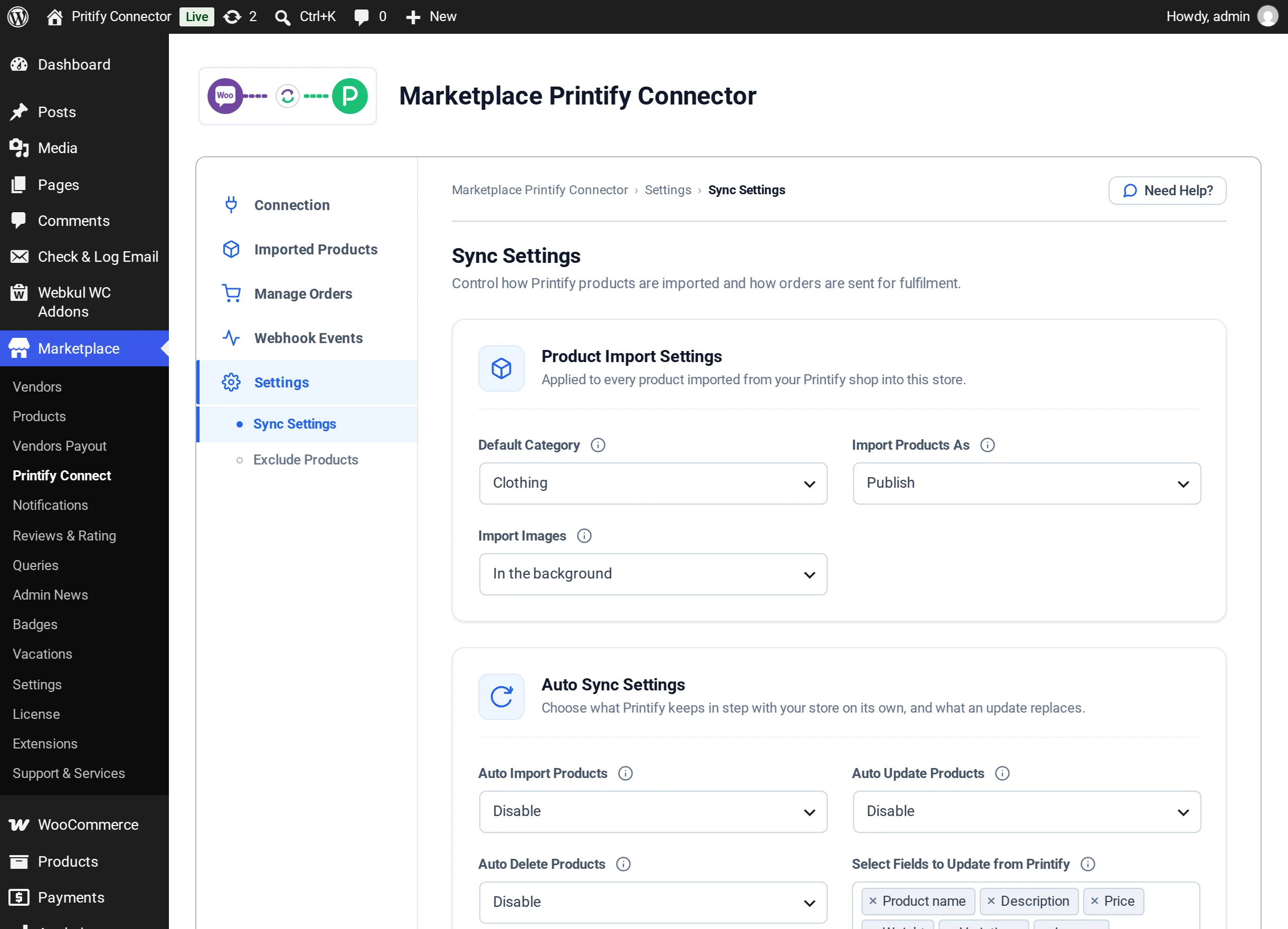
Product Import Settings
Applied to every product imported from your Printify shop.
| Setting | Description | Default |
|---|---|---|
| Default Category | WooCommerce category given to imported products | No category |
| Import Products As | Draft keeps products hidden until you review them. Publish puts them on sale at once. | Draft |
| Import Images | With the product: each product arrives with its first five images and the rest follow in the background. In the background: products appear quickly and all images follow. Best for large imports. | In the background |
The setup wizard fills in Default Category and Import Products As with the values you chose there.
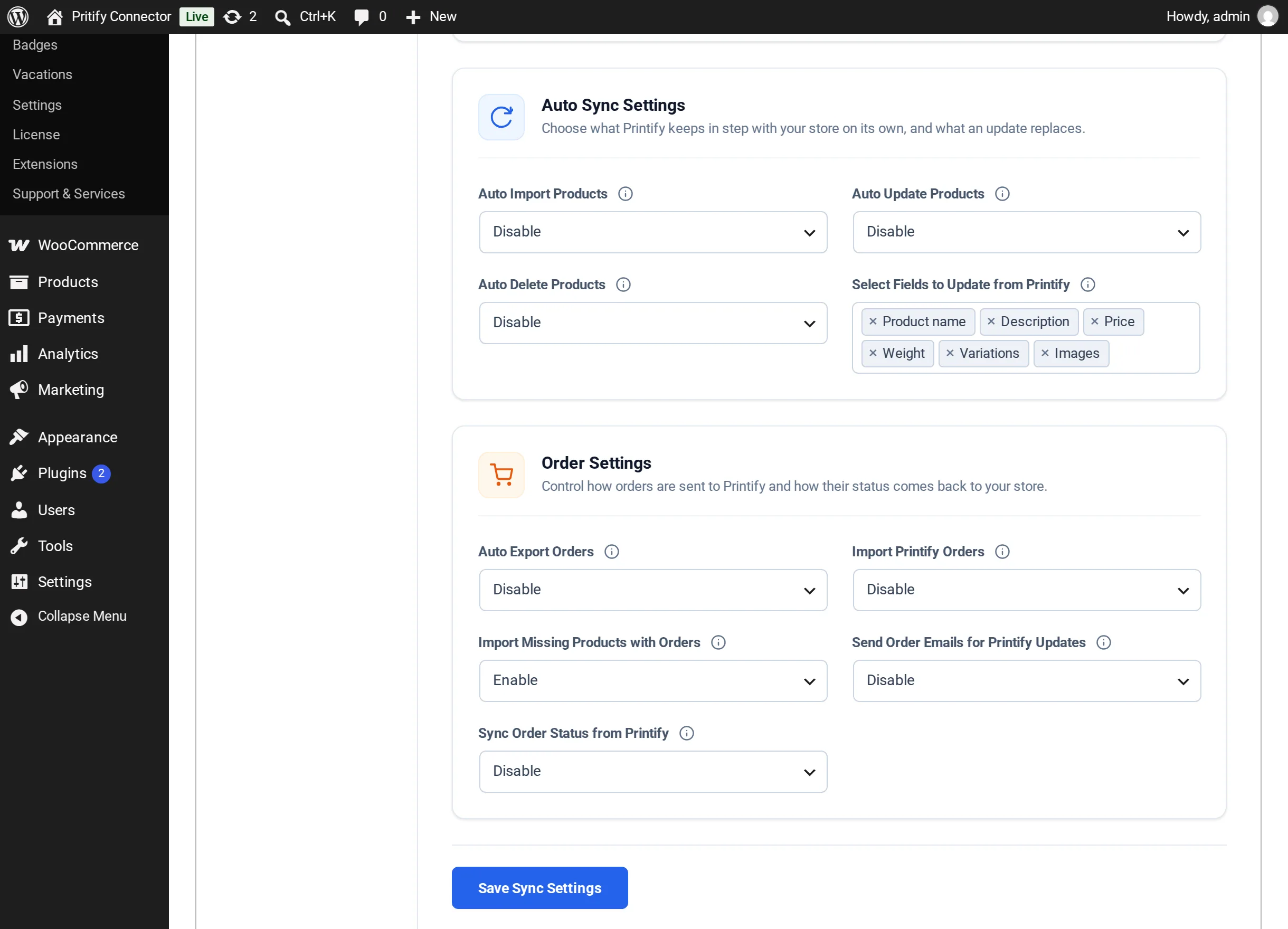
Auto Sync Settings
Choose what Printify keeps in step with your store on its own. These settings rely on the webhooks shown on Webhook Events.
| Setting | When enabled | When disabled | Default |
|---|---|---|---|
| Auto Import Products | A product created in Printify is imported and created in your store automatically | The product is still pulled in and waits on Imported Products for you to create it | Disable |
| Auto Update Products | When a product changes in Printify, the store copy is updated, replacing only the fields selected below | Store products stay as they are until you run Update from Printify | Disable |
| Auto Delete Products | A product deleted in Printify is moved to Trash in your store, where it can be restored | The store copy is kept | Disable |
Select Fields to Update from Printify
Choose which product fields an update may replace. This applies both to automatic updates and to Update from Printify on the Imported Products screen.
| Field | Selected by default |
|---|---|
| Product name | Yes |
| Description | Yes |
| Price | Yes |
| Weight | Yes |
| Variations | No |
| Images | No |
Updated fields overwrite your edits. If you change a product's price in WooCommerce and Price is selected, the next update puts Printify's price back. Leave a field unselected, or exclude the product, to keep your own values.
Selecting Variations makes the product match Printify exactly, which permanently deletes variations Printify no longer has. If no field is selected, an update changes nothing.
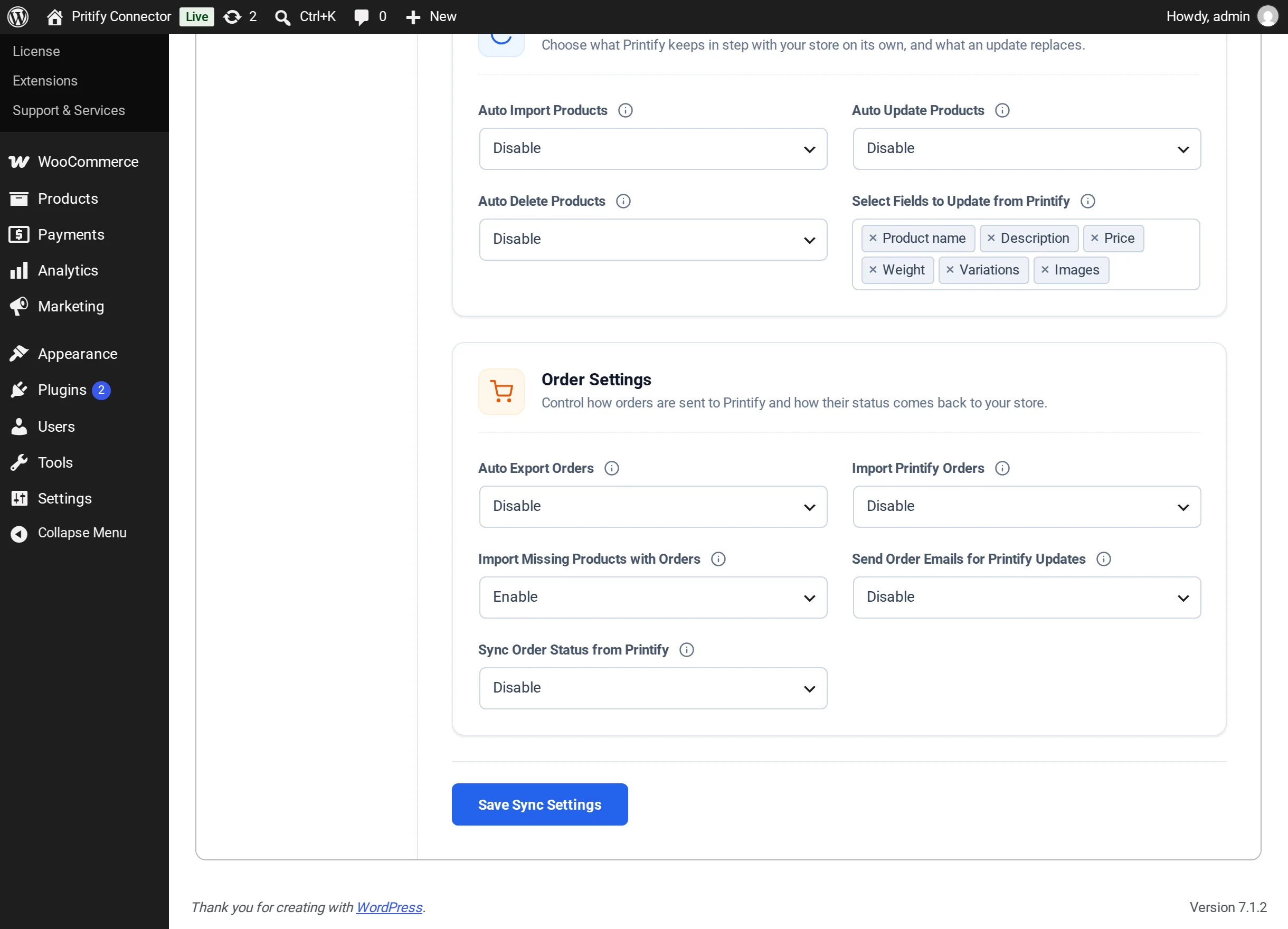
Order Settings
Control how orders are sent to Printify and how their status comes back to your store.
| Setting | Description | Default |
|---|---|---|
| Auto Export Orders | Sends orders containing your Printify products to Printify as soon as they are placed | Disable |
| Import Printify Orders | Adds orders placed directly in Printify to your store automatically as they arrive. When disabled you can still use Import from Printify on Manage Orders. | Disable |
| Import Missing Products with Orders | When an imported order contains a product that is not in your store yet, the product is imported first and linked to the order. Excluded products are never imported. When disabled, the item appears by name only. | Enable |
| Send Order Emails for Printify Updates | Sends the usual customer, vendor and store emails when Printify updates an order, for orders sent to Printify and orders imported from it. When disabled, no emails go out for Printify status changes, and none at all for imported orders. Emails for orders placed in your store and for changes you make yourself are always sent. | Disable |
| Sync Order Status from Printify | When Printify updates an order, the WooCommerce order moves to the status mapped below and gets a note with the Printify status and any tracking number | Disable |
Order Status Mapping
When Sync Order Status from Printify is set to Enable, the Order Status Mapping table appears. Choose the WooCommerce status for each Printify status.
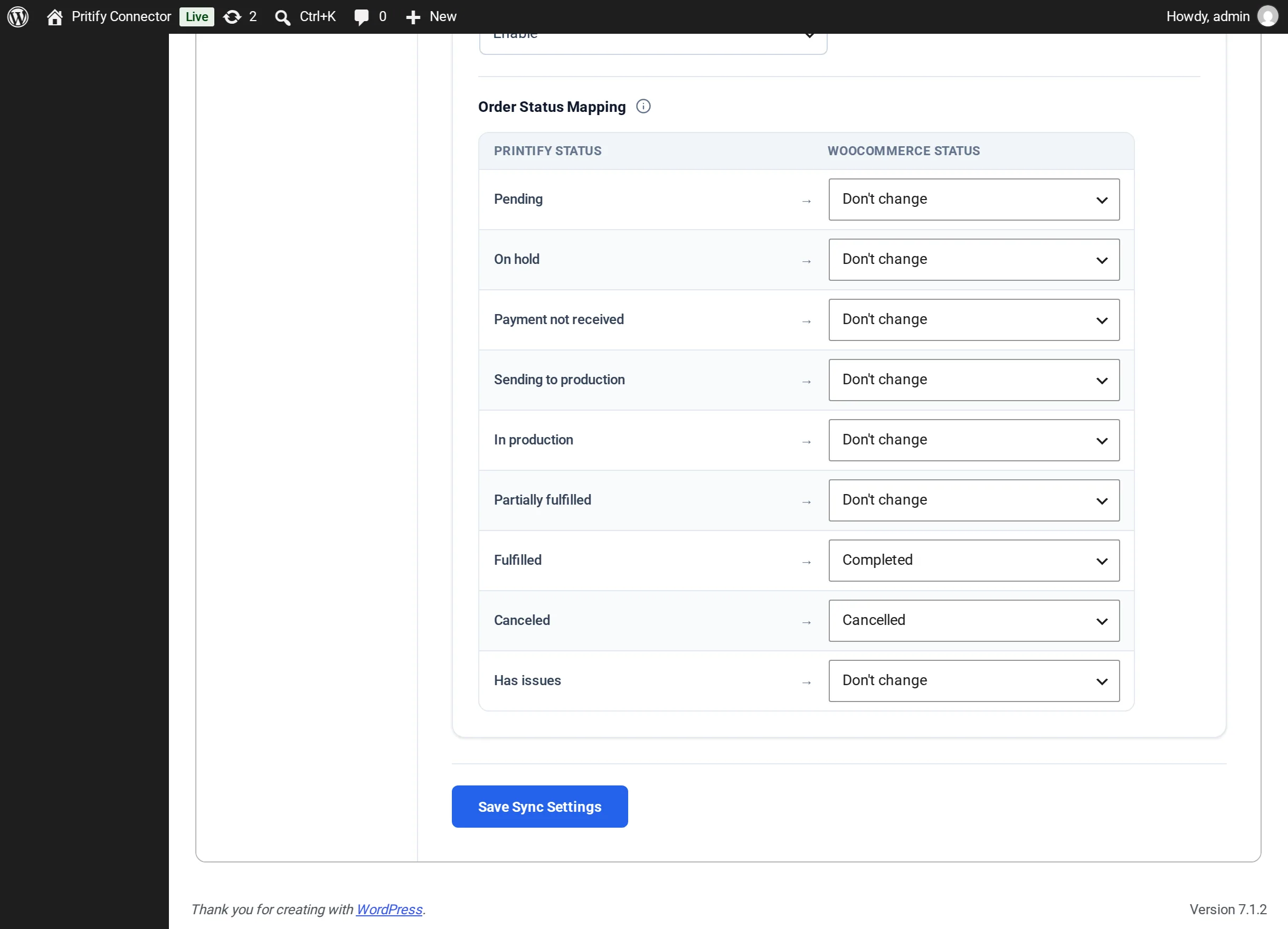
| Printify status | Default WooCommerce status |
|---|---|
| Pending | Don't change |
| On hold | Don't change |
| Payment not received | Don't change |
| Sending to production | Don't change |
| In production | Don't change |
| Partially fulfilled | Don't change |
| Fulfilled | Completed |
| Canceled | Cancelled |
| Has issues | Don't change |
Don't change only adds an order note. Orders that also contain other sellers' items only get a note, whatever the mapping says.
Vendors
Vendors see and save the same settings for their own shop.