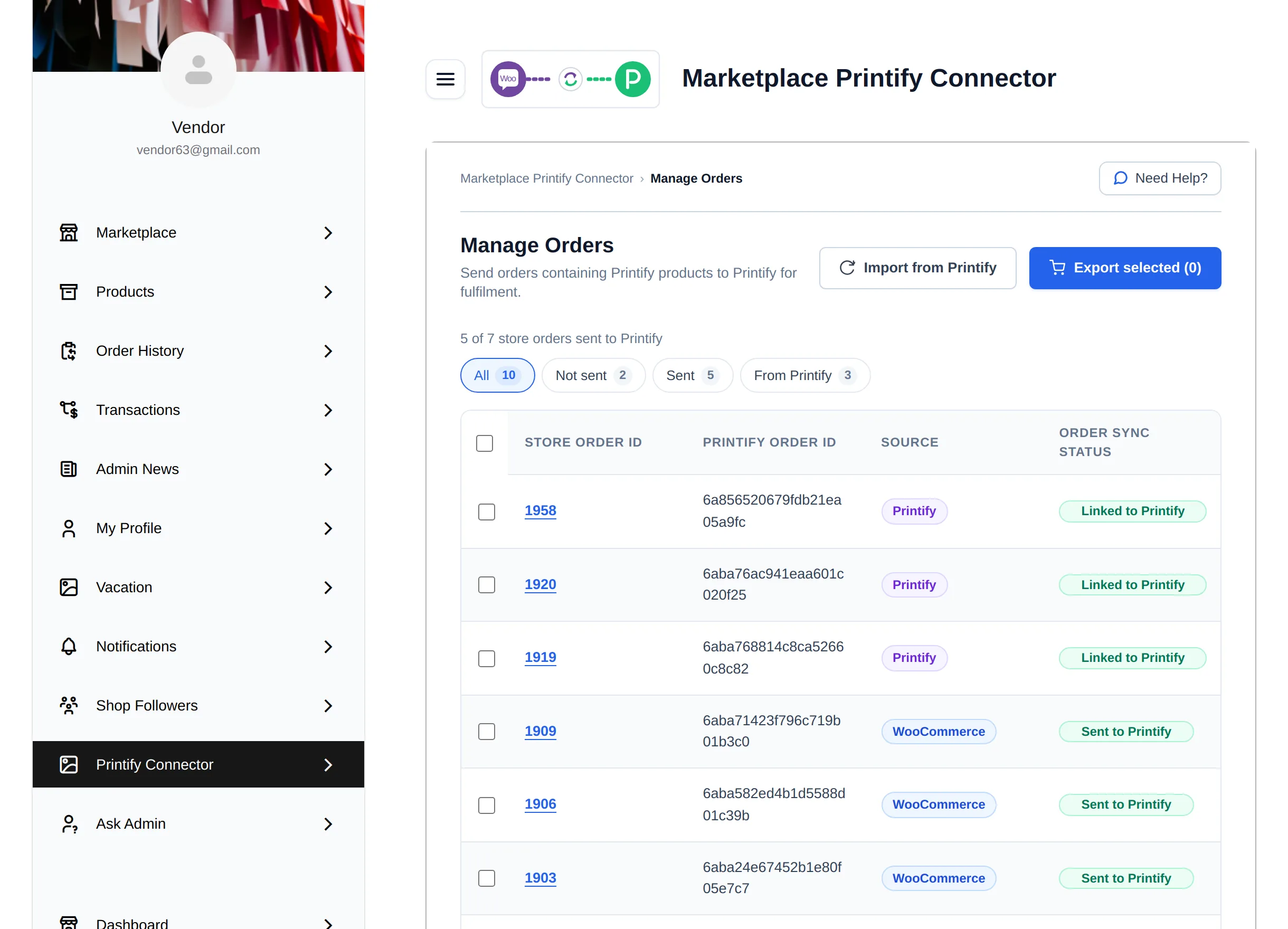
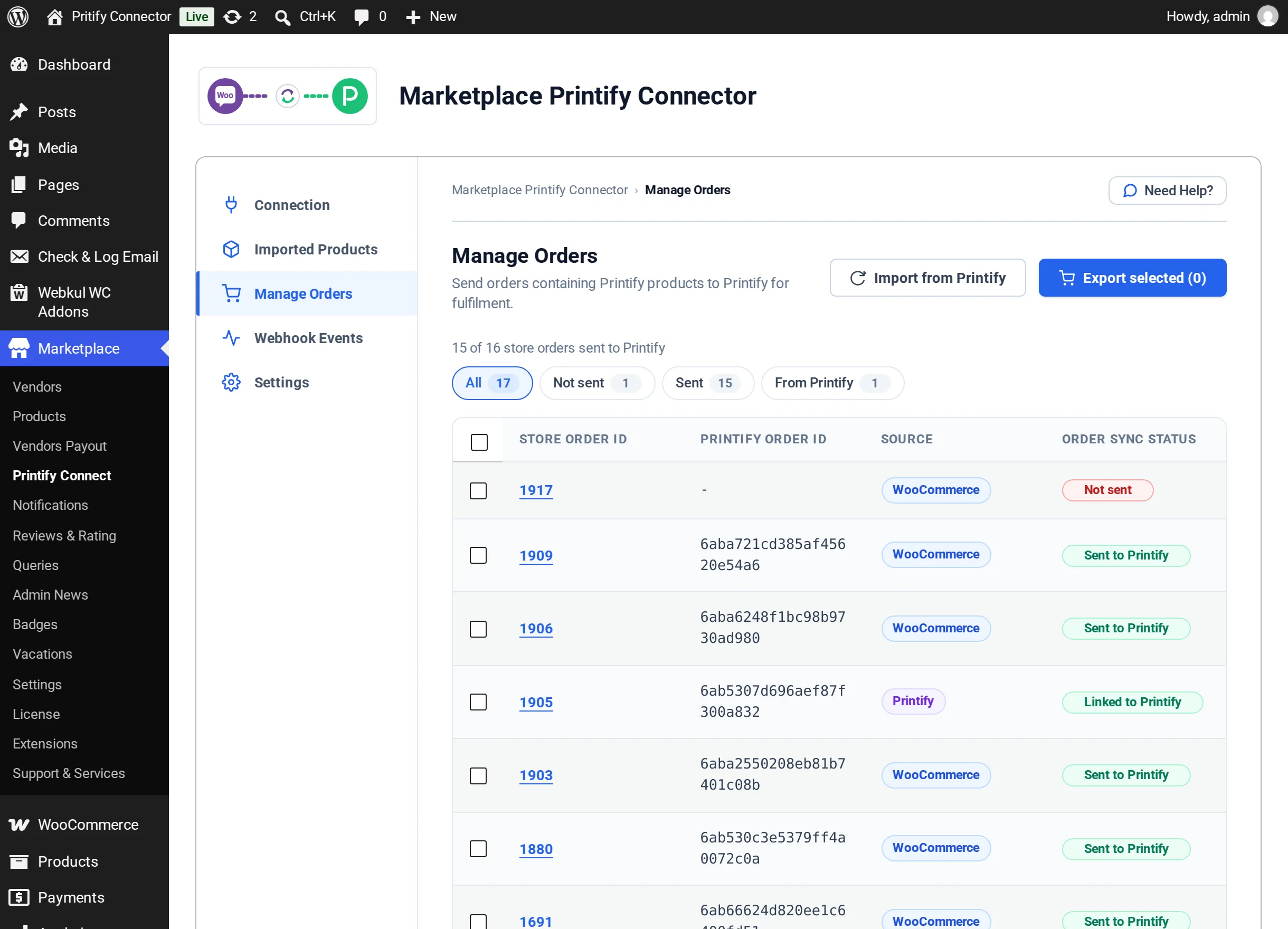
Manage Orders
Manage Orders lists every order that contains your Printify products and lets you send them to Printify for printing and shipping.
- Admin: Marketplace → Printify Connect → Manage Orders
- Vendor: My Account → Printify Connector → Manage Orders
How orders reach this list
When a customer checks out with a Printify product, the order is added to the list of the admin or vendor who owns that product. An order with items from several sellers appears on each seller's list, and each seller works only with their own Printify items.
The line above the table shows how many of your store orders have been sent, for example 15 of 16 store orders sent to Printify.
Filters and columns
Use the filter tabs to narrow the list: All, Not sent, Sent and From Printify.
| Column | Shows |
|---|---|
| Store Order ID | The WooCommerce order, linked to the order page. For vendors it opens their marketplace order view. |
| Printify Order ID | Printify's ID once the order is in Printify, otherwise - |
| Source | WooCommerce for orders placed in your store, Printify for orders imported from Printify |
| Order Sync Status | Not sent, Sent to Printify or Linked to Printify |
Export orders to Printify
Automatically
Enable Auto Export Orders in the setup wizard or in Sync Settings. Each new order containing your Printify products is sent to Printify as soon as it is placed. If Printify refuses one, it stays Not sent and you can export it by hand.
By hand
- Tick the orders to send, or filter by Not sent first.
- Select Export selected (N).
The result panel reports how many orders were exported, which were skipped because they were already sent, and the reason for any order Printify refused, as Order #N: reason.
What is sent to Printify:
- the shipping address (or the billing address when there is none), email and phone
- only your own Printify items from the order
- shipping, tax and coupon details
Orders are sent as paid, because the customer has already paid in your store.
Import orders from Printify
Select Import from Printify to bring in orders that were placed directly in Printify. The connector skips orders already in the store, canceled orders and orders Printify is still calculating.
An imported order:
- uses the customer's address from Printify
- uses Printify's prices, with a Printify shipping line and a Tax line, so totals match Printify
- gets the status mapped in Order Status Mapping, or Processing when no mapping applies
- gets an order note with the Printify order number and status
- is linked to the vendor who owns the Printify shop
If an imported order contains a product that is not in your store yet, it is imported first when Import Missing Products with Orders is enabled. Otherwise the item appears by name only.
To bring these orders in automatically as they are placed, enable Import Printify Orders in Sync Settings.
Order status and tracking
When Sync Order Status from Printify is enabled, every Printify update adds an order note with the Printify status and moves the WooCommerce order to the mapped status. If the order also contains other sellers' items, only the note is added so the other sellers' items are not affected.
When Printify ships an order, the customer receives a customer note with the carrier, tracking number and a Track your parcel link. Orders shipped in several parcels list every tracking number.
Whether customers, vendors and the admin receive emails for these updates depends on Send Order Emails for Printify Updates.
If an order is not sent
| Message | What to do |
|---|---|
| Your Printify account is not connected. | Connect it on the Connection screen and try again |
| It has no products from your Printify shop. | The order holds none of your Printify products, so there is nothing to send |
| Printify did not accept your API token. | Reconnect with a new token |
| Printify is receiving too many requests. Wait a minute and try again. | Wait, then export again |
| Printify had a problem on its side. Try again in a few minutes. | Try again later |
| This order failed because a product in it is no longer available in your Printify store. | Check the product in Printify, or remove it from the order |
| Printify refused it: … | Read Printify's reason, fix it (often the address), then export again |
Details of every Printify request are written to the WooCommerce log under the source wkmp-printify (WooCommerce → Status → Logs).
Vendors