
Auto Sync Settings
Auto Sync turns the connector from a manual tool into a background service: products, orders, payments, refund receipts, and images synchronize as your store operates.
Open Webkul WC Addons → WC Quick Book Connector → Configuration → Auto Sync.
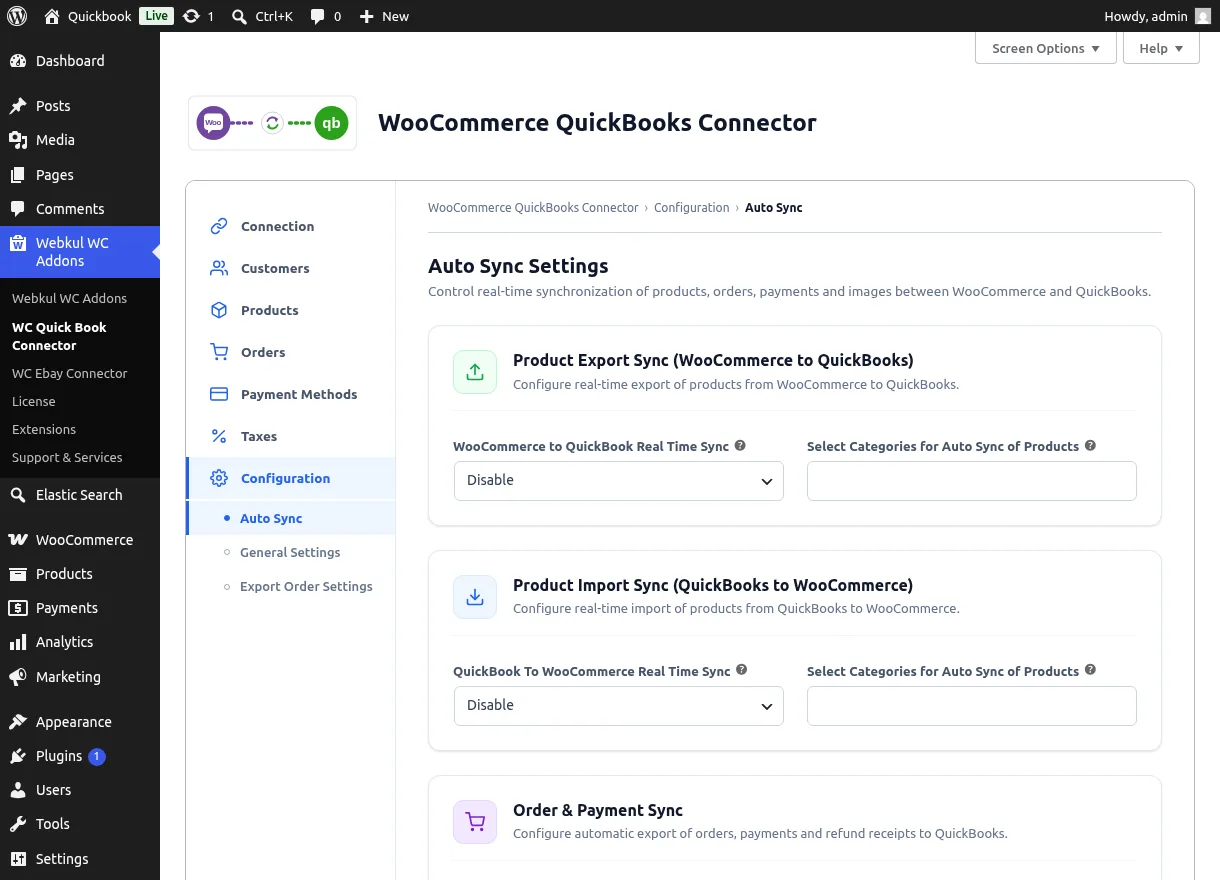
Product Export Sync (WooCommerce to QuickBooks)
| Setting | Description |
|---|---|
| WooCommerce to QuickBook Real Time Sync | Enable to export a product to QuickBooks automatically whenever it is published or updated |
| Select Categories for Auto Sync of Products | Limit real-time export to chosen WooCommerce categories — pick All or any set of parent/child categories |
A product outside the selected categories is skipped (the skip is noted in the sync log). Variable products export each variation.
Product Import Sync (QuickBooks to WooCommerce)
| Setting | Description |
|---|---|
| QuickBook To WooCommerce Real Time Sync | Enable to create/update WooCommerce products when items change in QuickBooks (delivered via QuickBooks webhooks) |
| Select Categories for Auto Sync of Products | Limit real-time import to chosen QuickBooks categories |
Imported products receive the default status chosen in General Settings.
Order & Payment Sync
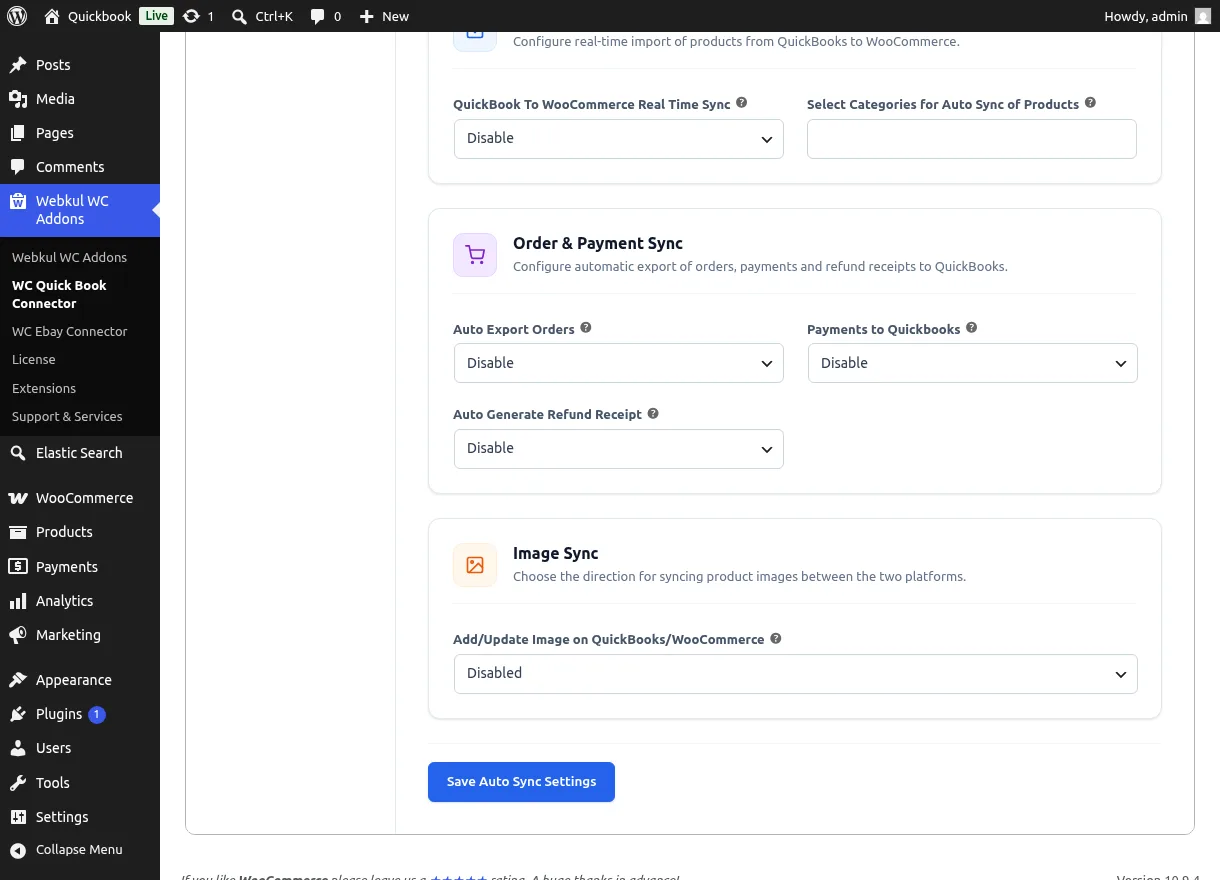
| Setting | Options | Description |
|---|---|---|
| Auto Export Orders | Disable, All, Pending, Processing, On hold, Completed | Exports an order the moment it reaches the selected status (with All, every status change syncs). Works together with the transaction type set in Export Order Settings |
| Payments to Quickbooks | Disable / Enable | Master switch for payment records; fine-tune per gateway in Payment Methods → Advanced Configuration |
| Auto Generate Refund Receipt | Disable / Enable | Creates a QuickBooks refund receipt whenever you refund a WooCommerce order |
How auto export fires
Order export triggers both on the customer's order-received page and on any admin status change — whichever brings the order to your selected status first.
Image Sync
| Setting | Options |
|---|---|
| Add/Update Image on QuickBooks/WooCommerce | Disabled, WooCommerce to QuickBooks, QuickBooks to WooCommerce |
Product images follow the chosen direction whenever a product is added or updated.
Click Save Auto Sync Settings to apply.
Behind the Scenes
- QuickBooks change notifications (items, invoices, bills, payments) arrive by webhook and are processed asynchronously so they never slow your site down. For this, register your store's webhook endpoint in your Intuit app — see Set up the webhook.
- Background schedules re-check recently updated QuickBooks items every few minutes and work through the pending update queue.
- Every sync event is written to WooCommerce → Status → Logs (look for the WooCommerce QuickBook log sources) — the first place to check if something didn't sync.
Related Features
- Export Order Settings — how auto-exported orders are recorded
- Products — manual export and the staged import flow