
General Settings
General Settings tells QuickBooks where your commerce data belongs — which accounts receive product income and expenses, which tax code applies by default, and how imports behave. Complete this page right after connecting.
Open Webkul WC Addons → WC Quick Book Connector → Configuration → General Settings.
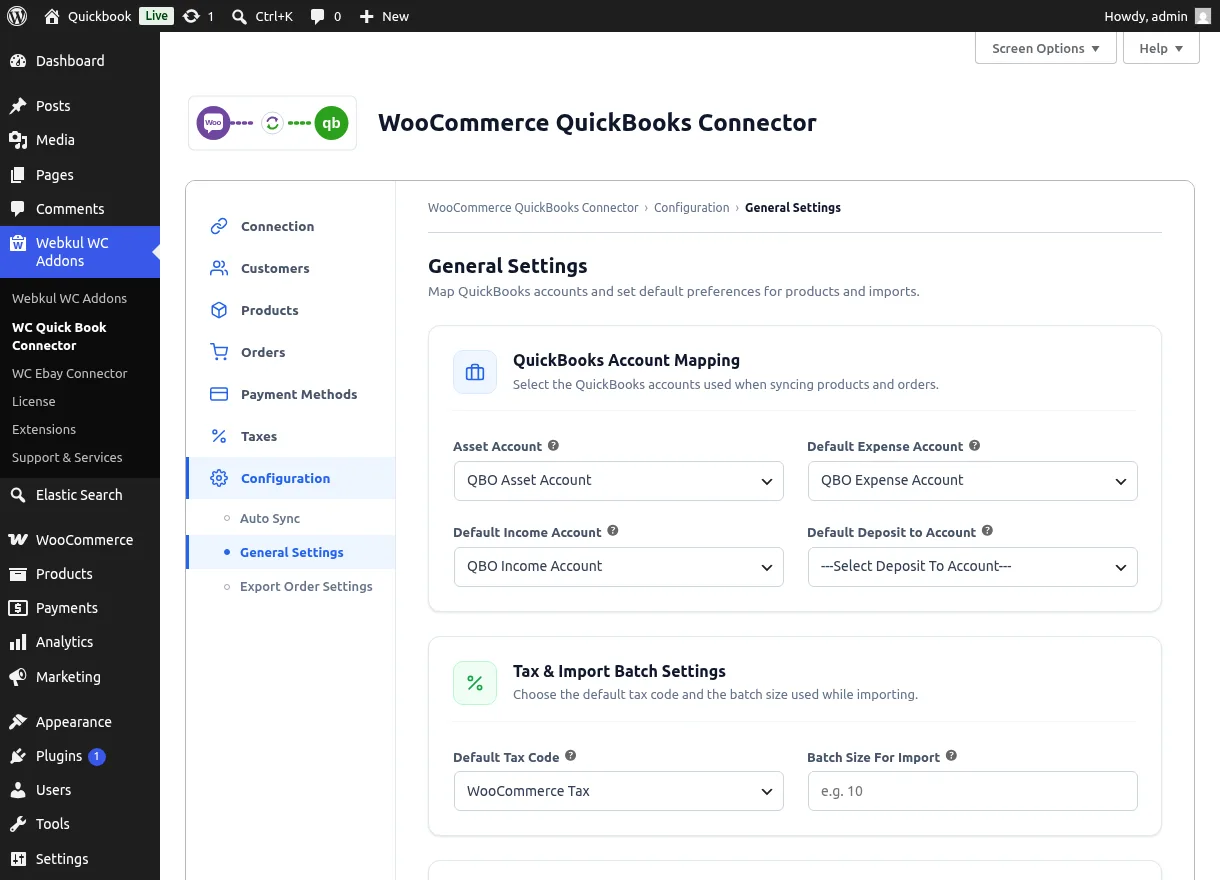
QuickBooks Account Mapping
Each dropdown lists the matching accounts from your connected QuickBooks company:
| Setting | Description |
|---|---|
| Asset Account | QuickBooks asset account used for inventory products |
| Default Expense Account | Expense account used when syncing products |
| Default Income Account | Income account recorded for product sales |
| Default Deposit to Account | Account that receives deposits by default |
Map accounts before syncing products or orders
Product and order exports reference these accounts. If the dropdowns are empty, check that the connection is active — the lists load live from QuickBooks.
Tax & Import Batch Settings
| Setting | Description | Allowed values |
|---|---|---|
| Default Tax Code | QuickBooks tax code applied when no specific tax mapping matches | Your QuickBooks tax codes |
| Batch Size For Import | How many records each import batch processes | 3 – 30 |
A smaller batch size is gentler on slow servers; a larger one finishes big imports faster.
Product Preferences
| Setting | Description | Options |
|---|---|---|
| Default QuickBooks Import Product Status | WordPress status given to products created from QuickBooks | Draft, Pending, Published |
| Export Products on QuickBooks With Price Zero | Whether zero-price products are exported | No / Yes |
Review imports as drafts
Importing as Draft lets you review titles, prices, and images before products go live on your storefront.
Click Save Account to apply your changes.
Related Features
- Auto Sync Settings — turn on real-time synchronization
- Products — the import flow that uses the batch size and product status set here