
Taxes
Tax mapping ties each WooCommerce tax class to the matching tax in QuickBooks, so exported orders show the same tax your customers actually paid.
Open Webkul WC Addons → WC Quick Book Connector → Taxes.
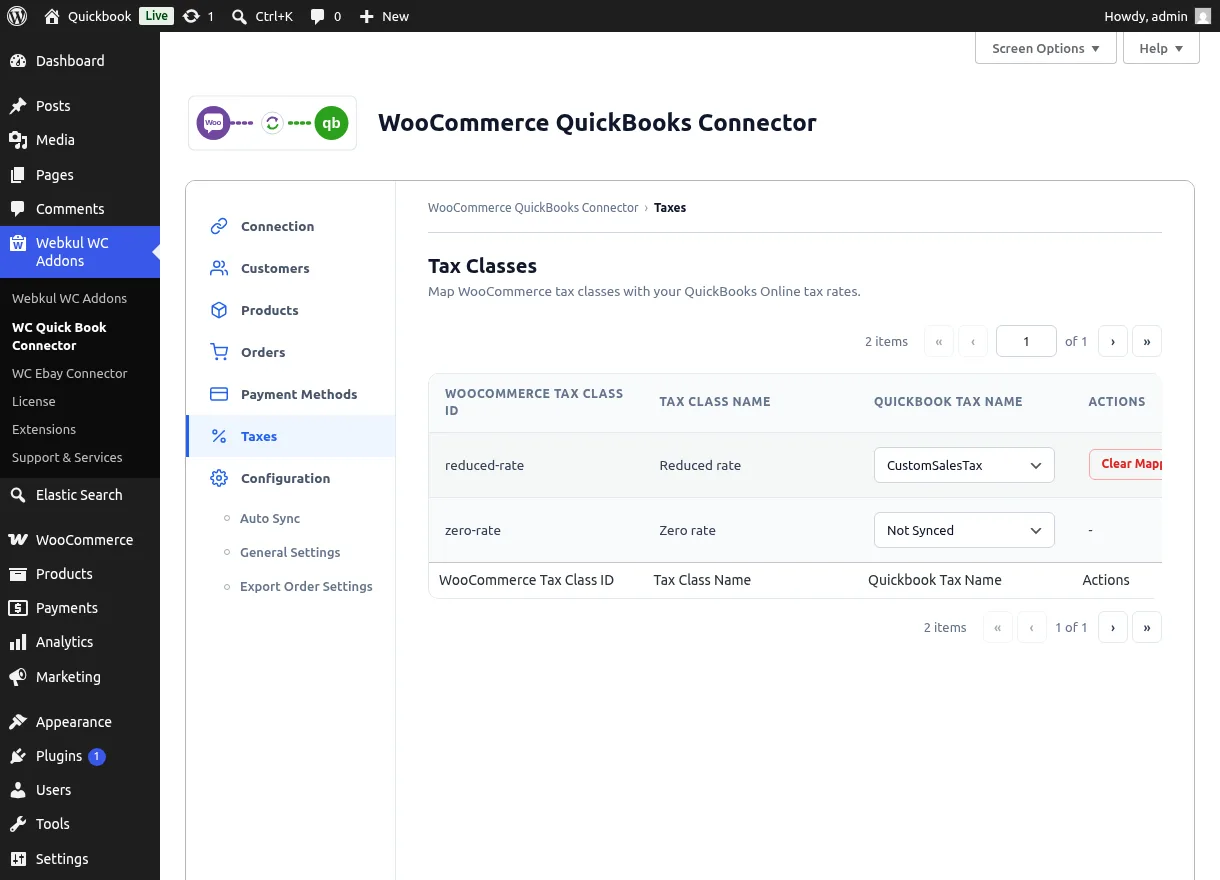
Reading the List
| Column | Meaning |
|---|---|
| WooCommerce Tax Class ID | The tax class slug |
| Tax Class Name | The tax class as configured in WooCommerce → Settings → Tax |
| Quickbook Tax Name | The mapped QuickBooks tax, or Not Synced |
| Actions | Clear Mapping for mapped rows |
Mapping a Tax Class
- Open the Quickbook Tax Name dropdown on the tax class row.
- Search and select the matching QuickBooks tax — the list loads live from your connected company.
- The mapping saves immediately.
To undo a mapping, use Clear Mapping — a confirmation is shown, and the WooCommerce tax class itself is never modified ("Tax class mapping cleared successfully." confirms the change).
Fallback tax code
Records without a specific mapping fall back to the Default Tax Code chosen in General Settings. Map every tax class you actively use so nothing relies on the fallback unintentionally.
Related Features
- General Settings — the default tax code
- Export Order Settings — how taxed orders are recorded in QuickBooks