
Export Order Settings
This page decides how a WooCommerce order looks once it lands in QuickBooks — the transaction type, the dates and descriptions QuickBooks records, and the default classification.
Open Webkul WC Addons → WC Quick Book Connector → Configuration → Export Order Settings.
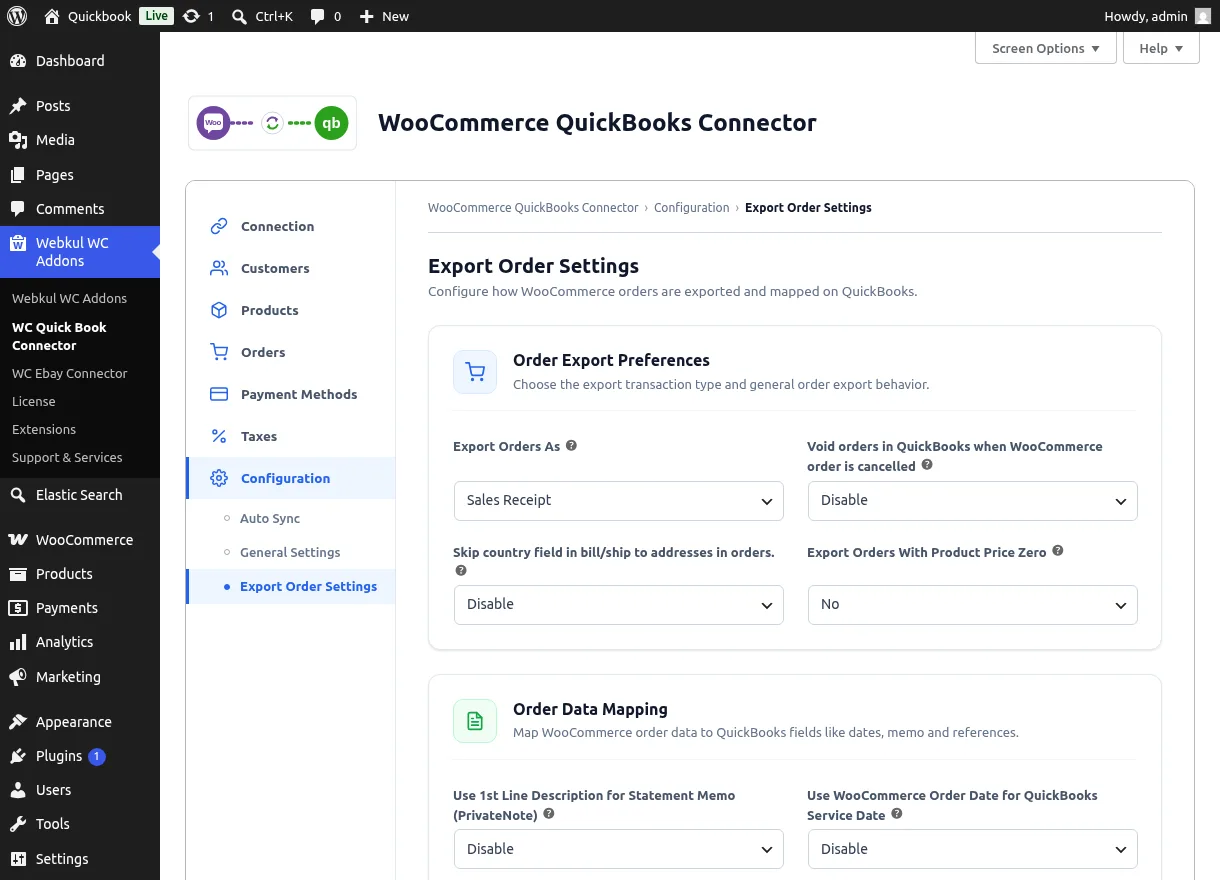
Order Export Preferences
| Setting | Options | Description |
|---|---|---|
| Export Orders As | Sales Receipt, Invoice, Estimate, Credit Memo | The QuickBooks transaction type created for each exported order |
| Void orders in QuickBooks when WooCommerce order is cancelled | Disable / Enable | Keeps QuickBooks in step when an order is cancelled after export |
| Skip country field in bill/ship to addresses in orders | Disable / Enable | Omits the country line from QuickBooks addresses |
| Export Orders With Product Price Zero | No / Yes | Whether orders containing zero-price products are exported |
Sales Receipt vs Invoice
Choose Sales Receipt when payment is captured with the order (typical online sales). Choose Invoice when you collect payment later — pair it with the per-gateway Invoice Due days in Payment Methods → Advanced Configuration.
Order Data Mapping
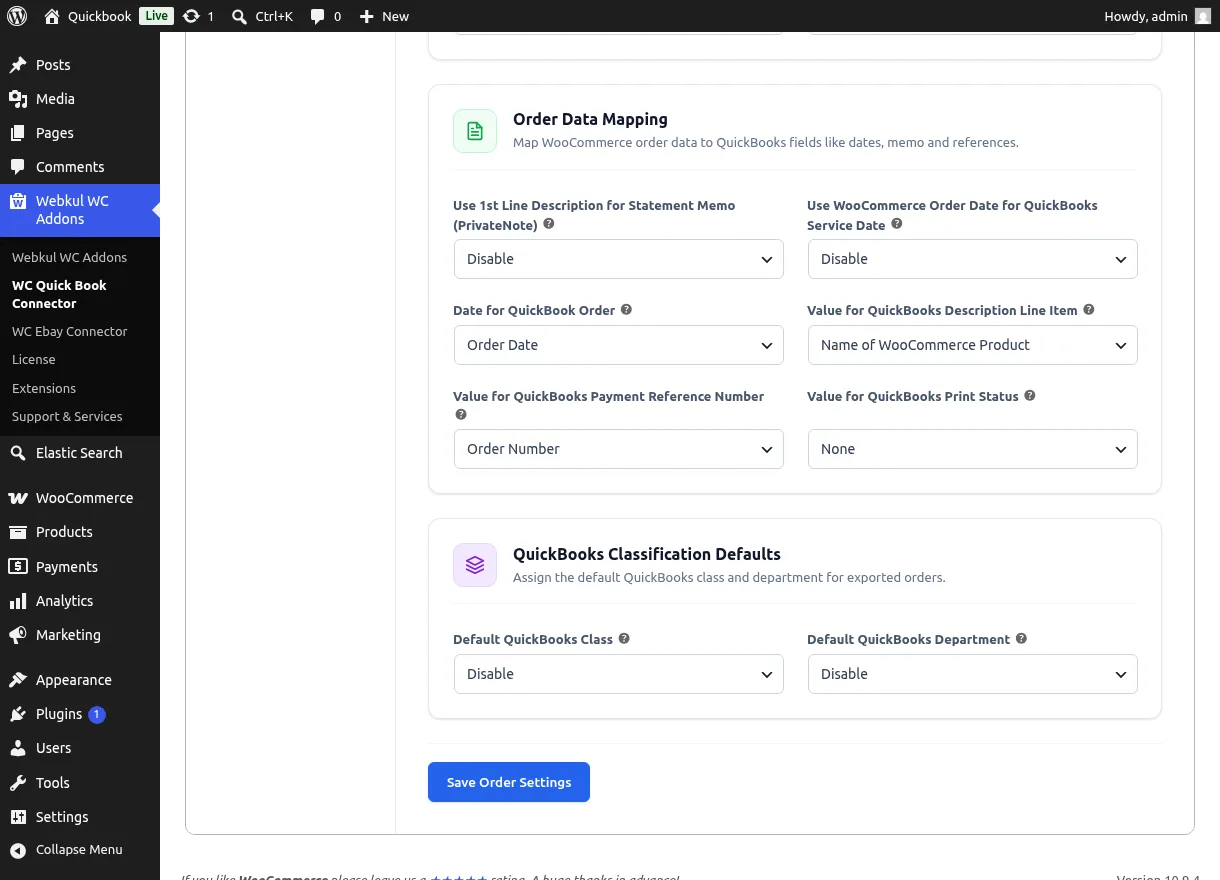
| Setting | Options | Description |
|---|---|---|
| Use 1st Line Description for Statement Memo (PrivateNote) | Disable / Enable | Copies the first line description into the QuickBooks statement memo |
| Use WooCommerce Order Date for QuickBooks Service Date | Disable / Enable | Fills the QuickBooks service date from the order date |
| Date for QuickBook Order | Order Date, Order Paid Date, Order Complete Date, Order Sync Date | Which date QuickBooks records as the transaction date |
| Value for QuickBooks Description Line Item | Name of WooCommerce Product, Product Description, Product Short Description | Text used on each QuickBooks line item |
| Value for QuickBooks Payment Reference Number | Order Number, Transaction ID | The reference number stored on the QuickBooks payment |
| Value for QuickBooks Print Status | None, Print Later, Print Complete | Print flag applied to the QuickBooks transaction |
QuickBooks Classification Defaults
| Setting | Description |
|---|---|
| Default QuickBooks Class | QuickBooks class assigned to exported orders (Disable for none) |
| Default QuickBooks Department | QuickBooks department/location assigned to exported orders (Disable for none) |
Both lists load live from your QuickBooks company. Per-gateway overrides are available in Payment Methods → Advanced Configuration.
Click Save Order Settings to apply.