
Payment Methods
Payment mapping makes sure every order's payment is recorded in QuickBooks under the right method, into the right bank account — with gateway fees and scheduled deposits handled per gateway.
Open Webkul WC Addons → WC Quick Book Connector → Payment Methods.
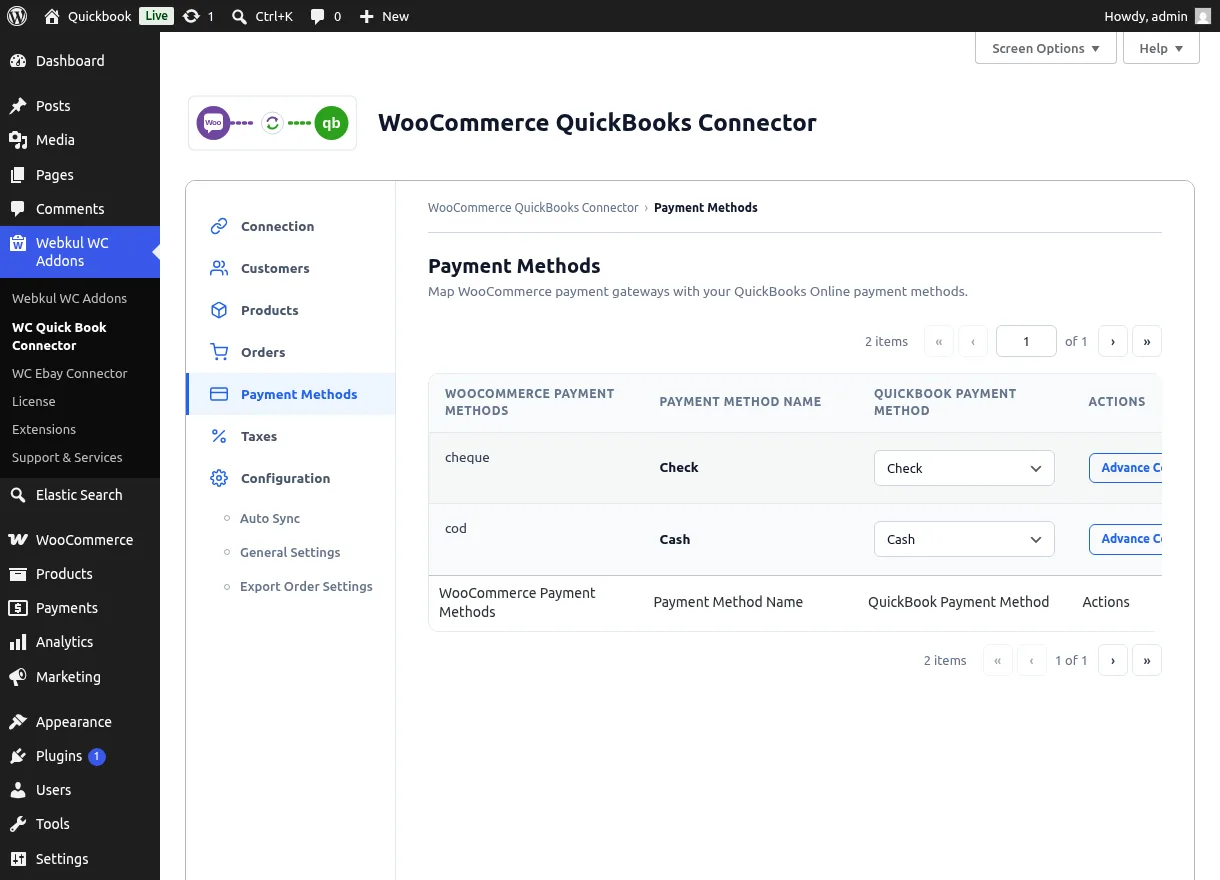
Mapping a Gateway
Every enabled WooCommerce payment gateway appears in the list.
- Open the QuickBook Payment Method dropdown on the gateway's row.
- Search and select the matching QuickBooks payment method (e.g. map Cash on delivery to Cash, Check payments to Check).
- The mapping saves immediately.
Hover a mapped row's gateway ID to reveal Clear Mapping — it removes only the QuickBooks link (with a confirmation dialog); the gateway itself is untouched.
Advanced Configuration
Click Advance Configuration on any gateway to open its dedicated settings page:
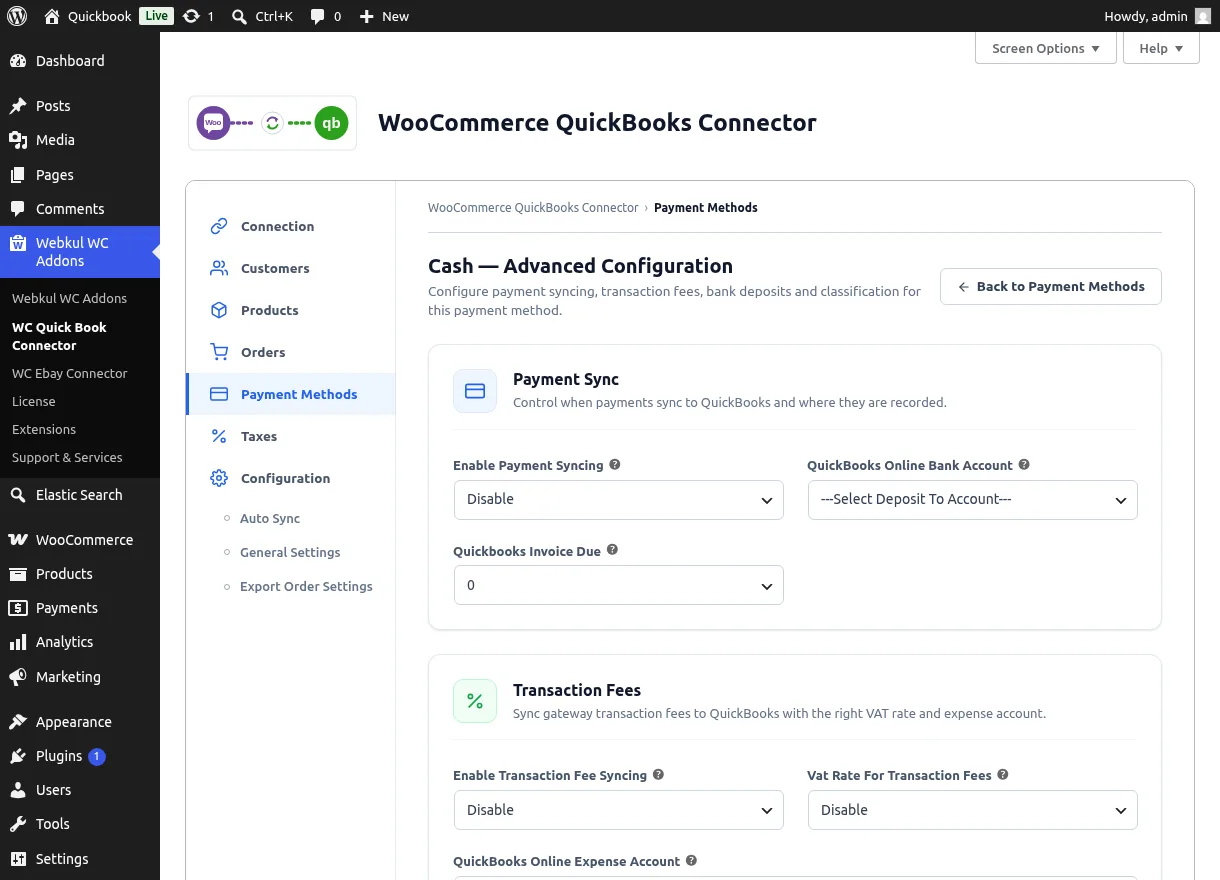
Payment Sync
| Setting | Options | Description |
|---|---|---|
| Enable Payment Syncing | Disable, When Order is Received, When Order is Completed | When the QuickBooks payment record is created for this gateway |
| QuickBooks Online Bank Account | Your QuickBooks accounts | Where payments from this gateway are recorded |
| Quickbooks Invoice Due | 0 – 100 | Days after the order date used as the invoice due date (for Invoice exports) |
When Order is Completed also requires Payments to Quickbooks to be enabled in Auto Sync Settings.
Transaction Fees
| Setting | Description |
|---|---|
| Enable Transaction Fee Syncing | Record the gateway's transaction fee in QuickBooks alongside the payment |
| Vat Rate For Transaction Fees | QuickBooks VAT rate applied to the fee |
| QuickBooks Online Expense Account | Expense account that receives the fee |
Stripe gateways only: two extra fields appear — record Stripe fees as an Expense or a Journal Entry, and pick the payee supplier (from your QuickBooks vendors) used on the expense.
Bank Deposits
| Setting | Description |
|---|---|
| Bank Deposits | Enable weekly batch deposits for this gateway |
| Undeposited Funds Account for Bank Deposits | Source account the batch deposits draw from |
| Bank Deposit Schedule | Weekday (Monday – Friday) the deposit is created |
| Bank Deposit Time | Hour of the day (00:00 – 24:00) |
With Bank Deposits enabled, the connector schedules a weekly background job that moves the gateway's collected payments from Undeposited Funds into the selected bank account as a batch deposit. Disabling removes the schedule.
QuickBooks Classification
| Setting | Description |
|---|---|
| QuickBooks Payment Method Class | Class assigned to this gateway's payments (Disable for none) |
| QuickBooks Payment Method Department | Department assigned to this gateway's payments (Disable for none) |
Click Save Payment Method Setting to apply, or Back to Payment Methods to return to the list.
Related Features
- Auto Sync Settings — the store-wide payment sync switch
- Export Order Settings — the payment reference number and transaction type used on exports