
Roles & Access Control
ERP for WooCommerce ships with a simple but strict security model: nobody gets in until an administrator says so. This page explains the roles the plugin creates and how to grant them exactly the access they need.
The roles
| Role | Purpose |
|---|---|
| Warehouse Manager | Runs one warehouse. Sees dashboards, stock, transfers and users scoped to that warehouse. Can override fulfilment stages and manage their own staff. |
| Warehouse Staff | Executes daily warehouse work. Must walk the fulfilment stages one at a time — no skipping. |
| Supplier | A business-partner account used on RFQs. Suppliers can log in to WordPress but have no ERP access at all unless you grant it. |
Administrators are never listed in the matrix — they always have full access to everything.
One manager, one warehouse
A Warehouse Manager can be assigned to exactly one warehouse, and a warehouse can have exactly one manager. The plugin enforces this everywhere.
Open Access Control
In the ERP sidebar go to Administration → Access Control (administrators only).
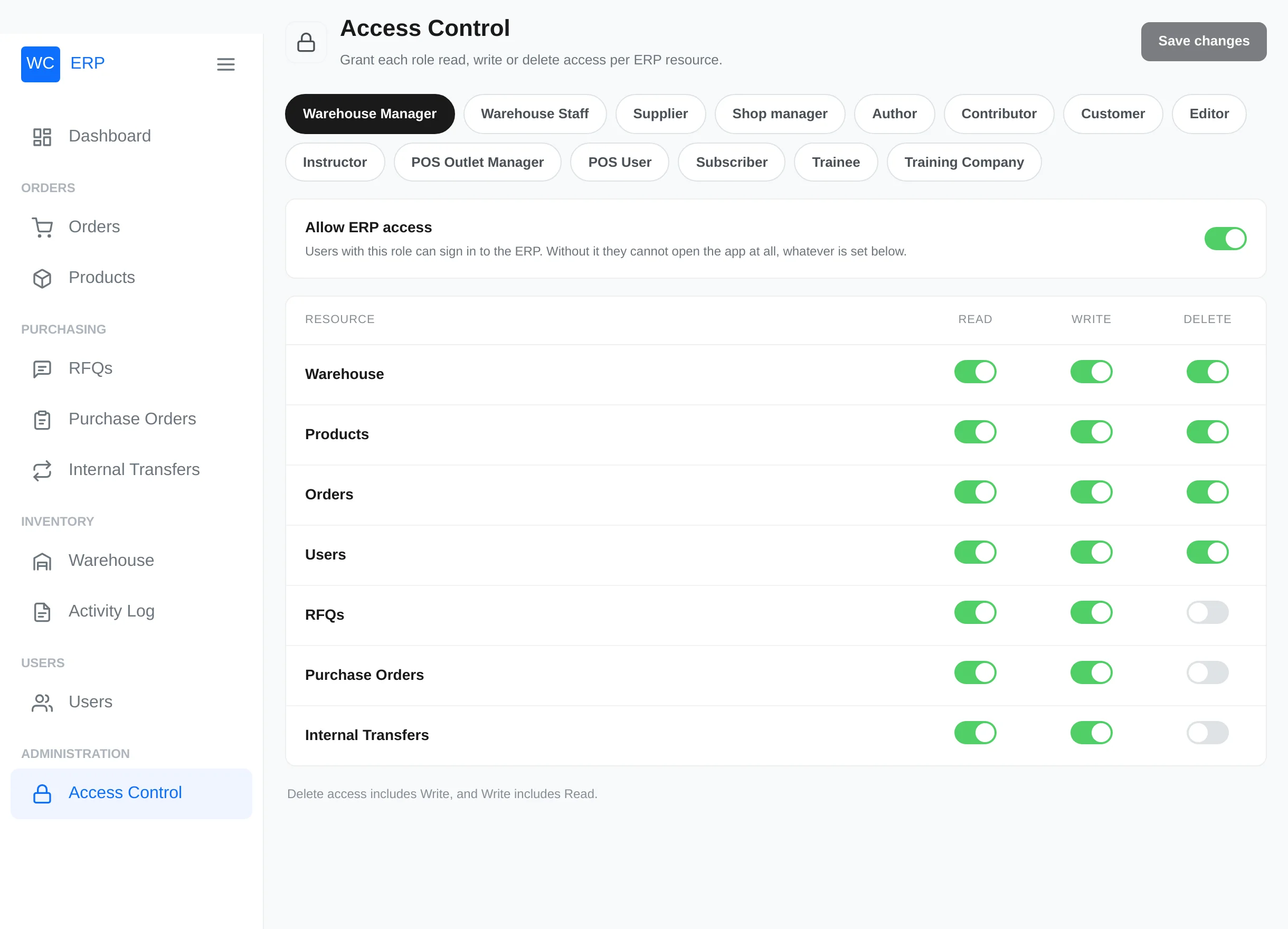
Grant access to a role
- Select the role tab at the top (Warehouse Manager, Warehouse Staff, Supplier — plus every other non-administrator role on your site, such as Shop manager).
- Turn on Allow ERP access. Without this master switch the role cannot open
/erpat all, whatever is set below. - In the matrix, toggle Read, Write and Delete per module:
| Module | Controls |
|---|---|
| Warehouse | Warehouses, locations, stock assignment |
| Products | ERP product list and editor |
| Orders | Order list, order view, fulfilment actions, order editor |
| Users | The ERP Users screens |
| RFQs | Requests for quotation |
| Purchase Orders | POs and goods receiving |
| Internal Transfers | Transfer requests and lifecycle |
- Click Save changes.
Read shows the screens, Write allows creating and editing, Delete allows deleting. The levels build on each other: enabling Delete automatically enables Write, and Write automatically enables Read — the form keeps them consistent as you click.
What users experience
- A user without ERP access who opens
/erpis sent to the WordPress login screen. - A user with access but without a module's Read simply doesn't see that menu item; opening its address directly shows a "page not found" screen.
- Sidebar sections appear only when at least one of their modules is readable, so each person sees a menu matching their job.
Stage-skip override
Fulfilment statuses normally move one step at a time. The override that allows skipping stages belongs to administrators, shop managers and Warehouse Managers. Warehouse Staff never skip stages, no matter what the matrix grants.
Deactivating people
Every ERP user account has an Active / Inactive status (see Users & Suppliers). A deactivated account is refused login with the message "This account has been deactivated. Contact an administrator." — useful when someone leaves the team.