
ERP Dashboard
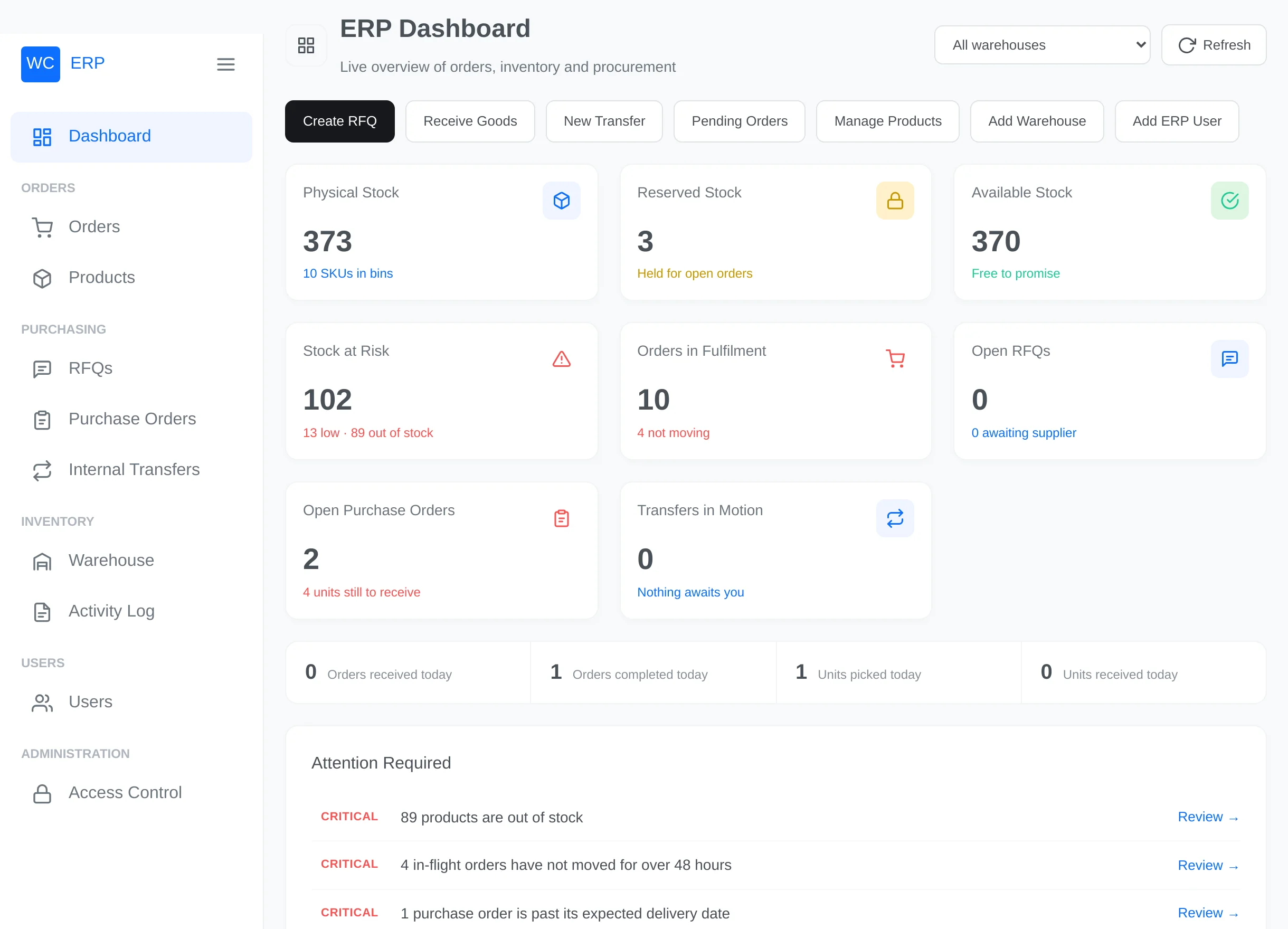
The Dashboard at /erp is the daily starting point: a live overview of stock, orders, purchasing and transfers. It is role-aware — every panel appears only if you may read that module, and Warehouse Managers/Staff see numbers for their warehouse only.
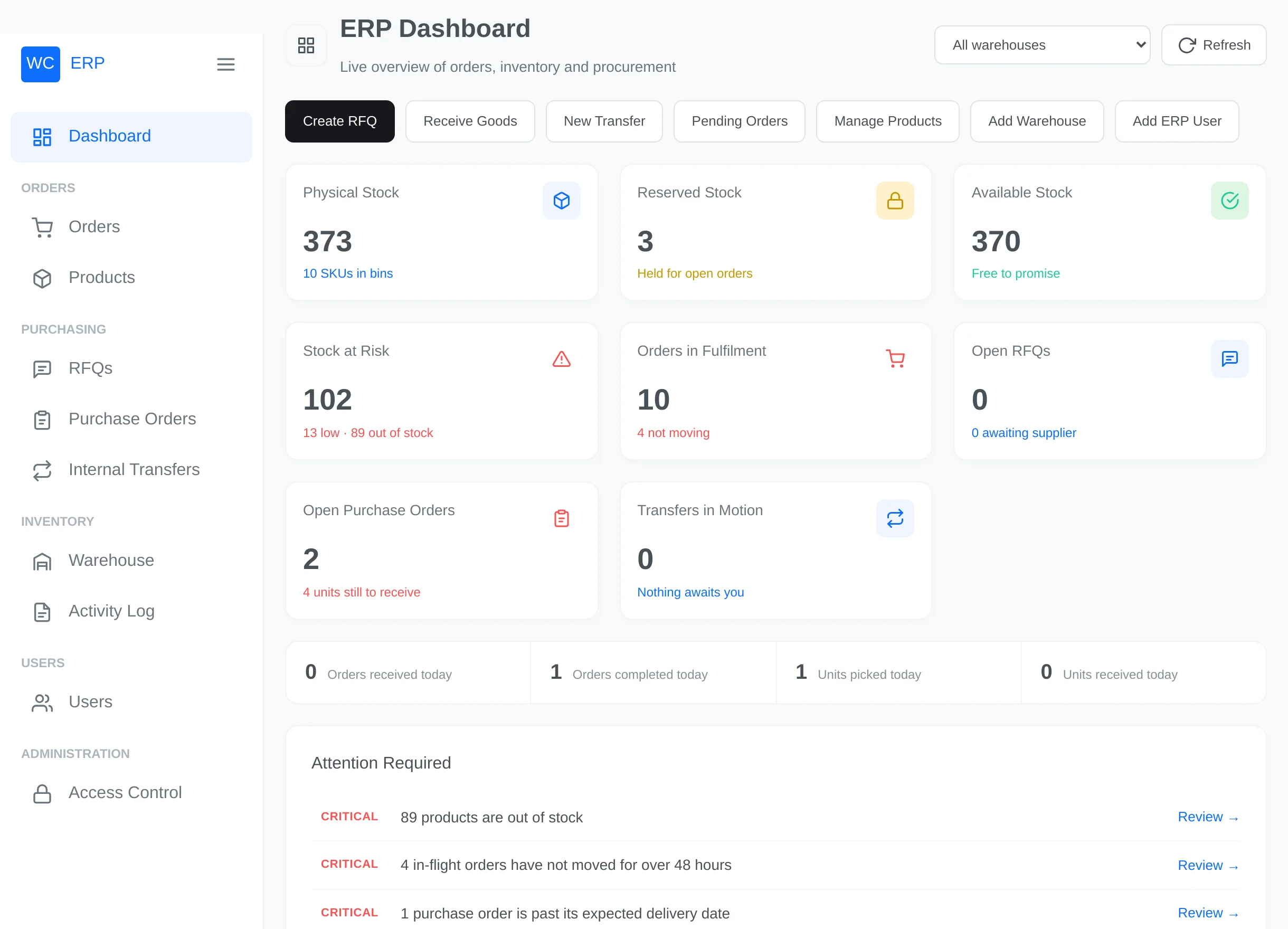
Header controls
- Warehouse selector — administrators can focus the whole dashboard on one warehouse (managers are pinned automatically; their subtitle reads "Operations overview for … Warehouse").
- Refresh — reloads all figures. The footer shows the "Data as of …" timestamp.
Quick Actions
One-click shortcuts, shown only if you have the matching permission: Create RFQ, Receive Goods, New Transfer, Pending Orders, Manage Products, Add Warehouse, Add ERP User.
KPI cards
| Card | Meaning |
|---|---|
| Physical Stock | Total units currently placed in bins (and how many SKUs) |
| Reserved Stock | Units held for open orders |
| Available Stock | Physical minus reserved — what you can still promise |
| Stock at Risk | Low-stock plus out-of-stock products (low-stock threshold comes from WooCommerce settings) |
| Orders in Fulfilment | Orders anywhere in the workflow, with a red note when some haven't moved for 48 hours |
| Open RFQs | RFQs awaiting a supplier response |
| Open Purchase Orders | Ordered/partially received POs and units still to receive |
| Transfers in Motion | Transfers awaiting approval, in progress or in transit |
Each card links to the matching screen. Below them, a today strip counts orders received/completed and units picked/received today.
Attention Required
A prioritised to-do list (Critical → Warning → Info) with a Review → link per line — for example out-of-stock products, orders stuck over 48 hours, purchase orders past their expected delivery date, products holding stock that isn't in any bin, and orders waiting for stock validation. When everything is fine it reads "All clear — nothing needs your attention right now."
Order Fulfilment Pipeline
The six workflow stages as clickable tiles with live counts:
Click any stage to open the order list filtered to it.
Inventory by Warehouse
One row per warehouse: SKUs, stock, reserved, available and a utilisation bar against the warehouse capacity. Click a warehouse name to jump into its Explorer.
Procurement
RFQ counts per status and purchase-order counts per status, each linking to the filtered list, plus how many units suppliers still owe you.
Internal Transfers
Counts for awaiting approval, in progress, in transit, drafts and completed — with a callout when transfers wait for your decision (the same number appears as a badge on the sidebar's Internal Transfers entry).
Stock Movement — Last 7 Days
A daily units-in / units-out bar chart built from the movement ledger, linking to the Activity Log.
Recent ERP Activity
The ten latest events across orders, stock movements, RFQs and transfers — each with who did it, when, and a link to the record.
What a scoped user sees
A Warehouse Manager's dashboard is automatically narrowed to their warehouse:
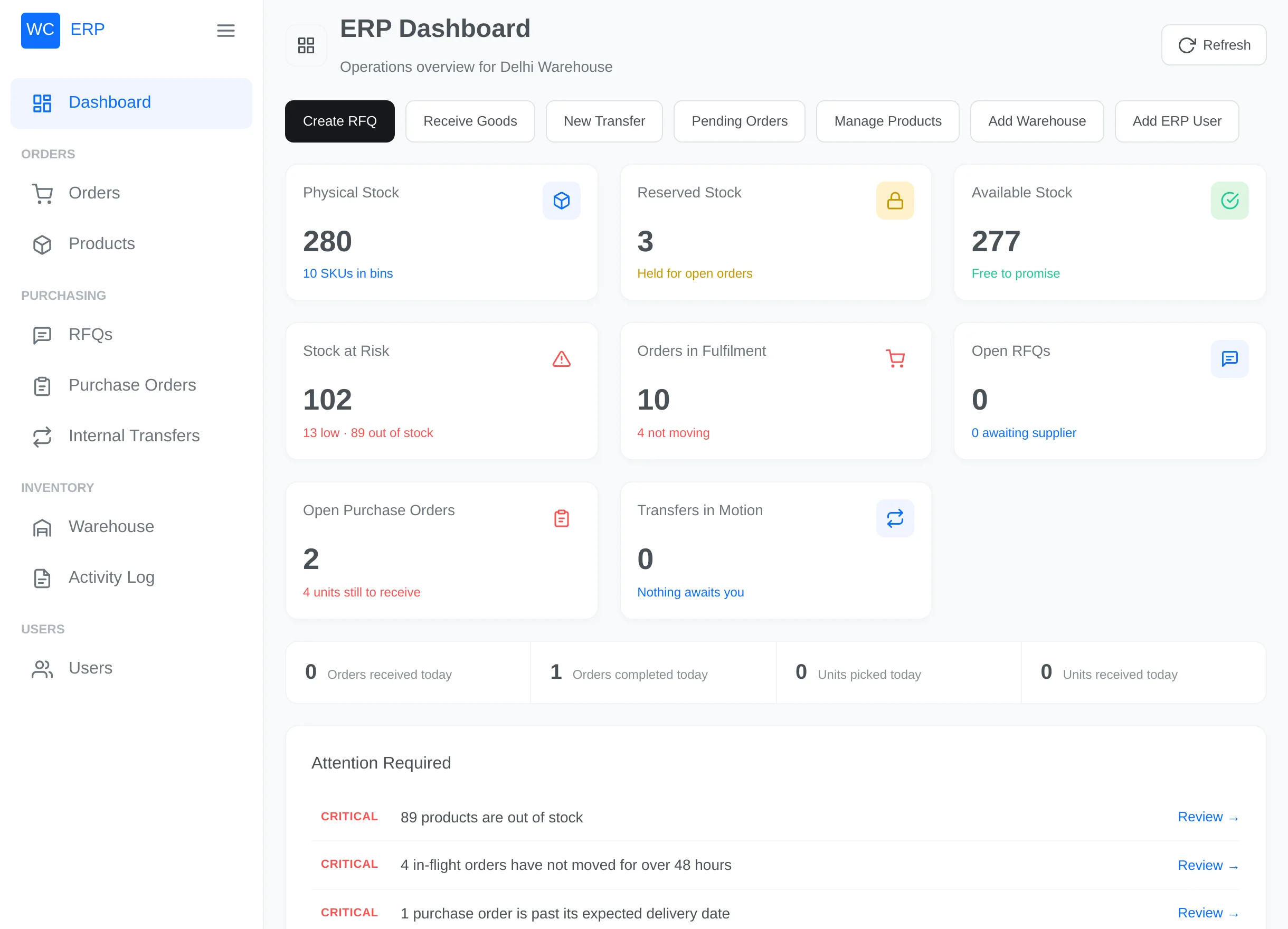
If someone has ERP access but no module grants at all, the dashboard explains: "Your account has no ERP modules enabled. Ask an administrator to grant access under Access Control."