
Products & Inventory
Orders → Products gives your warehouse team a stock-focused view of the catalogue — with the numbers WooCommerce alone doesn't show: how much is reserved, how much is really available, and how much of the stock is actually placed in bins.
The product list
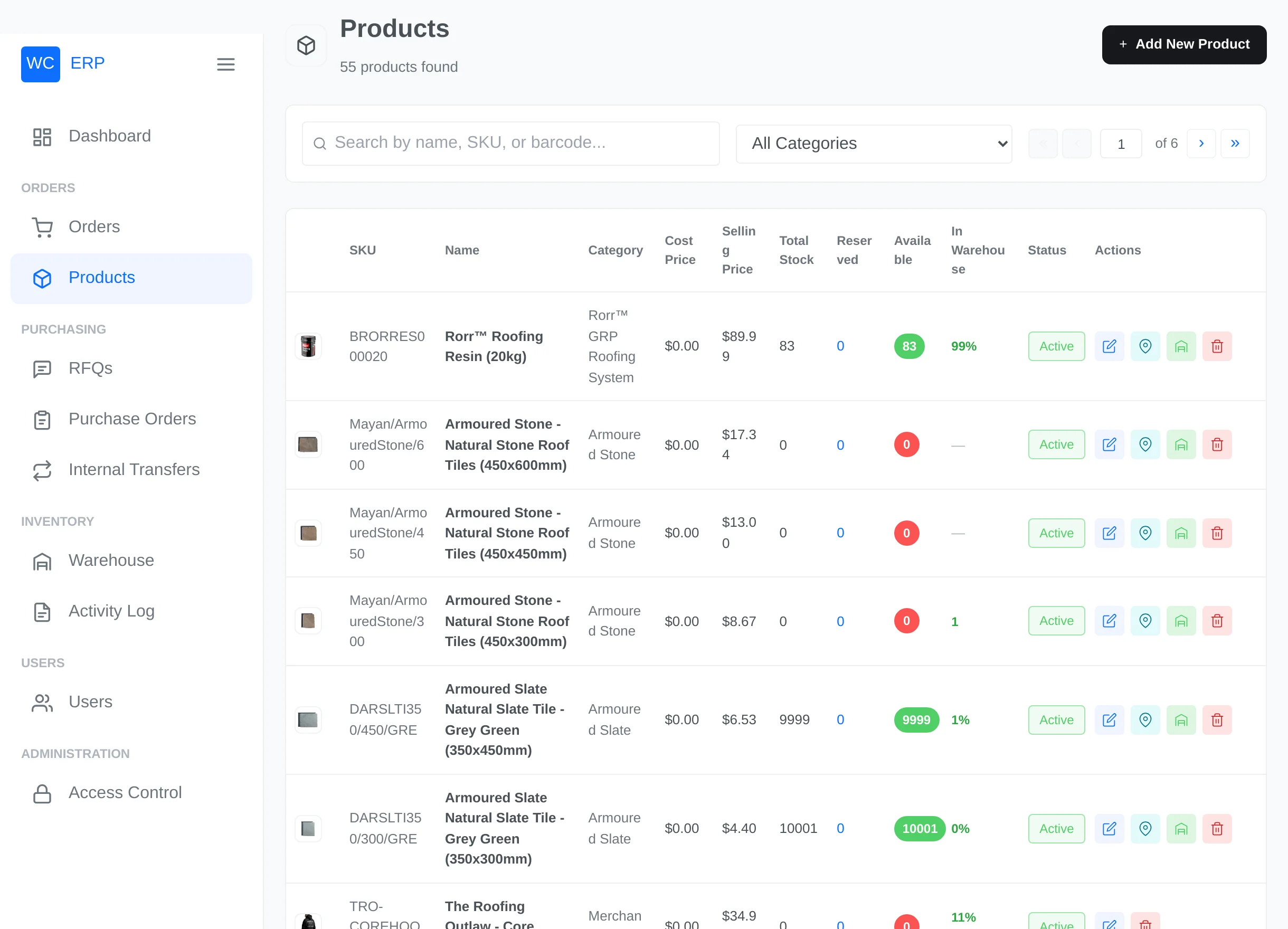
- Shows published simple and variable products, 10 per page.
- Search by product name, SKU or barcode — including variation SKUs (press Enter).
- Filter by category (dropdown or the quick chips above the table).
- Click a variable product's row to expand its variations inline.
| Column | Meaning |
|---|---|
| SKU / Name / Category | Catalogue identity |
| Cost Price / Selling Price | Cost comes from the product's cost field (see the editor below) |
| Total Stock | The WooCommerce stock quantity |
| Reserved | Units currently held for open orders |
| Available | Total minus reserved |
| In Warehouse | Percentage of the stock that is placed in bins (variable products show the average across variations) |
| Status | Active / Inactive |
Row actions: Edit, View in Warehouse (the product's bin locations), Assign to Warehouse.
Products are created in WooCommerce
The ERP manages existing products. Create new products in WooCommerce → Products as usual; they appear here once published.
Edit a product
Click the edit action to open the ERP product editor.
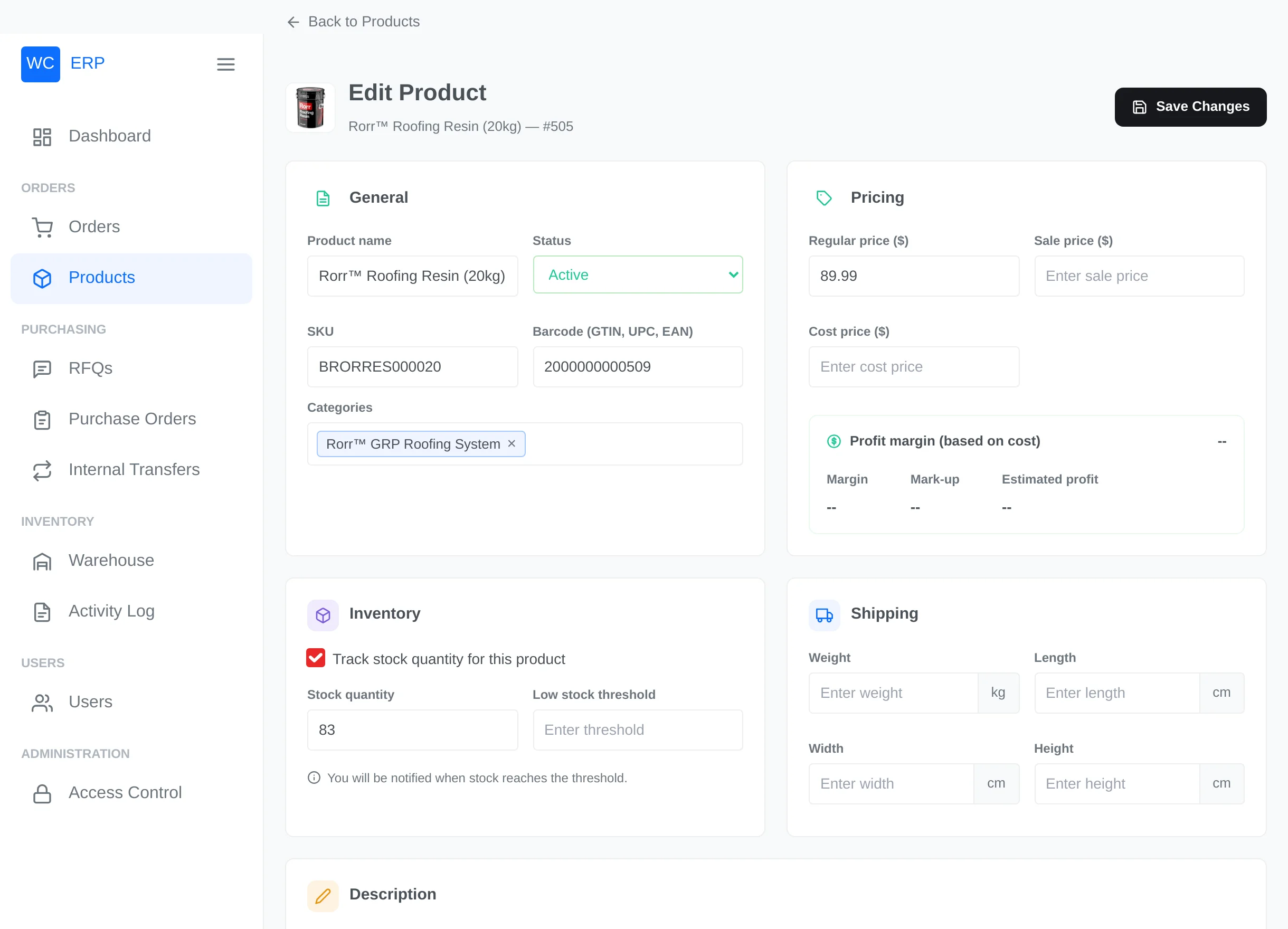
What you can manage here:
- General — name, status (Active/Draft/Private), SKU, Barcode (GTIN, UPC, EAN) and categories.
- Pricing — regular price, sale price and cost price, with a live profit panel showing margin %, markup % and estimated profit per unit. (Prices on a variable product are set per variation.)
- Inventory — toggle stock tracking; set the stock quantity and low-stock threshold, or the stock status (In stock / Out of stock / On backorder).
- Shipping — weight and dimensions in your store's units.
- Description — short and full description with a simple formatting toolbar.
- Variations (variable products) — per variation: enable/disable, SKU, prices, cost and stock. Variations can also be deleted here; deleting one first releases any bin stock it holds.
Click Save. Validation problems (like a duplicate SKU or invalid barcode) are shown on the form without losing your input.
Not everything is editable here
Product images, attributes, tags and tax settings stay in the WooCommerce product editor — the ERP editor focuses on the operational fields.
Where is this product stored?
The View in Warehouse action opens a read-only location map of the product:
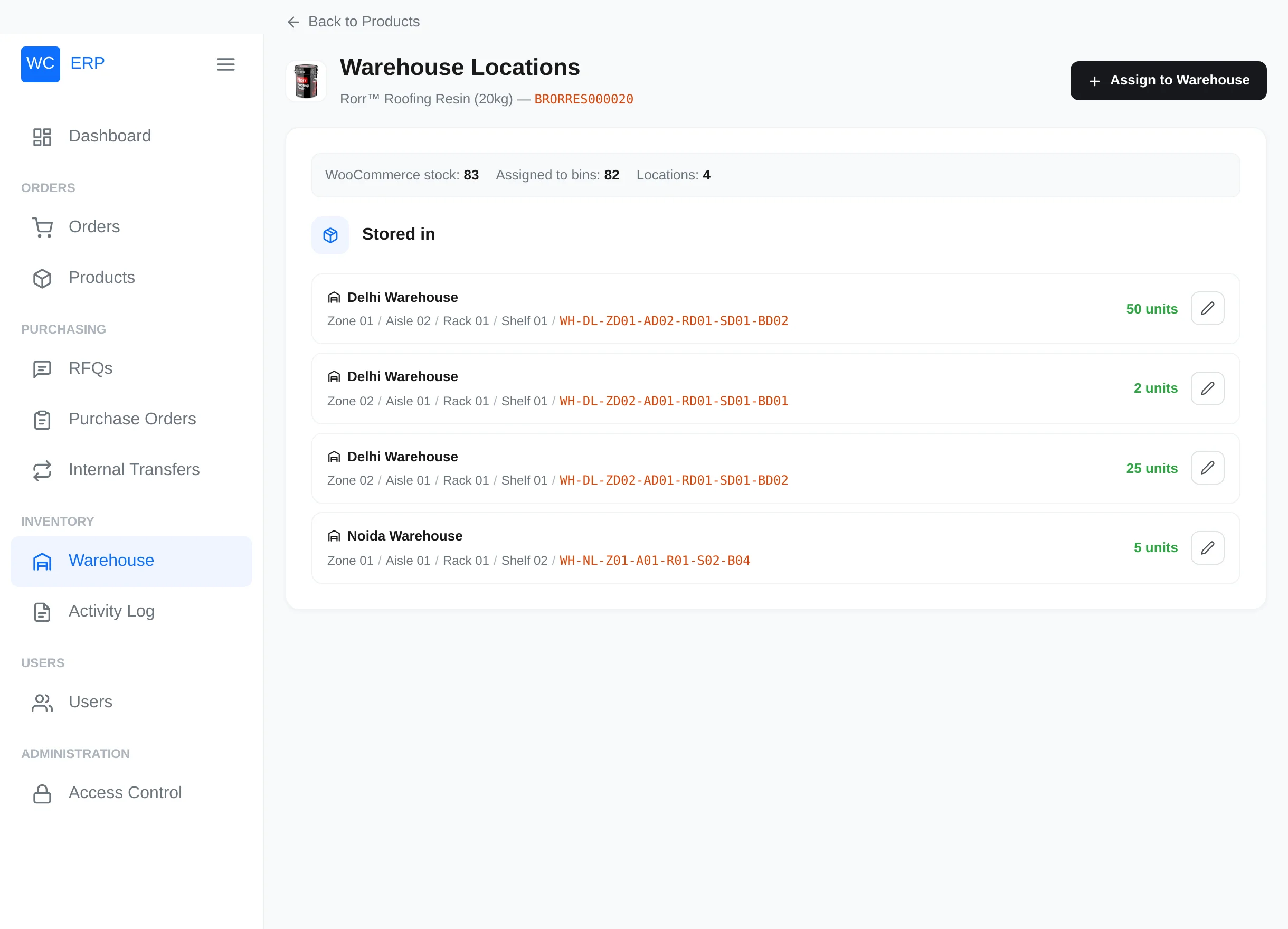
It shows WooCommerce stock vs. units assigned to bins, then every bin holding the product with its full zone / aisle / rack / shelf path and quantity. From here, Assign to Warehouse jumps straight into stock assignment.