Purchase Orders
A Purchase Order (PO) is the confirmed version of an approved RFQ. POs are where goods actually arrive: receiving one increases WooCommerce stock and fills warehouse bins in a single step, with a numbered receipt for every delivery.
Ordered → Partially Received → Received
        ↘ Cancelled
POs always come from RFQs
Direct PO creation is disabled by design — the button on this screen is New RFQ. Approving a quotation is the ordering decision, so a converted PO starts at Ordered, ready to receive.
The PO list
Open Purchasing → Purchase Orders.
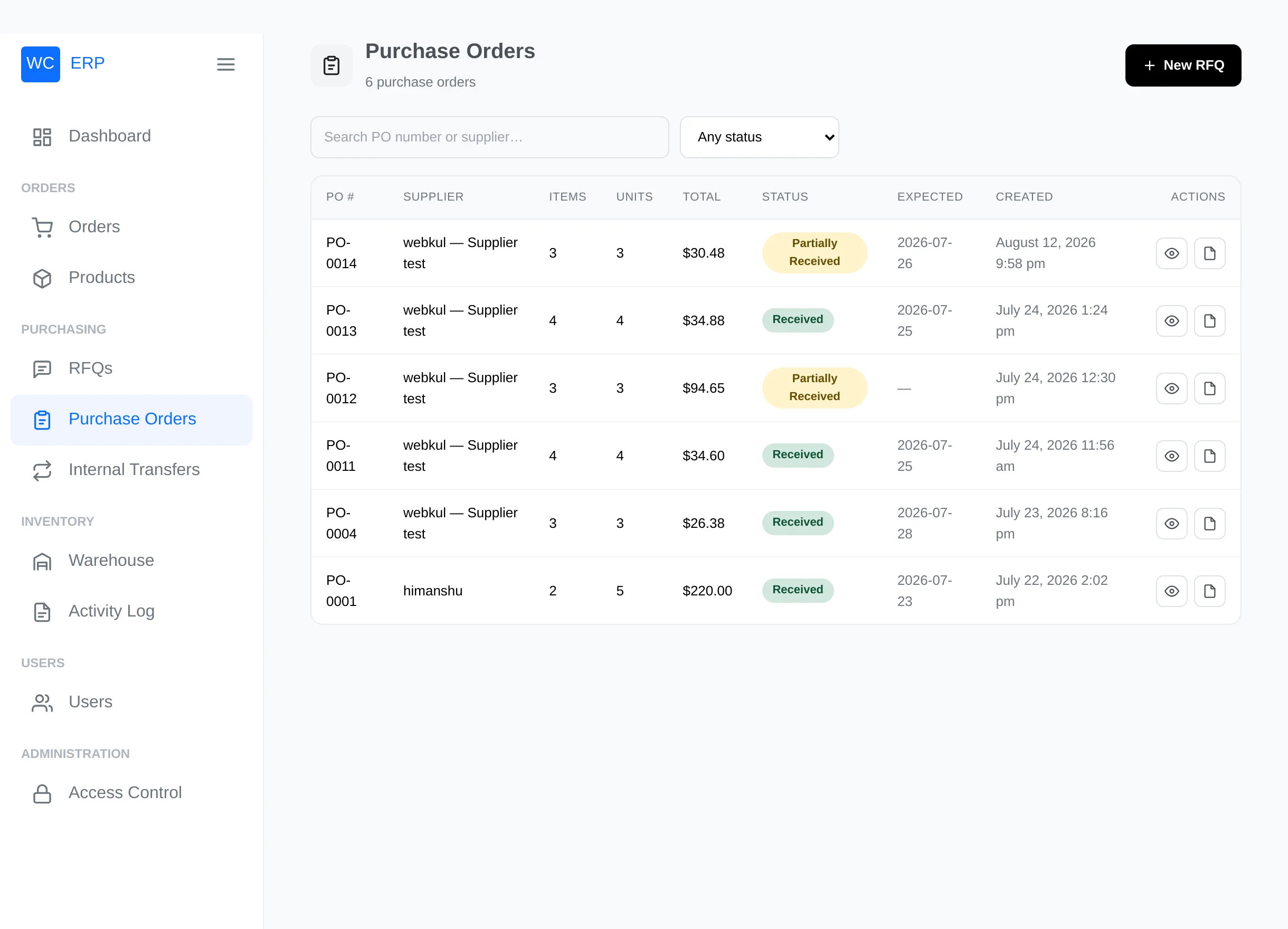
Search by PO number or supplier, filter by status. Row actions: View, View PDF (a printable purchase order document) and Delete (draft/cancelled only).
The PO view
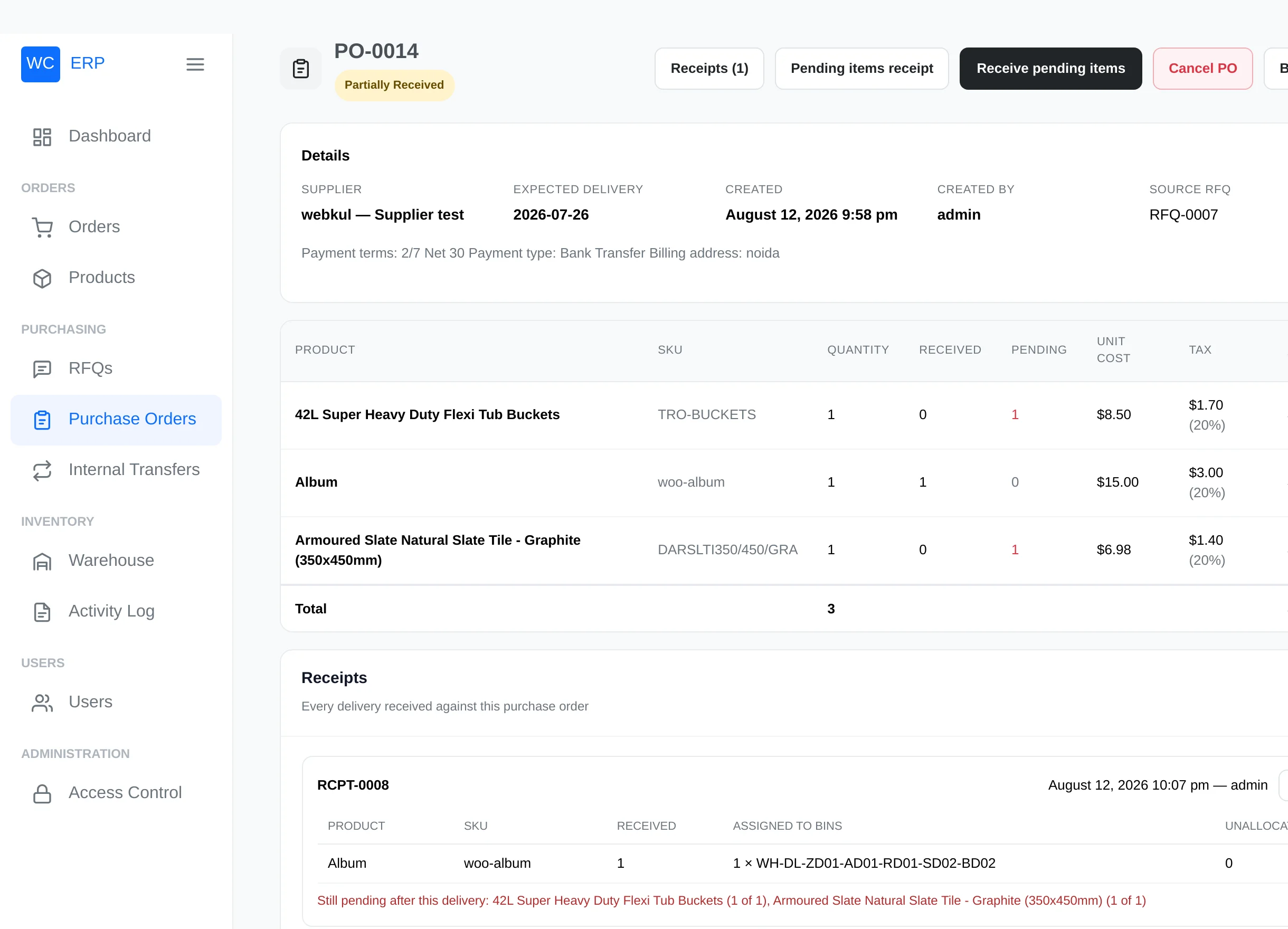
- Details — supplier, expected delivery, created by, and links to the source RFQ and source order.
- The payment/delivery terms carried over from the RFQ.
- Items — quantity, received and pending per line (pending highlighted).
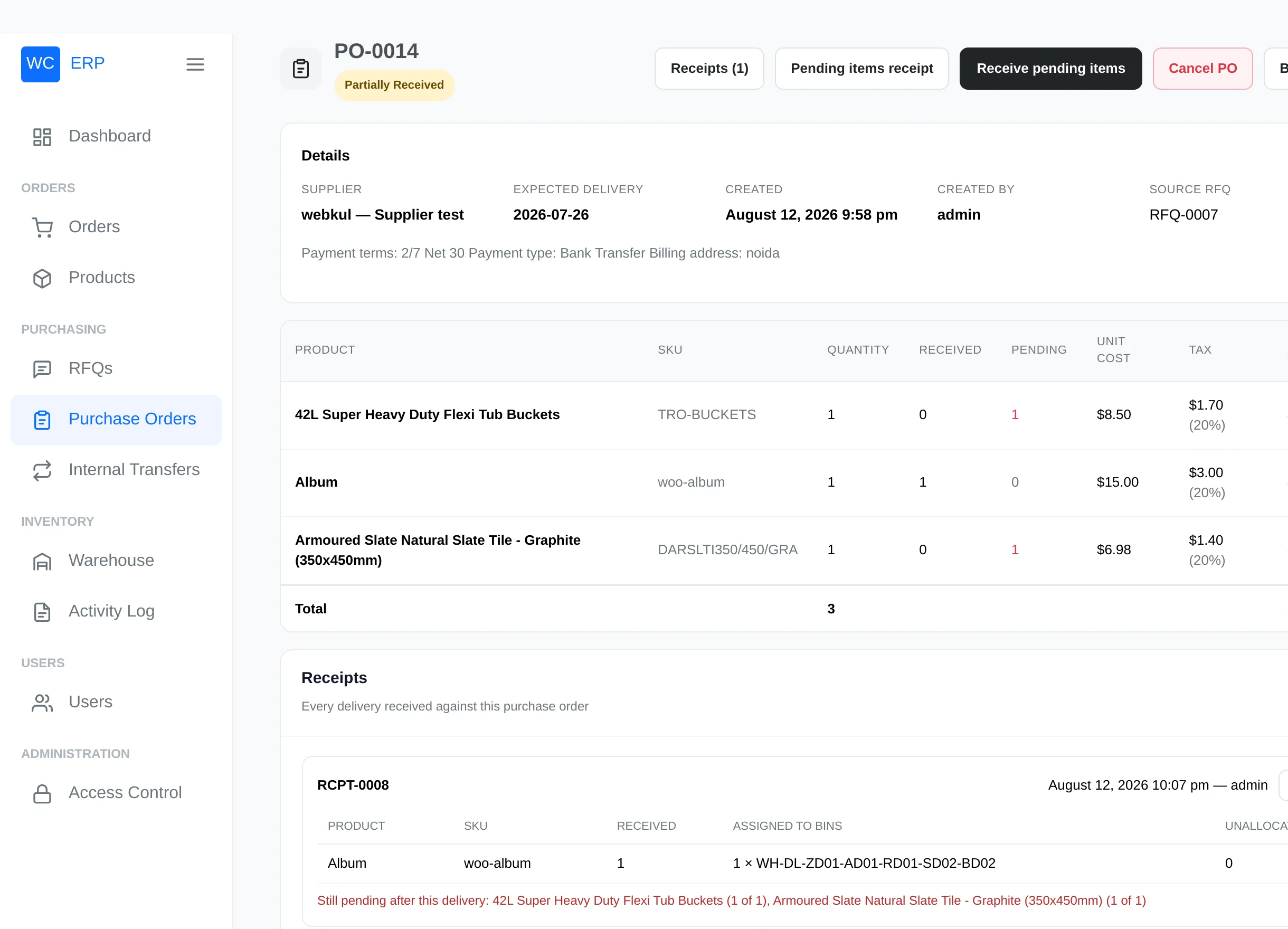
- Receipts — one block per delivery received so far, listing the bins each product went into, with a Print button for the receipt PDF:
- Pending items receipt — a PDF of everything still outstanding (shown while something is pending).
- Warehouse Activity — every bin placement this PO caused.
- Cancel PO — possible while the PO is still Ordered (a PO that already received goods cannot be cancelled).
Receive goods
When the delivery arrives, click Receive items (or Receive pending items on a partially received PO).
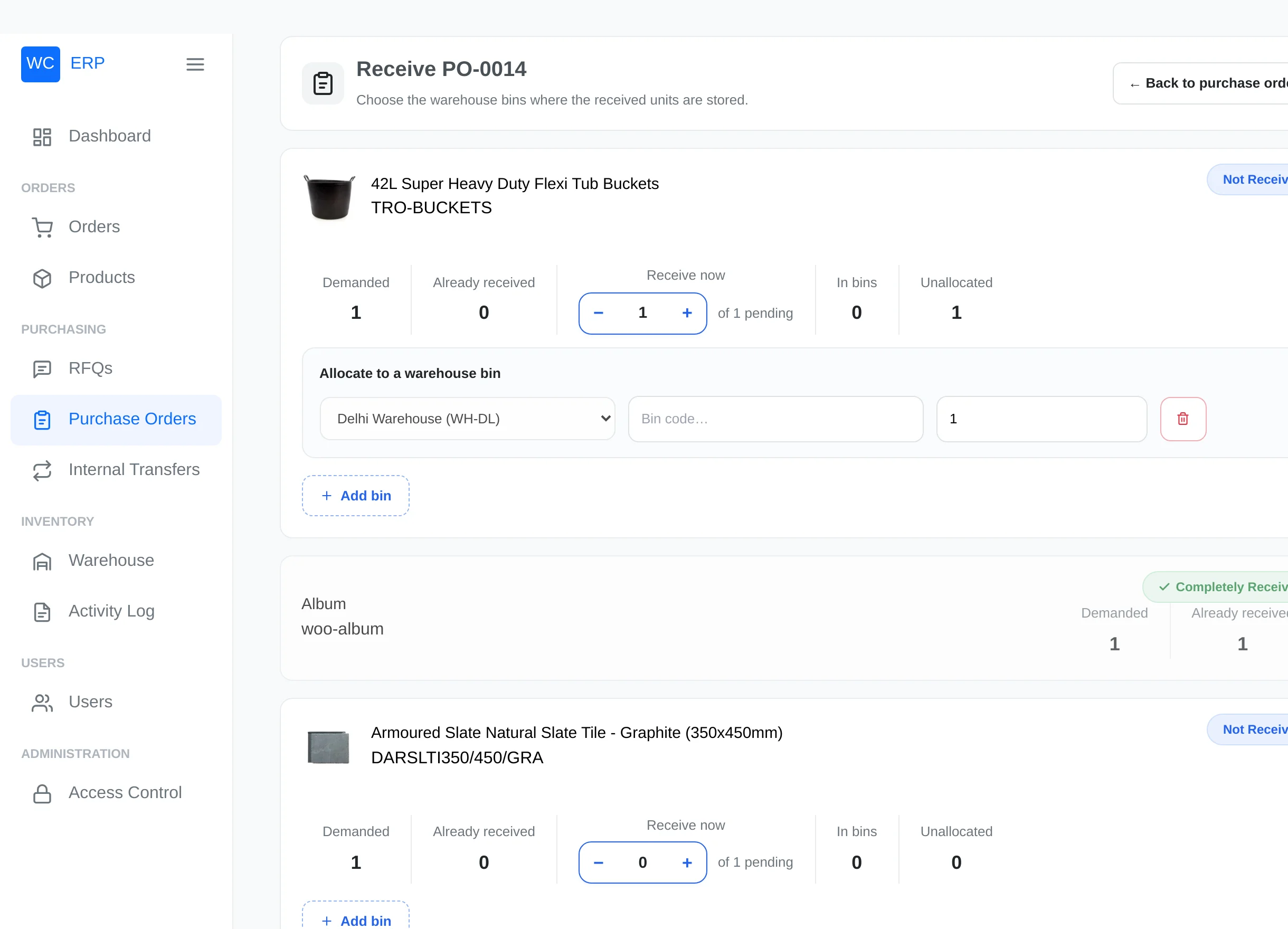
Per product line:
- Set Receive now with the − / + stepper — capped at what is still pending.
- Click Add bin and choose where the units go. Each allocation row offers two equivalent ways:
- the location cascade — Warehouse → Zone → Aisle → Rack → Shelf → Bin dropdowns, or
- the Bin code box — type or scan the bin code; the cascade fills itself.
- Add more bins to split a line across locations. Lines already complete show a green Completely Received badge.
If the PO's RFQ named a warehouse, the warehouse choice is locked to it — all bins must belong to the PO's receiving warehouse.
The Review this delivery table sums everything up and warns how many units will remain pending. Confirming explains what will happen: stock is added to WooCommerce, units are placed into the chosen bins, and a receipt is generated.
What happens on confirm
- WooCommerce stock increases by the received quantity (for products that track stock).
- Bins are credited through the same capacity-checked rules as manual assignment — a full bin refuses its allocation with an exact message.
- A numbered receipt (RCPT-0001, RCPT-0002, …) records the delivery: what arrived, which bins, and what is still pending.
- The PO becomes Received, or Partially Received if something is outstanding — partial deliveries can be received again and again until complete.
Only what was ordered
You can never receive more than the ordered quantity. If a bin allocation fails (for example the bin filled up meanwhile), those units are still received into WooCommerce stock but stay unassigned — place them in a bin afterwards via Stock Assignment.
PDF documents
| Document | Where |
|---|---|
| Purchase Order PDF | PDF icon on the list |
| Goods Receipt PDF | Print on each receipt block |
| Pending Items PDF | Header button on the PO view while items are pending |
| RFQ Quotation PDF | On the RFQ's send page |