
Users & Suppliers
Create and manage the people who run your warehouses — and the supplier companies you buy from. The same accounts can be managed from two places:
- ERP → Users in the ERP app (
/erp/managers) — used by administrators and Warehouse Managers. - ERP → Users in WordPress admin — administrators only, with bulk actions.
Both edit the same records; changes made in one appear in the other.
The Users list
In the ERP sidebar open Users.
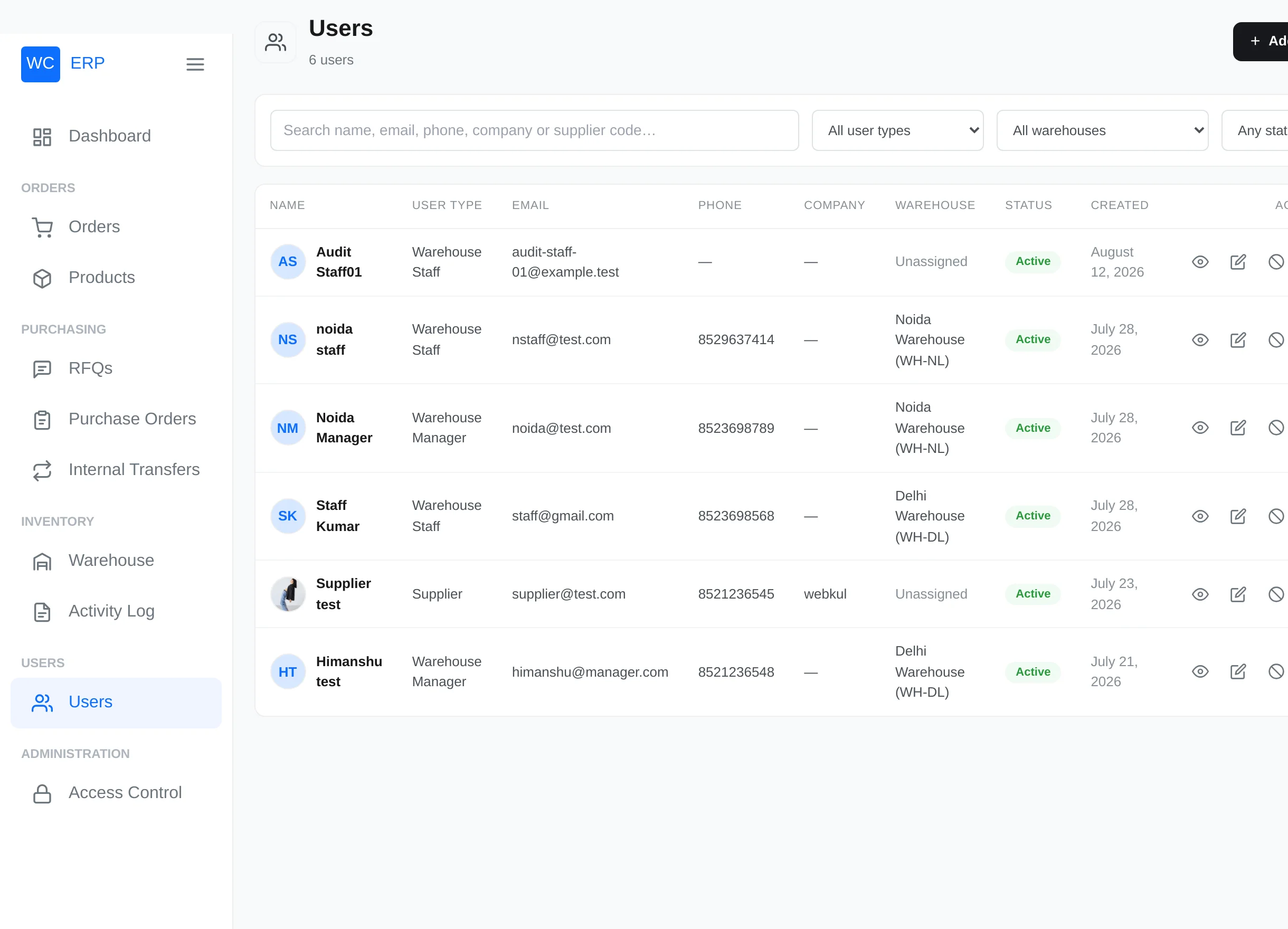
- Search by name, email, phone, company or supplier code (press Enter).
- Filter by user type, warehouse and status.
- Row actions: View, Edit, Activate/Deactivate, Delete (15 users per page).
What a Warehouse Manager sees here
A Warehouse Manager sees only themselves, their own staff and all suppliers — and can only create Warehouse Staff for their own warehouse. Warehouse Staff see their warehouse's team read-only. Administrators see and manage everyone.
Add a user
Click + Add User.
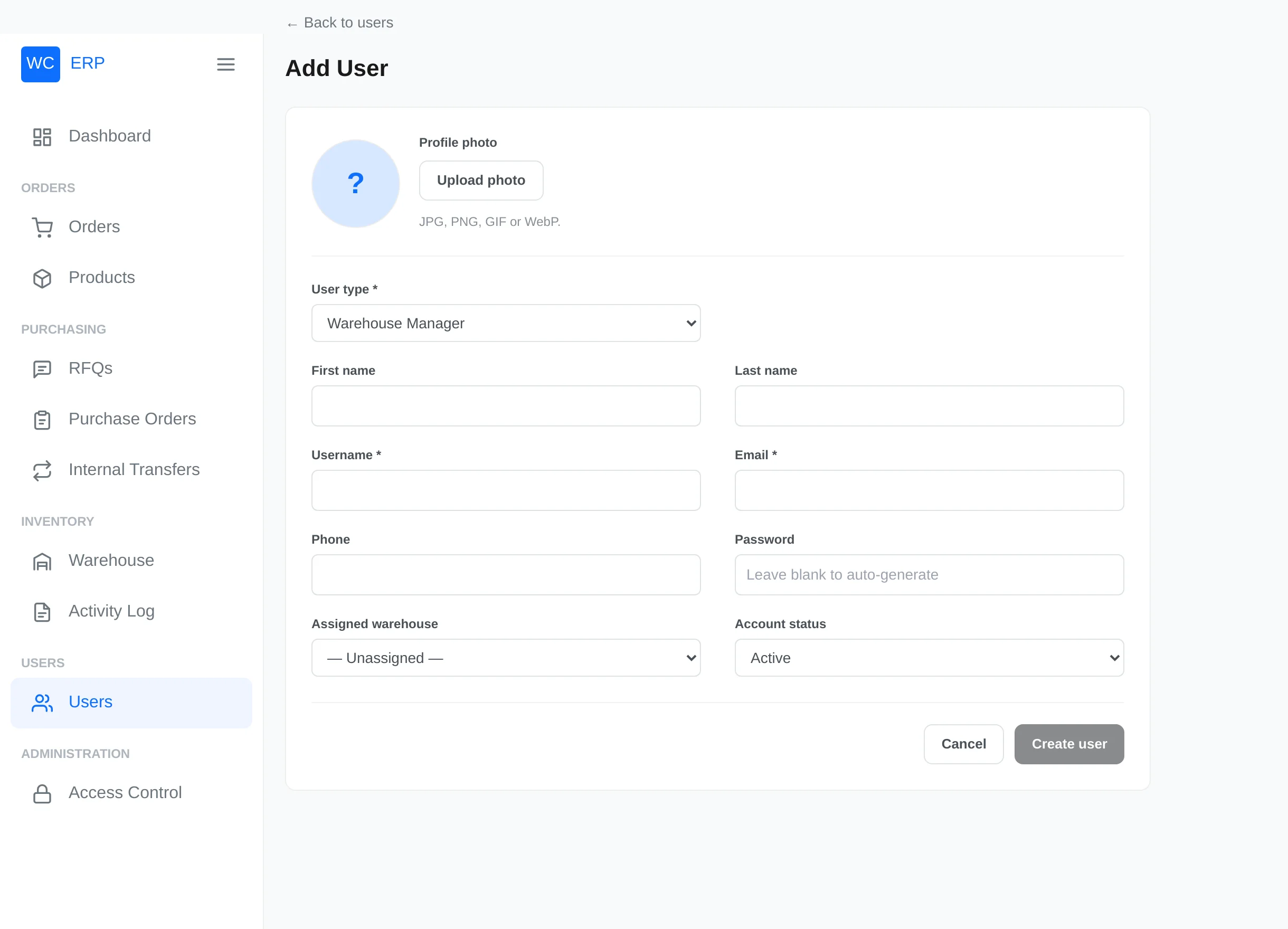
| Field | Notes |
|---|---|
| Profile photo | Optional JPG, PNG, GIF or WebP |
| User type* | Warehouse Manager / Warehouse Staff / Supplier — decides the WordPress role |
| First / Last name | |
| Username* | Required when creating; can never be changed later |
| Email* | Must be unique on the site |
| Phone | Digits, spaces and + - ( ), 6–20 characters |
| Password | Leave blank to auto-generate (or to keep the current one when editing) |
| Assigned warehouse | For managers and staff. Warehouses that already have a manager are hidden when adding a manager |
| Warehouse manager | Staff only — who they report to; must be the manager of the same warehouse |
| Account status | Active / Inactive — inactive users cannot sign in |
Click Save.
Passwords are not emailed
The plugin does not send a welcome email. Share the username and password with the new user yourself.
Supplier accounts
Choose the Supplier user type and a Supplier details section appears with the business profile used across the RFQ module:
- Company Name* (required), Company Information
- GST Number (format-checked) and Tax Identification Number
- Contact Person, Business Email, Business Phone
- Billing Address and Shipping Address (pre-filled into RFQs)
- Payment Terms, Payment Type, Bank Account Details
- Supplier Code, Product Categories Supplied, Notes
- Supplier Status: Active / On Hold / Blacklisted
RFQs are emailed to the Business Email when set, otherwise to the account email.
Suppliers are partners, not operators
A supplier account exists so you can select the vendor on RFQs and email them quotations. Suppliers cannot open the ERP unless you explicitly grant their role access in Access Control. If granted, their dashboard shows only their own RFQs and purchase orders.
The WordPress admin screen
Administrators can also manage the same users under ERP → Users in wp-admin — with sortable columns, type/warehouse/status filters, search, and bulk Activate / Deactivate / Delete.
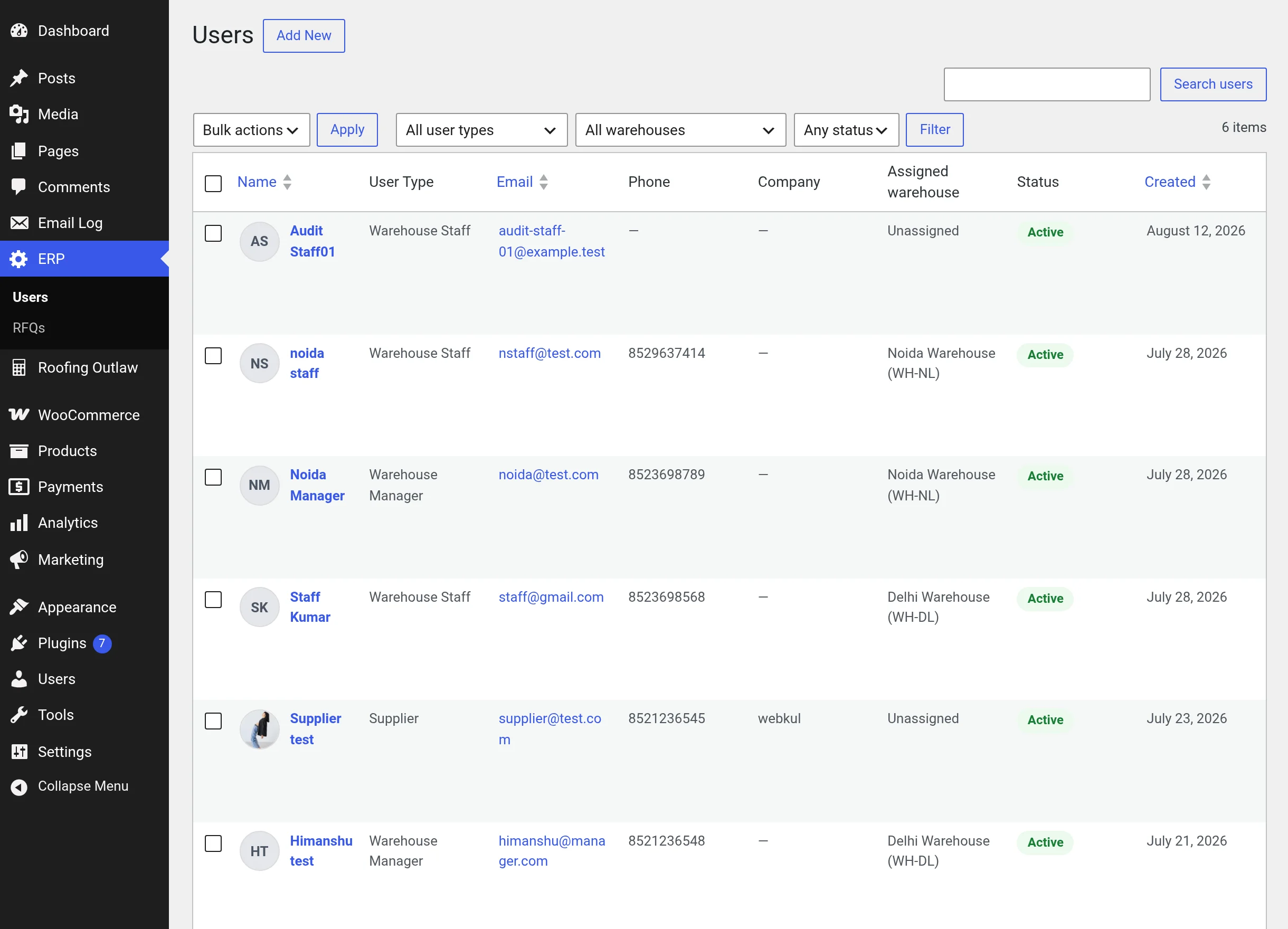
A manager's View screen also lists the staff who report to them; a supplier's shows the full business profile.
Deactivate or delete
- Deactivate blocks the account from logging in ("This account has been deactivated.") while keeping its history — the safe choice for departures.
- Delete removes the account permanently. You cannot delete your own account.