
Admin Overview
The connector is a seller tool. The marketplace administrator installs it, then has two things to look at: a list of every Shopify account sellers have connected, and a column on the WooCommerce order list showing which orders are linked to Shopify.
Seller's Shopify Account List
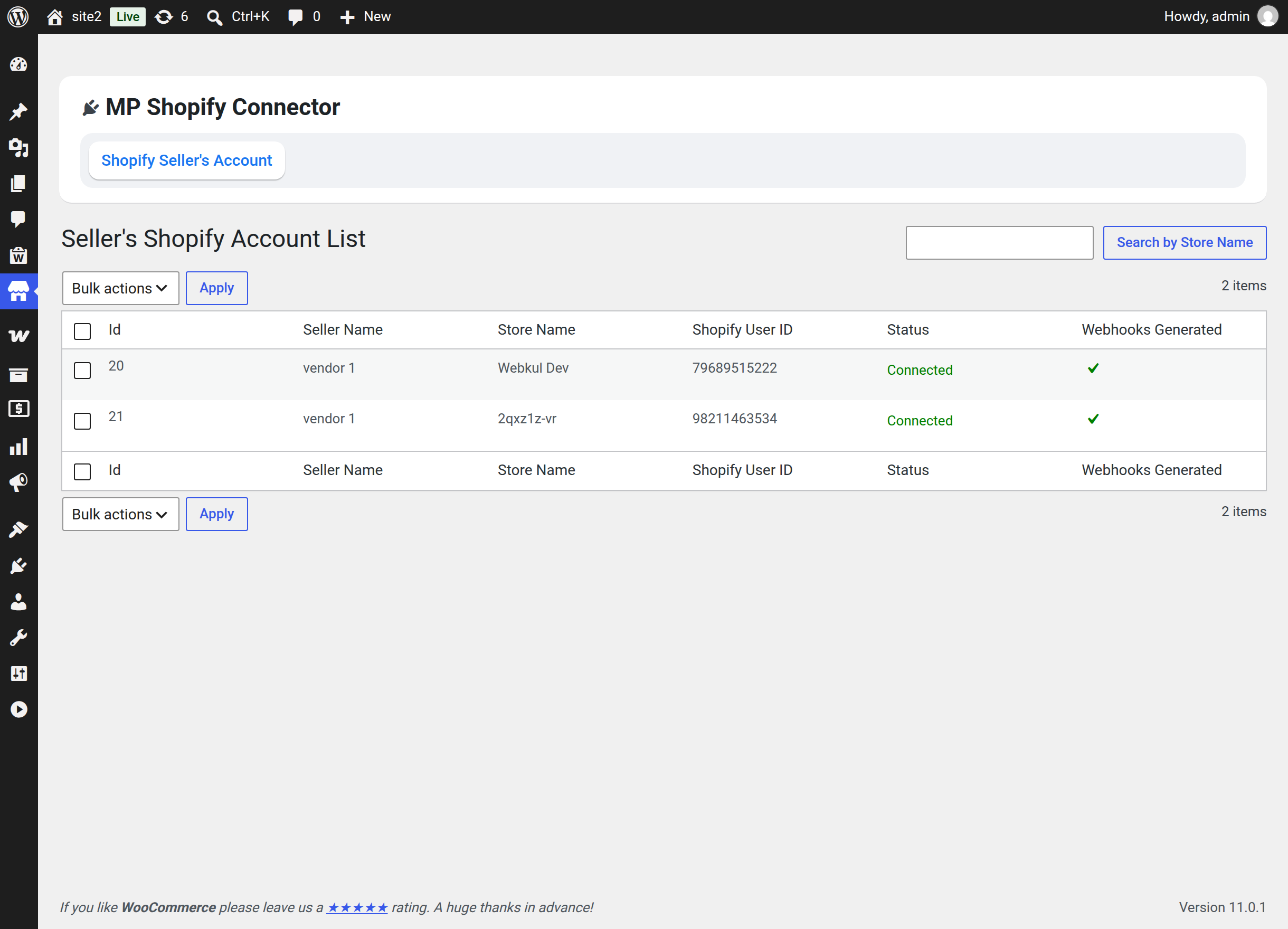
Go to Marketplace → MP Shopify Connector, then the Shopify Seller's Account tab. The plugin row on Plugins → Installed Plugins also has a Settings link that opens the same screen.
| Column | Meaning |
|---|---|
| Id | The connector's account ID — the same ID the seller sees in their account list |
| Seller Name | The marketplace seller who owns the connection |
| Store Name | The Shopify store's name |
| Shopify User ID | The store's numeric ID in Shopify |
| Status | Connected or Disconnected, checked live against Shopify |
| Webhooks Generated | A tick when the store's three webhooks are registered |
The Status column is not stored. Each time the page loads, the connector asks Shopify for each store's name and compares it with what is saved. Disconnected means Shopify did not answer, the token was revoked, or the store was renamed in Shopify without the seller updating the connection.
Use Search by Store Name to find one store, and the Count Per Page screen option to change how many rows are listed.
Removing an account as administrator
Tick one or more rows, choose Bulk actions → Delete, then Apply. A confirmation step appears:
Are you sure you want to delete seller shopify account ?
Confirm removes the connection; Back To List cancels.
Warning
Deleting a seller's Shopify account removes their connection and the connector's mappings, price rules and settings for that store. The seller will have to reconnect and reconfigure from scratch. Tell them before you do it.
Pending sync notice
When Shopify has sent updates that have not been applied yet, the page shows:
N Realtime Sync Notification Pending in background.
This is normal after a burst of Shopify activity — a background process drains the queue. A count that keeps climbing over hours points at a stalled background process; see Troubleshooting.
Shopify Order Id on the order list
The connector adds a Shopify Order Id column to WooCommerce → Orders. It shows the Shopify order number for every order linked to a Shopify store — orders imported from Shopify, and orders exported to it.
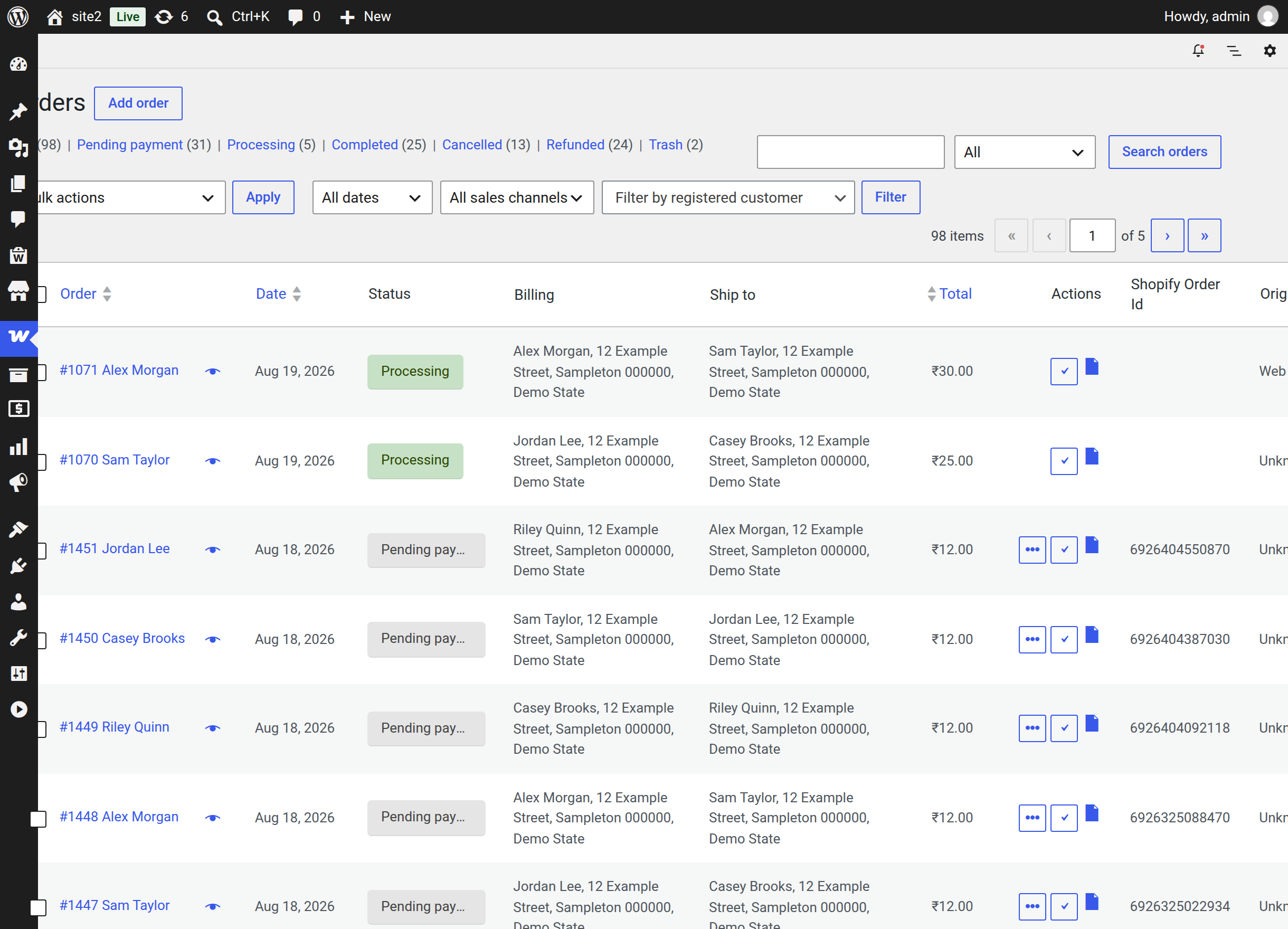
The column is empty for ordinary marketplace orders with no Shopify link.
Tips
On a wide order list the column can sit off the right edge of the screen. Collapse the WordPress admin menu with the Collapse menu control, or hide columns you do not need from Screen Options, to bring it into view.
The column works on both High-Performance Order Storage and the classic order tables, so it is there whichever WooCommerce order storage your store uses.
What the administrator cannot do here
- Connect a store on a seller's behalf. Connections are made from the seller's own My Account area, because the credentials belong to the seller's Shopify store.
- Change a seller's connector settings. Import behaviour, price rules, category mappings and auto-sync direction are all per-account and per-seller.
- Trigger an import or export. Those actions live on the seller's tabs.
An administrator who also holds a seller account sees the connector in their own My Account area and can work there normally.
Where the logs are
The connector writes to the standard WooCommerce logger, so WooCommerce → Status → Logs shows its activity. Look for these sources:
| Source | What it records |
|---|---|
WCMP-Shopify | General connector activity |
MP Shopify Connector Shopify To Woo Sync Notification | Incoming webhooks, including verification failures |
MP Shopify Connector Notification | Applied updates, including order tracking details |
MP Shopify Background Process | Stalled and recovered background queues |
These are the first place to look when a seller reports that a sync did not happen.
Next step
See Troubleshooting for the messages sellers report most, and their fixes.