
Product Data Reference
This page answers the question sellers ask before their first import: what exactly comes across? Every row below is what the connector actually reads and writes — nothing is aspirational.
Importing: Shopify to WooCommerce
Product-level fields
| Shopify field | Becomes in WooCommerce | Notes |
|---|---|---|
title | Product name | |
descriptionHtml | Product description | Stripped to plain text when Product Description With HTML is No |
featuredImage | Product image | Resized if Imported Image Size is not Default Size |
images | Product gallery | Up to 50 images per product |
tags | Product tags | Created if they do not exist |
createdAt | Date created | The WooCommerce product keeps the Shopify creation date |
updatedAt | Date modified | |
status | Product status | Only used when Import Products As is left blank — see below |
| Collection | Product category | Through the mapping; otherwise Default Category |
weight | Weight | Also taken per-variant from inventoryItem.measurement.weight |
taxable | Tax status | Set to Taxable when present |
options | Product attributes | Used for variations; stored as custom (non-taxonomy) attributes |
The connector also stamps two hidden markers on every imported product so it can recognise it later: a "this came from Shopify" flag and the Shopify product ID.
Variant-level fields
| Shopify field | Becomes in WooCommerce |
|---|---|
price | Regular price |
compareAtPrice | Sale price — see the pricing rule below |
inventoryItem.sku / sku | SKU |
inventoryQuantity | Stock quantity |
inventoryPolicy | Backorder behaviour |
inventoryItem.tracked | Whether WooCommerce manages stock |
inventoryItem.measurement.weight.value | Weight |
barcode | GTIN / UPC / EAN / ISBN (WooCommerce's unique ID field) |
image | Variation image |
title | Split on / into the variation's attribute values |
How regular price and sale price are decided
Shopify's compareAtPrice is the "was" price, so the connector inverts the pair:
- If
compareAtPriceis a number greater thanprice→ regular price becomescompareAtPriceand sale price becomesprice. The product shows as on sale in WooCommerce. - Otherwise → regular price becomes
priceand no sale price is set.
Any price rule is applied to these values as they are written.
How the product type is decided
The connector counts the Shopify variants:
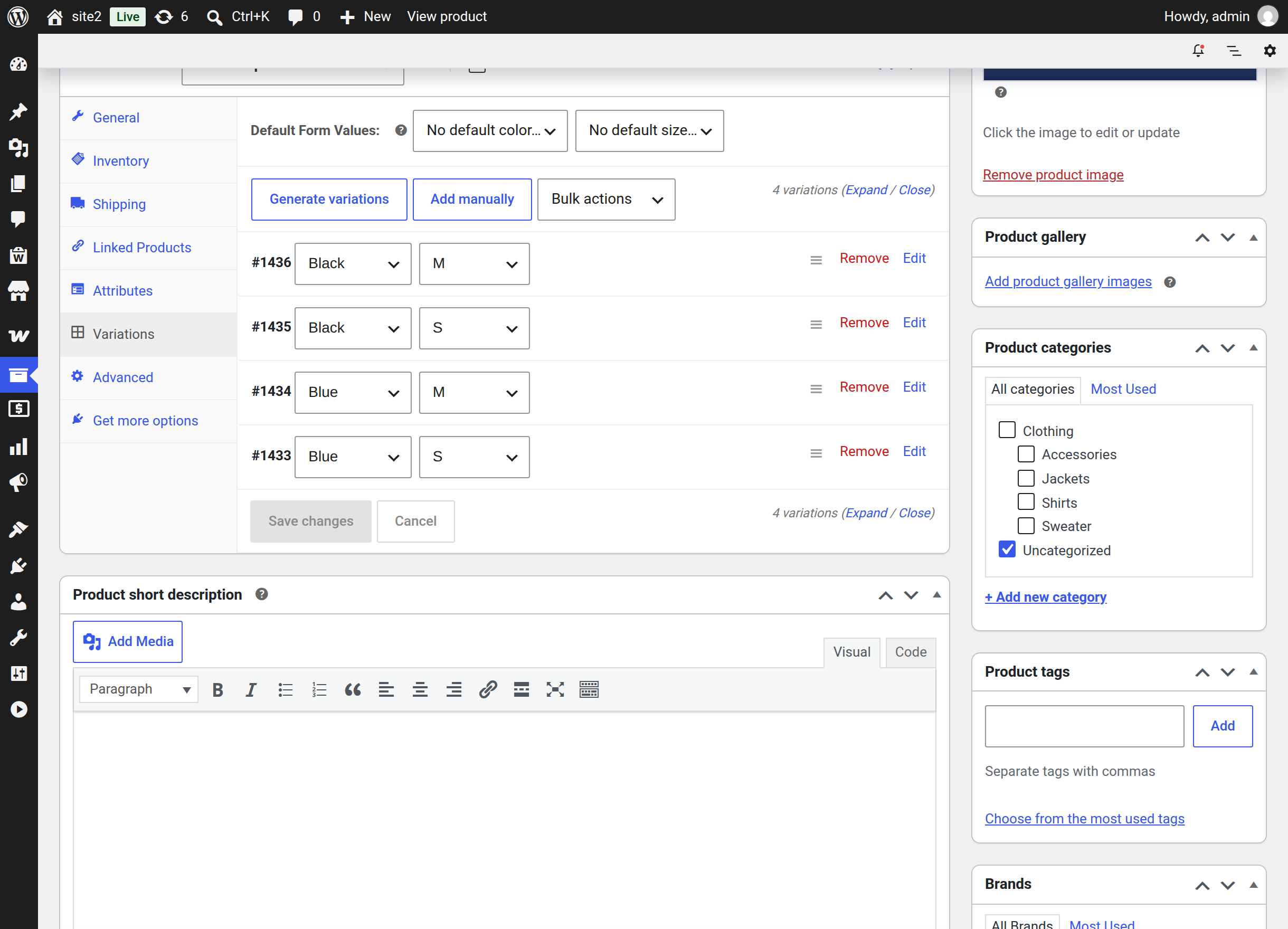
| Shopify product | Created in WooCommerce as |
|---|---|
| More than one variant | Variable product |
Exactly one variant, titled Default Title | Simple product |
| Exactly one variant with any other title | Variable product with one variation |
That third row surprises people. A Shopify product with a single named option — one size, one colour — arrives as a variable product with a single variation, because the option carries meaning worth preserving.
How stock and backorders are decided
Three cases, evaluated in this order:
| Shopify state | WooCommerce result |
|---|---|
| Inventory policy is continue and quantity is 0 | Stock management off · In stock · backorders allowed |
| Inventory is tracked and quantity is above 0 | Stock management on · quantity copied · In stock · backorders not allowed |
| Inventory is tracked and quantity is 0 or less | Stock management off · Out of stock · backorders not allowed |
| Inventory is not tracked | Stock management off · In stock · backorders allowed |
A Shopify product that is not tracking inventory therefore arrives as an always-in-stock WooCommerce product. That is faithful to Shopify's behaviour, but it is worth knowing before you trust the numbers.
Duplicate protection
The connector will not create a clash in your catalogue:
- SKU — if the SKU already exists on another WooCommerce product, the imported product is saved without a SKU. For variations, the SKU is saved with a
duplicate_prefix and a random number instead, so the variation still saves. - Barcode — written only if that value is not already stored against another product.
If SKUs matter to your workflow, check for blanks after a large import.
What decides the product's status
| Situation | Status given |
|---|---|
| Import Products As is set | Always that status — Draft, Pending Review or Published |
| Import Products As is blank, Shopify status is active | Published |
| Import Products As is blank, Shopify status is draft | Draft |
| Import Products As is blank, Shopify status is archived | Pending Review |
Fixed values
Some WooCommerce settings are set the same way on every imported product, regardless of Shopify:
- Catalogue visibility: visible
- Reviews: allowed
- Sold individually: no
- Virtual: no
Adjust these afterwards in WooCommerce if your catalogue needs something different.
What is not imported
The connector does not bring across Shopify metafields, SEO fields, custom apps' data, product publishing channels, or Shopify's product type and vendor fields as WooCommerce data. Nothing is silently invented on the WooCommerce side either.
Exporting: WooCommerce to Shopify
Product-level fields
| WooCommerce field | Sent to Shopify |
|---|---|
| Product name | title |
| Description | body_html / description |
| Product image + gallery | media — resized if Imported Image Size is set |
| Product tags | tags |
| Product type | Used to decide the Shopify variant structure |
| Attributes | Shopify product options, with their values |
Variant-level fields
| WooCommerce field | Sent to Shopify |
|---|---|
| Price | price, with any export price rule applied |
| Regular price (when a sale price exists) | compareAtPrice |
| SKU | sku |
| Weight | inventoryItem.measurement.weight, always sent in kilograms |
| Stock quantity | inventoryQuantities, against the location set in Select Shop Location |
| Stock status and backorders | inventoryPolicy and tracked |
| The unique-ID field (GTIN/UPC/EAN/ISBN) | barcode |
| Variation image | The variant's image |
| Variation attributes | optionValues |
Important
Weight is always sent to Shopify in kilograms, whatever unit your WooCommerce store uses. If your store works in pounds or grams, the number is sent as-is and Shopify reads it as kilograms. Check a product after the first export and adjust your WooCommerce weight unit if the figure looks wrong.
How stock status maps outward
| WooCommerce state | Sent to Shopify |
|---|---|
| In stock, not managing stock, no quantity | Policy DENY, quantity 0, tracking off |
| On backorder, not managing stock, no quantity | Policy CONTINUE, quantity 0 |
| In stock with a quantity | Policy DENY, quantity copied |
| Out of stock | Policy DENY, quantity 0 |
Limits Shopify imposes
| Limit | Effect |
|---|---|
| Three options per product | A variable product with more than three variation attributes cannot be created on Shopify. The export fails; reduce the attributes first. |
| Product types | Only simple and variable WooCommerce products can be exported. Grouped and external/affiliate products are never listed. |
Simple products on Shopify
A WooCommerce simple product has no options, but Shopify requires at least one. The connector sends the standard single option Shopify uses for products without variants, so the product appears in Shopify exactly as a Shopify-native single-variant product would.
Which fields an update is allowed to write
This is the distinction that catches people out, so it is worth stating plainly.
| Action | What is written |
|---|---|
| First export of a product | Everything in the tables above. The Product Fields To Update setting is ignored. |
| Update of an already-exported product | Only the fields selected in Product Fields To Update |
| Update from Shopify / product webhook | Only the fields selected in Product Fields To Update, plus title, category, weight, SKU and tax status, which are always written |
So Product Fields To Update protects a listing from being overwritten after it exists — it cannot limit what the first export sends.
See Settings for how to choose.
Related pages
- Importing Products — running the import
- Exporting Products — running the export
- Price Rules — adjusting prices in transit
- Order Data Reference — the same treatment for orders