
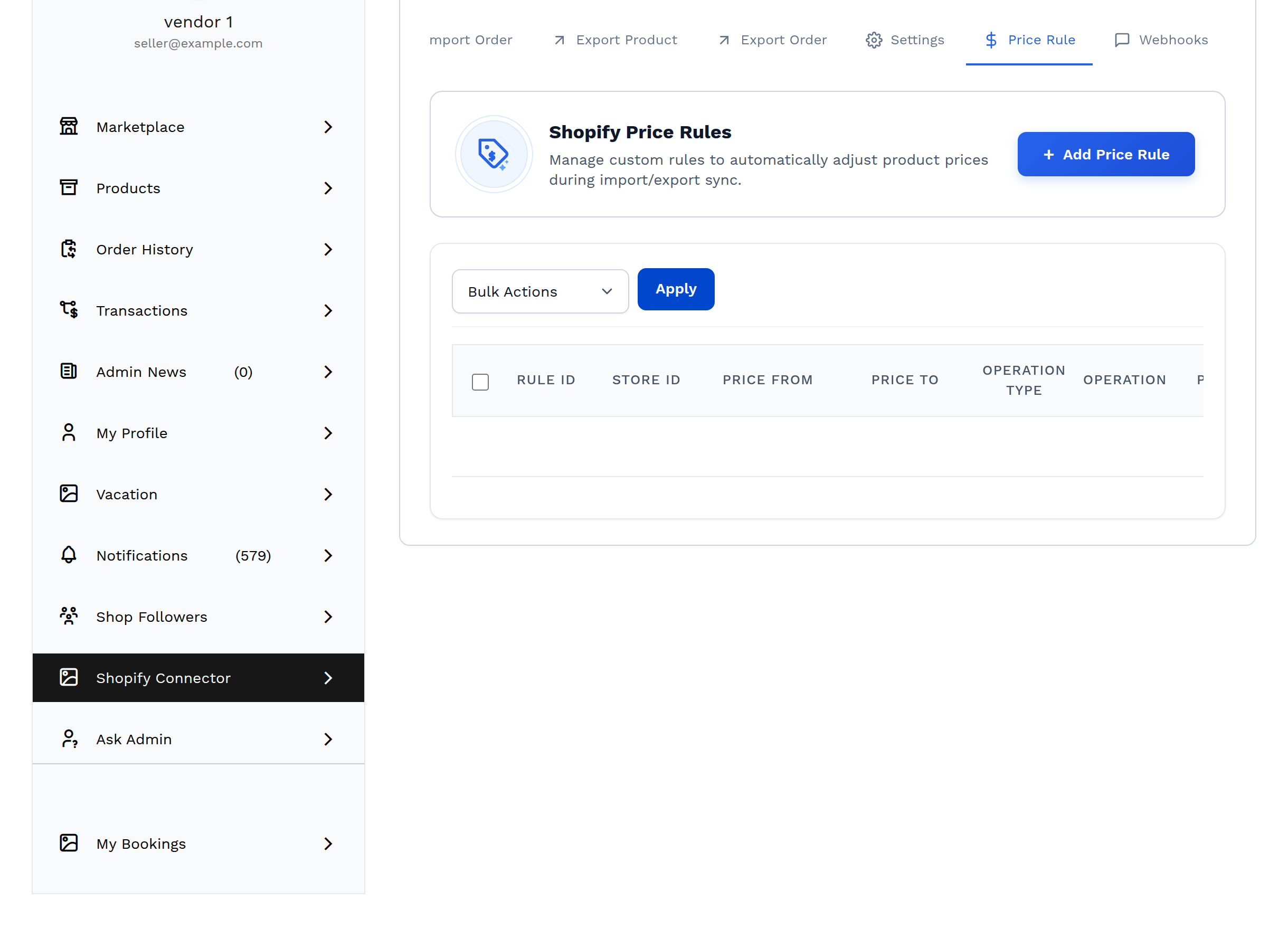
Price Rules
A price rule changes a product's price as it crosses between the two stores, without touching the price in the source catalogue. Sellers use them to add a marketplace margin, to absorb a commission, or to run a different price point on one channel.
Open My Account → Shopify Connector → Manage Account → Price Rule.
Turn rules on first
Price rules do nothing until the account's Price Rule Applicable For setting says which direction they apply to. On the Settings tab choose:
| Option | Effect |
|---|---|
| None | Rules are ignored — the default |
| Import Product | Rules adjust the price of products coming from Shopify into WooCommerce |
| Export Product | Rules adjust the price of products going from WooCommerce to Shopify |
Only one direction can be active at a time.
Adding a rule
Select + Add Price Rule.
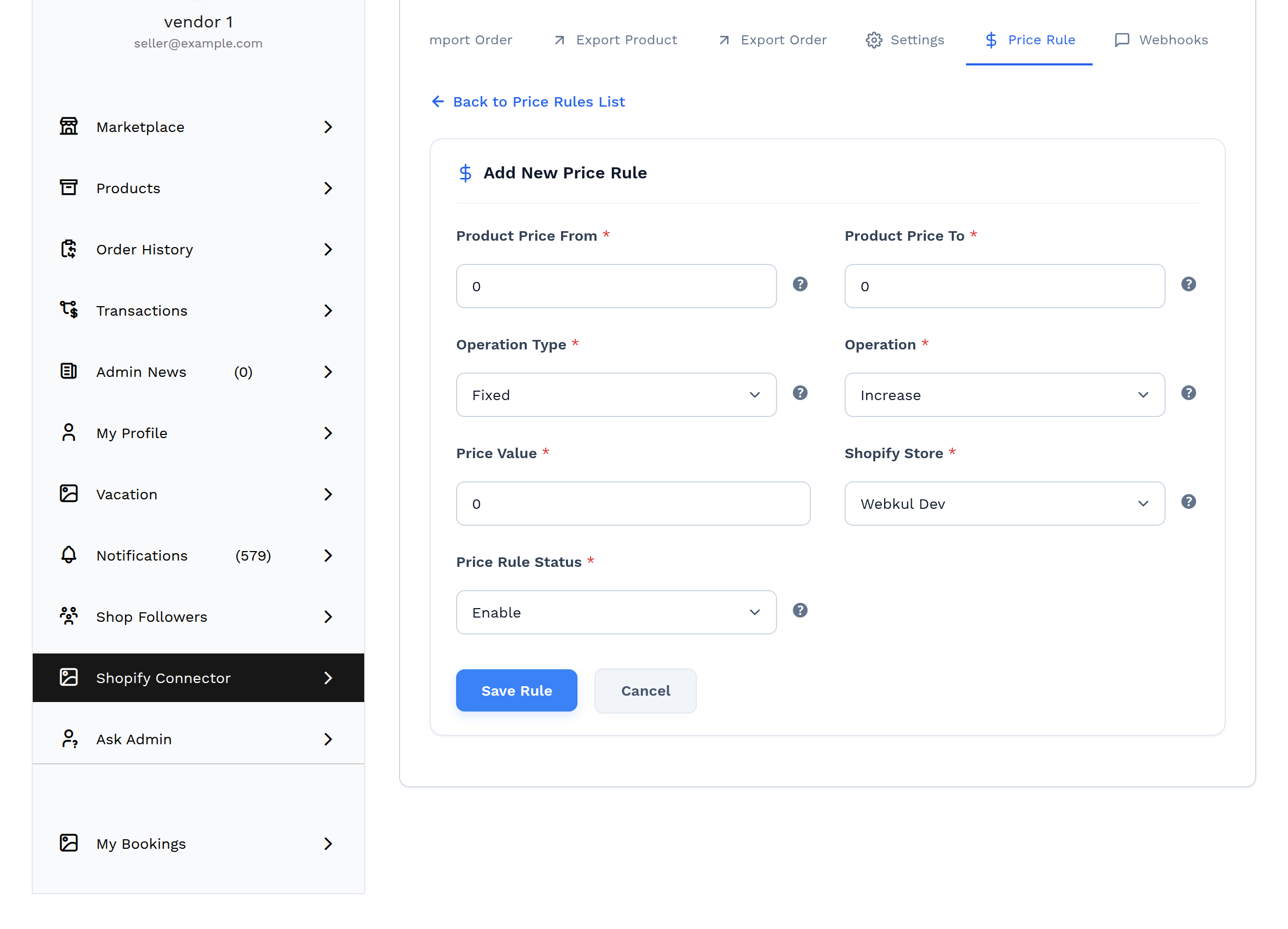
| Field | What to enter |
|---|---|
| Product Price From | The lowest price the rule applies to |
| Product Price To | The highest price the rule applies to |
| Operation Type | Fixed — a flat amount; Percentage — a share of the price |
| Operation | Increase or Decrease |
| Price Value | The amount, or the percentage. When Operation Type is Percentage the field is capped at 100 and shows a % marker |
| Shopify Store | The connected store the rule belongs to |
| Price Rule Status | Enable or Disable |
Select Save Rule, or Cancel to go back without saving.
All fields are required. The messages you may see:
| Message | Meaning |
|---|---|
| Price Rule Added. | The rule was saved |
| Price Rule Updated. | An edited rule was saved |
| Please enter values in all required fields. | A field was left blank or at zero |
| Please enter valid details. | The values did not pass validation |
| Price Rule Already Exists. | The band overlaps an existing rule for this store |
| Please make some changes in details to save. | You saved an edit without changing anything |
How a rule is chosen
For each product being synced, the connector looks for a rule where:
- the rule belongs to this Shopify account; and
- the product's price falls inside the Price From – Price To band; and
- the rule's status is Enable; and
- the account's Price Rule Applicable For matches the direction being synced.
If no rule matches, the price crosses unchanged.
Note
Bands cannot overlap. The connector checks a new or edited rule against the existing rules for the same store, and rejects it with Price Rule Already Exists. if either end of the new band falls inside a band that is already there. You never have to reason about which of two overlapping rules wins, because you cannot create the situation.
Worked examples
Add a flat ₹50 to everything between ₹500 and ₹2,000 on import
| Field | Value |
|---|---|
| Product Price From | 500 |
| Product Price To | 2000 |
| Operation Type | Fixed |
| Operation | Increase |
| Price Value | 50 |
| Price Rule Status | Enable |
With Price Rule Applicable For set to Import Product, a Shopify product priced ₹800 is created in WooCommerce at ₹850. A product priced ₹300 falls outside the band and is unchanged.
Take 10% off everything up to ₹1,000 on export
| Field | Value |
|---|---|
| Product Price From | 1 |
| Product Price To | 1000 |
| Operation Type | Percentage |
| Operation | Decrease |
| Price Value | 10 |
With Price Rule Applicable For set to Export Product, a WooCommerce product at ₹900 is created on Shopify at ₹810.
The safety net
If an adjustment would leave the price at zero or below, the connector keeps the original price. A rule can never produce a free or negative product.
Managing existing rules
The list shows every rule for the account.
| Column | Meaning |
|---|---|
| Rule ID | The rule's identifier |
| Store ID | The connected Shopify account it belongs to |
| Price From / Price To | The band |
| Operation Type | Fixed or Percentage |
| Operation | Increase or Decrease |
| Price / % | The amount |
| Status | Enabled or Disabled |
| Action | Edit Price Rule |
Bulk Actions offers:
- Delete Selected — removes the rules permanently.
- Enable Selected — turns rules on.
- Disable Selected — turns rules off without deleting them.
An account with no rules shows No Price Rules Found.
Tips
Disable rather than delete when you are testing. A disabled rule keeps its configuration and can be switched back on in one action.
What price rules do not do
- They do not change the price in the source store — only the copy created in the destination store.
- They do not re-price products that have already been synced. Run an update or a re-import for the new rule to take effect on existing products.
- They apply to the product price only, not to shipping, tax or discounts on orders — those are controlled by the Export Order Settings.
Related pages
- Settings — turning rules on for a direction
- Product Data Reference — where the price a rule acts on comes from
- Webhooks and Auto-Sync — rules also apply to live updates