
Importing Products
Importing brings products from Shopify into WooCommerce. It runs in two stages so that a large catalogue can be pulled in batches instead of in one long request that might time out.
Open My Account → Shopify Connector → Manage Account → Import Product.
Before you import
Set these on the Settings tab first — they decide what the import produces, and they are read at import time, not afterwards:
| Setting | Why it matters here |
|---|---|
| Default Category | Where products land when their collection is not mapped |
| Products to Import | All products, or Only mapped categories product |
| Products to Import having Shopify Status | Import only Active, Archived or Draft products |
| Import Products As | The WooCommerce status new products get — Draft, Pending Review or Published |
| Product Description With HTML | Keep Shopify's formatting, or import plain text |
| Imported Image Size | Default, 150px, 300px or 768px |
| Product Image Import | Create images during the import, or afterwards in the background |
| Select Shop Location | Which Shopify location the stock figures come from |
| Price Rule Applicable For | Set to Import Product to adjust prices on the way in |
If you intend to map collections to categories, do that before importing — see Category Mapping.
Stage 1 — Import Product
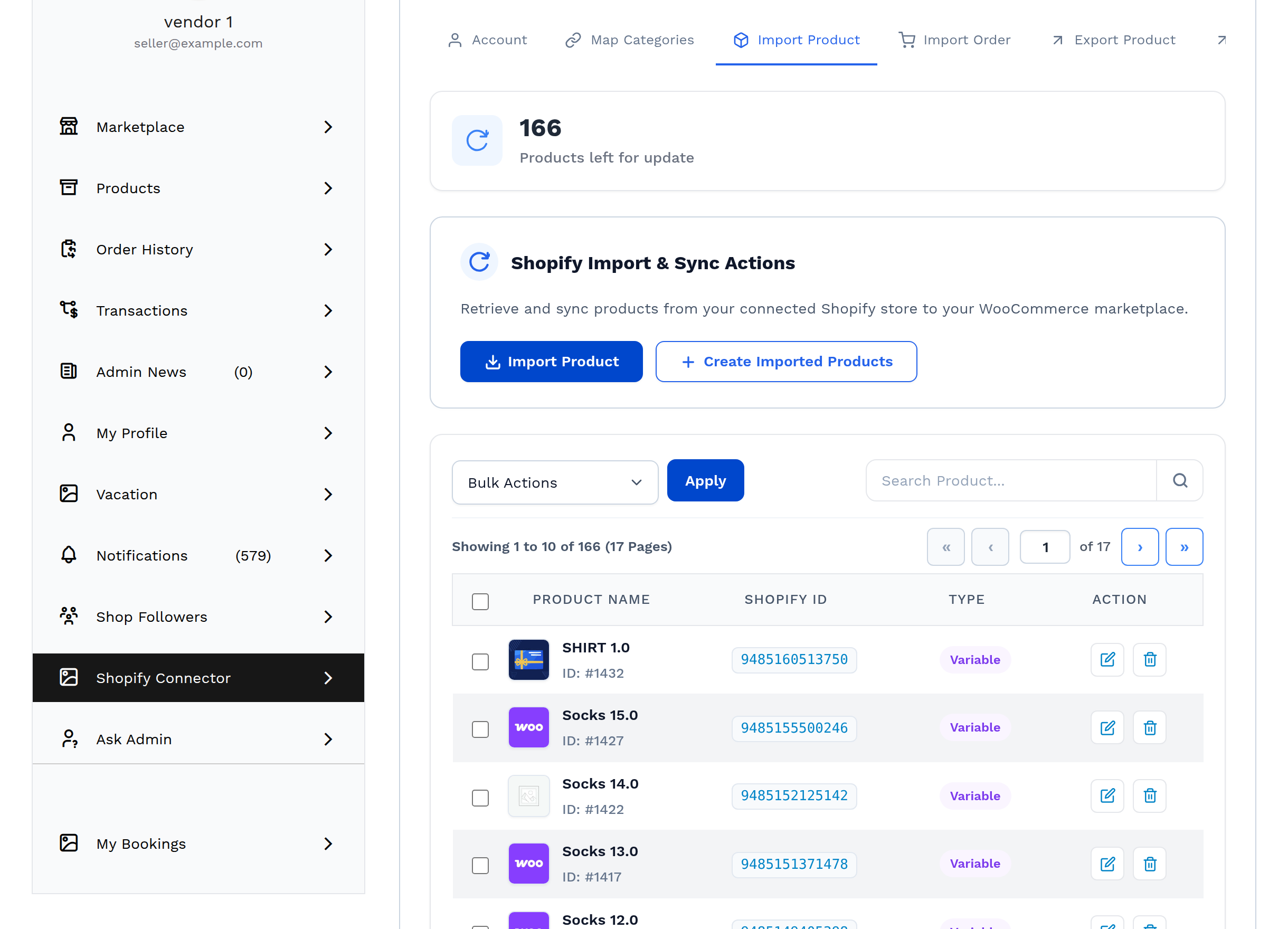
Select Import Product. The connector fetches product data from Shopify ten products at a time and stores it in a staging area. Nothing appears in your WooCommerce catalogue yet.
A progress card shows the current batch, a counter of products handled, and a Sync Logs list naming each product as it arrives. Each product is fetched with up to 50 variants, 50 options and 50 images.
Products that are already in this account's export map are skipped — a product you exported to Shopify is never pulled back in as a new one.
Typical progress messages: Importing Products, Products Imported Out Of, Products Skipped, Already Imported.
Tips
Leave the browser tab open while an import runs. Closing it stops the batching; you can select Import Product again to resume from where it left off, because already-imported products are recognised and skipped.
Stage 2 — Create Imported Products
Select Create Imported Products. The connector now turns the staged data into real WooCommerce products, applying the default category, the chosen status, the image size and any price rule.
This stage runs one product per round trip, deliberately — building a variable product with images is far heavier than fetching it, and one at a time is what keeps a large catalogue from timing out. That is why creating takes noticeably longer than importing.
Progress messages here include Creating Products, Products Created Out of and Already Created.
A Shopify products left to create counter appears above the actions while staged products are still waiting, so you can see how much of stage 2 is left without starting it.
If nothing is waiting, the connector reports There are no products available to create.
If Products to Import is set to Only mapped categories product, anything outside a mapped collection is reported as Product(s) skipped due to category not mapped.
What comes across
For every imported product the connector creates:
- name and description (with or without HTML, as configured)
- price, and a sale price when Shopify has a compare-at price
- SKU and barcode
- stock quantity, stock status and backorder setting, taken from the selected Shopify location
- weight, tags, and the created and modified dates
- the base image and every additional image
- for variable products, each option and its values, and a WooCommerce variation per Shopify variant
Simple and variable Shopify products are both supported. An imported product behaves like any other WooCommerce product — it can be edited, priced and sold normally.
The product type is decided by the variant count: more than one variant becomes a variable product; a single variant titled Default Title becomes a simple product; a single variant with any other title becomes a variable product with one variation.
Duplicate SKUs and barcodes are not created. If the SKU already exists elsewhere in your catalogue the product is saved without one, and a duplicate variation SKU is saved with a duplicate_ prefix instead.
For the complete field-by-field mapping, including how stock, backorders and sale prices are decided, see the Product Data Reference.
The imported product list
Below the actions is the list of everything imported for this account.
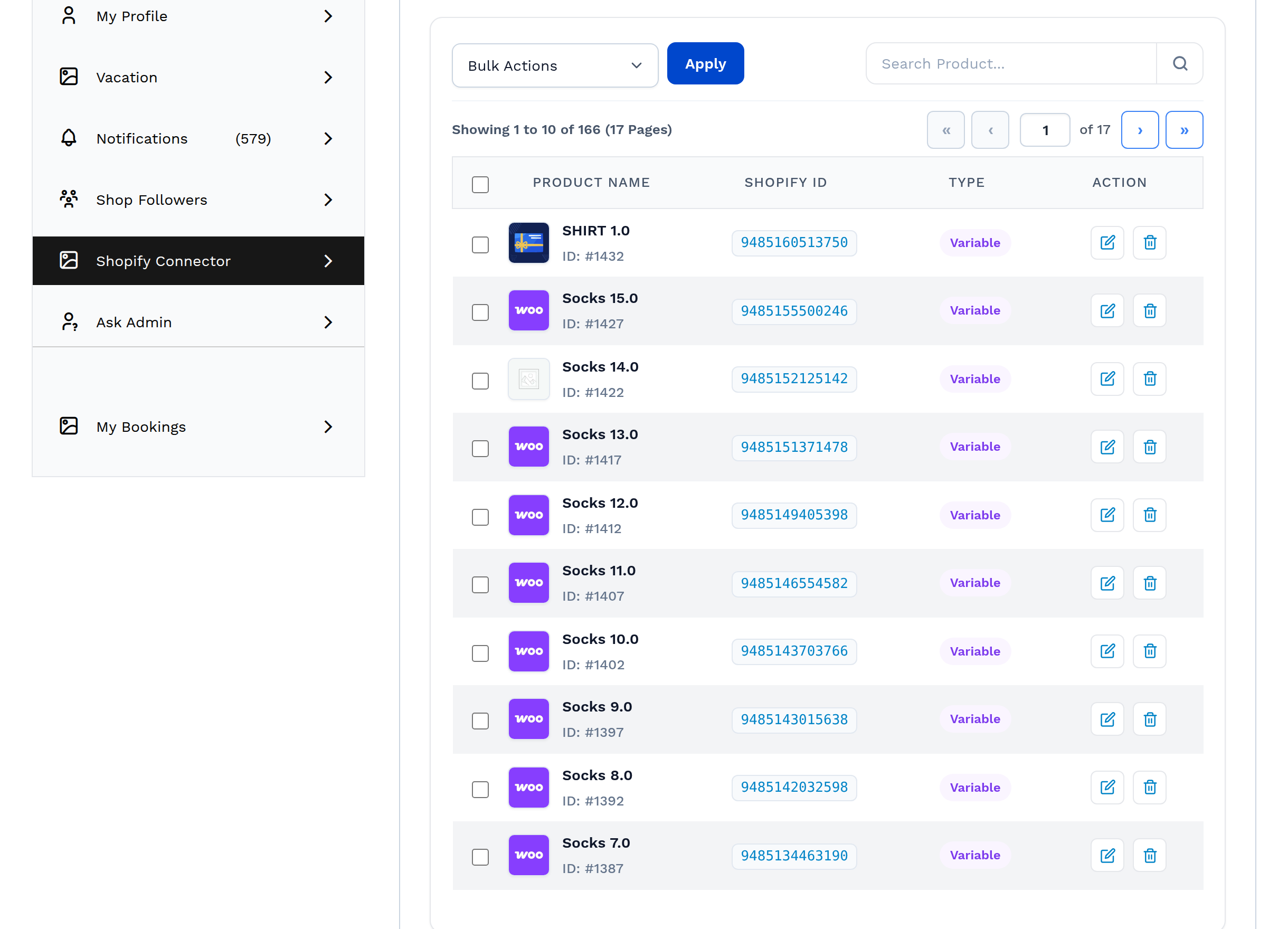
| Column | Meaning |
|---|---|
| Product Name | The WooCommerce product, with its post ID |
| Shopify ID | The product's ID in Shopify |
| Type | Simple or Variable |
| Action | Edit Product, Delete Product |
Use the search box to find a product by name. Bulk Actions offers:
- Delete Selected — removes the WooCommerce products and their mapping.
- Update from Shopify — re-pulls the selected products from Shopify and updates them, writing only the fields listed in Product Fields To Update on the Settings tab.
Keeping the catalogue current
There are three ways an imported product stays in step with Shopify. Pick whichever suits the store.
Update from Shopify (a few products)
Select the rows and use Bulk Actions → Update from Shopify. Best when a handful of products have changed and you want the change now.
Refresh Imported Products (the whole catalogue)
The Refresh Imported Products button re-queues every imported product for an update that touches only inventory and prices. It asks for confirmation first, because on a large catalogue it takes a while.
A Products left for update counter appears above the actions while a refresh is outstanding, and the button is hidden until that queue drains.
Note
Use Refresh when stock or pricing has drifted across many products at once. For a single product, Update from Shopify is faster.
Automatic (live)
Set Product Auto-Sync to Shopify To WooCommerce on the Settings tab, and Shopify's PRODUCTS_UPDATE webhook keeps products current on its own. See Webhooks and Auto-Sync.
Background images
When Product Image Import is set to In The Background, products are created immediately and their images are fetched afterwards by a background queue. A Product images left for create counter appears above the actions while that queue has work in it.
This makes a large import noticeably faster, at the cost of products briefly appearing without pictures.
Related pages
- Product Data Reference — exactly which fields travel, and how
- Exporting Products — sending products the other way
- Settings — the options that shape an import