
Importing Orders
Importing orders brings a seller's Shopify orders into WooCommerce, so the marketplace shows one combined order book instead of two.
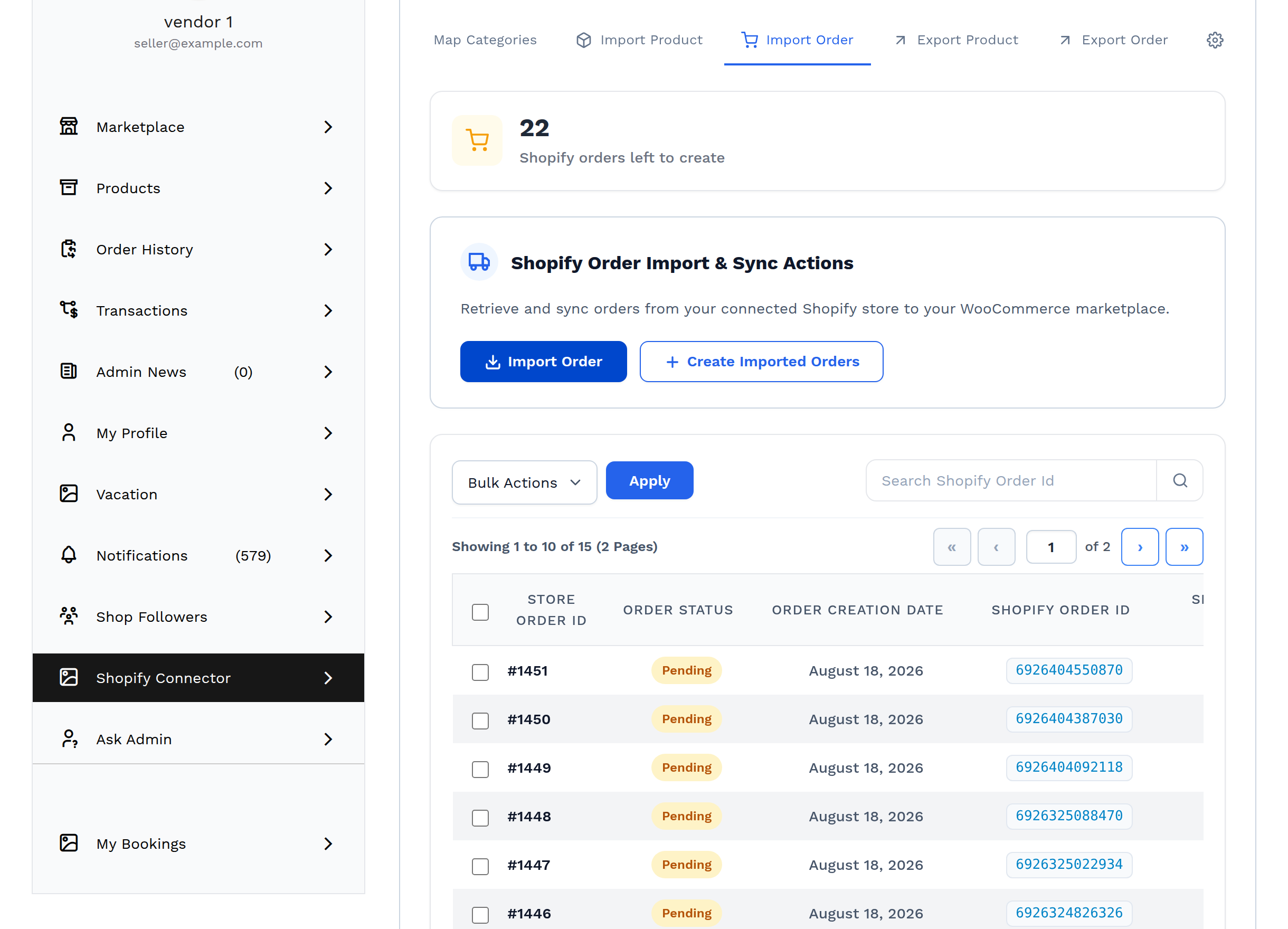
Open My Account → Shopify Connector → Manage Account → Import Order.
Import the products first
An order is a list of products. WooCommerce cannot record an order for a product it does not have, so the connector must be able to match every line of the Shopify order to a WooCommerce product.
If it cannot, the create step reports:
Order not Created due to product unavailabilty so please import products.
Run Importing Products to completion before importing orders.
Before you import
On the Settings tab, set Import Orders As to the WooCommerce status you want imported orders to arrive with. Every imported order is created with that status.
Which status suits depends on how you work:
- Processing — the order is paid on Shopify and you want it in the normal fulfilment queue.
- Completed — Shopify has already shipped it and you are importing for the record.
- Pending payment — you want to review each order before it counts.
Which Shopify orders are eligible
The connector asks Shopify only for orders with the status open. Archived and cancelled Shopify orders are never offered for import, so an "old" order that has been archived on Shopify will not appear no matter how many times the import is run.
Stage 1 — Import Order
Select Import Order. The connector fetches orders from Shopify into a staging area, one order per round trip. Nothing appears in the WooCommerce order list yet.
A Shopify orders left to create counter appears above the actions once orders are waiting.
Progress messages: Importing Orders, Orders Imported Out of, Orders Skipped, Already Imported.
Stage 2 — Create Imported Orders
Select Create Imported Orders. The connector turns each staged order into a WooCommerce order, gives it the configured status, matches its line items to the imported products, attaches it to the correct marketplace seller and writes it into the marketplace's own order tables.
An order is created only when every one of its line items can be matched to a WooCommerce product. A partial match is treated as a failure and the whole order is skipped, because a partially imported order would misstate the total.
While nothing is staged, the button is disabled and reads Orders are not available for create.
Progress messages: Creating Orders, Orders Created, Order Number:, Order Created Successfully.
The imported order list
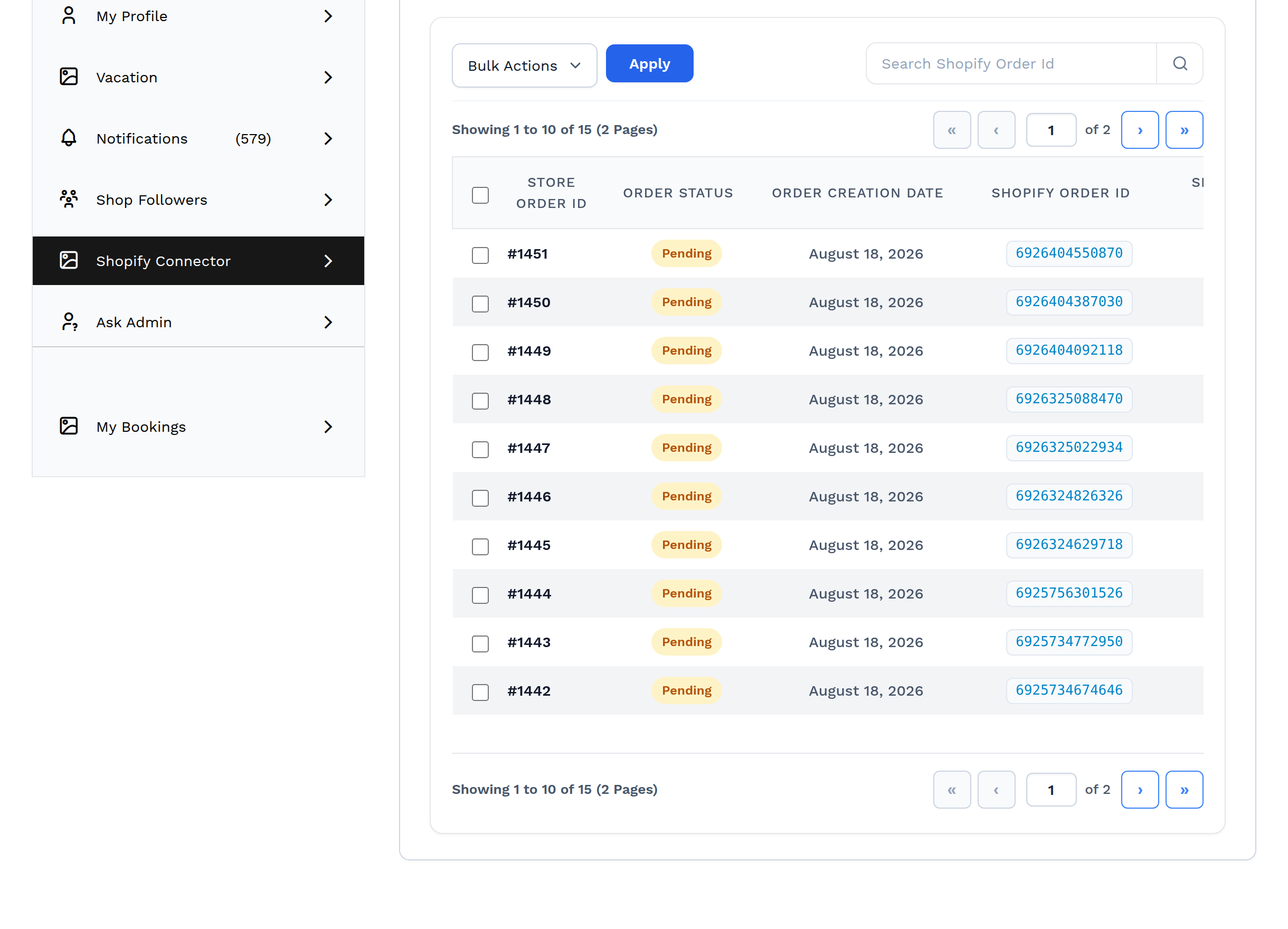
| Column | Meaning |
|---|---|
| Store Order Id | The WooCommerce order number |
| Order Status | The order's WooCommerce status |
| Order Creation Date | When the order was created |
| Shopify Order Id | The order's internal Shopify ID |
| Shopify Order Number | The number the buyer saw on Shopify |
The same two values are also written onto each line item of the WooCommerce order, so the origin is visible from the order screen itself.
Use Search Shopify Order Id to find one order. Bulk Actions → Delete removes the selected mappings and reports "%d Order Deleted Successfully.".
Note
Deleting a row here removes the connector's link to Shopify. Manage the WooCommerce order itself from the normal WooCommerce order screens.
What the seller sees afterwards
An imported order behaves like any other marketplace order:
- it appears in the seller's Order History;
- it is counted in the marketplace's seller order tables and reporting;
- the administrator sees it in WooCommerce → Orders, with the Shopify order ID shown in the Shopify Order Id column — see Admin Overview.
Keeping imported orders current
The ORDERS_FULFILLED webhook keeps fulfilment in step. When the seller fulfils the order in Shopify, the carrier, tracking number and tracking URL are written onto the matching WooCommerce order lines, so the buyer can follow the parcel from the WooCommerce order.
Related pages
- Order Data Reference — every field an imported order carries
- Exporting Orders — sending orders the other way
- Importing Products — the prerequisite