
Webhooks and Auto-Sync
Webhooks are what make the connection feel live. Instead of a seller running an import to find out what changed, Shopify tells the connector the moment something happens, and the connector applies it in the background.
Open My Account → Shopify Connector → Manage Account → Webhooks.
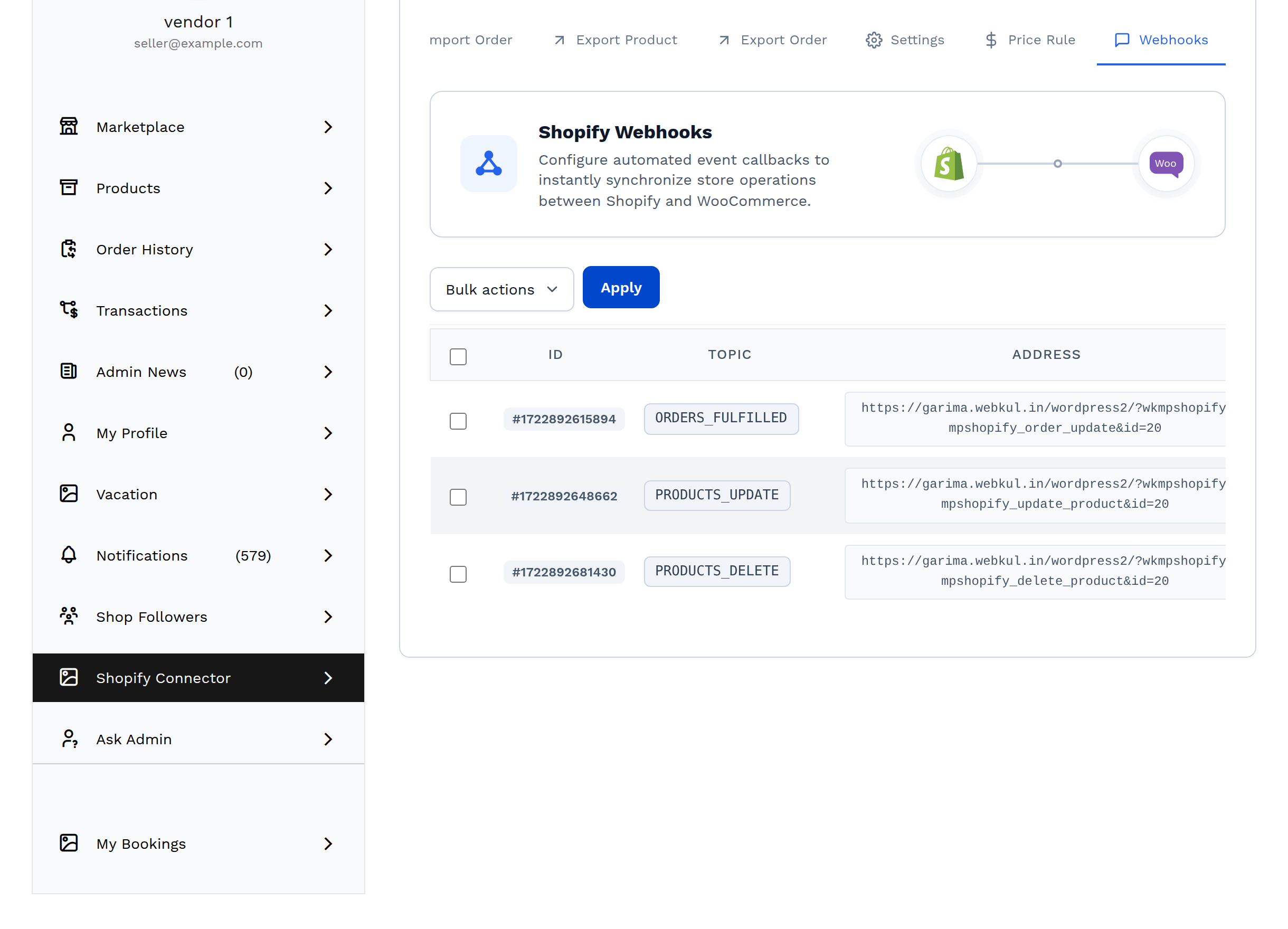
The three webhooks
Exactly three are registered per connected store — no more, no fewer.
| Topic | Fires when | What the connector does |
|---|---|---|
| PRODUCTS_UPDATE | A product changes in Shopify | Updates the matching WooCommerce product |
| PRODUCTS_DELETE | A product is deleted in Shopify | Removes the connector's link for that product |
| ORDERS_FULFILLED | An order is fulfilled in Shopify | Writes carrier, tracking number and tracking URL onto the WooCommerce order lines |
Each webhook points at an address on your own site carrying the connector's account ID, so Shopify's message reaches the right connected store. The Address column shows the exact URL, and it is always your site's own address — the connector never routes through a third party.
When they are created
Webhooks are registered automatically when a store is connected — through the Setup Wizard or through Add Account. In normal use there is nothing to do on this tab.
If fewer than three exist, a Generate Webhooks button appears. Select it to create the missing ones. Once all three exist the button disappears, because there is nothing left to generate.
| Message | Meaning |
|---|---|
| "Webhooks created successfully." | One or more missing webhooks were registered |
| "All webhooks are already created." | Nothing was missing |
| "Shopify token is invalid" | The store's access token no longer works — refresh it on the Account tab |
The connector never creates duplicates: before adding a topic it checks whether that exact topic and address already exist on the store.
Reading the list
| Column | Meaning |
|---|---|
| ID | The webhook's ID in Shopify |
| Topic | The event it listens for |
| Address | The URL on your site that Shopify calls |
| Created at | When it was registered |
Only webhooks pointing at your site are listed. Any subscription on the Shopify store whose address belongs elsewhere is filtered out of this table and deleted from Shopify, so a store that has been connected to several systems does not accumulate stale subscriptions.
An account with none shows No Webhooks Found.
Deleting webhooks
Tick one or more rows and use Bulk actions → Delete, then Apply. The connector confirms "N Webhook Deleted Successfully.".
Warning
Deleting a webhook stops the matching live update. Delete ORDERS_FULFILLED, for example, and Shopify tracking numbers stop reaching WooCommerce orders. Select Generate Webhooks to put a deleted one back.
What happens to an incoming update
Four stages, in order. Understanding them is the fastest route to diagnosing a sync that is not working.
1. Shopify calls the address
The request carries a signature Shopify generated from the store's API secret key.
2. The connector verifies the signature
It recalculates the signature from the request body and the API Secret Key stored for that account, and compares the two. A mismatch is logged as "Webhook Verification failed for domain …" and answered with a 403 — nothing is applied.
This is what stops anyone else posting fake updates to your site.
Important
This check uses the API Secret Key saved on the Account tab. If that value is wrong or missing, the store connects, the webhooks appear healthy in Shopify, and every incoming update is silently rejected. It is the most common cause of "webhooks are registered but nothing happens".
3. The message is queued
Verified notifications are stored rather than applied immediately, so a busy hour on Shopify never slows your storefront. The administrator sees the backlog on Marketplace → MP Shopify Connector as "N Realtime Sync Notification Pending in background."
Product notifications are only queued at all when Product Auto-Sync is Shopify To WooCommerce — see below. Fulfilment notifications are always queued.
4. A background process applies them
The queue is drained twenty notifications at a time, one per pass. Each applied notification is logged and then removed from the queue.
If the process has not ticked for five minutes it is treated as stalled: the connector kills it and restarts it automatically, logging "Background process stalled. Recovery required."
Auto-sync decides what is acted on
Registering a webhook is not the same as acting on it.
| Product Auto-Sync | PRODUCTS_UPDATE and PRODUCTS_DELETE |
|---|---|
| Disable | Received and verified, but not applied |
| Shopify To WooCommerce | Applied — WooCommerce follows Shopify |
| Woocommerce To Shopify | Not applied — WooCommerce is the master, and changes travel the other way |
ORDERS_FULFILLED is not governed by this setting. Fulfilment tracking always flows back for orders the connector knows about.
Set the direction on the Settings tab.
What a live product update actually writes
When a PRODUCTS_UPDATE webhook is applied, the connector rewrites the WooCommerce product — but not every field.
Governed by Product Fields To Update (written only if selected):
| Selection | Writes |
|---|---|
| Price | Regular price, sale price and displayed price, with any import price rule applied |
| Quantity | Stock quantity, stock status and backorder setting |
| Description | Product description, with or without HTML per your setting |
| Images | Product image and gallery |
Always written, whatever is selected: product name, category, weight, SKU, tax status and product type.
The product type is re-evaluated on every update using the same rule as an import — more than one variant means variable — so a Shopify product that gains a second variant is converted from simple to variable automatically.
What a live product deletion does
PRODUCTS_DELETE removes the connector's mapping rows for that product, so WooCommerce stops treating it as linked to Shopify. The behaviour differs slightly depending on whether the product was imported from Shopify or exported to it, and the connector picks the right path automatically.
The three background queues
Webhook notifications are not the only thing processed behind the scenes. The connector runs three independent queues, each with the same five-minute stall recovery:
| Queue | What it does | Where you see it |
|---|---|---|
| Sync notifications | Applies verified Shopify webhooks | Admin notice: N Realtime Sync Notification Pending in background |
| Product images | Downloads images for imported products when Product Image Import is In The Background | Import Product tab: Product images left for create |
| Export variation images | Uploads variation images for exported variable products | No counter — runs silently after an export |
All three depend on WordPress's scheduler. If WP-Cron is disabled or blocked, all three stop, and the counters climb without falling.
Where to look when something is wrong
The connector writes to the standard WooCommerce logger. Open WooCommerce → Status → Logs and pick the source:
| Source | What it records |
|---|---|
MP Shopify Connector Shopify To Woo Sync Notification | Every incoming webhook — saved, in process, processed, and verification failures |
MP Shopify Connector Notification | Applied updates, including the tracking details written onto orders |
MP Shopify Background Process | Stalled and recovered queues |
WCMP-Shopify | General connector activity |
A working sync leaves a clear trail: Get Realtime Sync Notification → Realtime Sync Notification Saved → Notification In Process → Notification Processed Successfully. Whichever of those four is missing tells you which stage failed.
Checklist when live updates are not arriving
Work through these in order — all four must be true.
- All three webhooks exist on this tab. If not, select Generate Webhooks.
- Product Auto-Sync is Shopify To WooCommerce on the Settings tab. This is the most common cause.
- The API Secret Key is correct on the Account tab. Check the logs for "Webhook Verification failed".
- The background queue is moving. If the admin's pending count never falls, WP-Cron is not running.
Related pages
- Settings — the auto-sync controls
- Product Data Reference — field-by-field detail
- Order Data Reference — the fulfilment leg
- Admin Overview — the pending-notification notice
- Troubleshooting