
Category Mapping
Shopify groups products into collections; WooCommerce groups them into product categories. The connector does not guess which belongs with which — you pair them yourself, once, on the Map Categories tab.
Open My Account → Shopify Connector → Manage Account → Map Categories.
Why map at all?
Two things depend on the mapping:
- Where imported products land. A product whose Shopify collection is mapped is filed under the paired WooCommerce category. Anything unmapped falls back to the Default Category set on the Settings tab.
- Which products are imported at all. If the account's Products to Import setting is Only mapped categories product, the import skips anything outside a mapped collection and reports "Product(s) skipped due to category not mapped".
If you would rather not map anything, set Products to Import to All products and choose a Default Category — every imported product goes there.
Step 1 — Fetch the Shopify collections
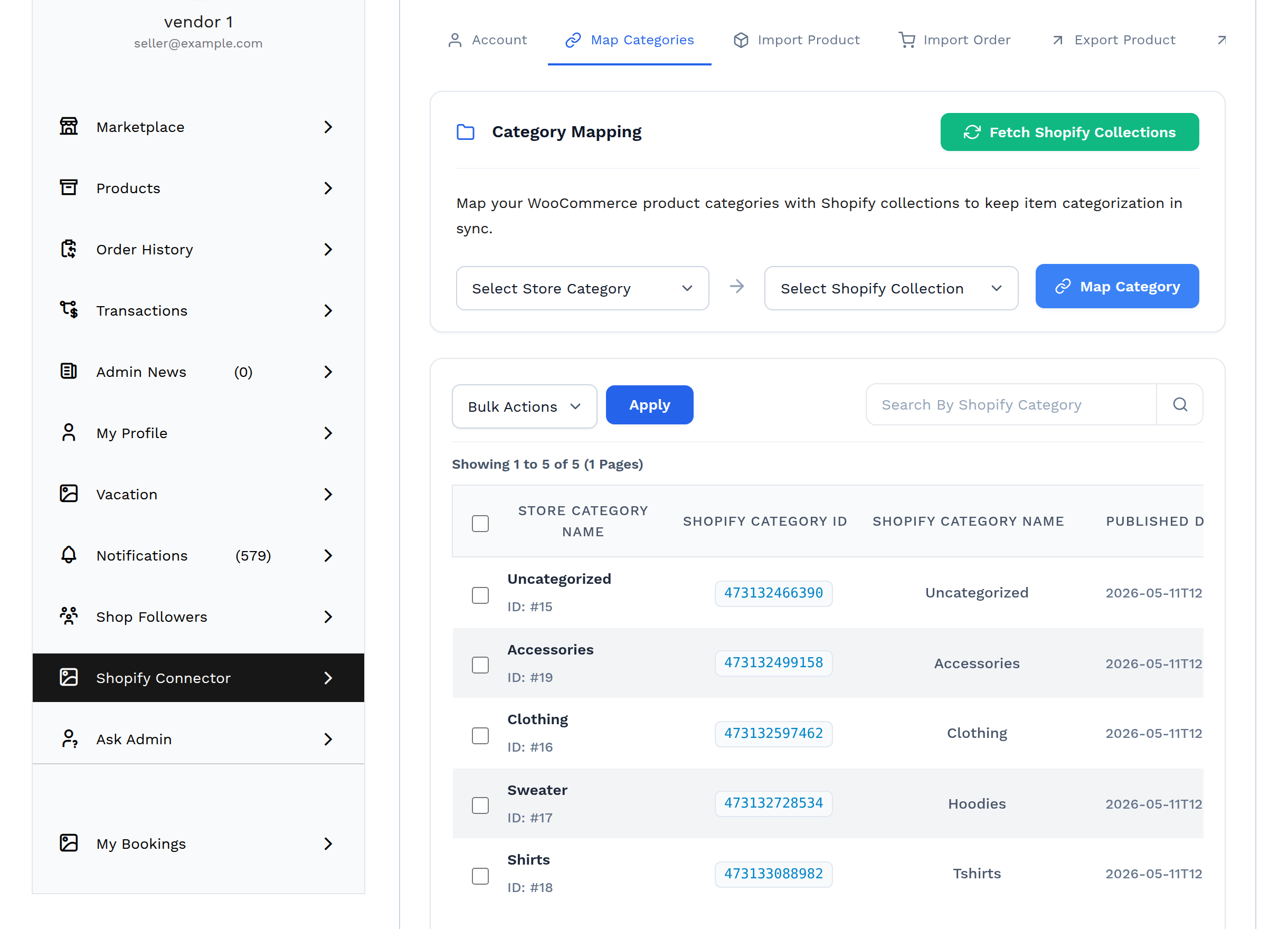
Select Fetch Shopify Collections. The connector reads the store's collections in batches and shows a progress bar with a running Sync Logs panel underneath, so a store with many collections can be watched as it works.
You only need to do this again when new collections are created in Shopify.
Step 2 — Pair a collection with a category
Below the description are three controls:
- Select Store Category — the WooCommerce category. Subcategories are indented under their parents, and any category you have already mapped is hidden from the list, so a category can only ever be paired once.
- Select Shopify Collection — the collections fetched in step 1.
- Map Category — saves the pair.
A successful pairing shows Category Mapped Successfully.
| Message | What it means |
|---|---|
| "Category already mapped." | That WooCommerce category is already paired with a collection |
| "Please select a valid category to map." | One of the two dropdowns was left on its placeholder |
Note
If a seller's marketplace account restricts which categories they may sell in, only those categories appear in the picker — and in the Default Category list on the Settings tab.
Step 3 — Review the mapped list
Every pair appears in the table below.

| Column | Meaning |
|---|---|
| Store Category Name | The WooCommerce category, with its term ID |
| Shopify Category ID | The collection's numeric ID in Shopify |
| Shopify Category Name | The collection's name in Shopify |
| Published Date | When the collection was published in Shopify |
The names do not have to match — in the example above the WooCommerce category Sweater is paired with the Shopify collection Hoodies, and Shirts with Tshirts. That is exactly the point of mapping: the two stores can keep their own vocabulary.
Search By Shopify Category filters the list. Bulk Actions → Delete removes selected pairs and reports "Category Deleted Successfully."
Removing a pair does not move products that have already been imported — it only changes where future imports land, and frees the WooCommerce category to be paired with a different collection.
An unmapped store shows No Mapped Categories Found.
A practical order of work
- Fetch the collections.
- Map the collections you actually sell through, starting with the busiest.
- Set a Default Category on the Settings tab as a safety net for anything unmapped.
- Decide whether Products to Import should be All products or Only mapped categories product.
- Only then run the product import.
Mapping first saves re-filing products by hand afterwards.
Next step
Continue to Importing Products.