
Exporting Orders
Exporting orders creates a seller's WooCommerce orders on Shopify. Sellers do this so that Shopify remains the single place they fulfil from, and so Shopify's stock reflects marketplace sales.
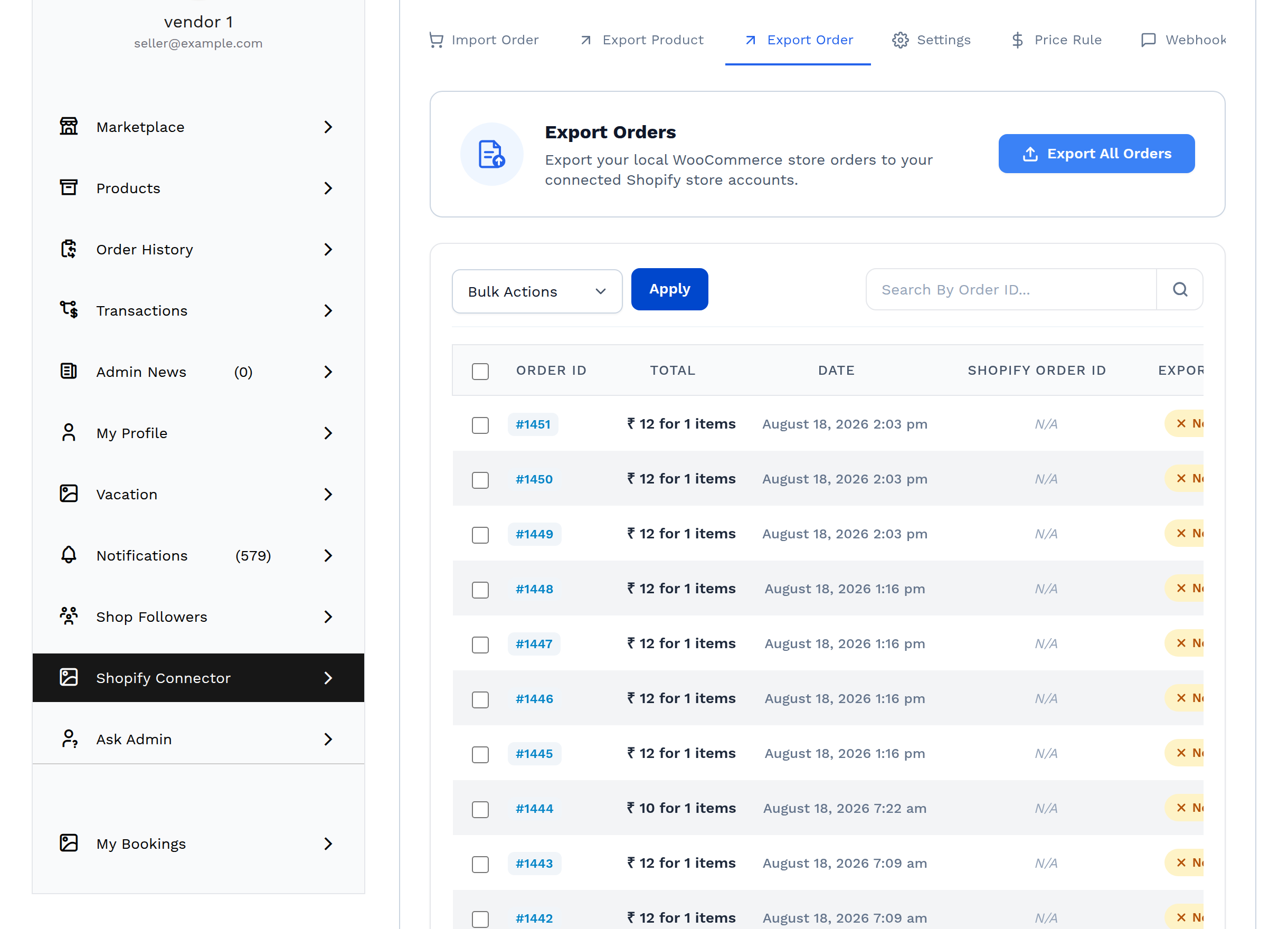
Open My Account → Shopify Connector → Manage Account → Export Order.
The order's products must already exist on Shopify
Shopify cannot create an order for a product it does not stock. Every line item therefore has to be linked to this Shopify account already — and there are two ways that can be true:
- the product was imported from this Shopify store, or
- the product was exported to it.
Either link counts. The connector checks the import mapping first and falls back to the export mapping, so a marketplace order made up of products you originally imported from Shopify exports without you having to send anything back the other way.
If a line item has neither link, the connector refuses the order and says:
Selected order product(s) are not available on Shopify. First, You need to export the product(s) then try to export the order(s)
Rows in this state are labelled Products Not Exported in the Export Status column. Run Exporting Products for those products first.
The order list
| Column | Meaning |
|---|---|
| Order ID | The WooCommerce order number |
| Total | The order total and item count |
| Date | When the order was placed |
| Shopify Order ID | The ID on Shopify, or N/A if it has not been exported |
| Export Status | Exported, Not Exported, or Products Not Exported |
| Action | View Order Details |
Use Search By Order ID... to find one order.
Exporting by hand
Everything at once
Select Export All Orders. The connector gathers every eligible order — skipping ones already exported and ones whose products are missing from Shopify — and pushes them in batches with a progress bar and a Sync Logs panel.
Progress messages: Exporting Orders, Orders Exported Out of, Orders Exported, Already Exported.
A selection
Tick the rows and use Bulk Actions → Export Selected, then Apply.
Exporting automatically
The connector can create Shopify orders without anyone pressing a button. On the Settings tab, set Shopify Export Order under Shopify Auto-Syncing Settings:
| Option | Behaviour |
|---|---|
| Manual | Nothing is exported automatically — use the buttons above |
| All | Every eligible marketplace order is exported as soon as it is placed |
| Pending payment | Export when the order reaches Pending payment |
| Processing | Export when the order reaches Processing |
| On hold | Export when the order reaches On hold |
| Completed | Export when the order reaches Completed |
The check runs when a buyer finishes checkout. The connector looks at each line of the new order, and if the products belong to a seller with a connected Shopify store and the order's status matches this setting, the order is created on Shopify straight away.
Tips
Processing is the usual choice: the order is paid, so it is worth reserving stock on Shopify, but it has not shipped yet. All exports even unpaid orders, which is rarely what a seller wants.
What travels with an exported order
Three settings under Export Order Settings decide what is carried across:
| Setting | Options |
|---|---|
| Export Order Shipping | Include Shipping Cost / Exclude Shipping Cost |
| Export Order Tax | Include Tax Cost / Exclude Tax Cost |
| Export Order Discount | Include Discount / Exclude Discount |
Exclude a component when your Shopify store already calculates it, or when including it would double what the accounts show.
Exported orders are created on Shopify with an inventory behaviour that decrements stock while obeying the product's stock policy — so Shopify's own oversell rules still apply.
Order status on Shopify
| WooCommerce status | Sent to Shopify |
|---|---|
| Completed | Financial status PAID, fulfilment status FULFILLED |
| Anything else | Financial status PENDING |
Two markers on every exported order
Every order the connector creates on Shopify carries an order note reading WooCommerce Order, and a custom attribute named Webkul Marketplace Admin Commission holding the marketplace commission calculated for that order.
That second one earns its keep at reconciliation time: the Shopify order itself records what the marketplace took, so the seller does not have to cross-reference two systems to work out their net.
The complete field list is in the Order Data Reference.
Fulfilment and tracking coming back
This is the return leg, and it needs no configuration beyond the webhooks the connector registers when a store is connected.
When the seller marks the order fulfilled in Shopify and enters a carrier and tracking number, Shopify fires the ORDERS_FULFILLED webhook. The connector matches the fulfilled line items to the WooCommerce order and writes three values onto each matching order line:
- Tracking Company
- Tracking Number
- Tracking URL
These appear on the WooCommerce order, so the buyer who ordered through the marketplace can follow a parcel that was actually dispatched from Shopify.
Important
Tracking only flows back for orders the connector knows about — imported orders, and orders it exported. It also needs the store's API Secret Key to be correct, because that is what the webhook signature is checked against.
Where the administrator sees this
The WooCommerce order list gains a Shopify Order Id column showing the Shopify order number for every linked order. See Admin Overview.
Related pages
- Order Data Reference — every field an exported order carries
- Exporting Products — the prerequisite
- Settings — the shipping, tax and discount switches