
Category Mapping
Category mapping links WooCommerce product categories to Shopify collections. Mapped categories are used in two places:
- Product import — when Products to Import is set to Only mapped categories product, only products belonging to mapped Shopify collections are imported, and they land in the mapped WooCommerce category.
- Product export — exported products are placed into the Shopify collection mapped to their WooCommerce category.
Open the store workspace and go to the Map Categories tab.
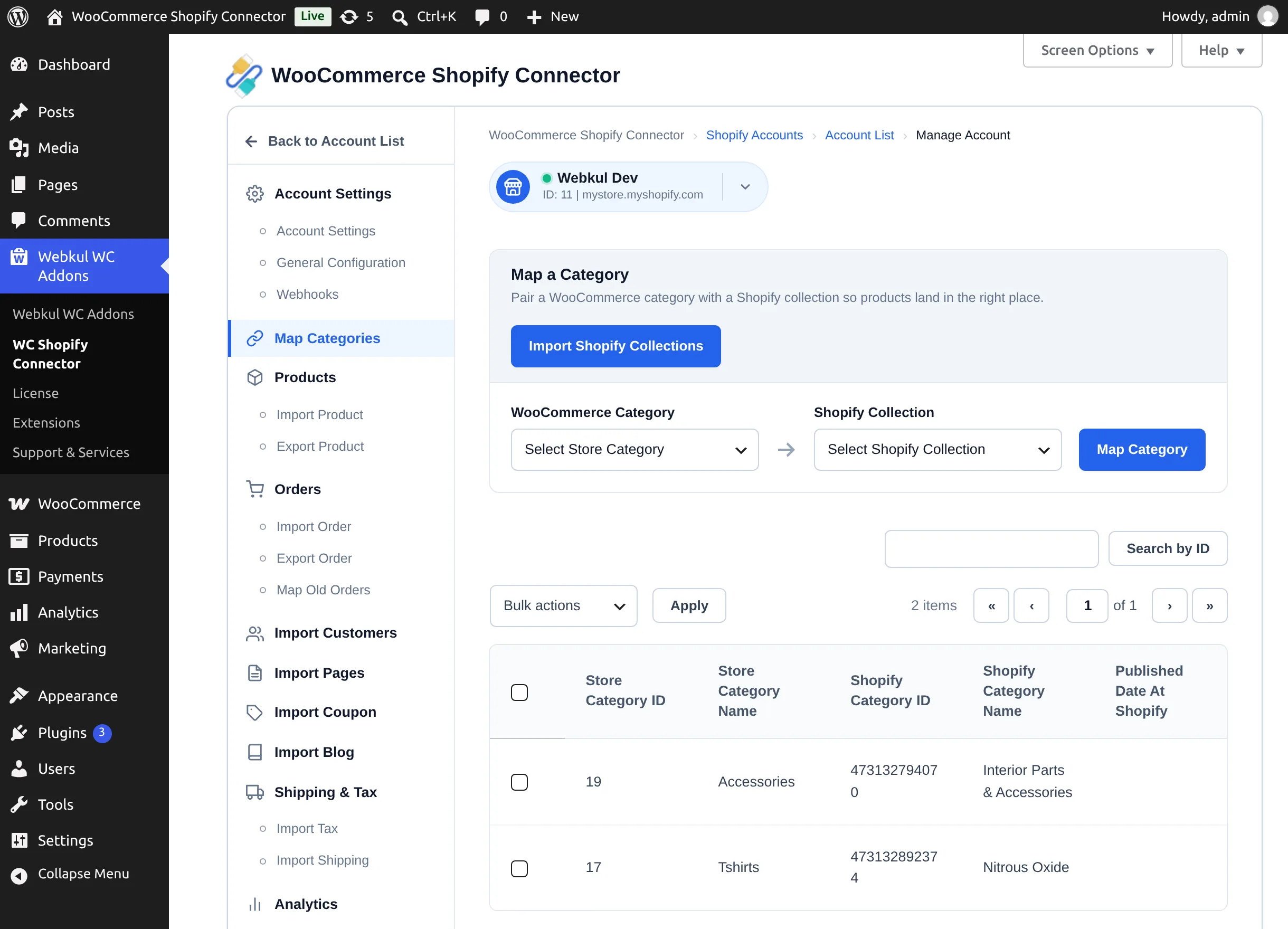
Import Shopify collections
Select Import Shopify Collections to pull the store's collections into the connector. Do this first — the mapping dropdown is filled from this list, and repeat it whenever you add collections on Shopify.
Map a category
- In Select Store Category, pick a WooCommerce product category (subcategories are shown indented).
- In Select Shopify Collection, pick the Shopify collection to pair it with.
- Select Map Category. On success you'll see "Category Mapped Successfully".
Each pairing is one WooCommerce category to one Shopify collection. Attempting to map the same pair twice shows "Category already mapped."; submitting without both selections shows "Please select a valid category to map."
The mapping table
The table below the form lists every mapping with the Store Category ID and Name, the Shopify Category ID and Name, and the collection's published date on Shopify. Use Search by ID to filter, and Bulk actions → Delete to remove mappings — removing a mapping does not delete the category or the collection, only the link between them.
Next step
With categories mapped, you're ready for Importing Products.