
Importing Products
Product import is a two-phase process: first the connector imports product data from Shopify into a staging list, then a create step turns the staged records into real WooCommerce products. This lets you pull a large catalog safely and see counts before anything is created.
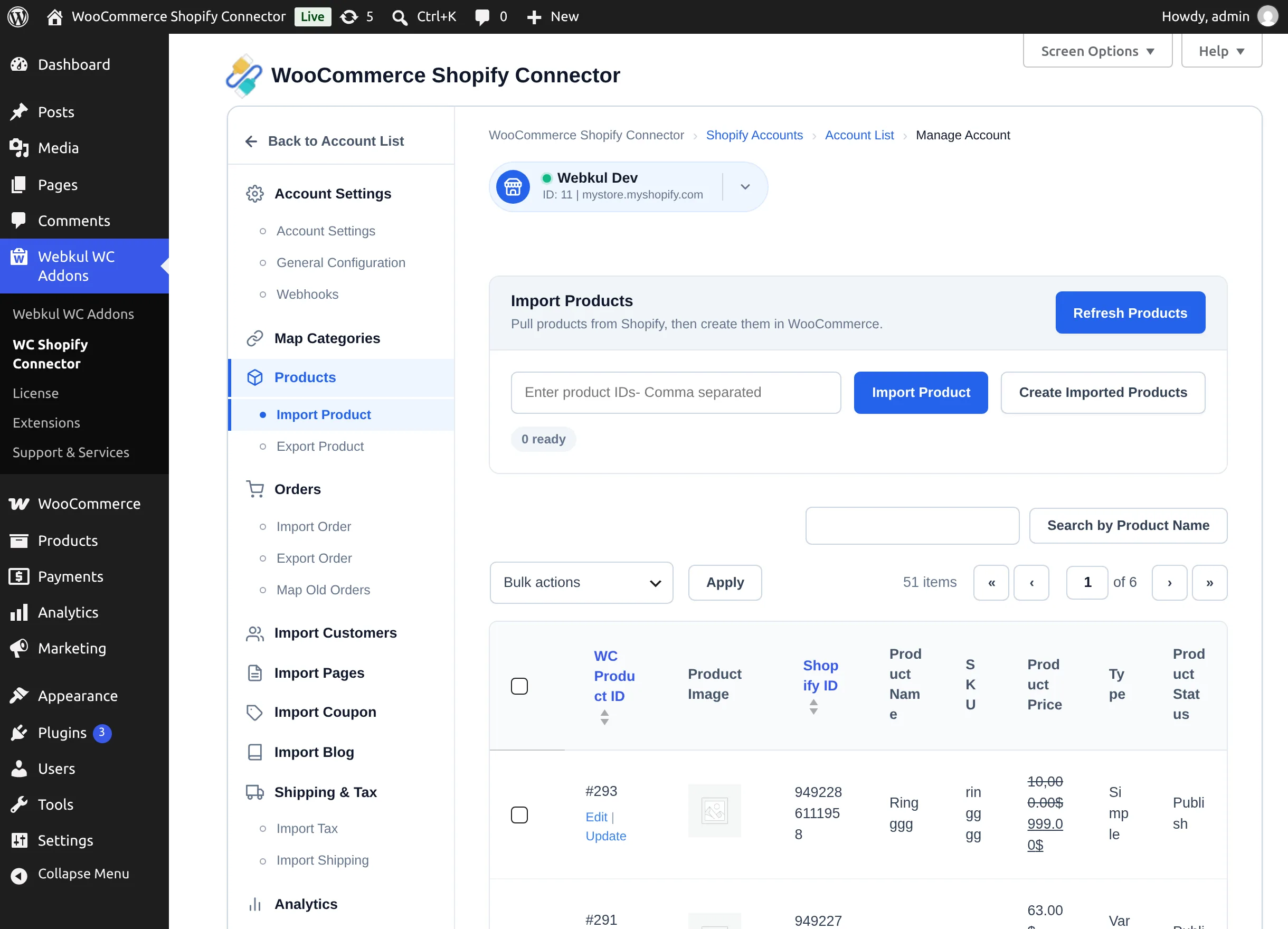
Open the store workspace and go to Products → Import Product.
Before you start
- Set the Default Category, Products to Import, image size, and product status options in General Configuration.
- If you import by mapped categories, complete Category Mapping first.
- For large catalogs, set Create Product In Background to Yes.
Phase 1 — Import product data
Choose one of two scopes:
- Everything eligible — leave the ID field empty and select Import Product. The connector pulls all products allowed by your Products to Import and Products to Import having Shopify Status settings.
- Specific products — enter Shopify product IDs in the field ("Enter product IDs- Comma separated"), then select Import Product. IDs that don't exist on Shopify are reported as skipped.
A progress bar tracks the pull. Imported records appear in the staging table with their Shopify ID, name, SKU, price, type, and status.
Phase 2 — Create WooCommerce products
Select Create Imported Products. The connector builds native WooCommerce products from the staged data:
| Shopify data | Becomes in WooCommerce |
|---|---|
| Title, description | Product name and description (HTML kept or stripped per your setting) |
| Price and compare-at price | Sale price and regular price |
| SKU | Product SKU (duplicates are renamed with a duplicate_ prefix) |
| Inventory quantity and policy | Stock quantity; continue selling when out of stock becomes back-orders allowed |
| Weight, tags, barcode | Weight, product tags, GTIN/EAN field |
| Collections | Mapped WooCommerce categories, or your default category |
| Images | Featured image and gallery |
| Options and variants | Attributes and variations, each with its own SKU, price, stock, weight, and image |
Simple and variable products are both supported. While creation runs, the screen shows progress — "Creating Products", a progress bar, and counters such as "25 Products created out of 100" and the number of images still pending.
Background mode
With Create Product In Background enabled, creation continues server-side and you can leave the page. The button area shows that products and images are being created in the background, and a Stop Background Process button lets you halt it. Only one store can run a background creation at a time.
The product list
Once created, products appear in the table with columns WC Product ID, Product Image, Shopify ID, Product Name, SKU, Product Price, Type, Product Status. From here you can:
- Edit — open the WooCommerce product editor.
- Update — re-pull that product's current data from Shopify.
- Bulk actions → Update From Shopify — refresh several products at once.
- Bulk actions → Delete — remove the sync record.
Refreshing the whole catalog
Refresh Products re-pulls updates for every imported product in the background — useful when real-time sync is off or products have drifted out of sync. While a refresh is queued, the button changes to Stop Refresh Products Process and a counter shows how many products are still being refreshed.
A refresh takes time
The connector itself warns that this is a time-taking process. Use Refresh Products only when real-time sync is off or products are out of sync — with webhooks active, day-to-day changes arrive automatically.
Common messages
| Message | Meaning |
|---|---|
| "Products Skipped" / "Product(s) skipped due to category not mapped" | Products outside your mapped categories were not imported (with Only mapped categories product). |
| "Product ID(s) were not found on Shopify and skipped" | One of the comma-separated IDs doesn't exist on that store. |
| "Products not available for create" | Nothing is staged — run Phase 1 first. |
| "Another product import is in process." | A second import was started while one is running; wait for it to finish. |
Next step
Send WooCommerce products the other way: Exporting Products.