
Webhooks & Real-Time Sync
Real-time sync keeps both stores aligned without manual imports. It has two halves: webhooks (Shopify telling WooCommerce about changes) and the auto-sync settings that decide what to do with those events — plus automatic pushes from WooCommerce to Shopify when you save products.
Generate the webhooks
Open the store workspace and go to Account Settings → Webhooks.
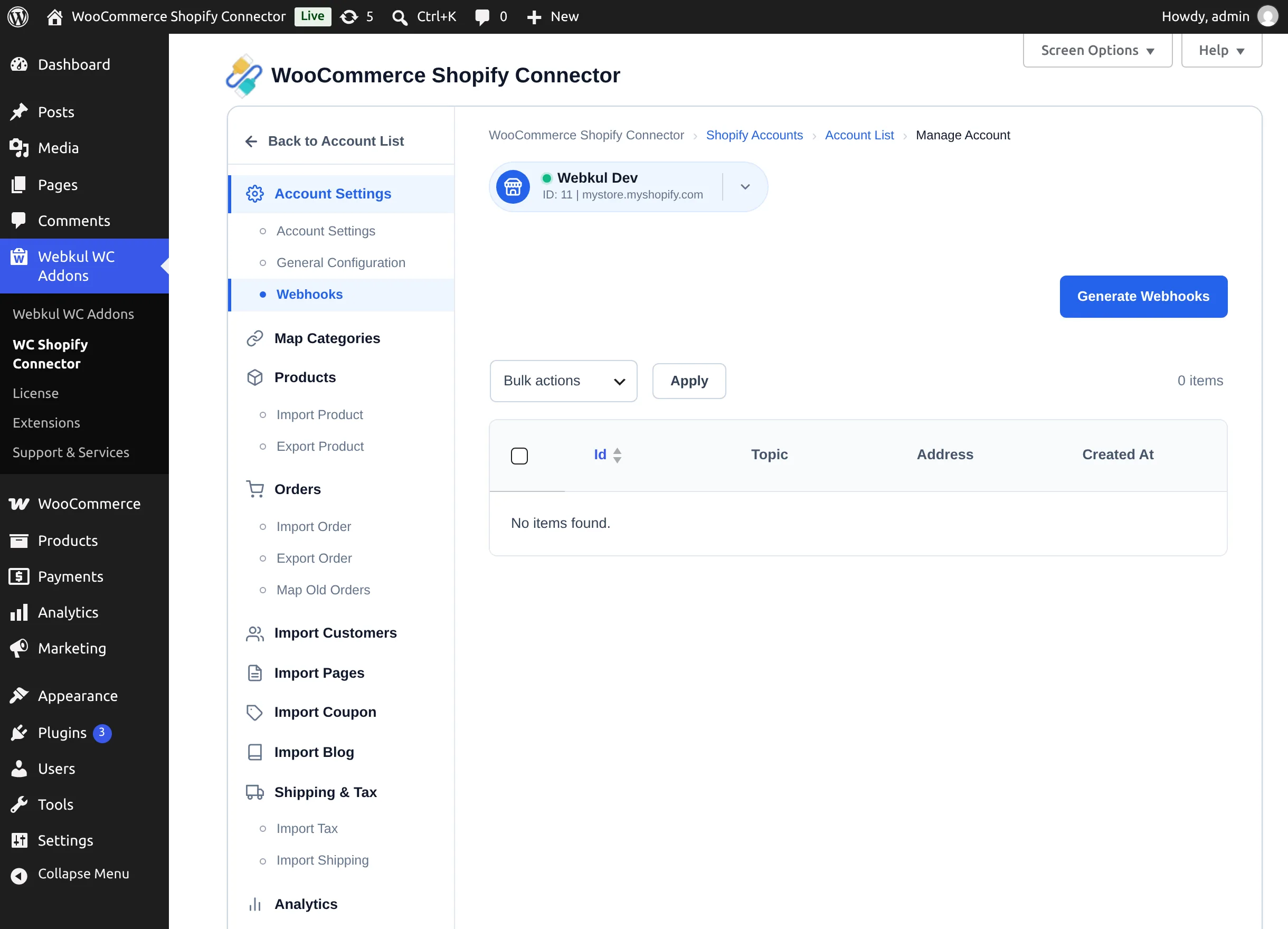
Select Generate Webhooks. The connector registers five subscriptions on your Shopify store:
| Shopify event | What the connector does with it |
|---|---|
| Order created | Imports the new order (when Auto Import Order is enabled). |
| Order fulfilled | Writes tracking company/number/URL onto the matching WooCommerce order. |
| Product created | Imports the new product (when Auto Import Product is enabled). |
| Product updated | Updates the WooCommerce product (when auto-sync direction includes Shopify → WooCommerce). |
| Product deleted | Removes the linked WooCommerce product (same direction gate). |
On success you'll see "Webhooks registered successfully." — or "All webhooks are already registered." on a repeat run. The table lists each webhook's Topic, callback Address, and creation date; Bulk actions → Delete removes them.
Your site must be publicly reachable
Shopify delivers webhooks over the public internet. On a local or password-protected site the callbacks can't arrive, and real-time sync will silently do nothing.
Choose the sync direction
In General Configuration, the Shopify Auto-Syncing Settings control what flows automatically:
- Product Auto-Sync — Shopify To WooCommerce applies product update/delete webhooks; WooCommerce To Shopify pushes WooCommerce product saves to Shopify; Both Way does both; Disable turns product auto-sync off.
- Auto Import Product — Enable to create WooCommerce products from products newly created on Shopify.
- Auto Import Order — Enable to create WooCommerce orders from new Shopify orders.
- Auto Export Order — export WooCommerce orders at checkout, for all or selected statuses.
Field-level control
The Real-Time Sync – Fields to Update lists in General Configuration decide which product fields an automatic update may change, per direction:
- WooCommerce → Shopify: Title, Description, Images, Price, Weight, Barcode.
- Shopify → WooCommerce: those plus Categories.
Deselect any field you curate manually on the receiving side; real-time updates will leave it alone.
How events are processed
Incoming webhook events are queued and processed in the background within moments — you don't need to keep any admin page open. If a background job stalls, the connector detects it and restarts the queue automatically. Every processed event is recorded, and the results feed the Sync Performance Dashboard.
Verifying real-time sync
Change a product title on Shopify, wait a few seconds, and reload the WooCommerce product. If nothing arrives, check the Webhooks tab (are the five topics listed?), your Product Auto-Sync direction, and the dashboard's error table.