
General Configuration
Each connected store has its own configuration. Open the store's workspace (Manage Account), then go to Account Settings → General Configuration. Make your changes and select Save General Setting — "Settings updated successfully!" confirms the save.
Tips
If you submit the form without changing anything, the connector tells you: "Unable to update the settings because you have not change any data." That's informational, not an error.
General Settings
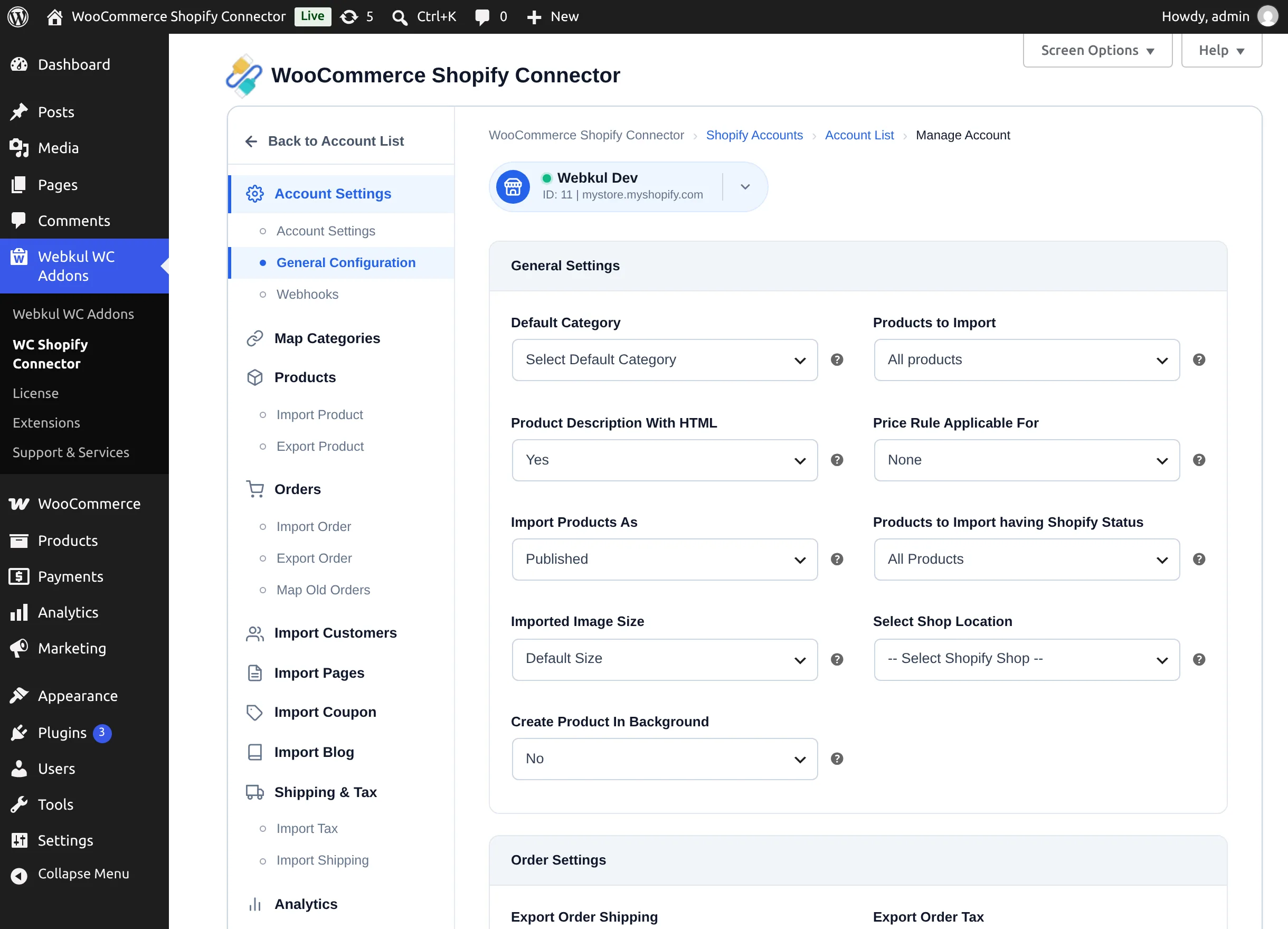
| Setting | Options | What it does |
|---|---|---|
| Default Category | Any WooCommerce product category | Assigned to imported products whose Shopify collection isn't mapped. |
| Products to Import | All products / Only mapped categories product | Limits imports to products in mapped collections, or imports everything. |
| Product Description With HTML | Yes / No | Keep Shopify's HTML formatting in descriptions, or strip it to plain text. |
| Price Rule Applicable For | None / Import Product / Export Product | Where price rules apply. |
| Import Products As | Imported Product As Shopify Status. or a specific WordPress status | Either mirror the product's Shopify status or force a status (e.g. Draft) on every imported product. |
| Products to Import having Shopify Status | All Products / Active / Archived / Draft | Which Shopify products are eligible for import. |
| Imported Image Size | Default Size / Thumbnail (150px) / Medium (300px) / Full (768px) | The size at which product images are transferred. |
| Select Shop Location | Your store's Shopify locations | The Shopify location used when writing inventory during exports and stock updates. |
| Create Product In Background | No / Yes | With Yes, product and image creation runs in the background and you are free to leave the page. Recommended for large catalogs. |
Order Settings
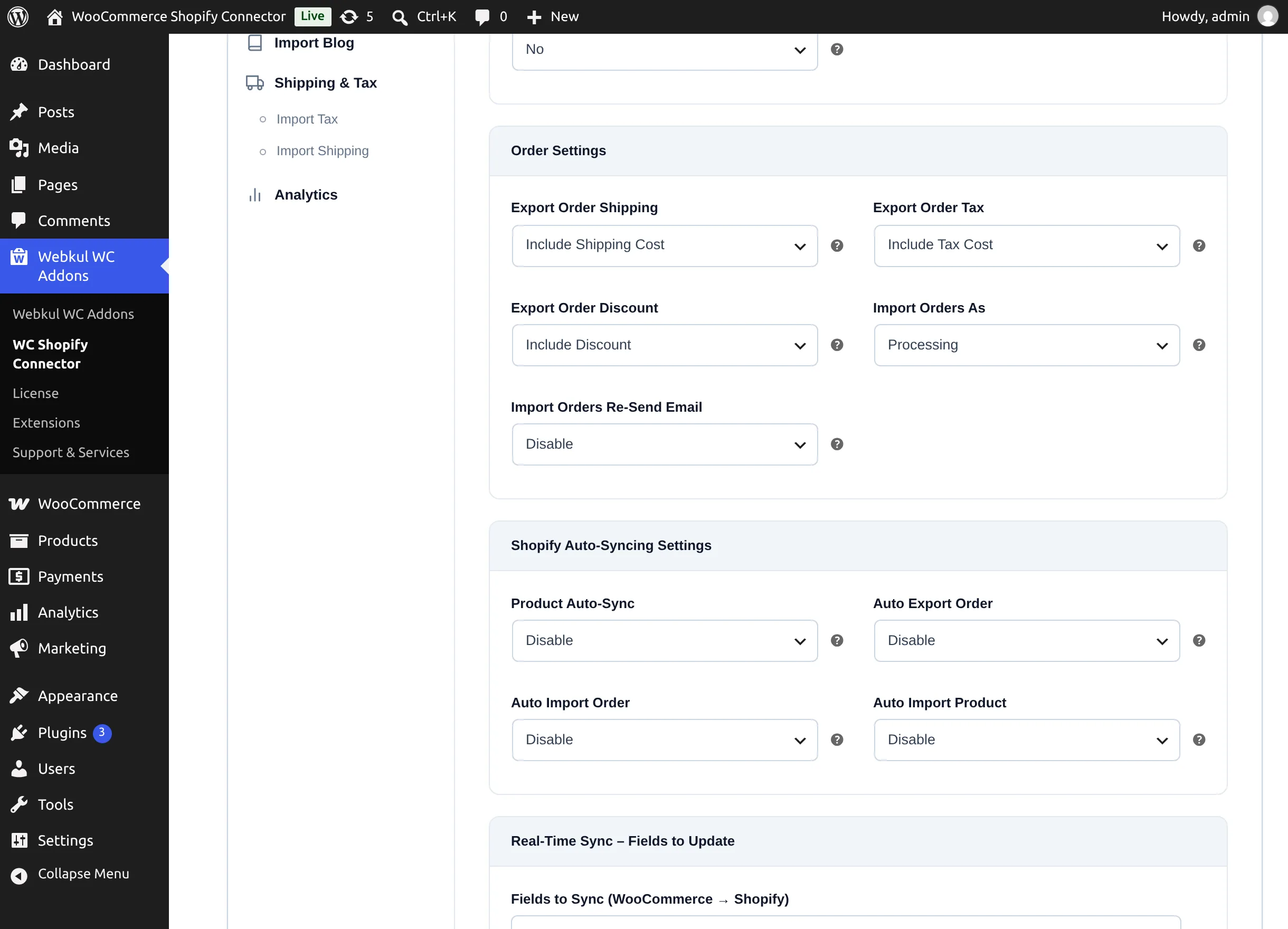
| Setting | Options | What it does |
|---|---|---|
| Export Order Shipping | Include Shipping Cost / Exclude Shipping Cost | Whether shipping charges are sent with exported orders. |
| Export Order Tax | Include Tax Cost / Exclude Tax Cost | Whether tax amounts are sent with exported orders. |
| Export Order Discount | Include Discount / Exclude Discount | Whether discounts are sent with exported orders. |
| Import Orders As | Any WooCommerce order status | The status given to orders imported from Shopify. |
| Import Orders Re-Send Email | Disable (default) / Enable | With Disable, WooCommerce's new-order/processing/completed emails are suppressed for imported orders, so customers aren't emailed twice. Enable it only if you want WooCommerce to notify customers about orders that originated on Shopify. |
Shopify Auto-Syncing Settings
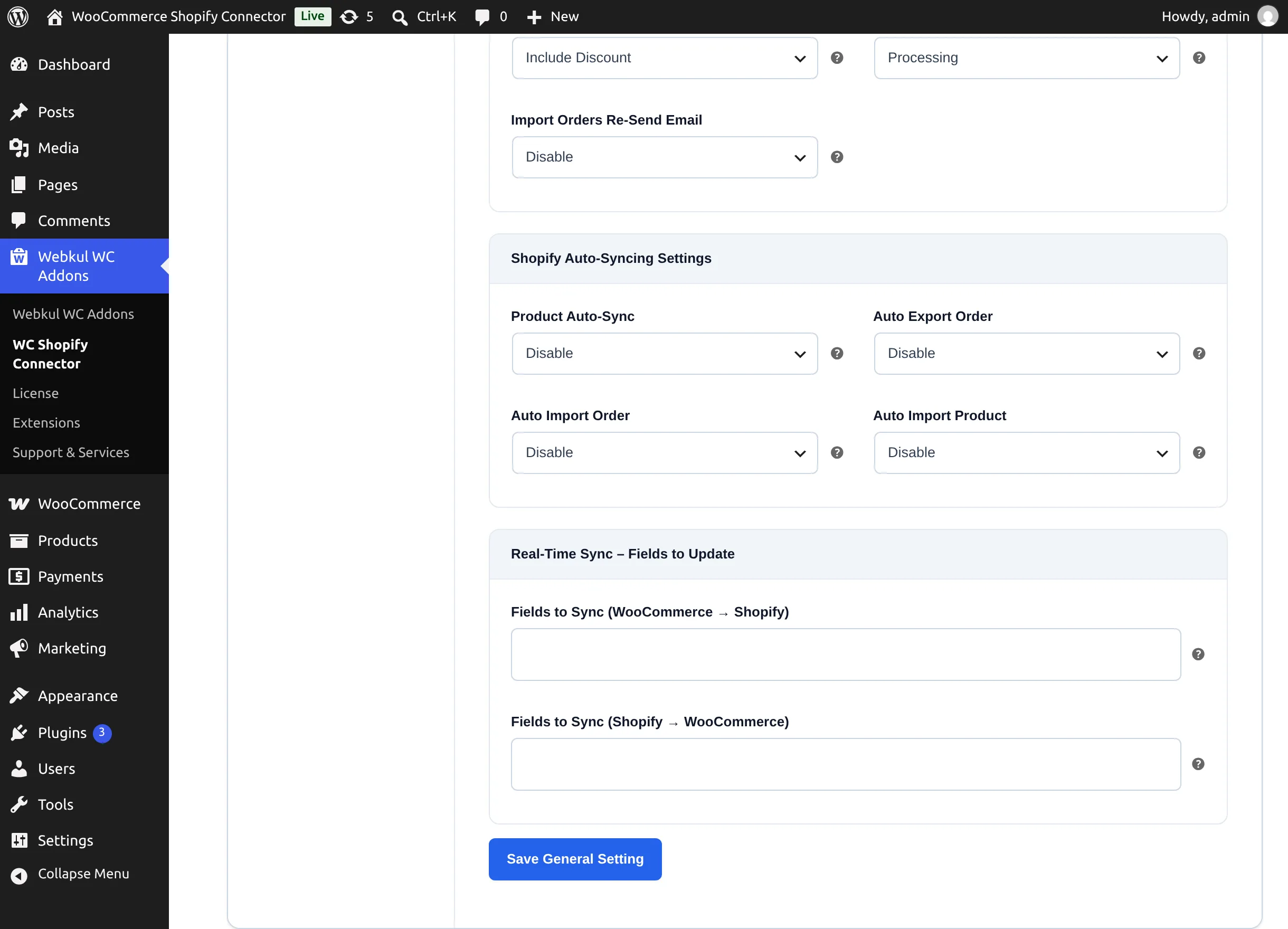
| Setting | Options | What it does |
|---|---|---|
| Product Auto-Sync | Disable / Shopify To WooCommerce / WooCommerce To Shopify / Both Way | The direction in which product changes flow automatically. See Webhooks & Real-Time Sync. |
| Auto Export Order | Disable / All / Pending / Processing / On hold / Completed | Automatically export a WooCommerce order to Shopify at checkout when its status matches (or always, with All). |
| Auto Import Order | Disable / Enable | Automatically create WooCommerce orders when new orders arrive on Shopify (requires webhooks). |
| Auto Import Product | Disable / Enable | Automatically import products newly created on Shopify (requires webhooks). |
Real-Time Sync – Fields to Update
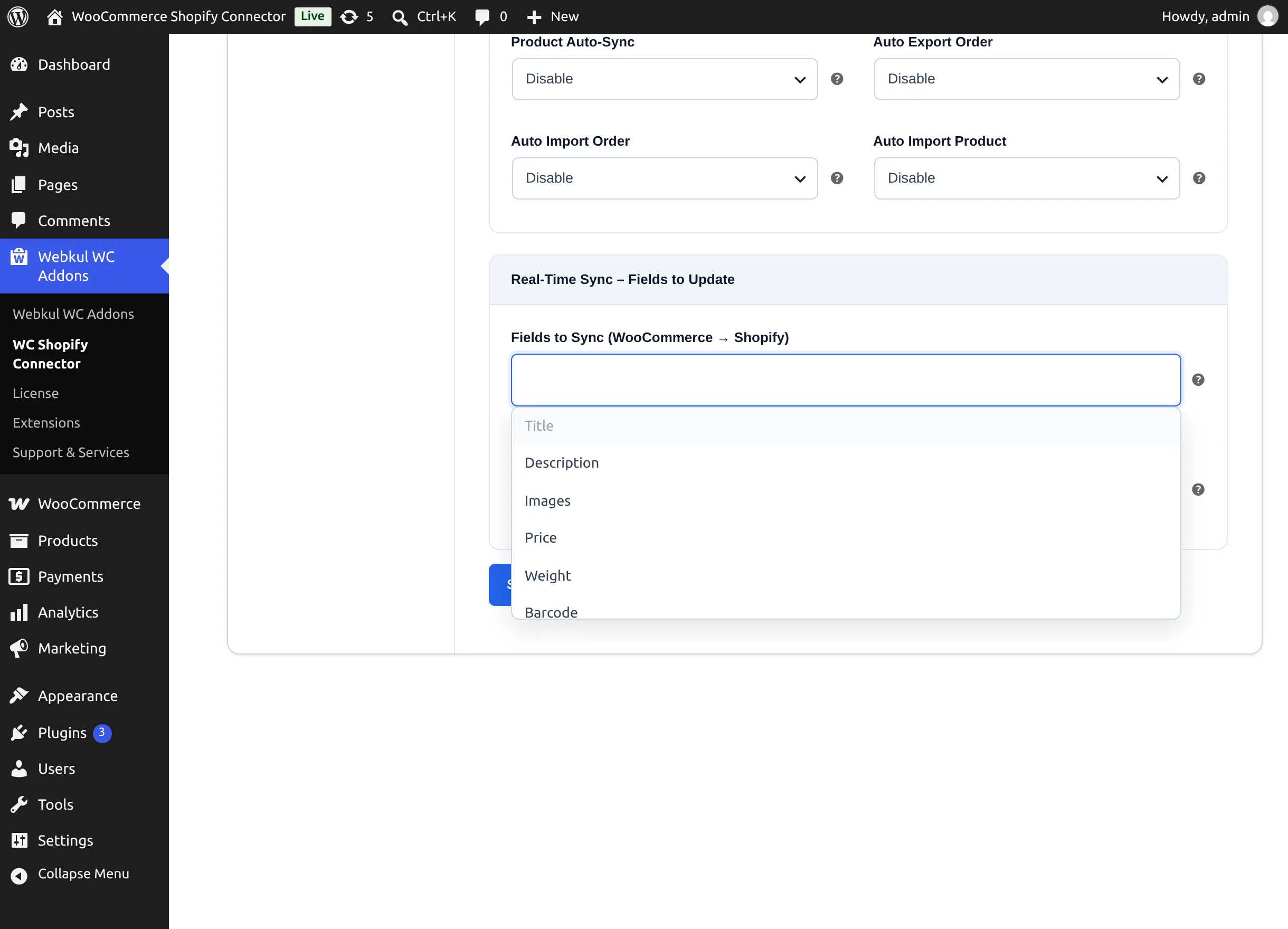
Two multi-select lists control exactly which product fields real-time sync may overwrite:
- Fields to Sync (WooCommerce → Shopify): Title, Description, Images, Price, Weight, Barcode.
- Fields to Sync (Shopify → WooCommerce): Title, Description, Images, Price, Categories, Weight, Barcode.
Deselect any field you manage independently on one platform — for example, deselect Price in the Shopify → WooCommerce list if WooCommerce prices are set by your own pricing strategy, and automatic updates will leave them untouched.
Next step
Map your categories before the first product import: Category Mapping.