
Shipping & Tax
The Shipping & Tax tab imports your Shopify tax rates and shipping configuration into WooCommerce, so checkout totals match on both platforms. It has two sub-tabs: Import Tax and Import Shipping.
Import Tax
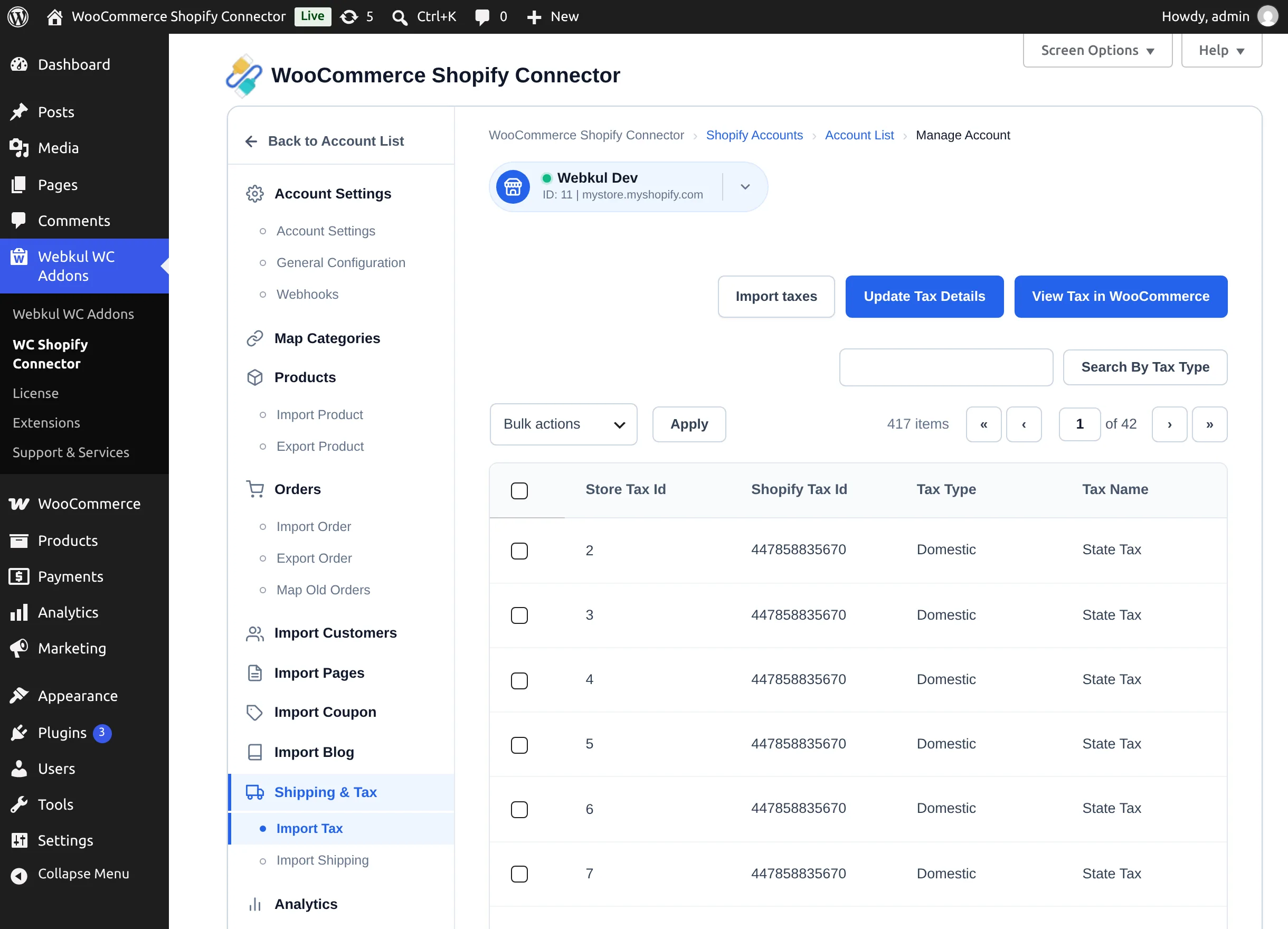
- Select Import taxes. The connector reads the store's Shopify tax registrations and creates matching WooCommerce standard tax rates — one per country and province, non-compound, not applied to shipping.
- The table lists each imported rate with Store Tax Id, Shopify Tax Id, Tax Type, and Tax Name.
- When rates change on Shopify, select Update Tax Details to refresh them ("Tax(s) Updated Successfully.").
- View Tax in WooCommerce jumps to WooCommerce → Settings → Tax where the created rates live.
Deleting a tax rate from WooCommerce also removes its link in the connector. Bulk Delete in the table removes the mapping records.
Import Shipping
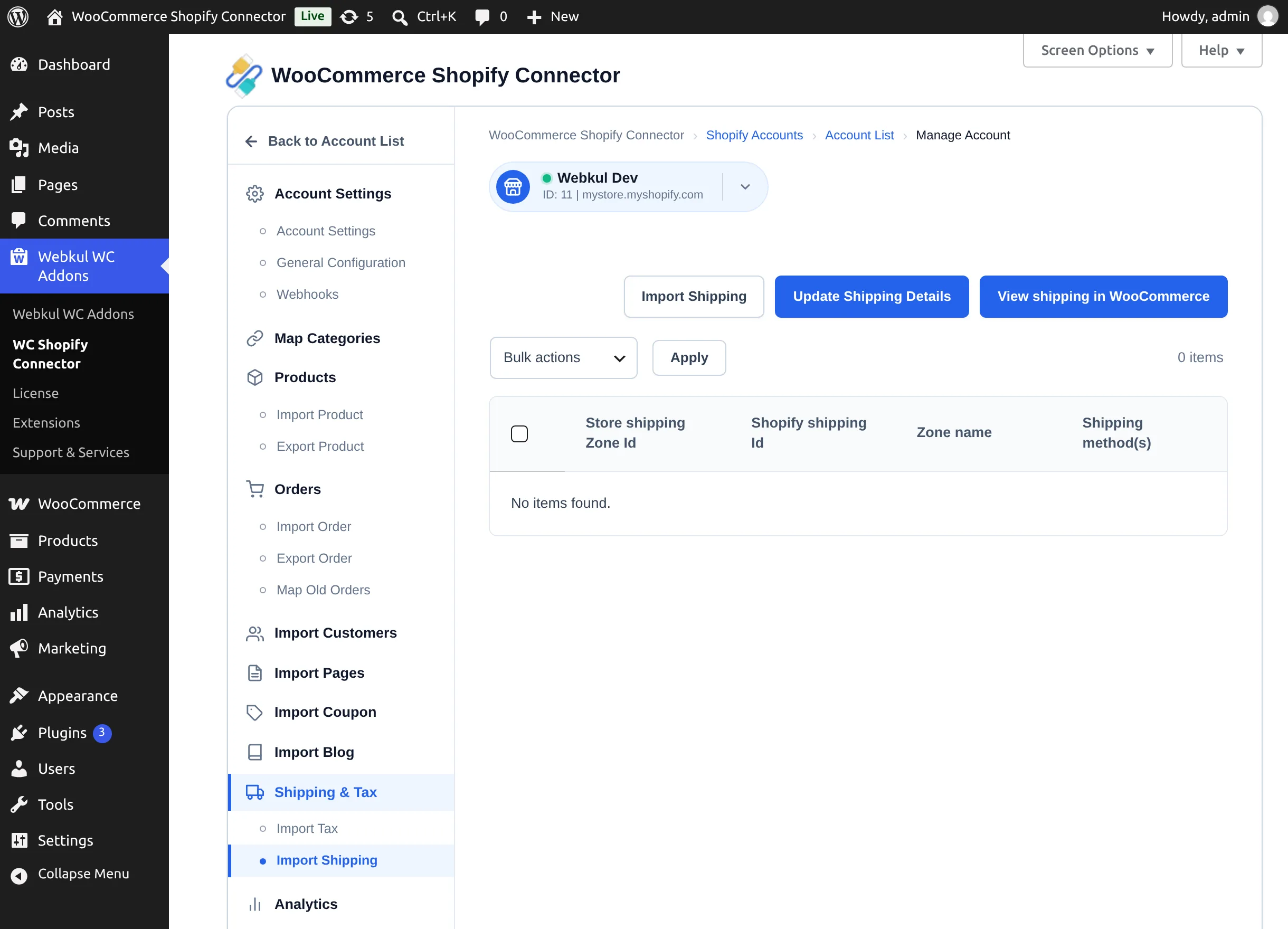
- Select Import Shipping. Each Shopify shipping zone becomes a WooCommerce shipping zone, and each Shopify shipping rate becomes a flat-rate method in that zone, carrying over the method's title and cost.
- The table lists Store shipping Zone Id, Shopify shipping Id, Zone name, and the shipping method(s) created.
- Update Shipping Details refreshes zones after changes on Shopify; View shipping in WooCommerce opens WooCommerce → Settings → Shipping.
Review after import
Shopify rate conditions (weight- or price-based rules) don't map one-to-one onto WooCommerce flat rates. After importing, open each zone in WooCommerce and confirm the costs behave the way you expect at checkout.