
Managing Accounts
All connected Shopify stores are listed on the connector's home screen: Webkul WC Addons → WC Shopify Connector — the Shopify Connected Accounts page.
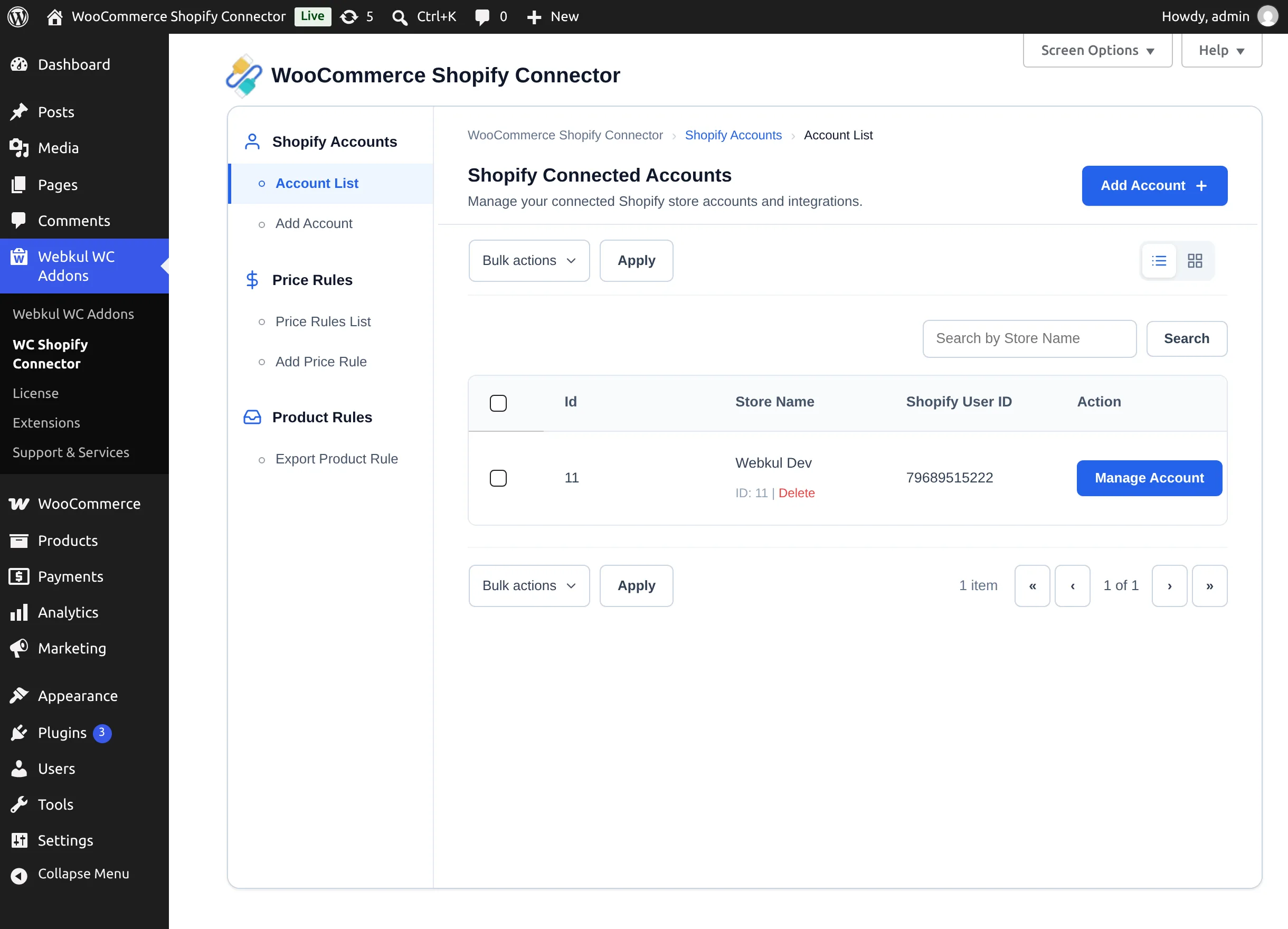
The account list
- Views — switch between List View and Grid View with the toggle above the table; your choice is remembered.
- Search — use Search by Store Name to find a connection.
- Columns — Id, Store Name, Shopify User ID, and Action.
- Items per page — open Screen Options (top-right) to change how many rows are shown (default 20). This applies to the plugin's other tables too.
Opening a store's workspace
Select Manage Account on an account row to open that store's workspace. A navigation panel runs down the left side of the workspace, and its sections are where all the day-to-day work happens:
| Section | Purpose |
|---|---|
| Account Settings | Credentials, General Configuration, and Webhooks. |
| Map Categories | Category ↔ collection mapping. |
| Products | Import and export products. |
| Orders | Import, export, and map old orders. |
| Import Customers / Import Pages / Import Coupon / Import Blog | Other store data. |
| Shipping & Tax | Tax and shipping imports. |
| Analytics | The Sync Performance Dashboard. |
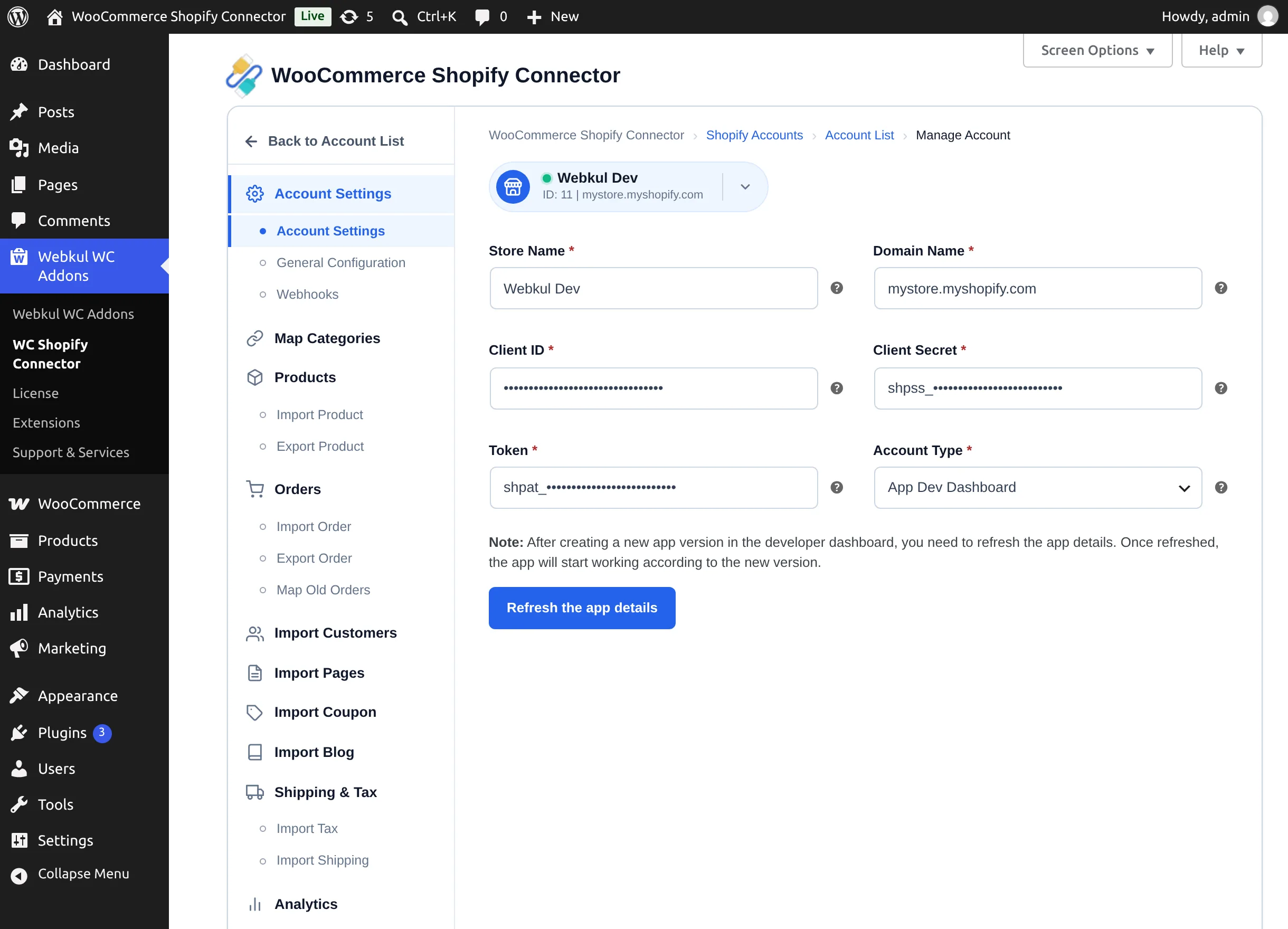
Every section is listed in the panel, with its sub-pages nested underneath — General Configuration and Webhooks under Account Settings, Import Product and Export Product under Products, and so on. ← Back to Account List at the top of the panel returns to the account list, and the store-switcher dropdown beside the breadcrumb lets you jump between connected accounts without going back to the list.
Updating account details
On the Account Settings tab you can:
- Edit the Store Name (must stay unique — "Store name already exists ." appears otherwise).
- View the (read-only) Domain Name and masked credentials.
- See the Account Type: App Dev Dashboard or Legacy Custom App.
- For Dev App accounts, select Refresh the app details after creating a new app version in the Shopify Developer Dashboard — this re-runs the OAuth authorization. For legacy accounts the button reads Update Details.
Deleting an account
Select Delete on a row (or use the Bulk actions → Delete dropdown after ticking accounts). A confirmation dialog — Delete Shopify Account? — warns:
Disconnecting the store will stop real-time updates. Synced inventory and pricing changes will no longer sync automatically.
Confirm with Yes, Delete Account. Products, orders, and other data already created in WooCommerce remain; only the connection and its sync mappings are removed.