
Price Rules
Price rules adjust product prices automatically during import or export — for example, add 10% to everything imported from Shopify, or knock a fixed amount off products exported to it. Rules are defined per price range and per connected store.
Turn price rules on
Price rules only take effect when the store's General Configuration setting Price Rule Applicable For is set to Import Product or Export Product. With None (the default), rules are ignored.
The rules list
In the connector's left panel, under Price Rules, choose Price Rules List — the Shopify Price Rules screen.
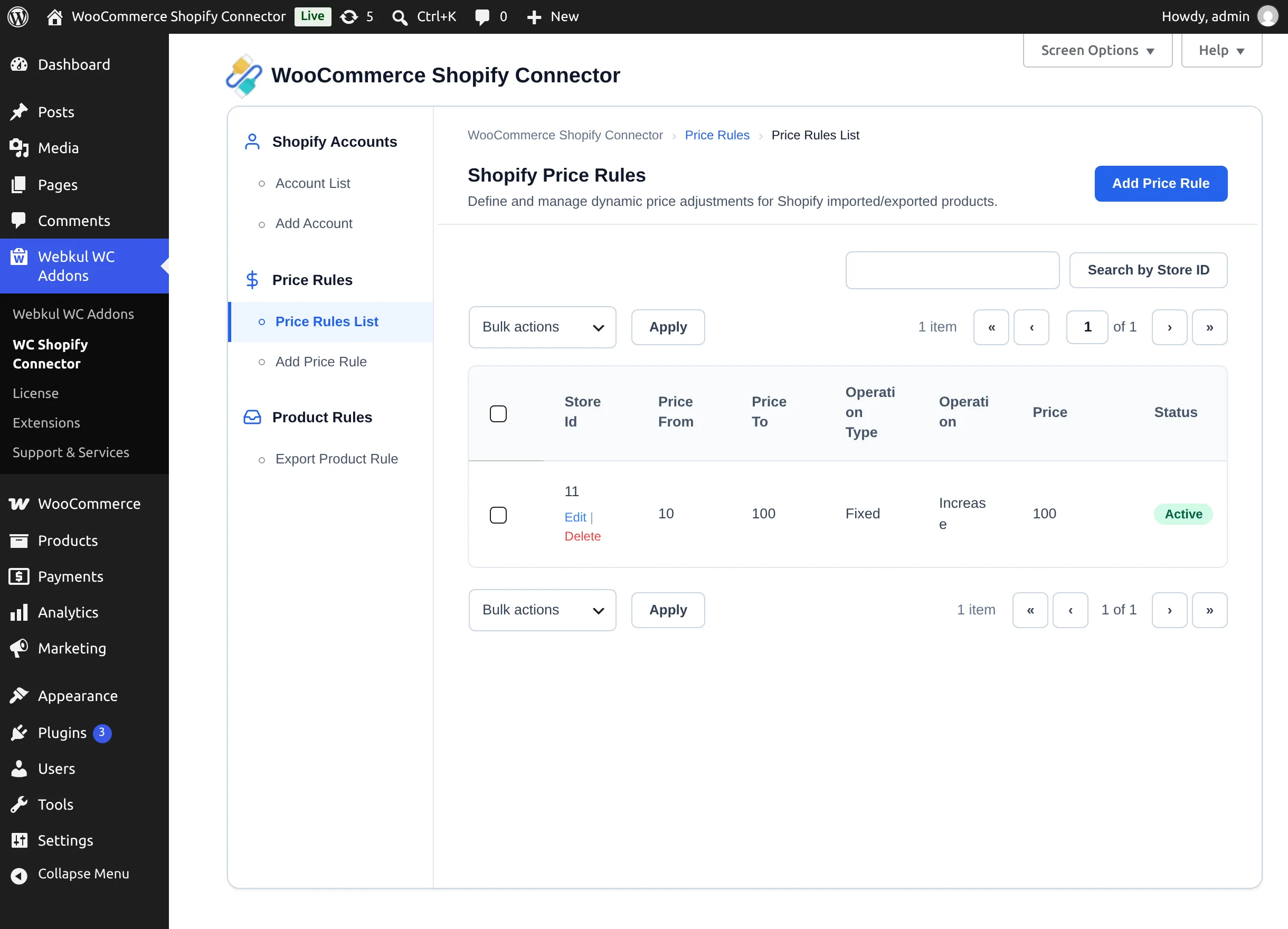
Columns: Store Id, Price From, Price To, Operation Type, Operation, Price, Status. Row actions Edit and Delete; bulk actions Delete, Enable, and Disable; search by Store ID. Deleting asks for confirmation (Delete Price Rule? → Yes, Delete Rule).
Add a rule
Choose Add Price Rule in the left panel.
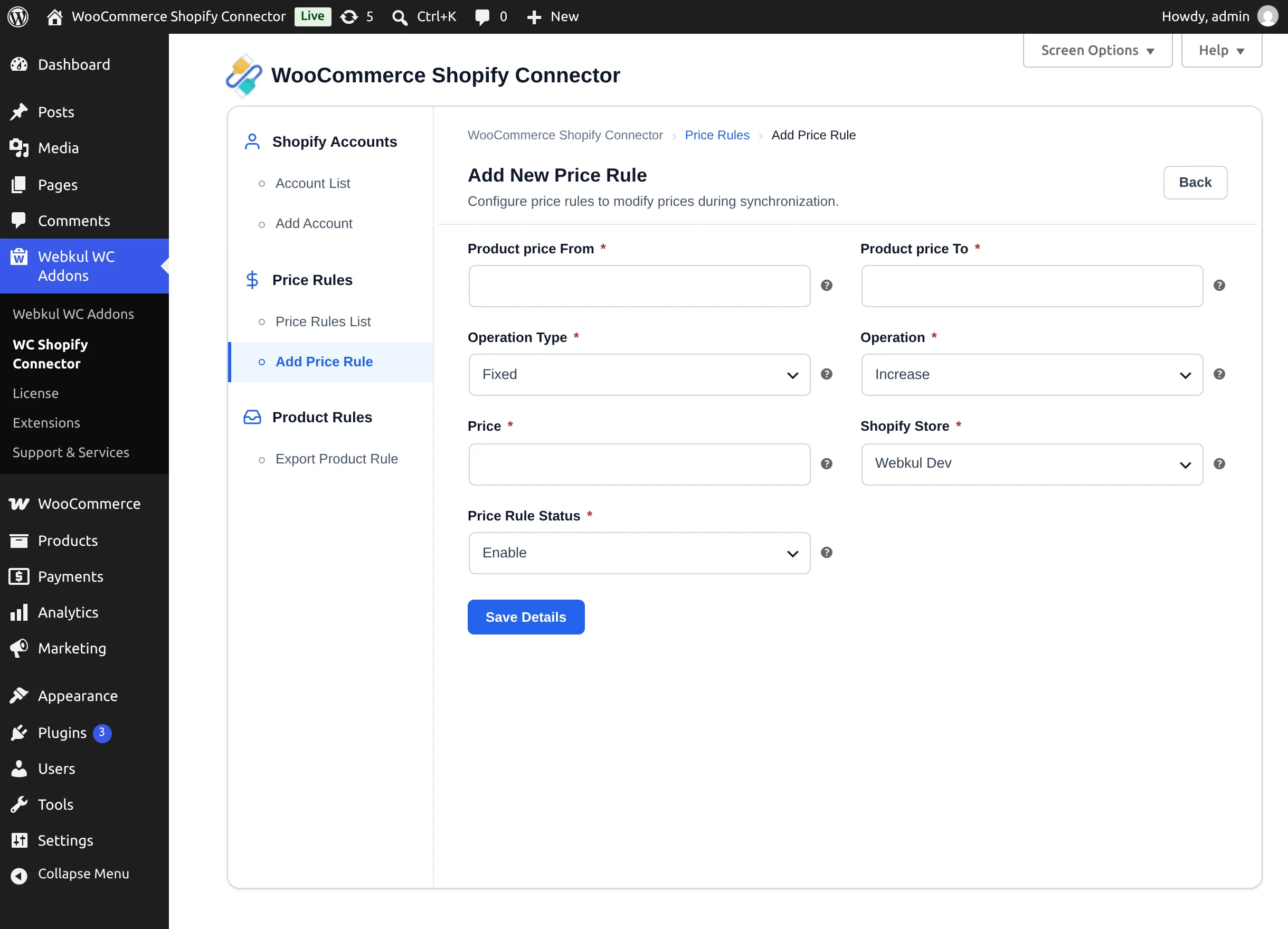
| Field | Meaning |
|---|---|
| Product price From / Product price To | The price band the rule applies to. To must be greater than From. |
| Operation Type | Fixed — adjust by an amount; Percentage — adjust by a percent (capped at 100). |
| Operation | Increase or Decrease. |
| Price | The amount or percentage to apply. |
| Shopify Store | The connected store this rule belongs to. |
| Price Rule Status | Enable / Disable. |
Select Save Details — "Price Rule Added." confirms it.
Example. A rule of From 0, To 100, Percentage, Increase, 15 on import raises a $40 Shopify product to $46 in WooCommerce.
Validation
- All fields are required: "Please enter values in all required fields."
- Ranges may not overlap an existing rule for the same store: "Price Rule Already Exists."
- Invalid values (e.g. To ≤ From): "Please enter valid details."
How rules are applied
When a product is imported (or exported, per your setting), the connector finds the active rule for that store whose price band contains the product's price and applies the operation once. Products outside every band are left unchanged.