
Admin Overview
As the marketplace administrator you do not operate the connector — vendors do. Your screen exists so you can see every vendor's Shopify connection in one place and step in when one needs attention.
Open Webkul WC Addons → WCFM Shopify Connector.
The vendor account list
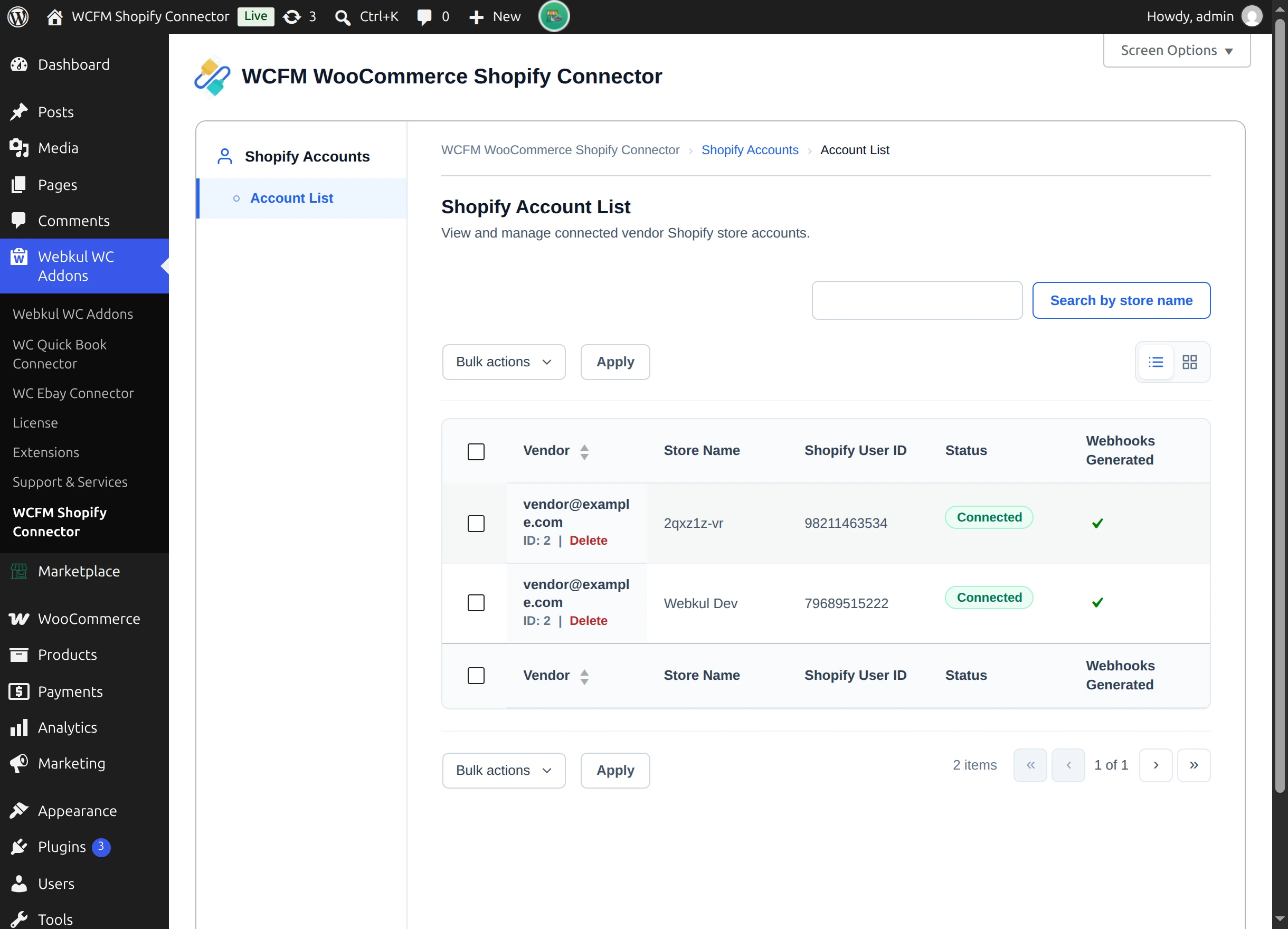
| Column | What it tells you |
|---|---|
| Vendor | Which vendor owns the account |
| Store Name | The Shopify store they connected |
| Shopify User ID | The store's identifier on Shopify |
| Status | Connected or Disconnected |
| Webhooks Generated | Whether real-time sync is set up for that store |
Status is checked in the background as the page loads, so it briefly reads Checking… before settling.
Sort by Vendor, or use Search by store name to find a specific store. The toggle at the top right switches between list and grid view.
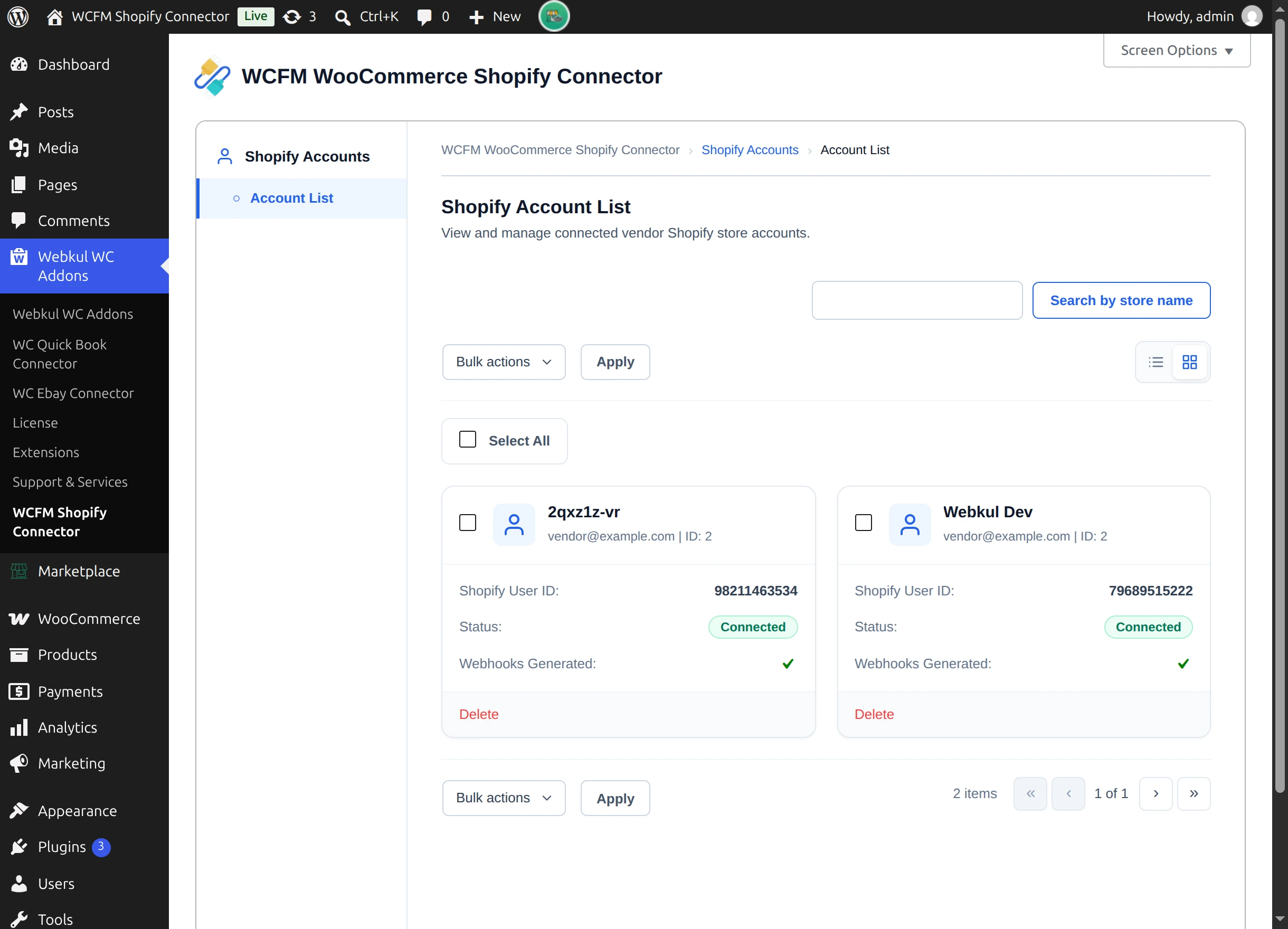
Use Screen Options to change how many rows are shown per page.
The two columns worth watching
Status tells you whether the connection still works. A store showing Disconnected has stopped syncing — usually because the app credentials were revoked or changed on the Shopify side. The vendor needs to reconnect, or use Refresh the app details on their Account tab.
Webhooks Generated tells you whether that vendor has real-time sync at all. A vendor with a healthy connection but no webhooks will still be able to import and export manually, but nothing will update automatically. Point them at Webhooks.
Together these two columns answer the question you will actually be asked — "why isn't my Shopify store updating?" — without needing to log in as the vendor.
Pending background work
When Shopify sends updates faster than they can be processed, the screen reports how many are still queued, for example 3 Realtime Sync Notification Pending in background.
A number that clears on its own is normal. A number that keeps growing suggests the site is struggling to process webhooks.
Disconnecting a vendor's account
Select Delete on the row. You are asked to confirm.
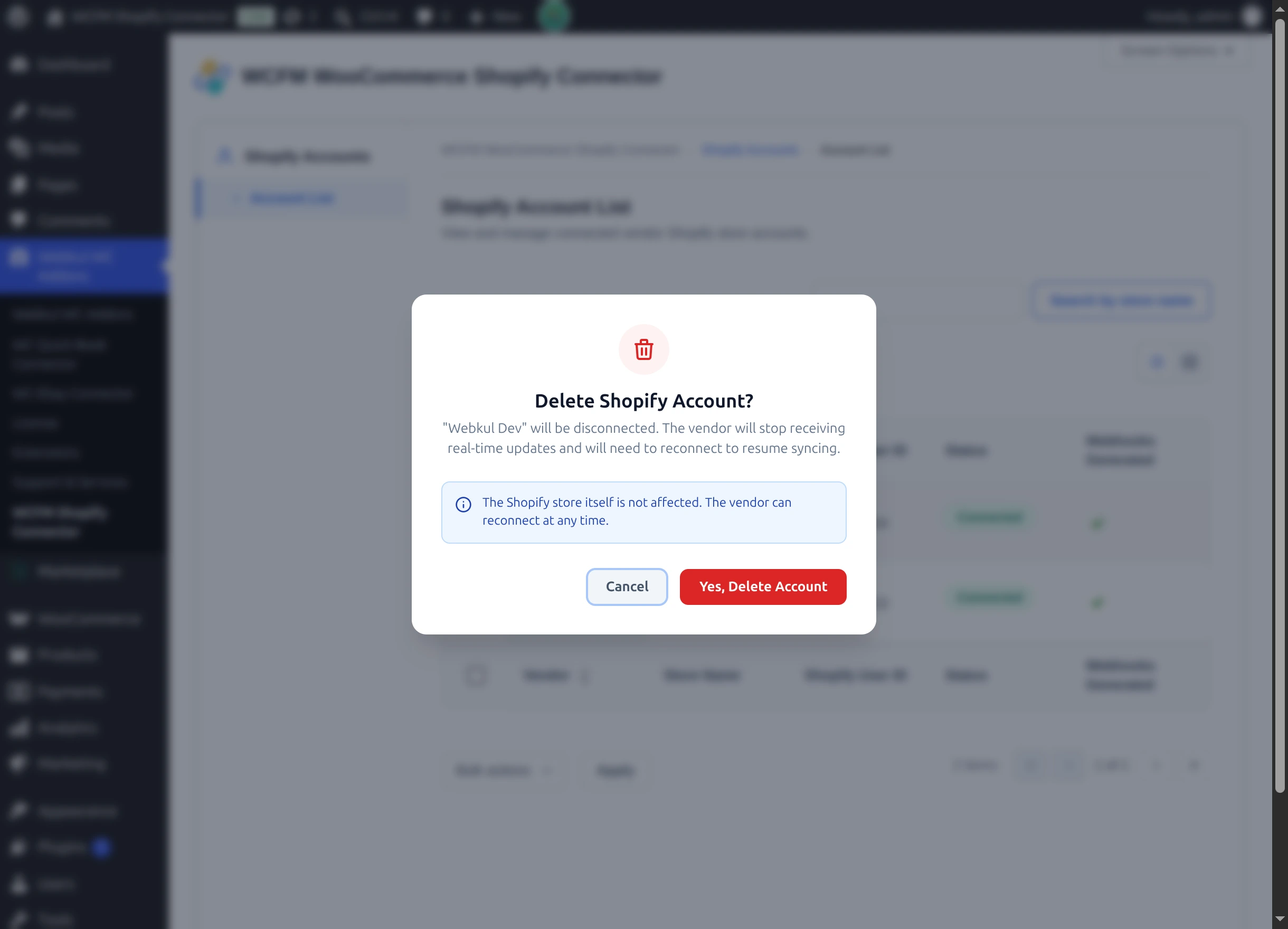
The confirmation spells out the consequences: the vendor stops receiving real-time updates and will need to reconnect to resume syncing. Their Shopify store itself is not affected, and they can reconnect at any time.
Choose Yes, Delete Account to disconnect, or Cancel to leave it alone.
Disconnecting is the vendor's problem to undo. They will need their Shopify app credentials again to reconnect. Tell them before you disconnect, rather than after.
Licence
Module licensing lives under Webkul WC Addons → License. See Installation.
What you cannot do from here
The admin screen is deliberately read-mostly. You cannot import or export on a vendor's behalf, change their settings, or map their categories — all of that happens in the vendor's own dashboard, under their own Shopify credentials.