
Export Products
Exporting creates your WooCommerce products on Shopify, so a catalogue you built in the marketplace can also be sold through your Shopify store.
Open Manage Account → Products → Export Product.
What can be exported
The list shows the vendor's own WooCommerce products, both simple and variable.

| Column | Meaning |
|---|---|
| Id | The WooCommerce product ID |
| Image | Product thumbnail |
| Name | Product name |
| Type | simple, variable, and so on |
| SKU | The product's SKU |
| Export Status | Whether it has been exported to this Shopify store |
| Action | Edit and delete controls |
Imported products are not listed here. Products the connector imported from Shopify are deliberately excluded, so you cannot push a product back to the store it came from. If a product you expect is missing, check whether it was imported rather than created in WooCommerce.
Use Search Product By Name to narrow the list, and the per-page control to show 10, 20, 50 or 100 rows.
Exporting products
- Tick the products you want to send to Shopify.
- Choose Export under Bulk actions.
- Select Apply.
While it runs you will see Exporting Products and Your Products are now being Exported…, with a progress bar and a line for each product as it reaches Shopify.
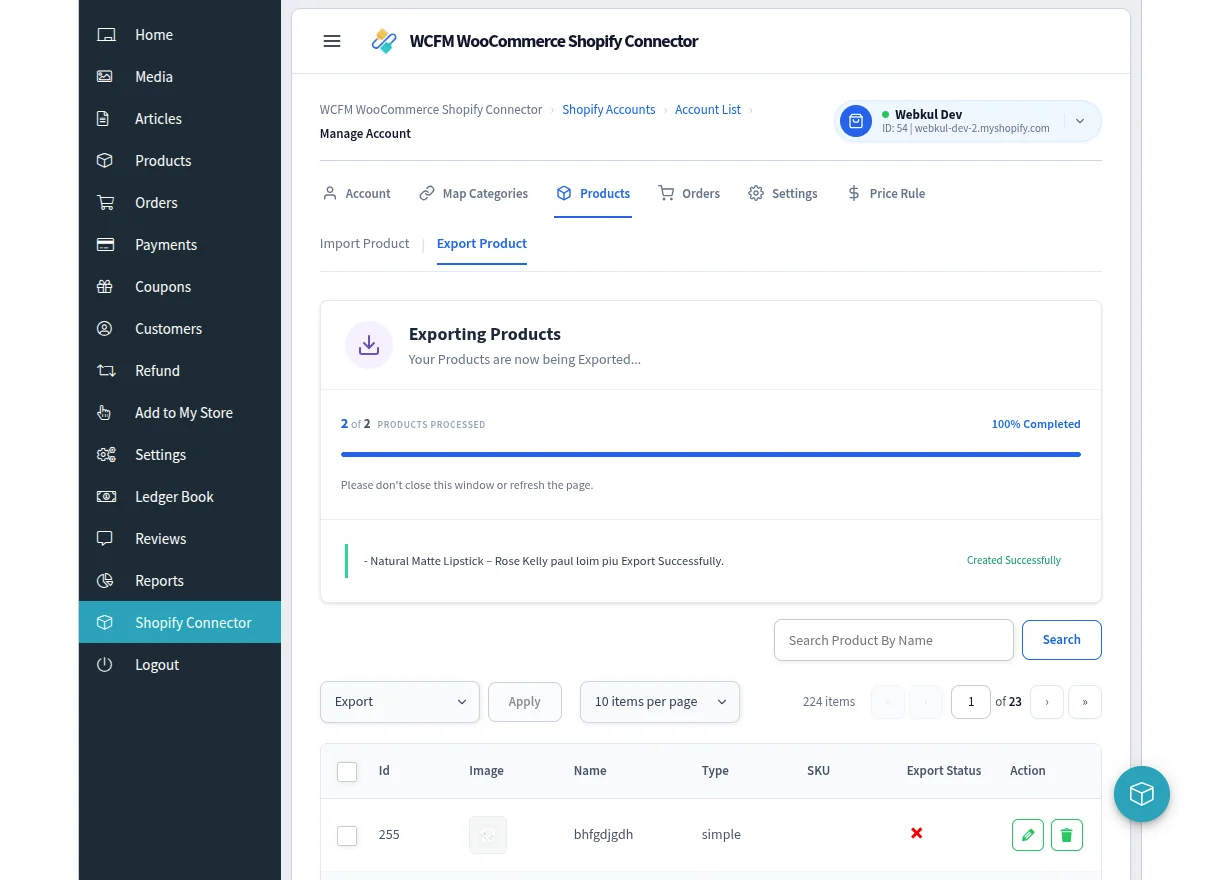
Leave the window open until it finishes.
Once complete, the Export Status column marks the product as exported.
Before you export
Two settings in General Settings affect what Shopify receives:
- Price Rule Applicable For — set to Export Product if you want price rules applied to exported prices.
- Product Auto-Sync — set to WooCommerce to Shopify if you want later edits to keep flowing to Shopify automatically.
Keeping exported products up to date
Once a product is exported, editing it in the vendor dashboard can push the change to Shopify automatically. This requires Product Auto-Sync to be set to WooCommerce to Shopify — see Real-Time Sync.
Removing a product from the list
Deleting a row breaks the link between your store and Shopify for that product. The confirmation makes the point explicitly: "This only removes the connection here. The product itself is not deleted from Shopify."
Confirm with Yes, Delete Product.
Next steps
- Price Rules — adjust prices on the way out
- Export Orders — send the resulting orders to Shopify