
Manage Account
Manage Account is where a vendor works on one connected Shopify store. Open it by selecting Manage Account on any row of the Shopify Account List.
The tab bar
Six tabs cover everything you can do with a store.
| Tab | Purpose | Guide |
|---|---|---|
| Account | Store name, domain, credentials, account type | This page |
| Map Categories | Match Shopify collections to store categories | Map Categories |
| Products | Import from and export to Shopify | Import · Export |
| Orders | Import from and export to Shopify | Import · Export |
| Settings | Sync preferences and webhooks | Settings · Webhooks |
| Price Rule | Automatic price adjustments | Price Rules |
Switching between stores
The pill at the top right shows which store you are working on, with its ID, domain and a live status dot. Select it to switch to another connected store.
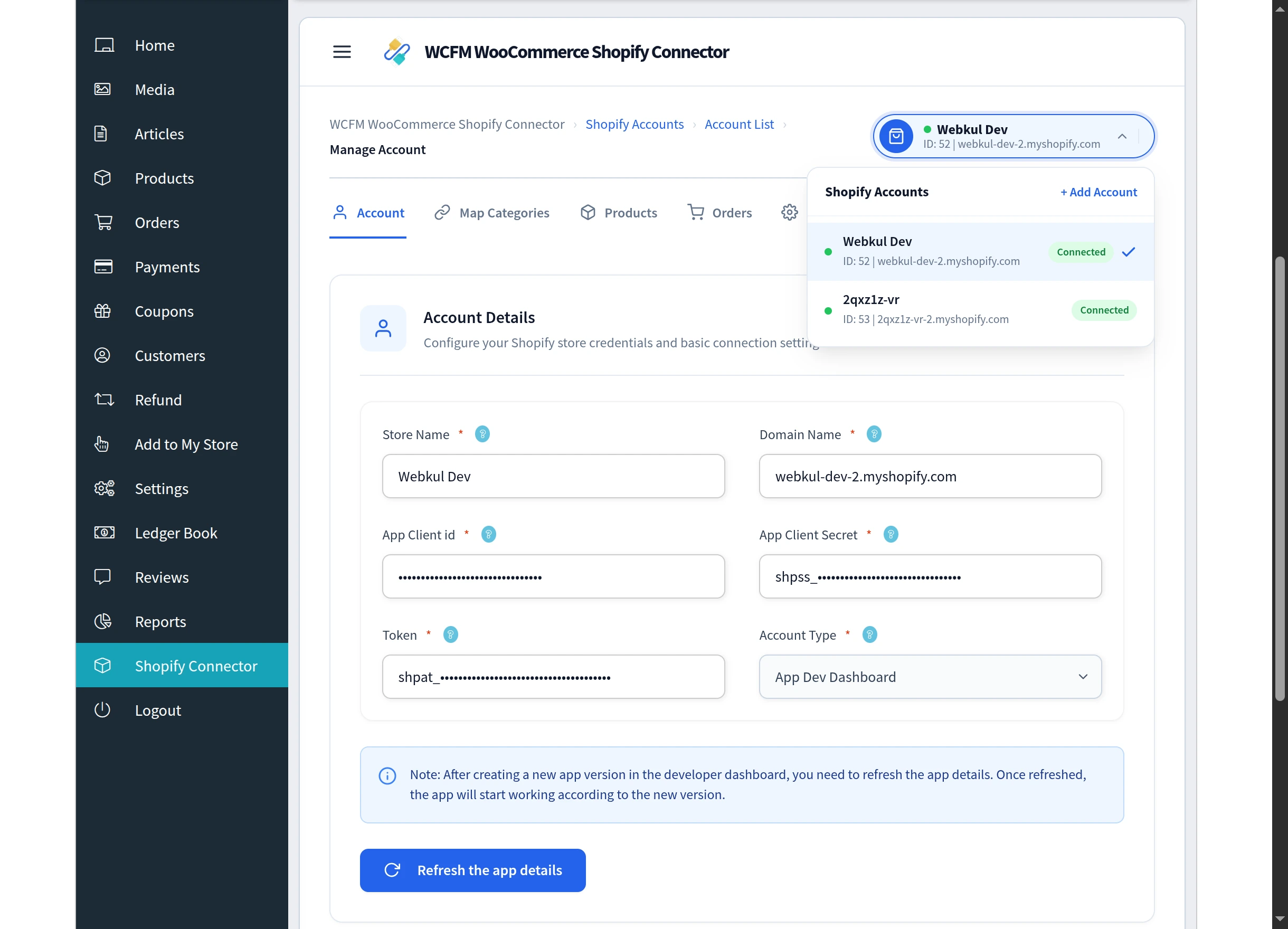
Switching keeps you on the same tab, so you can compare the same screen across two stores without navigating back each time. Add Account is available directly from this menu.
The Account tab
The Account tab holds the connection details for this store.
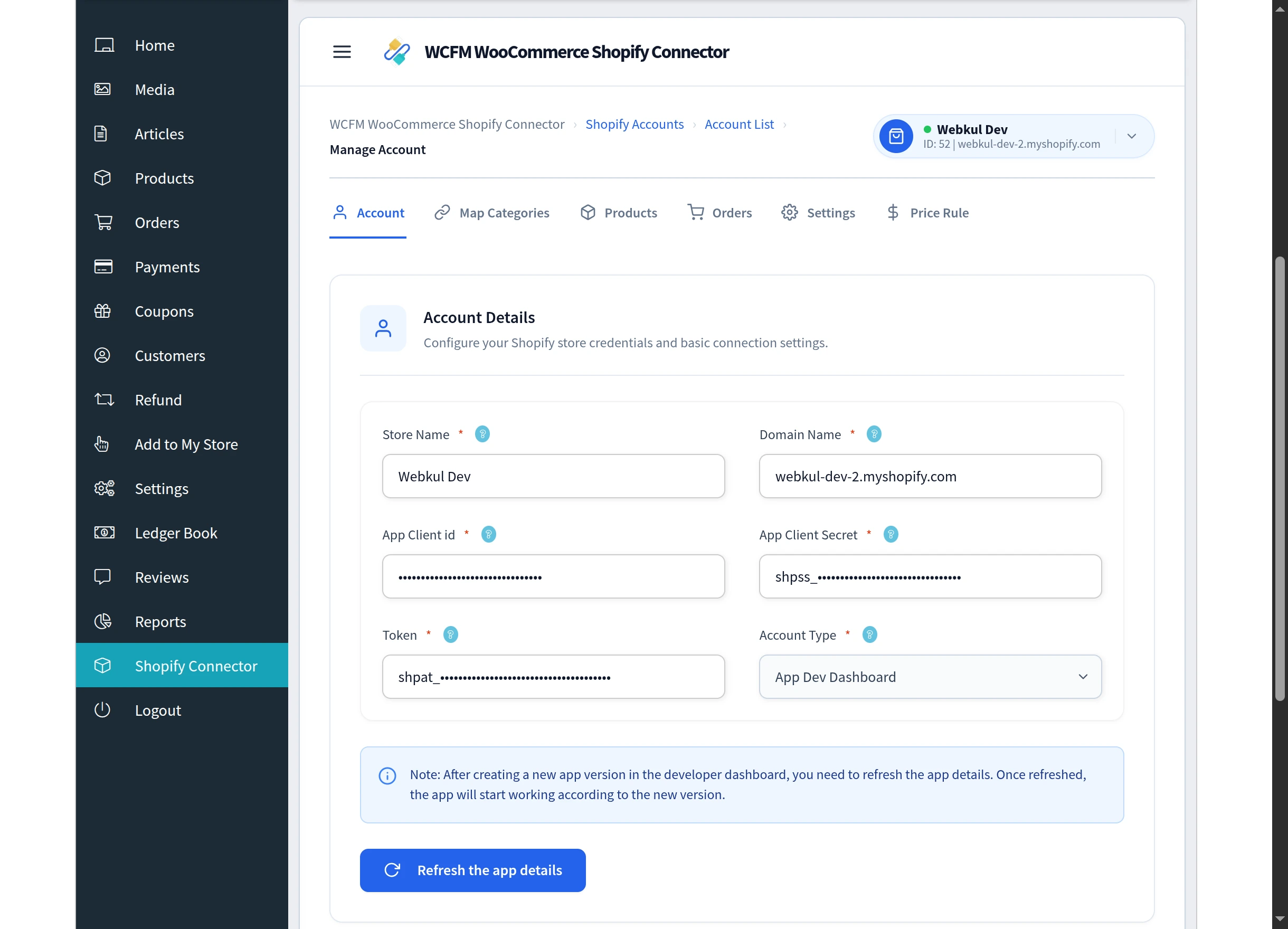
| Field | Notes |
|---|---|
| Store Name | Must match the store name on Shopify |
| Domain Name | The myshopify.com domain, without https:// |
| App Client id | From your Shopify Dev Dashboard app |
| App Client Secret | From your Shopify Dev Dashboard app |
| Token | Generated and saved automatically when you connect. You do not enter this by hand. |
| Account Type | App Dev Dashboard or Legacy Custom App |
Select Update Details to save. You will see Account updated successfully.
After releasing a new app version
If you create and release a new version of your app in the Shopify Developer Dashboard, the connector keeps using the old version until you refresh it.
Select Refresh the app details. Once refreshed, the connection works against the new version. If it fails you will see Could not refresh the app details. Please try again.
Validation messages
| Message | Cause |
|---|---|
| Field cannot be blank | A required field is empty |
| Please enter your client id. / Please enter your secret key | OAuth credential missing |
| Enter valid Shopify API Client. / Enter valid Shopify API Secret key. | Credential rejected by Shopify |
| Store name already exists. | Another account already uses this name |
| Added store name does not match with the shopify store name. | Name differs from Shopify |
Never share your Client Secret or access token. They give full API access to your Shopify store. The connector stores them for you — there is no need to keep them anywhere else.
Next steps
Work through the tabs in the order a new store needs them: Map Categories → General Settings → Webhooks → Import Products.