
Overview
The connector links a vendor's Shopify store to your WooCommerce marketplace so the same catalogue and the same orders can live in both places without being maintained twice.
How the connection is organised
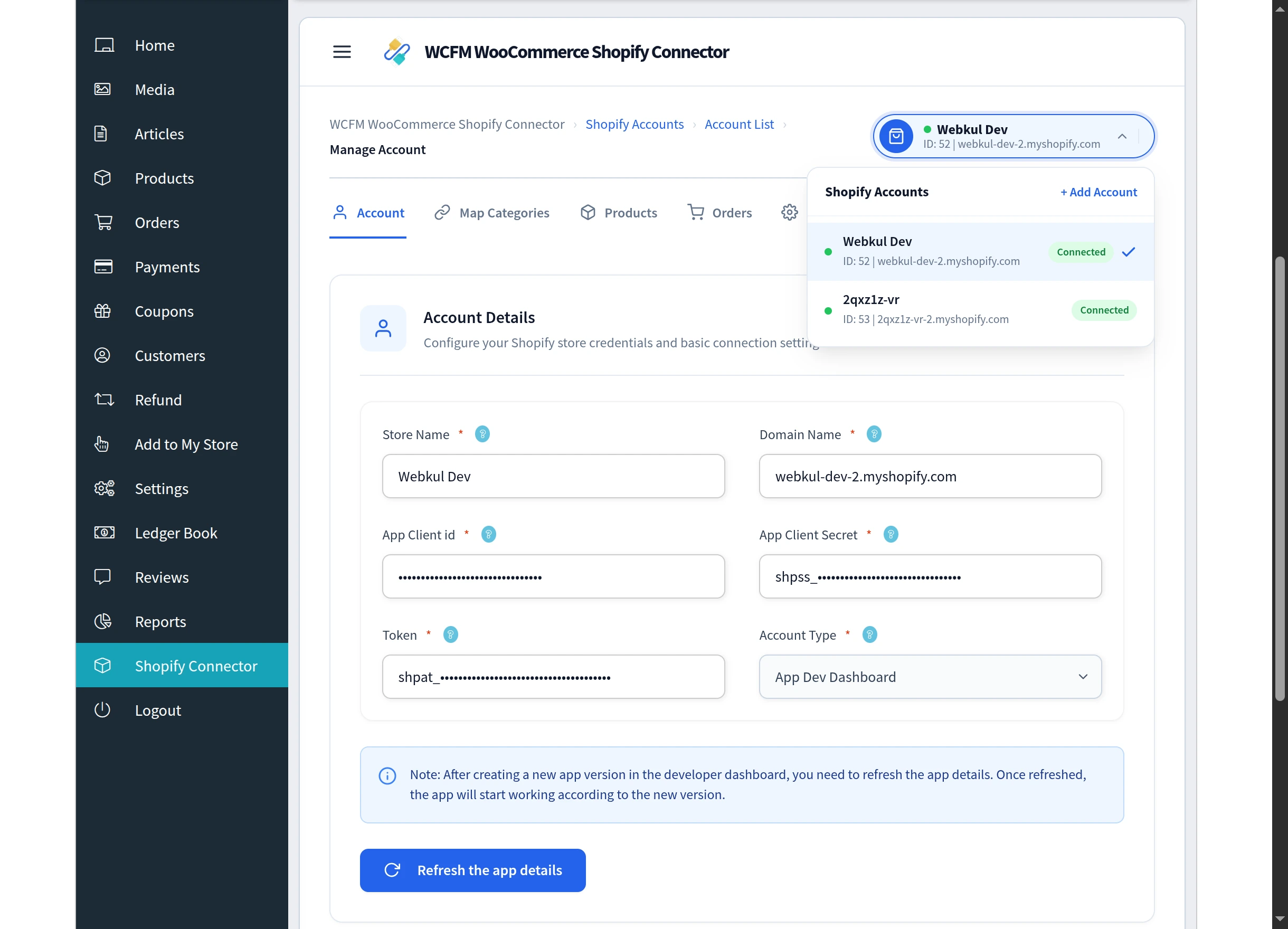
Everything hangs off a Shopify account — one connected Shopify store. A vendor can connect several, and each one carries its own settings, category mappings, price rules and webhooks. Switching between accounts never mixes their configuration.
Each account is reached from Vendor Dashboard → Shopify Connector → Manage Account, which is organised into six tabs:
| Tab | What it is for |
|---|---|
| Account | Store name, domain, app credentials, account type |
| Map Categories | Match Shopify collections to store categories |
| Products | Import products from Shopify, export products to Shopify |
| Orders | Import orders from Shopify, export orders to Shopify |
| Settings | Sync preferences, export-order rules, auto-sync, webhooks |
| Price Rule | Automatic price adjustments by price band |
Which way does data move?
The connector works in both directions, and the direction is always chosen by the vendor.
Shopify → WooCommerce
- Import Products pulls a Shopify catalogue in and creates WooCommerce products.
- Import Orders pulls Shopify orders in and creates WooCommerce orders.
- Auto Import Product creates a WooCommerce product automatically when a new one is listed on Shopify.
- Product Auto-Sync set to Shopify to WooCommerce keeps price, quantity and SKU current.
WooCommerce → Shopify
- Export Products creates the vendor's WooCommerce products on Shopify.
- Export Orders sends WooCommerce orders to Shopify, either on demand or automatically by order status.
- Product Auto-Sync set to WooCommerce to Shopify pushes edits made in the vendor dashboard back to Shopify.
Pick one direction per store. Product Auto-Sync is a single choice — Disable, Shopify to WooCommerce, or WooCommerce to Shopify. It cannot run both ways at once, which prevents two systems overwriting each other.
What makes real-time work
Manual import and export always work on their own. Anything described as real time depends on webhooks being registered on the Shopify store. Without them, Shopify has no way to tell WooCommerce that something changed.
Webhooks are generated in one click from Settings → Webhooks, and cover four events: order updates, and product create, update and delete. See Webhooks and Real-Time Sync.
Imported and exported products are kept apart
A product that was imported from Shopify does not appear in the Export Product list. The two lists deliberately never overlap, so a vendor cannot accidentally push a product back to the store it came from.
Next steps
- Installation — install the plugin and activate the licence
- Setup Wizard — connect the first Shopify store
- Map Categories — decide where imported products land
- General Settings — set the sync preferences for that store