
Map Categories
Mapping tells the connector which WooCommerce store category a Shopify collection corresponds to, so imported products land in the right place rather than all in one bucket.
Open Manage Account → Map Categories.
When you need it
Mapping is required if you plan to import only mapped categories rather than the whole catalogue. That choice is made in General Settings under Products to Import.
Even when importing everything, mapping is worth doing: it puts products into the categories your customers browse, instead of relying on the single Default Category.
Mapping a collection
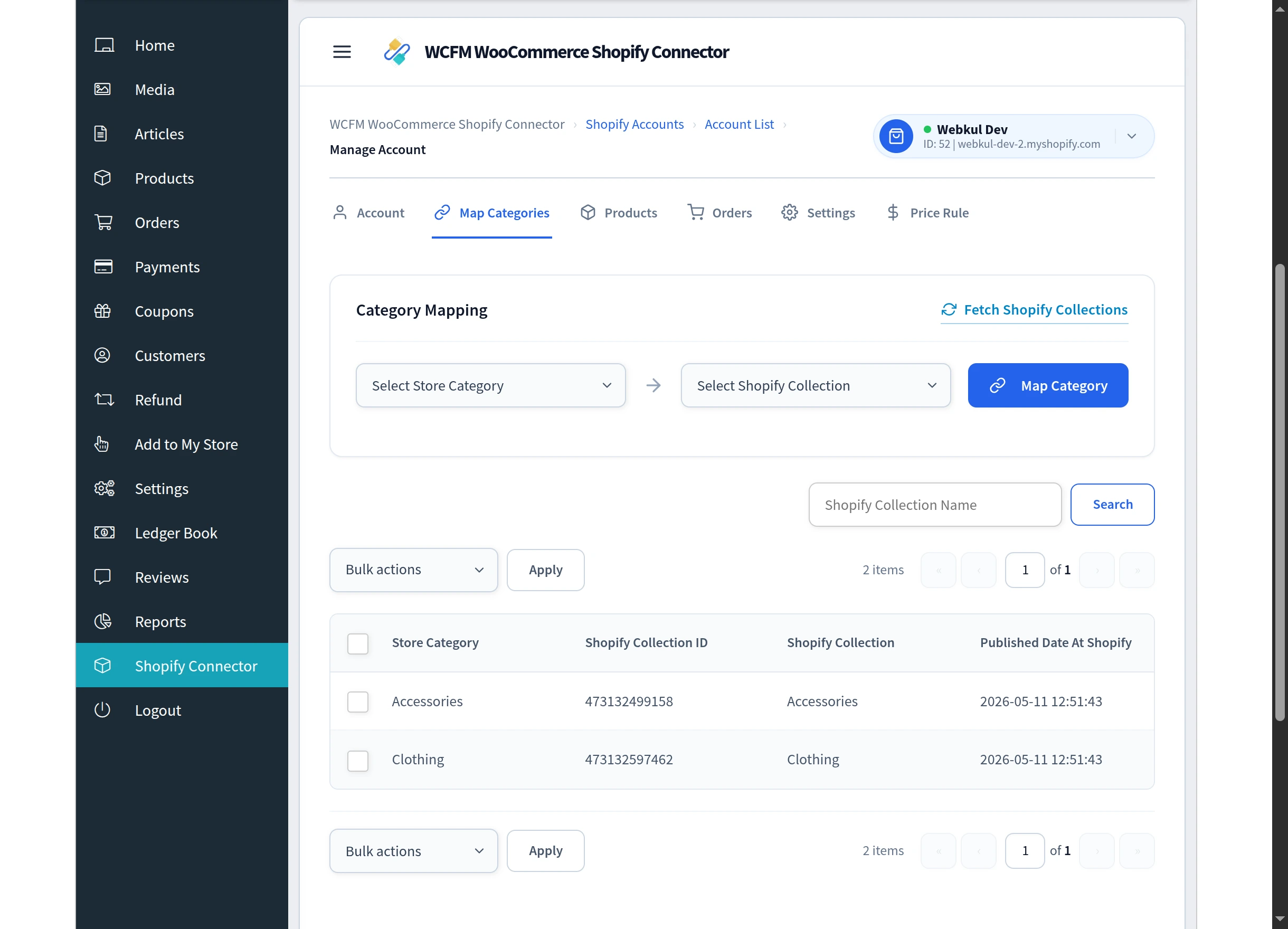
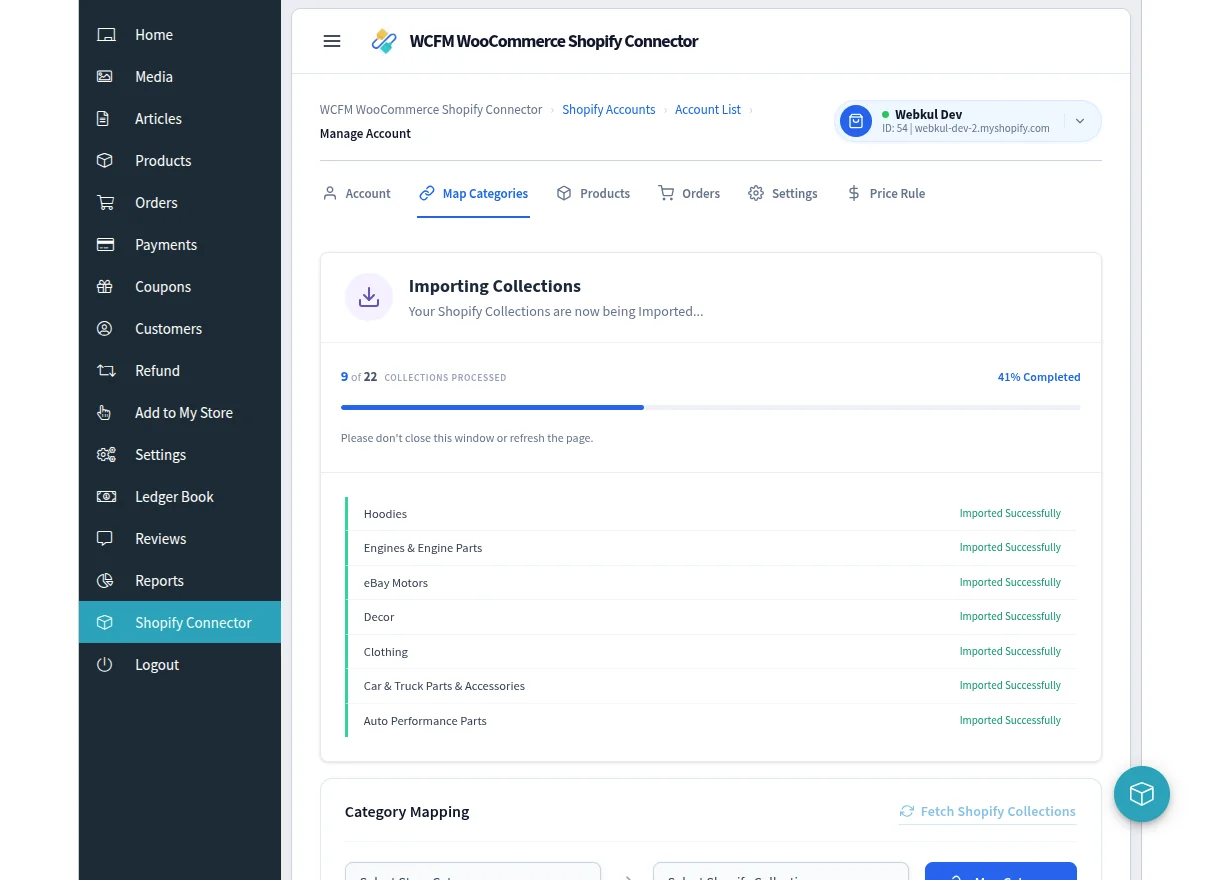
Select Fetch Shopify Collections. The connector retrieves the collections from your Shopify store, reporting each one as it arrives. Leave the window open until the count reaches the total.
Choose a collection under Select Shopify Collection.
Choose the WooCommerce category it should map to under Select Store Category.
Select Map Category.
You will see Category Mapped Successfully, and the pair appears in the list below.
The mapped list
Each mapping shows the Store Category, the Shopify Collection ID, the Shopify Collection name and the date it was published at Shopify.
Use Search to find a mapping by collection name. To remove mappings, tick them, choose Delete under Bulk actions and select Apply. You will see Category Deleted Successfully.
Removing a mapping does not delete anything from Shopify or WooCommerce — it only breaks the link between the two.
While products are being created
If mapping triggers product creation, a progress message reads Creating Products and Your Products are now being Created…
Leave the window open until it finishes. Closing it part-way stops the process.
If it does not work
| Message | Cause | What to do |
|---|---|---|
| Category already mapped. | This collection is already linked | Pick a different collection, or delete the existing mapping first |
| Please select a valid category to map. | One of the two dropdowns is empty | Choose both a collection and a store category |
| Unable to map the category. | The mapping could not be saved | Re-fetch the collections and try again |
| No Data Found | Nothing mapped yet | Map your first collection |
If Fetch Shopify Collections returns nothing, confirm the store is still Connected on the account list and that the collections exist in Shopify.
Next step
With categories mapped, set your import preferences in General Settings, then import your products.