
Import Products
Importing brings a Shopify catalogue into WooCommerce as real WooCommerce products, so they can be sold through your marketplace store.
Open Manage Account → Products → Import Product.
Before you import
Set these in General Settings first — they decide what gets imported and how it is created:
- Products to Import — all products, or only those in mapped categories
- Products to Import having Shopify Status — all, active, archived or draft
- Import Products As — the WooCommerce status new products are given
- Default Category — where products land when no mapping applies
- Imported Image Size and Product Image Import
- Price Rule Applicable For — set to Import Product if you want price rules applied
If you want products filed by category, map your collections before importing.
The two-stage import
Importing is deliberately split into two steps, so nothing is created in your store until you have seen what was fetched.
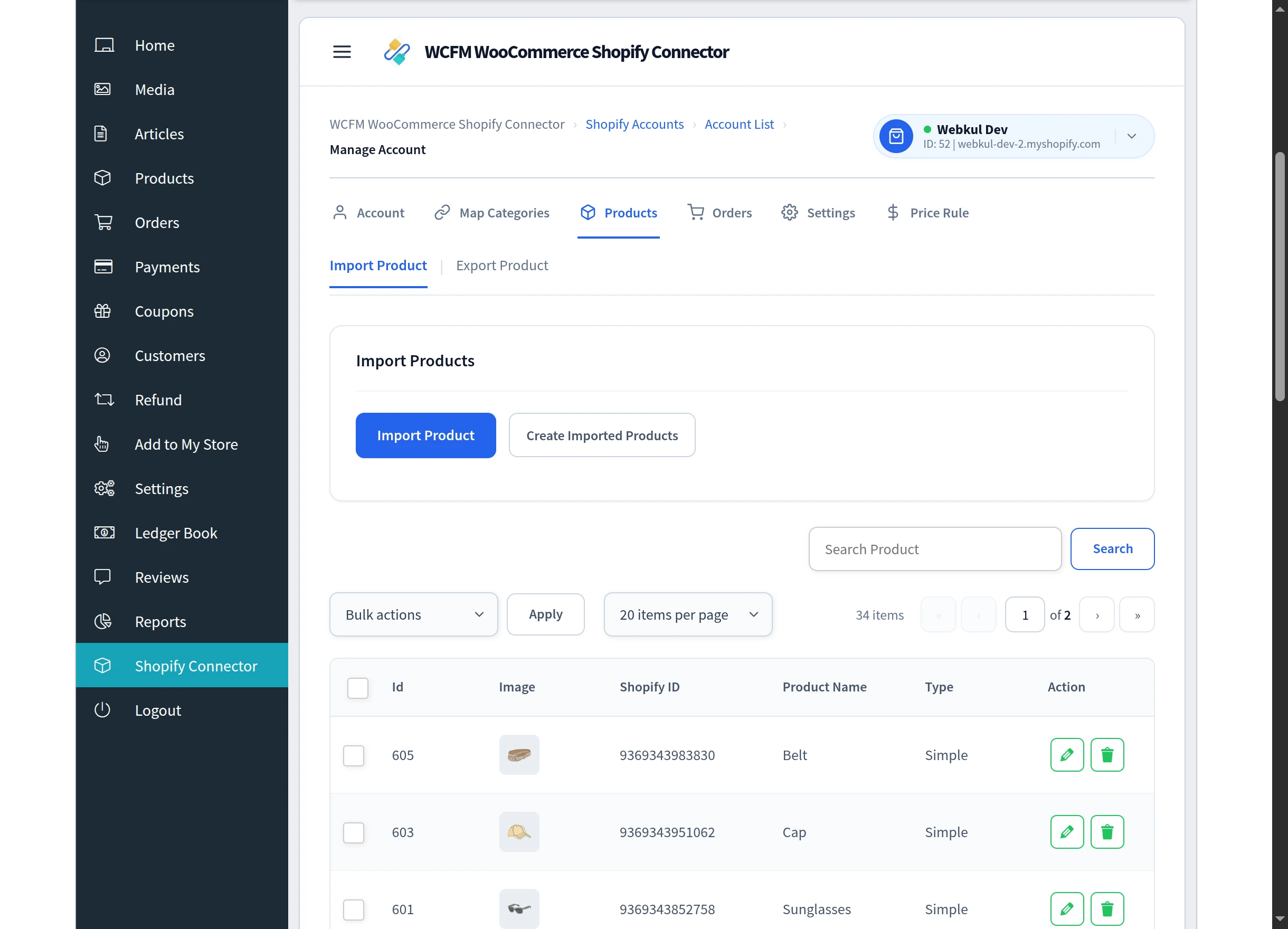
Step 1 — Import Product. Fetches the product data from Shopify and stages it. A progress message reads Importing Products and Your Products are now being Imported…, counting up as it works through the catalogue.
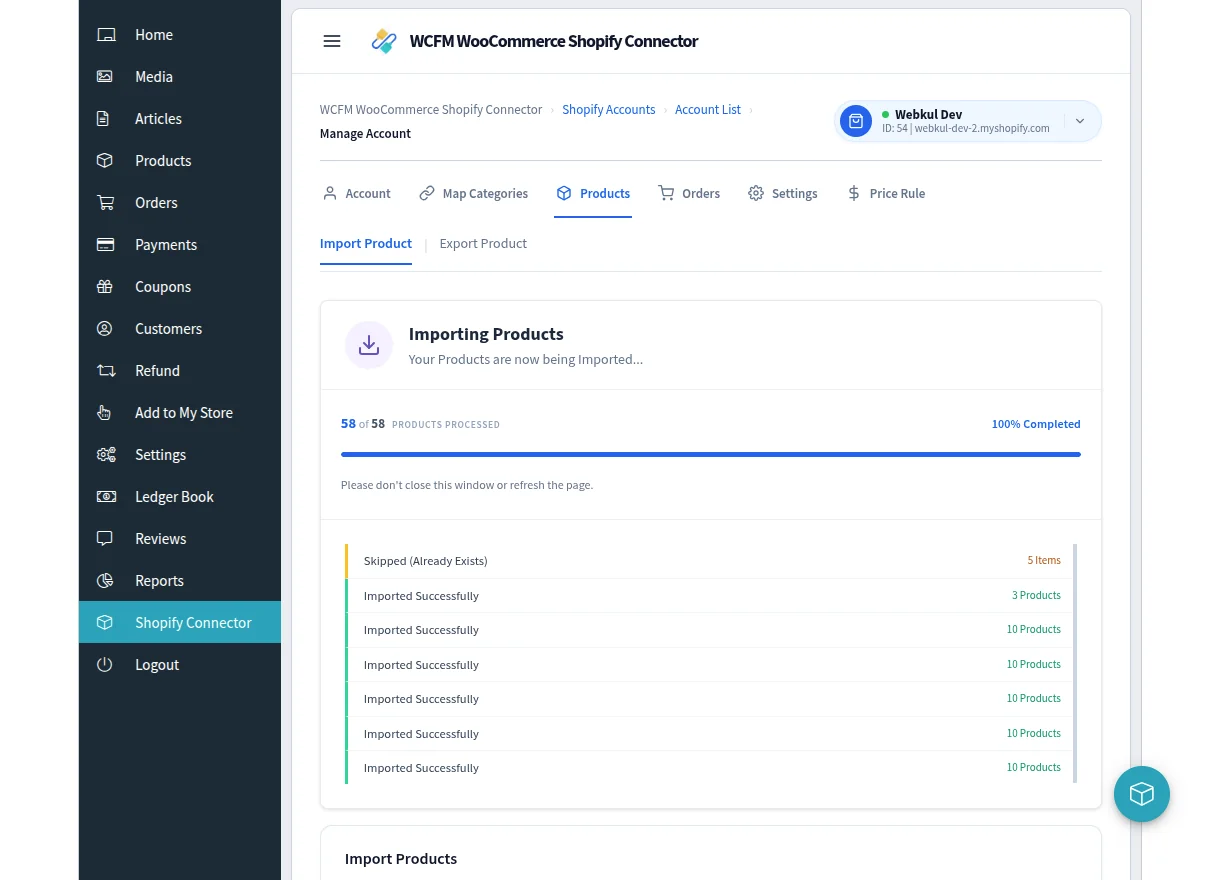
Products already present from an earlier run are reported as Skipped (Already Exists) rather than duplicated, so re-running a fetch is safe.
Step 2 — Create Imported Products. Creates the actual WooCommerce products from the staged data.
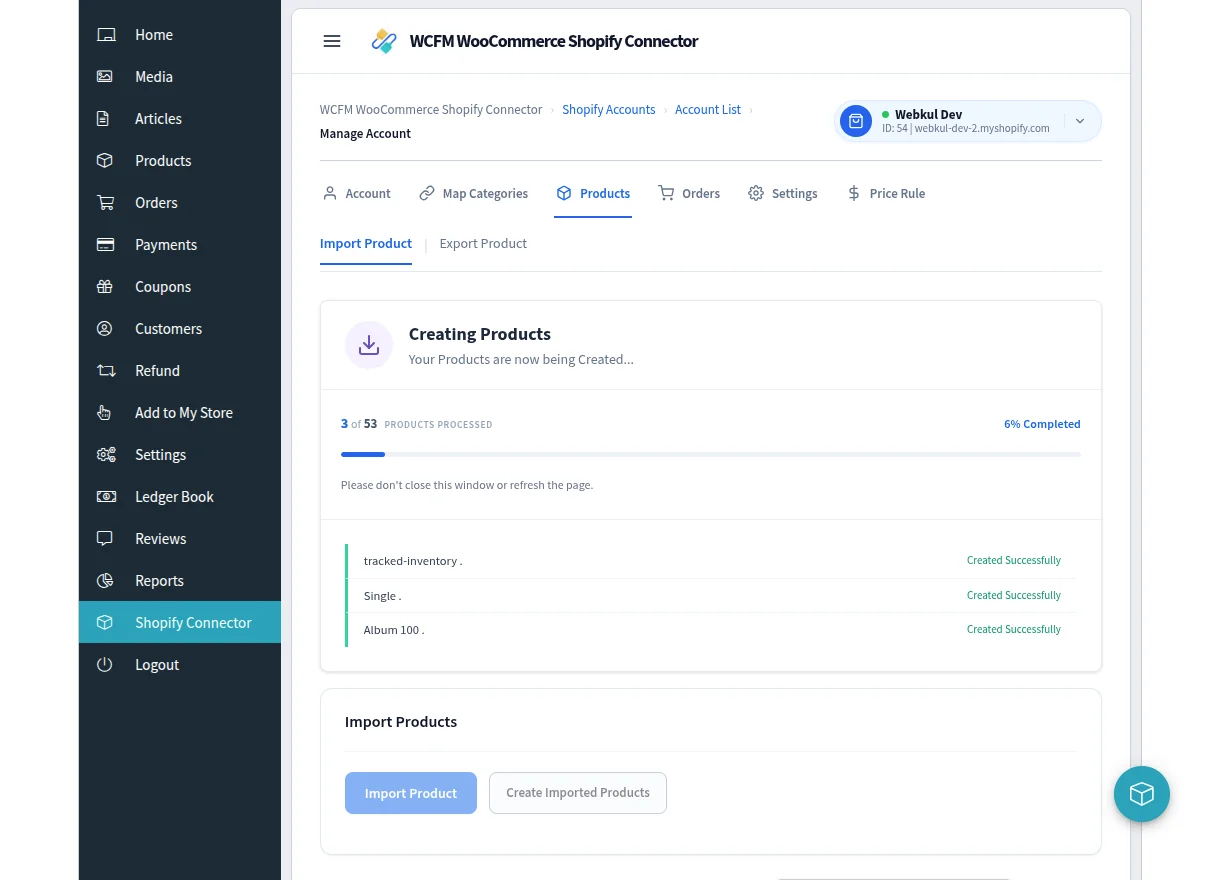
Leave the window open while either step runs.
Do not close the window mid-import. Both steps run in the browser. Closing the tab stops the process part-way through.
If images are set to import in the background
When Product Image Import is set to In The Background, products are created immediately and their images follow. A message reports how many are left, for example Product Images are importing in the the Background. 12 images left.
This is the faster option for large catalogues — products become usable straight away.
The imported product list
Every product the connector has imported for this store is listed with its Id, Image, Shopify ID, Product Name and Type.
Use Search Product to find one by name, and the per-page control to show 10, 20, 50 or 100 rows.
Updating a single product
Select Update From Shopify on a row to refresh that product from its Shopify original. You will see Product Updated Successfully.
Use this when a product changed in Shopify and you do not want to wait for real-time sync — or when real-time sync is switched off.
Removing a product from the list
Select the delete control on a row. You are asked to confirm.
The confirmation is explicit that this only removes the connection here — the product itself is not deleted from Shopify. What it breaks is the link between your store and Shopify for that product, so it will no longer sync.
Choose Yes, Delete Product to confirm. You will see Product Delete successfully, or Product Not Delete Successfully if it could not be removed.
Imported products cannot be exported back
Products imported from Shopify do not appear in the Export Product list. This is deliberate — it stops a product being pushed back to the store it came from. See Export Products.
Next steps
- General Settings — refine what future imports bring in
- Price Rules — adjust imported prices automatically
- Real-Time Sync — keep imported products current