Webhooks
Webhooks are how Shopify tells your WooCommerce store that something has changed. Without them, nothing described as real time can work — the connector would have no way of knowing a price, a stock level or an order had been updated.
Open Manage Account → Settings → Webhooks.
Generating webhooks
Select Generate Webhooks. The connector registers all four subscriptions on your Shopify store in one action.
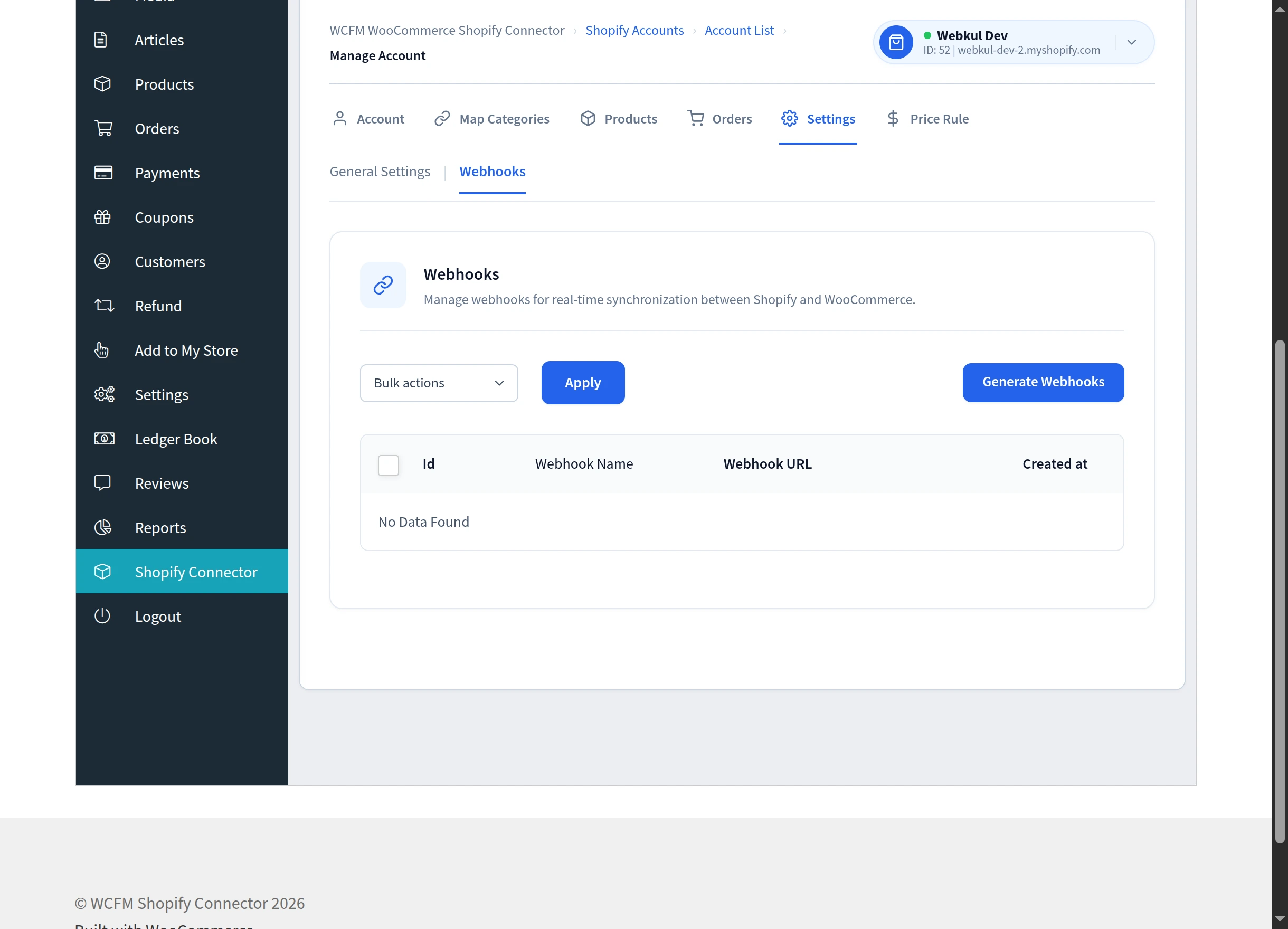
You will see Webhooks created successfully. If they were already in place, the message reads All webhooks are already created. — the action is safe to repeat, and existing subscriptions are never duplicated.
The button only appears when webhooks are missing. Once three or more are registered it is hidden, because there is nothing left to create. If you do not see it, your webhooks are already in place.
What gets registered
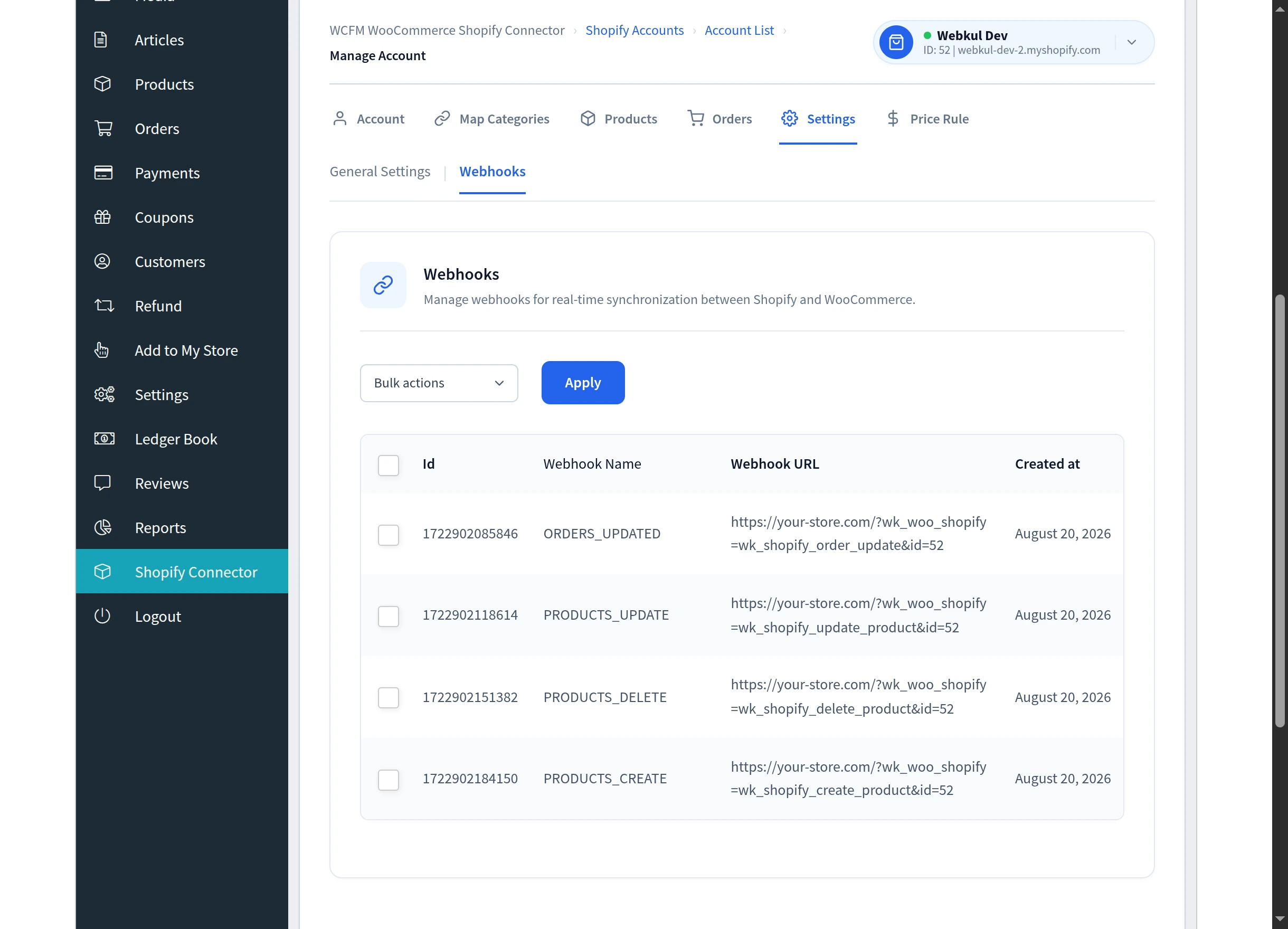
Four webhooks are created, each pointing back at your store.
| Webhook | What it keeps current |
|---|---|
| ORDERS_UPDATED | Changes to an order on Shopify |
| PRODUCTS_CREATE | New products listed on Shopify |
| PRODUCTS_UPDATE | Price, quantity and SKU changes |
| PRODUCTS_DELETE | Products removed from Shopify |
The list shows each webhook's Id, Webhook Name, Webhook URL and the date it was Created at.
Removing webhooks
Tick the ones you want to remove, choose Delete under Bulk actions and select Apply. You will see Webhook Deleted Successfully.
Removing a webhook stops that particular kind of update reaching your store. Everything else keeps working, and manual import and export are unaffected.
If you remove webhooks and later want them back, the Generate Webhooks button reappears — select it and all four are recreated.
Which features depend on which webhook
| If you want… | You need |
|---|---|
| Prices and stock to follow Shopify | PRODUCTS_UPDATE |
| New Shopify products to appear automatically | PRODUCTS_CREATE and Auto Import Product enabled |
| Deleted Shopify products to unlink | PRODUCTS_DELETE |
| Order changes on Shopify to reach WooCommerce | ORDERS_UPDATED |
If webhooks cannot be created
| Message | Cause | What to do |
|---|---|---|
| Shopify token is invalid | The stored access token is no longer accepted | Reconnect the store, or use Refresh the app details on the Account tab |
| No Data Found | No webhooks registered yet | Select Generate Webhooks |
If generation fails repeatedly, confirm the store shows Connected on the account list and that your Shopify app has the scopes it needs and has been released.
Next step
Real-Time Sync explains what actually happens once these webhooks are live.