
General Settings
These settings control how one Shopify store synchronises with WooCommerce. They are saved per Shopify account — connecting a second store gives you a separate set.
Open Manage Account → Settings → General Settings. Select Save Changes when you are done; you will see Settings updated successfully.
General Settings
Configure core sync preferences and default parameters for your Shopify integration.
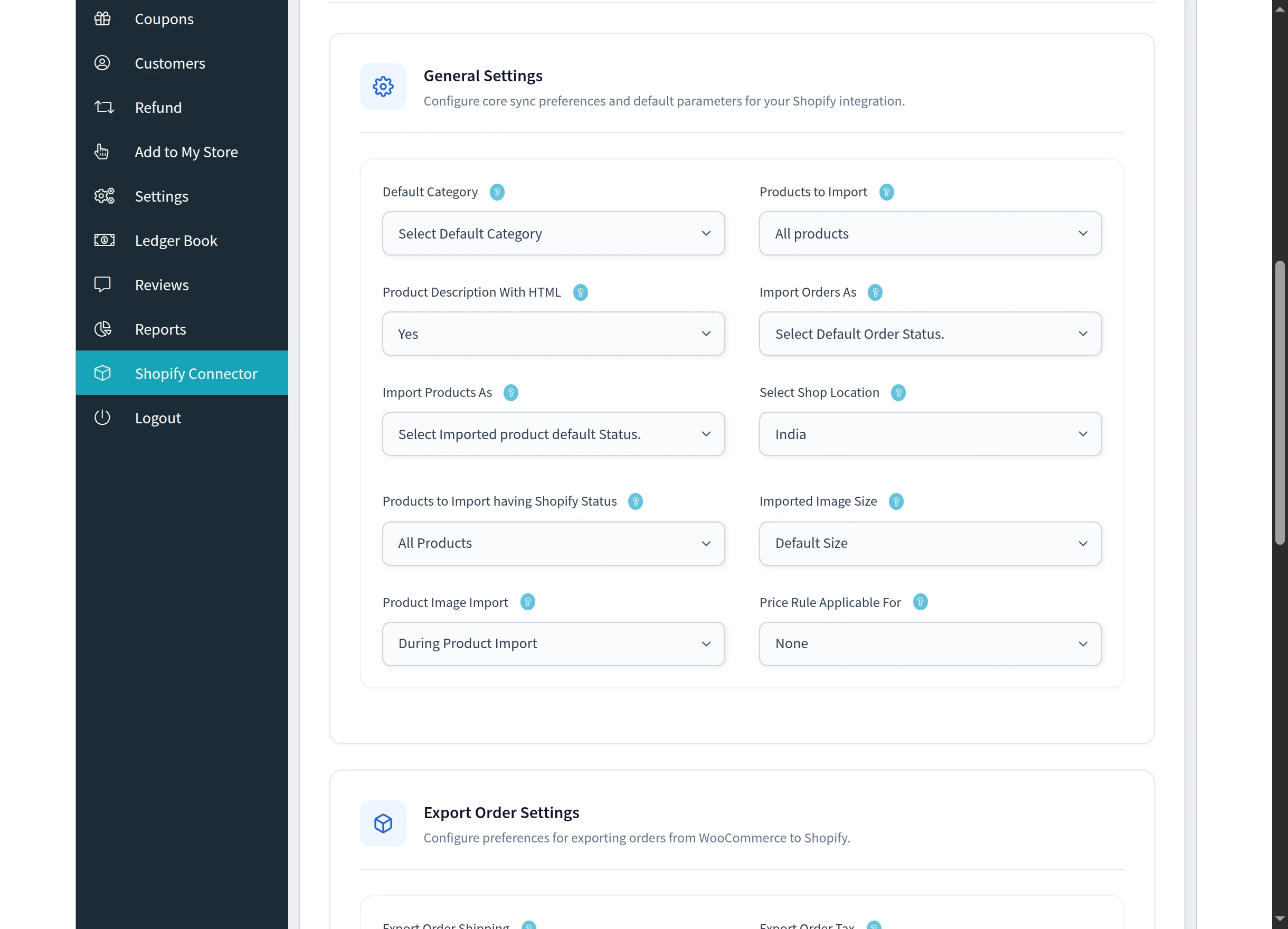
| Setting | Options | What it does |
|---|---|---|
| Default Category | Your WooCommerce product categories | The category imported products are assigned to when no mapping applies |
| Products to Import | All products · Only mapped categories product | Whether to import the whole catalogue or only mapped collections |
| Product Description With HTML | Yes · No | Whether to keep Shopify's HTML formatting in the description |
| Import Orders As | Any WooCommerce order status | The status given to every imported order |
| Import Products As | Any WooCommerce product status | The status given to every imported product |
| Select Shop Location | Locations from your Shopify store | Which Shopify location stock is read from |
| Products to Import having Shopify Status | All Products · Active · Archived · Draft | Only import products with the chosen status on Shopify |
| Imported Image Size | Default Size · Thumbnail (150px) · Medium (300px) · Full (768px) | The image size created in WooCommerce |
| Product Image Import | During Product Import · In The Background | Whether images are fetched as products are created, or afterwards |
| Price Rule Applicable For | None · Import Product · Export Product | Where your price rules apply |
Products to Import having Shopify Status defaults to All Products. The remaining fields start unset, so choose a Default Category, Import Orders As and Import Products As before your first import — otherwise imported records fall back to WooCommerce defaults.
Choosing In The Background speeds up large imports. Products are created immediately and images follow, so the catalogue is usable sooner. During import you will see how many images remain.
Export Order Settings
Configure preferences for exporting orders from WooCommerce to Shopify.
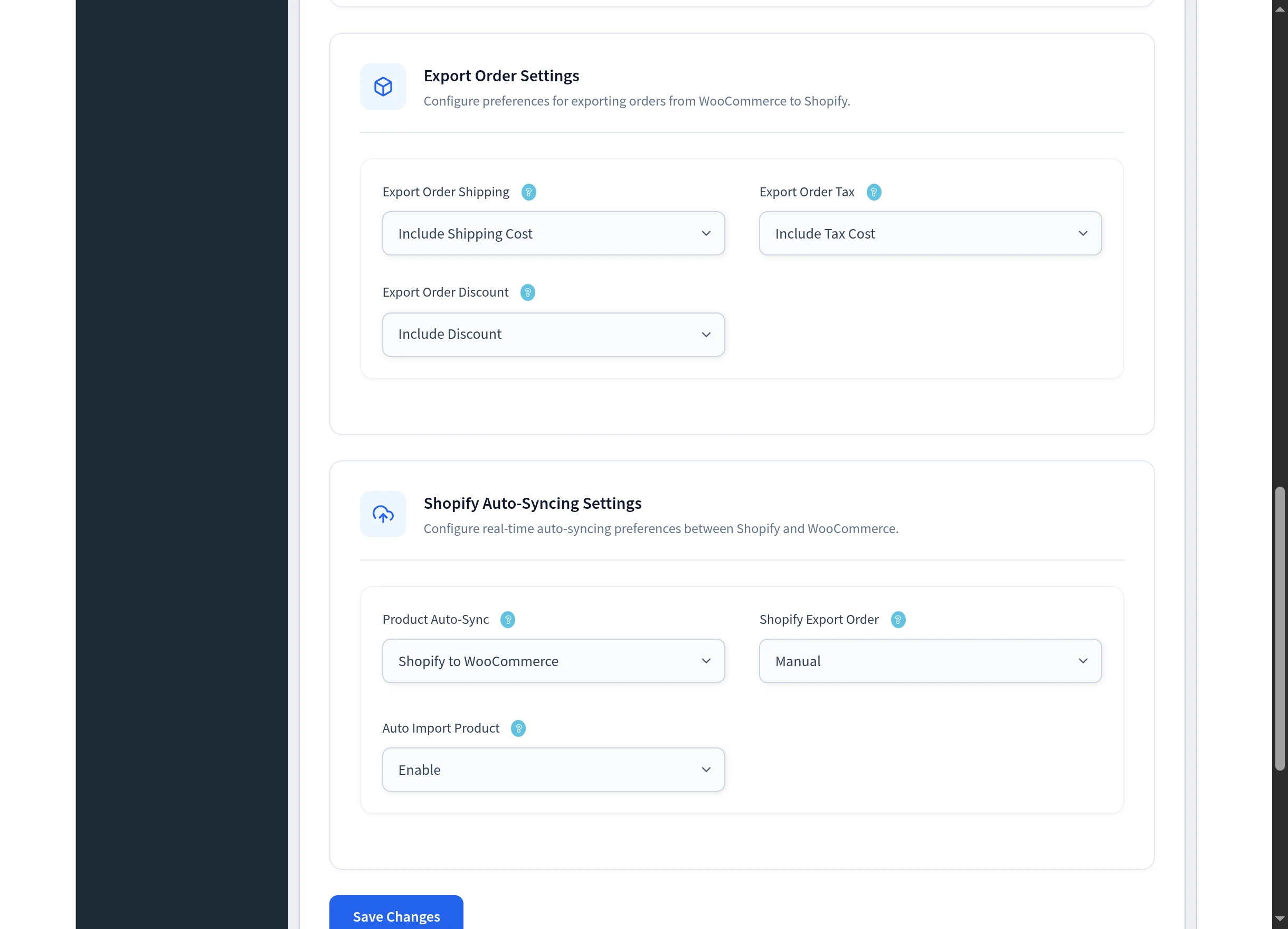
| Setting | Options |
|---|---|
| Export Order Shipping | Include Shipping Cost · Exclude Shipping Cost |
| Export Order Tax | Include Tax Cost · Exclude Tax Cost |
| Export Order Discount | Include Discount · Exclude Discount |
Match these to the way your Shopify store records orders so the totals agree on both sides.
Shopify Auto-Syncing Settings
Configure real-time auto-syncing preferences between Shopify and WooCommerce.
| Setting | Options | What it does |
|---|---|---|
| Product Auto-Sync | Disable · Shopify to WooCommerce · WooCommerce to Shopify | The direction in which product changes flow automatically |
| Shopify Export Order | Manual · Realtime · a specific order status | When an order is sent to Shopify |
| Auto Import Product | Enable · Disable | Create a WooCommerce product as soon as one is listed on Shopify |
Auto-sync needs webhooks. Everything in this section depends on Shopify being able to notify your store. Generate the webhooks first — see Webhooks.
Product Auto-Sync is one direction at a time. That is deliberate: it stops two systems overwriting each other's changes. Choose the store that should be the source of truth for product data.
A sensible starting point
For a vendor whose Shopify store is the master catalogue:
- Products to Import: All products
- Products to Import having Shopify Status: Active
- Import Products As: a published status, so products go live on import
- Import Orders As: Processing
- Product Auto-Sync: Shopify to WooCommerce
- Auto Import Product: Enable
- Shopify Export Order: the status at which you want orders to reach Shopify
Next steps
- Webhooks — switch on the real-time channel
- Price Rules — set the adjustments referenced above