
Real-Time Sync
Real-time sync keeps a Shopify store and WooCommerce aligned without anyone pressing a button. It is optional — manual import and export always work — but it is what makes running both stores practical day to day.
What is required
Two things must be in place:
- Webhooks are registered on the Shopify store. See Webhooks.
- The relevant setting is switched on in General Settings under Shopify Auto-Syncing Settings.
Without webhooks, none of the Shopify-to-WooCommerce behaviour below can happen.
Product changes from Shopify to WooCommerce
Set Product Auto-Sync to Shopify to WooCommerce.
When a product is updated on Shopify, the PRODUCTS_UPDATE webhook fires and the connector updates the matching WooCommerce product — price, quantity and SKU.
Use this when Shopify is the master catalogue and the marketplace is another sales channel.
Product changes from WooCommerce to Shopify
Set Product Auto-Sync to WooCommerce to Shopify.
When the vendor saves a product in the WCFM product manager, the change is pushed to Shopify.
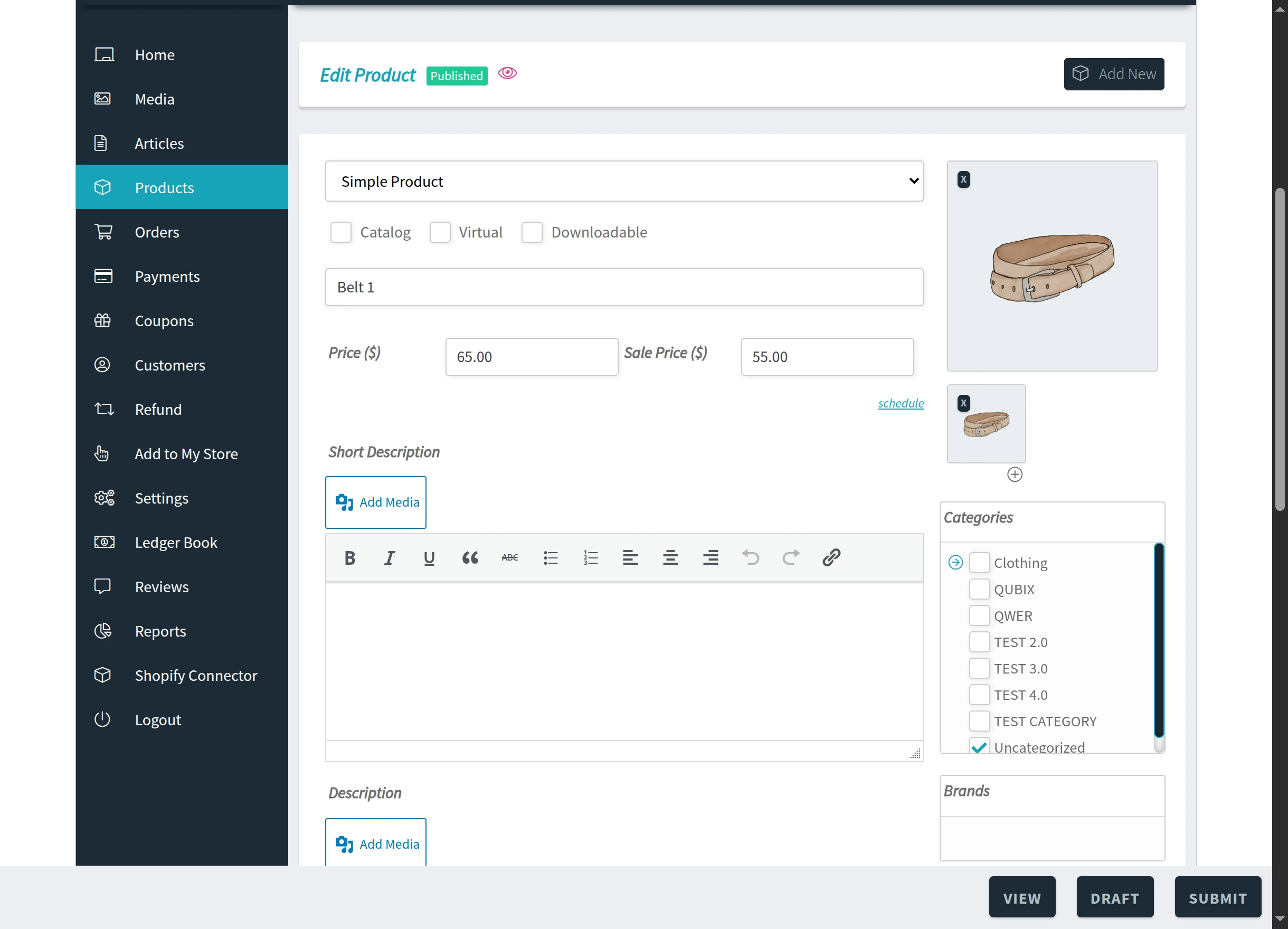
Use this when the marketplace is where the vendor maintains their catalogue.
Only one direction can be active. Product Auto-Sync is a single choice, so product data always has one source of truth and the two stores cannot overwrite each other.
New Shopify products appearing automatically
Set Auto Import Product to Enable.
When a new product is listed on Shopify, the PRODUCTS_CREATE webhook fires and the connector creates the WooCommerce product for you, using your import preferences — default category, product status, image size and any price rule set to apply on import.
This saves running a full import every time the vendor adds a product.
Products deleted on Shopify
The PRODUCTS_DELETE webhook removes the link between the Shopify product and its WooCommerce counterpart, so the connector stops trying to sync a product that no longer exists.
Orders reaching Shopify as they are placed
Set Shopify Export Order to Realtime, or to a specific order status.
- Realtime exports every new order as soon as it is placed.
- A specific status exports the order when it reaches that status — usually the better choice, since it avoids sending orders that are cancelled or never paid.
- Manual switches automatic export off entirely; you export by hand from Export Orders.
Deleting a WooCommerce product
Deleting a product in WooCommerce removes its Shopify mapping, so no further sync is attempted for it. The product on Shopify is not deleted.
If real-time sync is not working
Work through these in order:
- Are webhooks registered? Open Settings → Webhooks. If the list is empty, select Generate Webhooks.
- Is the store connected? Check the account list shows Connected.
- Is the setting on? Check Product Auto-Sync, Auto Import Product or Shopify Export Order is not set to Disable or Manual.
- Is it the right direction? A change made in WooCommerce will not reach Shopify if Product Auto-Sync is set to Shopify to WooCommerce.
- Is the token still valid? If webhook actions report Shopify token is invalid, reconnect the store or use Refresh the app details.
While you investigate, manual import and export continue to work, so a vendor is never blocked.
Next steps
- Webhooks — register or repair the webhooks
- General Settings — the auto-sync settings themselves