
Price Rules
Price rules adjust prices automatically as products move between Shopify and WooCommerce, so a vendor can apply a margin without editing every product by hand.
Open Manage Account → Price Rule.
How a rule works
Each rule covers a price band and applies one adjustment to any product whose price falls inside it.
For example, a rule from 1 to 100 that increases by 10% adds 10% to every product priced between 1 and 100. A second rule from 101 to 1000 can apply a different percentage, so cheaper items take a larger margin than expensive ones.
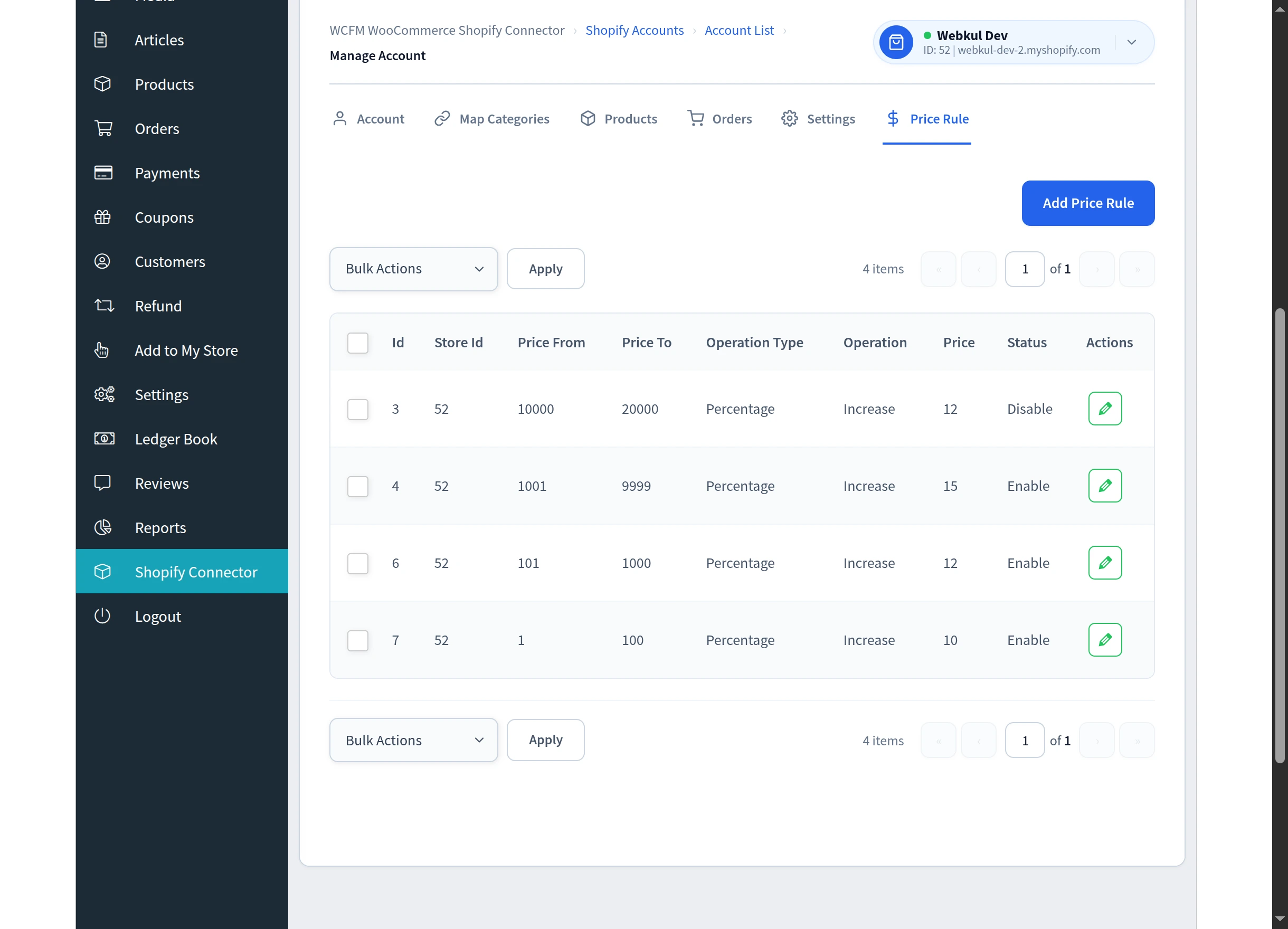
| Column | Meaning |
|---|---|
| Id | The rule's identifier |
| Store Id | The Shopify account the rule belongs to |
| Price From / Price To | The band the rule covers |
| Operation Type | Percentage or Fixed |
| Operation | Increase or Decrease |
| Price | The percentage or fixed amount applied |
| Status | Enable or Disable |
Switching rules on
A price rule does nothing on its own. You must also tell the connector where rules apply, in General Settings under Price Rule Applicable For:
- None — rules are ignored
- Import Product — applied to prices coming in from Shopify
- Export Product — applied to prices going out to Shopify
This is the step most often missed. If your rules appear to have no effect, check Price Rule Applicable For is not set to None.
Adding a rule
Select Add Price Rule.
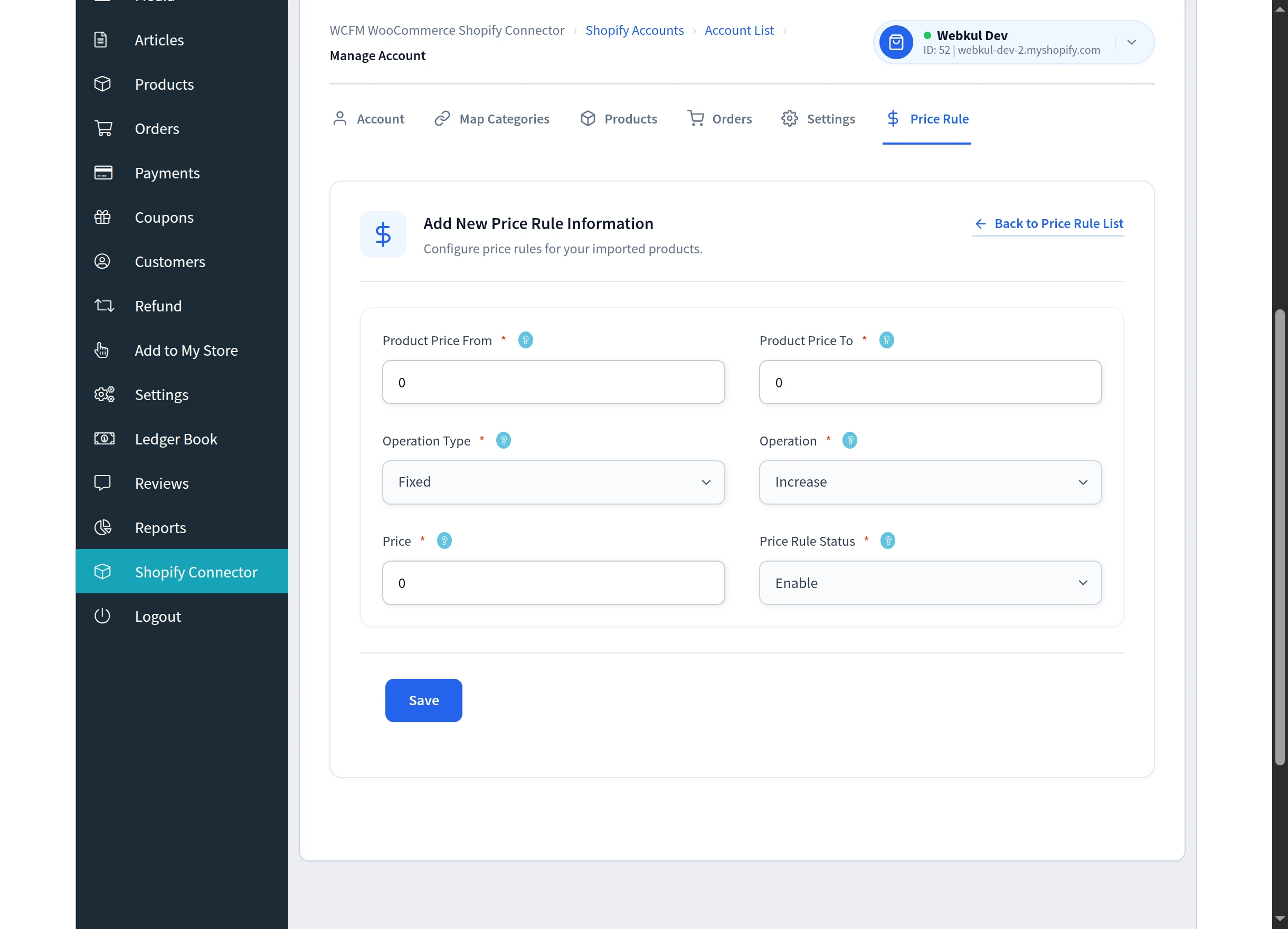
| Field | What to enter |
|---|---|
| Product Price From | The lowest price the rule applies to |
| Product Price To | The highest price the rule applies to |
| Operation Type | Percentage or Fixed |
| Operation | Increase or Decrease |
| Price | The percentage, or the fixed amount |
| Price Rule Status | Enable or Disable |
Select Save. Use Back to Price Rule List to return without saving.
New rules start as Fixed / Increase / Enable with zero values, so change every field to suit.
If you leave anything blank you will see Please enter values in all required fields.
Editing, enabling and deleting
Select the edit control on a row to change a rule, then Update Price Rule.
To change several rules at once, tick them, choose Enable, Disable or Delete under Bulk Actions, and select Apply. You will see a confirmation such as 2 Price Rule Enable Successfully.
Disabling a rule keeps it for later; deleting removes it permanently. Deletion is only available as a bulk action — rows themselves offer editing only.
Practical advice
- Do not overlap bands. Give each rule a distinct range so it is always clear which applies.
- Cover the whole range. Products priced outside every band are unaffected.
- Test with one product first. Import or export a single product and check the resulting price before running a full catalogue.
Next steps
- General Settings — switch rules on for import or export
- Import Products · Export Products