
Import Orders
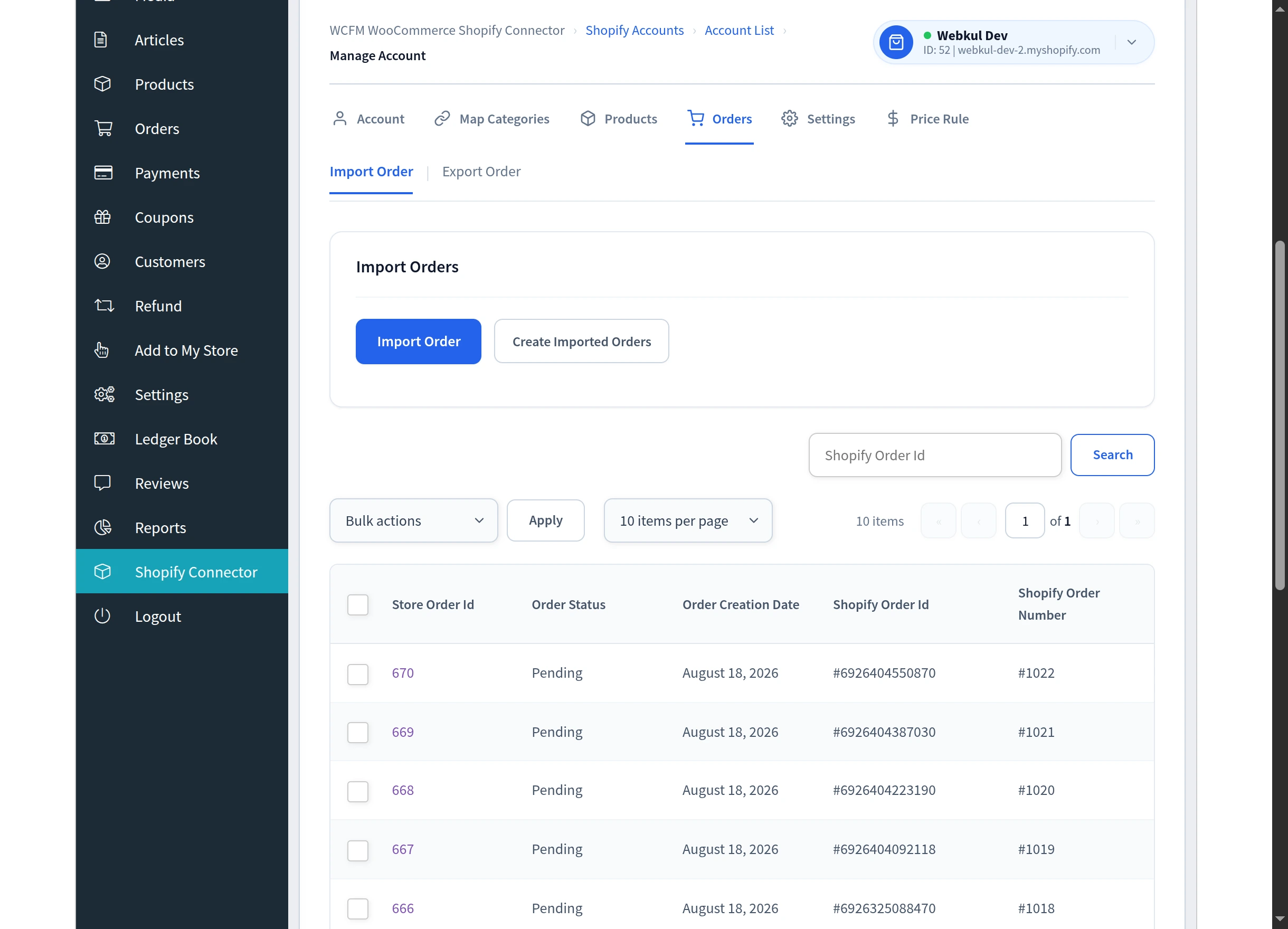
Importing brings orders placed on Shopify into WooCommerce, so a vendor can manage all their sales from the marketplace dashboard.
Open Manage Account → Orders → Import Order.
Before you import
Set Import Orders As in General Settings. Every imported order is created with that WooCommerce status, so choose one that matches how you work — for example Processing for orders you still need to fulfil.
The two-stage import
As with products, importing is split into two steps so nothing is created until you have seen what was fetched.
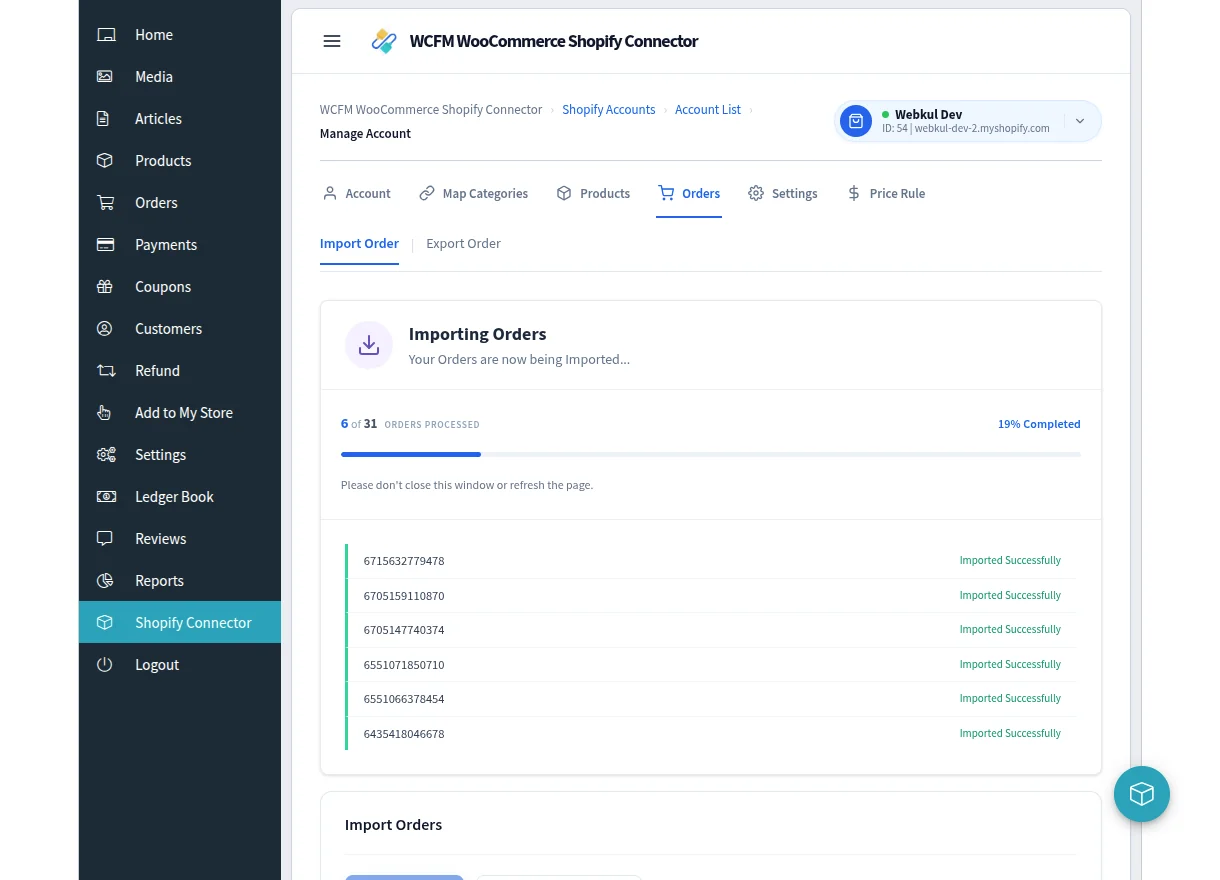
Step 1 — Import Order. Fetches the order data from Shopify. A progress message reads Importing Orders and Your Orders are now being Imported…, with a running count of how many orders have been processed.
Step 2 — Create Imported Orders. Creates the WooCommerce orders from that data.
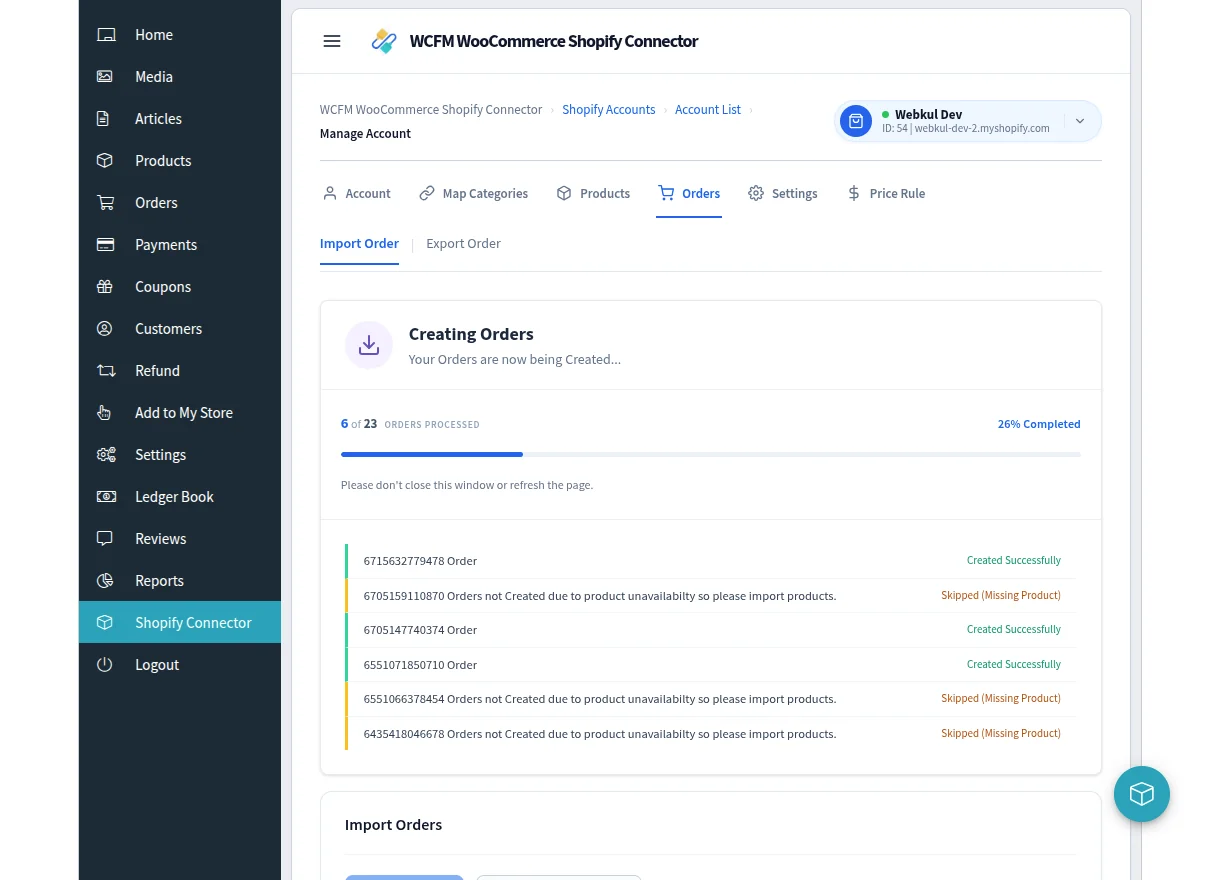
Each order reports its own result. An order whose products are not yet in WooCommerce is marked Skipped (Missing Product) — import those products first, then run the order import again.
Leave the window open while either step runs.
The imported order list
| Column | Meaning |
|---|---|
| Store Order Id | The WooCommerce order number created for it |
| Order Status | Its current WooCommerce status |
| Order Creation Date | When the order was created |
| Shopify Order Id | The order's internal Shopify identifier |
| Shopify Order Number | The order number as shown in Shopify |
Search by Shopify Order Id to find a specific order. Choose how many rows to show with the per-page control.
To remove entries, tick them, choose Delete under Bulk actions and select Apply. You will see Deleted Successfully. This removes the connector's record of the import — it does not delete the order from Shopify.
Imported orders in your normal workflow
Imported orders are synced into WCFM, so they appear in the vendor's ordinary order list and are included in commission records. There is no separate place to manage them — once imported, they behave like any other WooCommerce order.
Next steps
- Export Orders — send WooCommerce orders the other way
- General Settings — change the status imported orders are given