
Data Load Profiles
A Load Profile is a saved, reusable export configuration: entity + filters + field mapping + target dataset. Profiles let you encapsulate different data-loading patterns (e.g. "Last 30 Days Completed Orders", "Active Subscriptions Only", "Out-of-Stock Products") and run them on demand or on a schedule.
URL: /wp-admin/admin.php?page=wkpbic-data-load
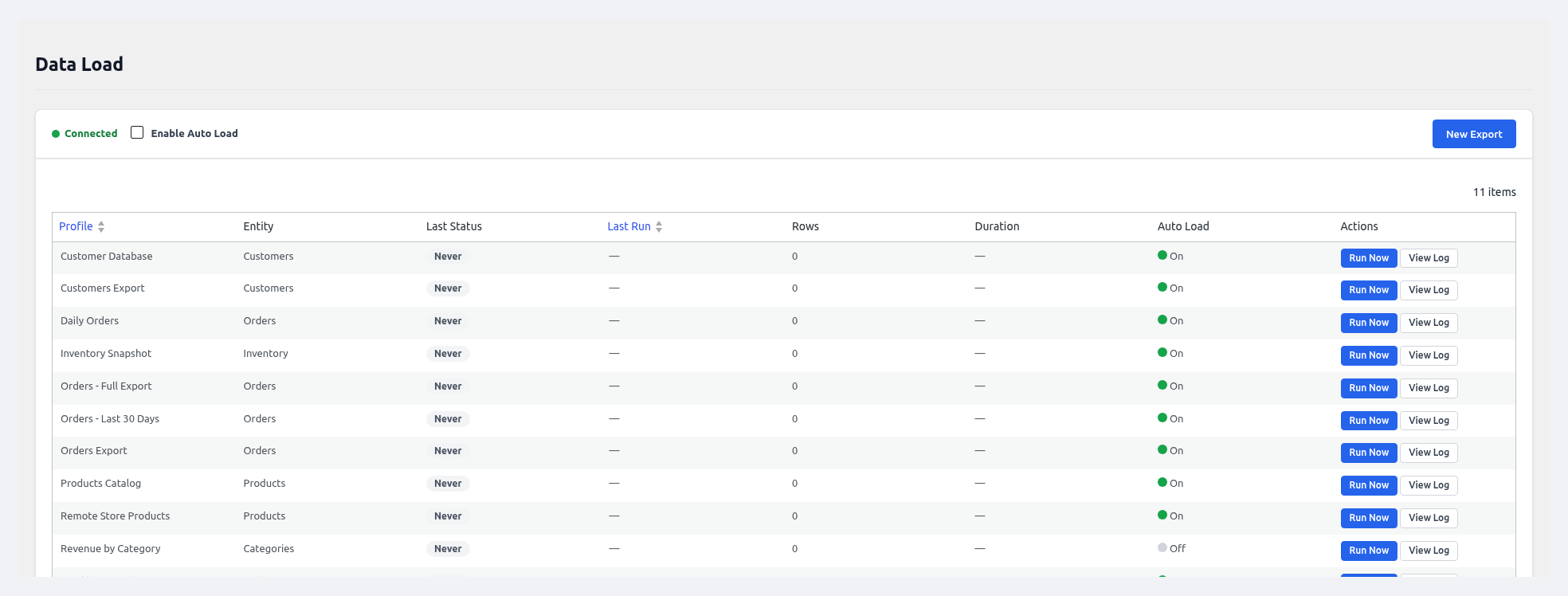 Data Load Profiles — reusable export configurations per entity and schedule.
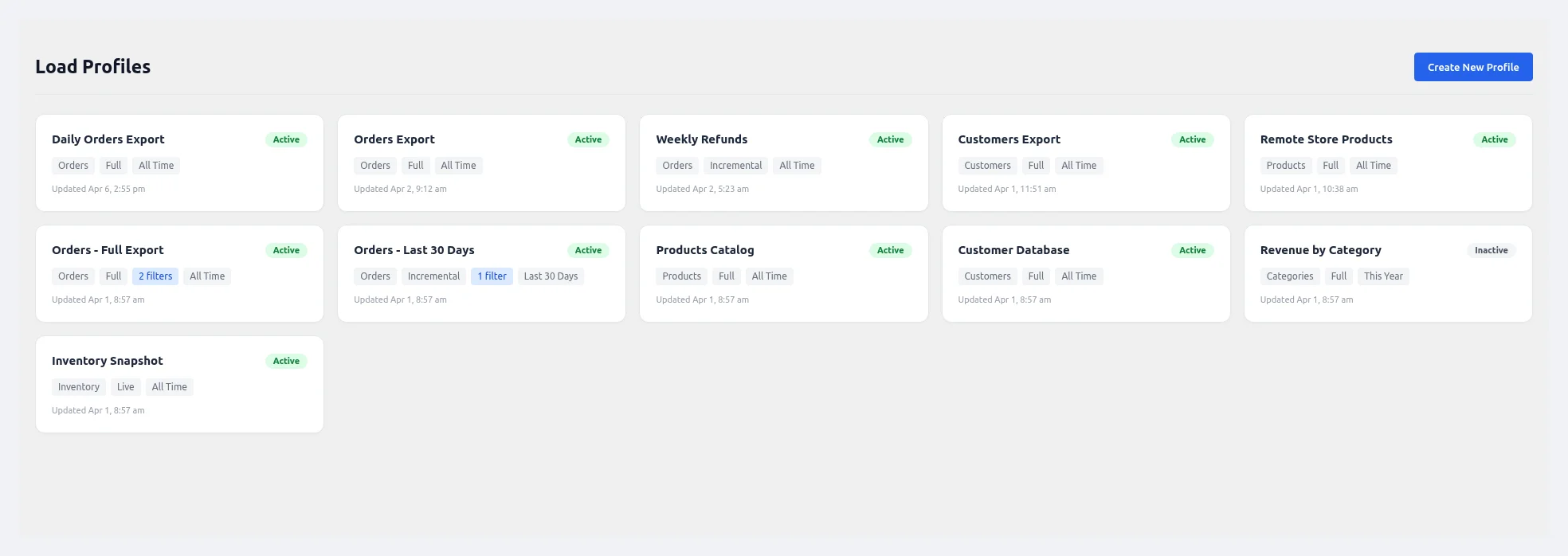 Load Profiles overview — each card shows the profile name, entity type, sync mode, date range, filters, and Active/Inactive status. Click any profile card to open the Profile Editor, or click "Create New Profile" to add a new one.
Why profiles?
Without profiles, you'd have to re-configure filters every time you sync. Profiles give you:
- Reusability — save once, run anytime
- Schedulability — each profile can have its own cron cadence
- Variant management — duplicate a profile and tweak it (e.g. one for the last month vs one for this year)
- Source selection — pick local store or a remote multi-store source per profile
- Isolation — schema changes in one profile don't affect others
Load Profiles Grid
| Column | Description |
|---|---|
| Profile Name | Your custom label |
| Dataset | The Power BI dataset the profile pushes into |
| Entities Included | Which data types are exported |
| Filters Applied | Summary — e.g. "Last 30 days, status=completed" |
| Data Source | Local / Remote store name |
| Last Run | When the profile last executed |
| Status | Active / Inactive |
| Actions | Run Now, Edit, Duplicate, Delete |
Create / Edit a Profile
Click + New Profile to create a new profile, or click a profile name in the grid to edit it. Both actions open the Profile Editor.
URL: /wp-admin/admin.php?page=wkpbic-profile-editor
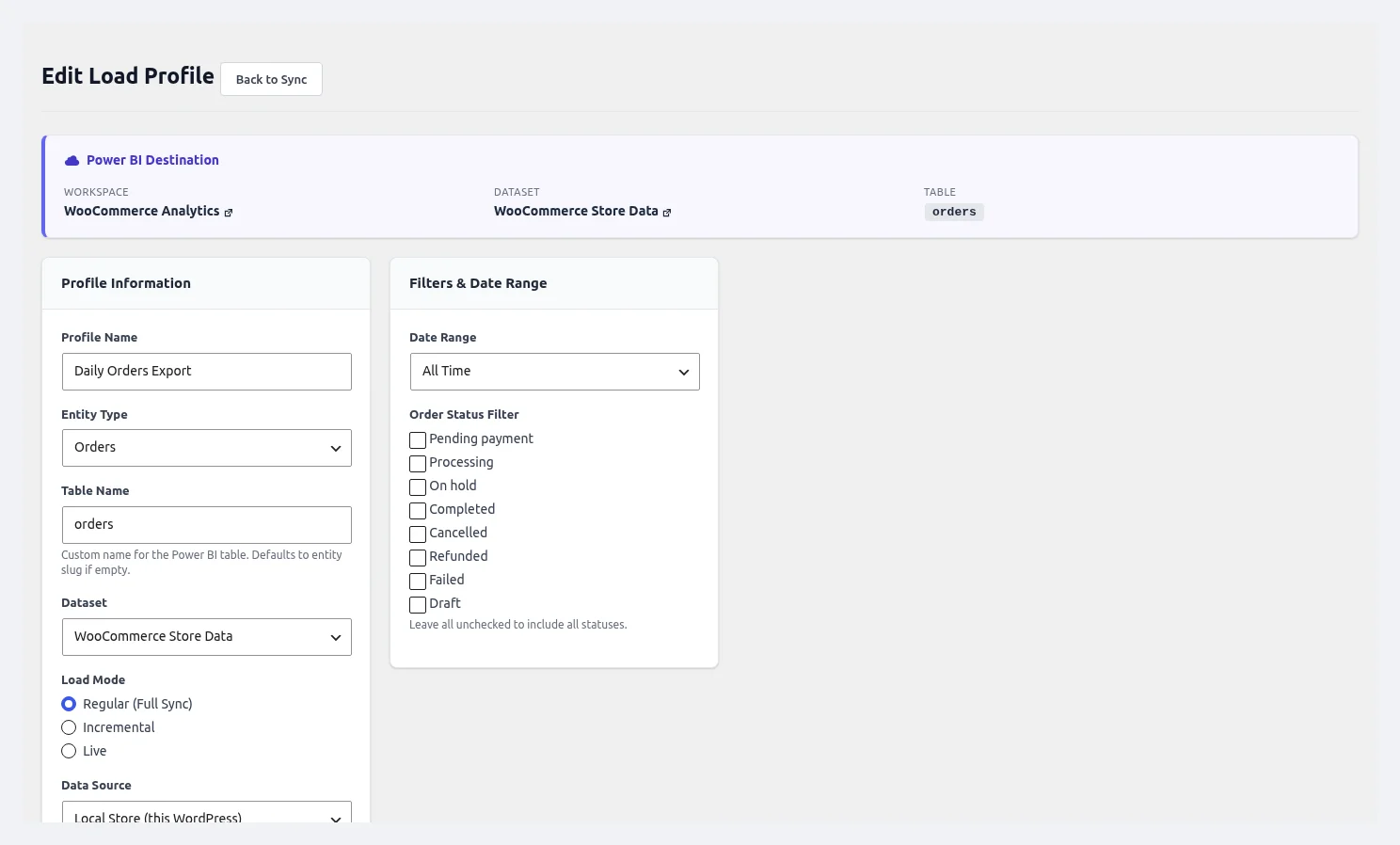 Profile Editor — configure the profile name, entity type, table name, dataset, load mode, data source, filters, and date range. The Power BI Destination header shows the linked workspace, dataset, and table.
The form has the following fields:
| Field | Description |
|---|---|
| Profile Name | Human-friendly label |
| Data Source | Local or Remote (enabled when Multi-Store is on) |
| Target Dataset | Which dataset to push into (pick from your list or create new) |
| Sync Mode | Full / Incremental |
| Entities | Checkboxes for Orders, Products, Customers, etc. |
| Date Range Filter | All Time / Last 7/30/90 Days / Custom Range |
| Order Status Filter (orders only) | Multi-select: Completed, Processing, Pending, Cancelled, Refunded, Failed |
| Product Status Filter (products only) | Published / Draft / Private |
| Stock Filter (products only) | In Stock / Out of Stock / Low Stock |
| Custom Fields Filter | Optional meta-key/value pairs |
| Field Mapping | Rename columns before push (e.g. billing_email → email) |
| Schedule | None / Hourly / Daily / Weekly / Custom cron |
| Active Toggle | Enable/disable without deleting |
| Save Profile | Persists the definition |
| Run Now | Execute immediately |
Field mapping
Use field mapping to align WooCommerce column names with the expected names in your Power BI report template. This is especially helpful when importing Microsoft-provided Power BI templates.
Running a Profile
From the UI
Click Run Now next to the profile. A modal shows:
- Progress bar
- Current batch / total batches
- Rows pushed
- Estimated time remaining
- Live log
From WP-CLI
wp wkpbic sync --profile="Last 30 Days Orders"
From REST API
POST /wp-json/wkpbic/v1/sync/profile/{id}
On a schedule
If you set a Schedule when editing the profile, the plugin registers a dedicated Action Scheduler job. It runs independently of the global sync cadence.
Duplicate & Variants
Click Duplicate to create a copy. Typical pattern:
- Build a base profile:
Orders – Full Dataset - Duplicate it as
Orders – Completed Onlyand add an order-status filter - Duplicate again as
Orders – Last 7 Dayswith a date filter
Now you have three specialized profiles that can run on different schedules.
Profile Execution History
The grid shows the last run, but for full history open Logs and filter by Profile. Each log entry shows:
- Start / end time
- Rows pushed per entity
- Batch errors
- Duration
- Final status (Success / Partial / Failed)
Common Patterns
| Use case | Profile setup |
|---|---|
| Daily sales dashboard | Entities: Orders, Line Items. Date range: Last 7 Days. Schedule: Daily 02:00. |
| Inventory alerts | Entities: Products, Inventory. Stock filter: Out of Stock + Low Stock. Schedule: Hourly. |
| Customer segmentation | Entities: Customers, Orders. Date range: All Time. Schedule: Weekly. |
| Refund tracking | Entities: Refunds, Orders. Schedule: Hourly. Use this with an Alert on Refund Rate. |
| Multi-store consolidation | Create one profile per store with Data Source = Remote Store 1, Remote Store 2, etc. All push to the same dataset; the source_store column tags each row. |