
Workspaces, Datasets & Tables
The plugin gives you a full UI for managing the three Power BI objects that make up your data pipeline:
- Workspaces — containers for datasets & reports (created on Power BI side)
- Datasets — schemas pushed into a workspace
- Tables — individual entity tables inside a dataset
Each of these has its own admin page. You can do everything here without opening Power BI Service.
Workspaces
URL: /wp-admin/admin.php?page=wkpbic-workspaces
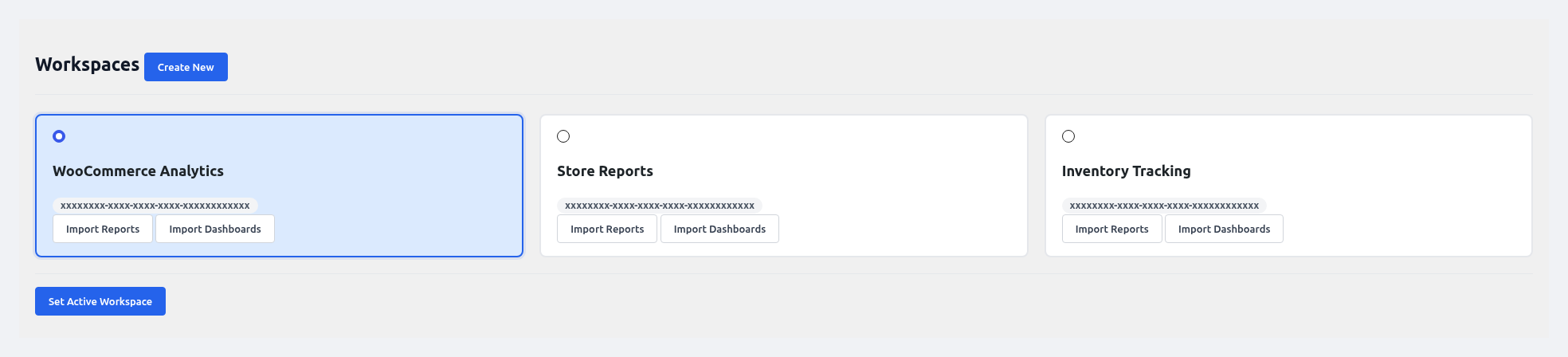 Workspaces — list, create, and set the active Power BI workspace.
What you can do
- List all Power BI workspaces available to the signed-in user.
- Create a new workspace without leaving WordPress.
- Set Active Workspace — the workspace used by all sync jobs and profiles.
- Refresh — reload the list from Power BI if you created a workspace externally.
How to create a workspace
- Click Create New.
- Enter a name (e.g.
WC Store Prod). - Click Create Workspace.
- The new workspace appears in the list with an "Active" button. Click it to make it the target.
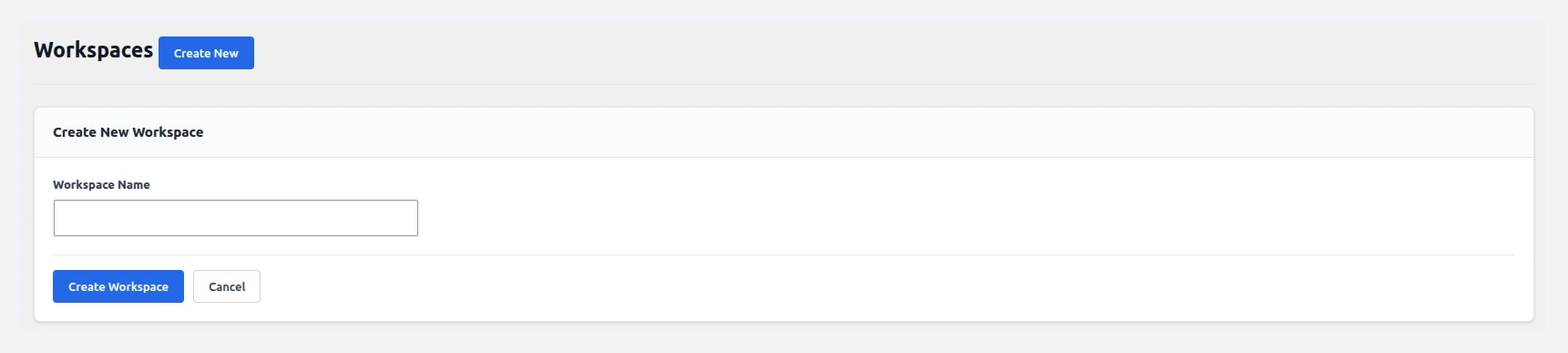 Create New Workspace — enter a name and click Create Workspace.
How to switch workspaces
Click the Set as Active button next to any workspace. All subsequent syncs will go to the new workspace. Existing datasets remain in the old workspace (they are not moved).
Warning
Switching workspaces mid-sync can produce partial data in both places. Finish any running sync first (check the Logs page).
Datasets
URL: /wp-admin/admin.php?page=wkpbic-datasets
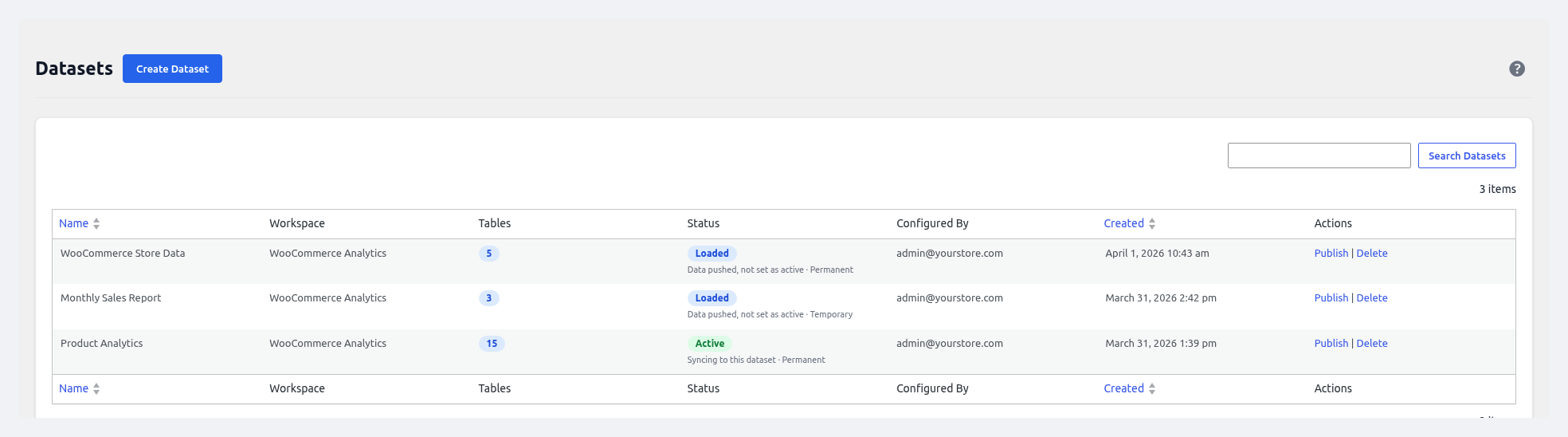 Datasets — publish, manage, and track dataset state in one grid.
A dataset is the Power BI object that contains one or more tables and the schemas for each. The plugin normally creates one dataset per configured entity (e.g. WC Orders, WC Products), but you can also create bundled datasets with multiple tables.
Datasets Grid
| Column | Description |
|---|---|
| Dataset Name | Your custom label |
| Workspace | The workspace it lives in |
| Type | Temporary (rebuild-on-push) or Permanent (structure-locked) |
| Status | Not Published / Loaded / Published |
| Tables Count | Number of tables in the dataset |
| Last Push | Timestamp |
| Actions | Edit, Publish, Unpublish, Delete |
Create / Edit Dataset
Click + Create Dataset to open the form:
| Field | Description |
|---|---|
| Dataset Name | Custom label shown in Power BI |
| Workspace | Target workspace |
| Type | Temporary — the plugin can recreate the schema each push (safest for frequent schema changes). Permanent — schema is locked; great for production reports. |
| Add Tables | Multi-select from the available WooCommerce entities |
| Table Name (per table) | Override the default table name |
| Save Dataset | Persists the dataset definition locally |
| Publish to Power BI | Creates the dataset and tables on the Power BI side |
Dataset lifecycle
Not Published  →  Publish  →  Published  →  Push Rows  →  Loaded
                                    ↓
                                Unpublish
                                    ↓
                              Not Published
Temporary vs Permanent
Choose Temporary while you're still iterating on schemas or adding new fields — the plugin will rebuild the table each full push. Switch to Permanent once you've finalized your reports to avoid accidental recreation.
Tables
URL: /wp-admin/admin.php?page=wkpbic-tables
 Tables — inspect schemas, push rows, or clear data on individual tables.
The Tables page lets you inspect and manage individual tables inside a dataset.
What you can see
- Table Name
- Parent Dataset
- Row Count (last pushed)
- Column Count
- Schema — expandable view showing each column and its Power BI type (String, Int64, Double, DateTime, Boolean)
- Last Push Time
What you can do
- Push Rows — manually push the current WooCommerce data for this entity to the Power BI table.
- Clear Rows — empty the table in Power BI without deleting the schema. Useful before a clean re-sync.
- Update Schema — re-push the schema definition if you've added custom fields.
- Preview — see the first 100 rows as they would be sent.
Clearing rows
Clear Rows immediately deletes data in the Power BI dataset. Any Power BI reports that reference those rows will show empty until the next push.
WooCommerce entities available as tables
- Orders
- Order Line Items
- Customers
- Customer Profiles
- Products
- Product Categories & Tags
- Coupons & Discounts
- Refunds
- Invoices
- Shipping Zones & Methods
- Tax Data & Rates
- Payment Gateway Data
- Reviews & Ratings
- Inventory / Stock Levels
- Subscriptions (requires WC Subscriptions)
- Order Grid / Report Types
Typical Workflow
- Setup Wizard automatically creates one dataset containing the entities you ticked in Step 5.
- For advanced setups, go to Datasets → + Create Dataset and build a dataset per functional area (e.g. "Sales", "Catalog", "Customers").
- After each dataset is published, trigger an initial push from Tables → Push Rows or from the Sync page.
- Switch the dataset from Temporary → Permanent once the schema stabilizes.
- Build Power BI reports on top of the datasets and embed them back inside WordPress.