
Sync & Scheduler
The Sync page is the control center for pushing WooCommerce data into Power BI. It supports three modes — Manual, Scheduled, and Live — plus incremental (delta) sync, batch processing, and an automatic retry queue.
URL: /wp-admin/admin.php?page=wkpbic-sync
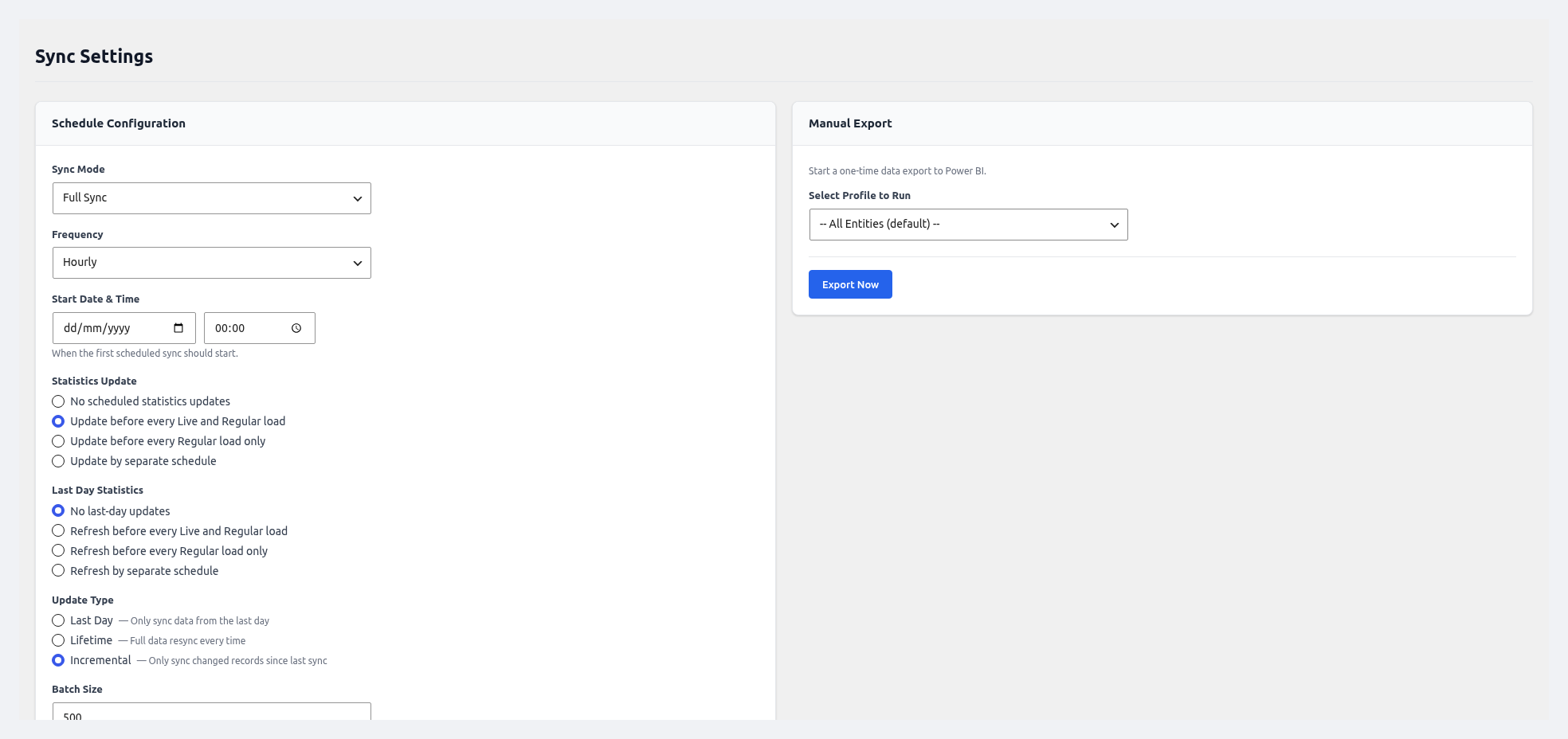 Schedule Configuration — sync mode, frequency, start time, statistics update, and update type.
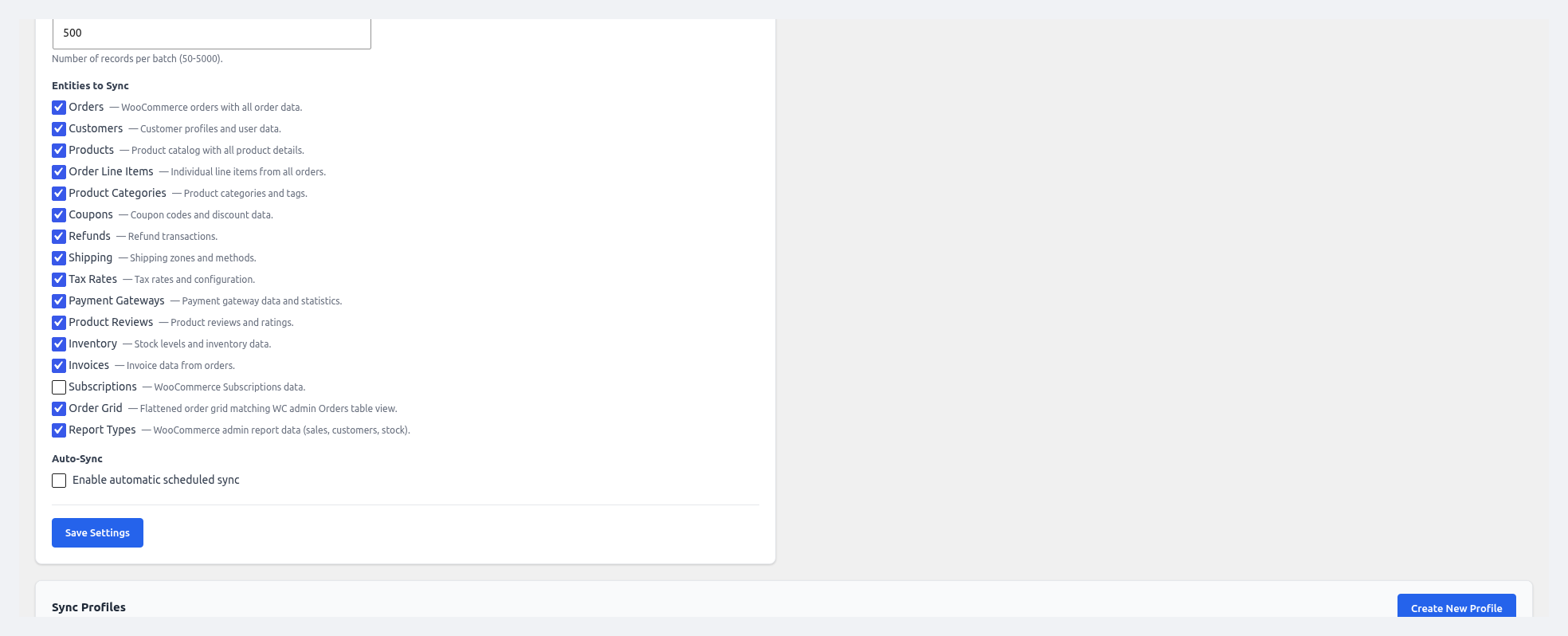 Entity checkboxes — select which WooCommerce data types to sync (orders, customers, products, etc.).
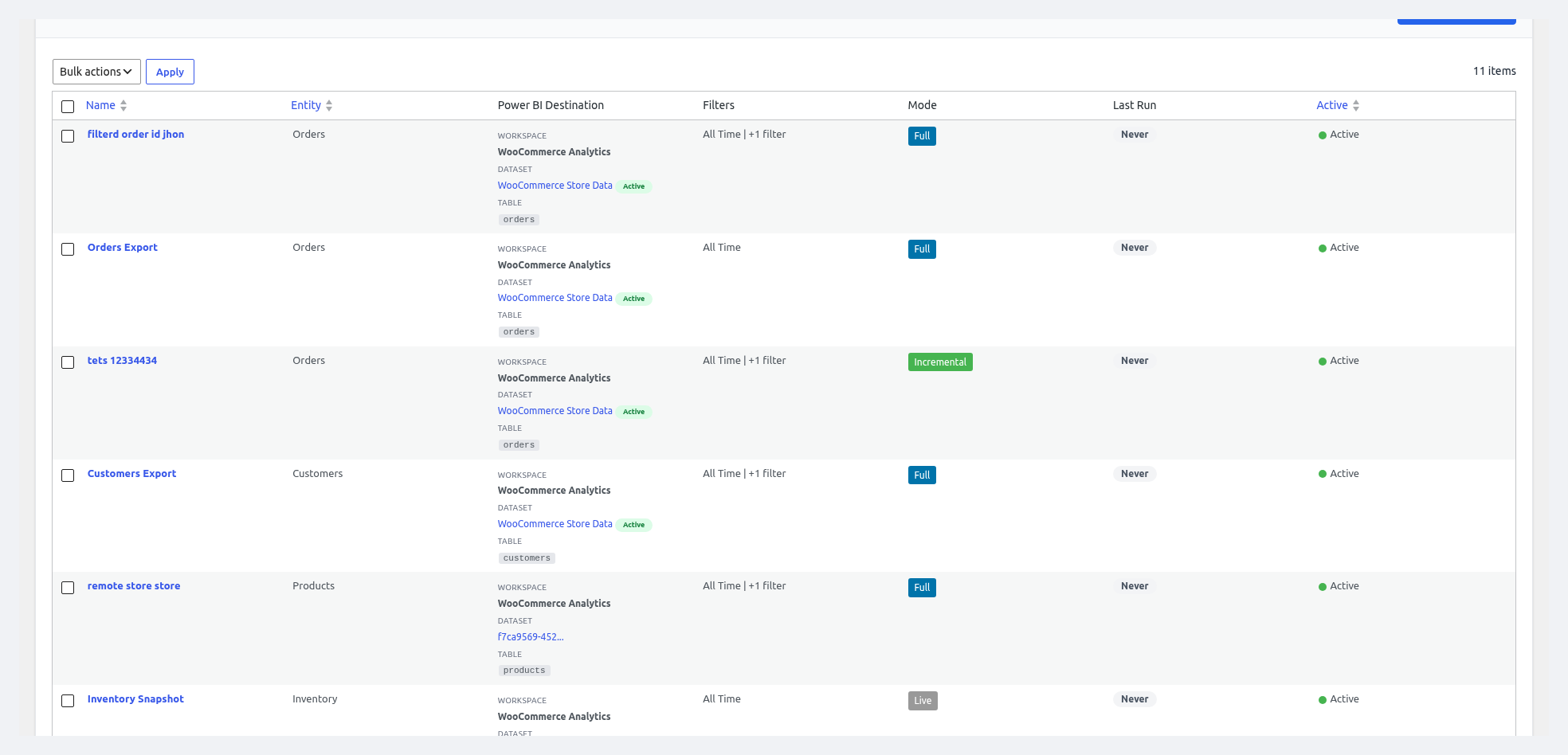 Sync Profiles table — saved export jobs with Power BI destination, filters, mode, and status.
Choosing a Sync Mode
Sync mode is set on the General Settings tab (Plugin Mode). The Sync page then shows mode-specific controls.
| Mode | How it works | Best for |
|---|---|---|
| Manual | Nothing runs automatically. You trigger syncs from the UI, CLI, or REST API. | Development, staging, one-off loads |
| Scheduled | WordPress cron runs sync at fixed intervals. | Production |
| Live | Sync is triggered on WooCommerce events (order created, product updated, etc.). | Near real-time dashboards |
Manual Sync
Sync Now
- Open the Sync page.
- In the Entity Selector, pick one or more entities (e.g. Orders, Products).
- (Optional) Choose Full or Incremental sync.
- Click Sync Now.
- A live progress bar and log panel show each batch, row counts, and any errors.
Trigger from WP-CLI
wp wkpbic sync --entity=orders
wp wkpbic sync --profile="Daily Orders"
wp wkpbic sync --full
Trigger from REST API
POST /wp-json/wkpbic/v1/sync
{
  "entity": "orders",
  "mode": "incremental"
}
See the REST API page for the complete endpoint list.
Scheduled Sync
Configuration
| Field | Description |
|---|---|
| Auto-Load Toggle | Master on/off for cron scheduling |
| Sync Start Date & Time | When the first run should fire |
| Sync Frequency | Hourly / Twice Daily / Daily / Weekly |
| Entities to Include | Which data types are part of the schedule |
| Statistics Update | Before Load (update stats before each push) / Separate Schedule (run stats on their own cadence) / None |
| Update Type | Last Day / Lifetime / Incremental |
| Batch Size | Rows per HTTP request — 50 to 5000 (default 500) |
How it works under the hood
- The plugin registers a WordPress cron event named
wkpbic_scheduled_syncwith the selected interval. - Each run is handled by Action Scheduler so it survives page loads and server restarts.
- Failed batches are automatically added to the retry queue, which uses exponential backoff (1 min → 5 min → 30 min → 3 hr).
- After each cron run, a summary is written to Logs and any triggered alerts fire.
Verifying cron is running
# List scheduled events
wp cron event list | grep wkpbic

# Force a run right now (useful for testing)
wp cron event run wkpbic_scheduled_sync
If WordPress pseudo-cron is unreliable, configure a system cron:
*/5 * * * * curl -s https://your-domain.com/wp-cron.php?doing_wp_cron > /dev/null
Live (Real-Time) Mode
When Plugin Mode is set to Live, the plugin hooks into WooCommerce events and pushes affected rows within seconds.
| Event | What is pushed |
|---|---|
| Order created / updated / status changed | The order and its line items |
| Product created / updated | The product and its stock level |
| Customer created / updated | The customer profile |
| Refund created | The refund row |
| Coupon created / updated | The coupon row |
Live Mode Settings
| Field | Description |
|---|---|
| Live Refresh Interval | Minimum seconds between pushes for the same entity (rate-limiting) |
| Entity Whitelist | Limit which events trigger live pushes |
When NOT to use Live mode
High-traffic stores (1000+ orders/hour) should avoid Live mode and use Scheduled instead — each live push adds latency to the customer checkout flow.
Incremental (Delta) Sync
Incremental sync uses a watermark (the timestamp of the most recently synced row) to push only new or changed data. It dramatically reduces bandwidth and API calls.
- Per-entity watermarks are stored in
wp_options. - Any entity with a
date_modifiedfield supports incremental. - Orders and Products also detect status/stock changes.
- Full sync resets the watermark.
To force a full resync of a single entity:
wp wkpbic sync --entity=orders --full
Or tick the Reset Watermark checkbox on the Sync page before clicking Sync Now.
Retry Queue
Failed batches (network timeout, rate limit, transient API error) are automatically re-queued with backoff:
| Attempt | Wait |
|---|---|
| 1st retry | 1 minute |
| 2nd retry | 5 minutes |
| 3rd retry | 30 minutes |
| 4th retry | 3 hours |
| 5th retry | Fails permanently and an error log entry is written |
The retry queue runs via Action Scheduler. View pending retries at Logs → Retry Queue.
Sync Page Layout Summary
┌─ Mode Indicator ─────────────────────────────┐
│ Current Mode: Scheduled — Next run: 10:00 am │
├─ Entity Selector ─────────────────────────────┤
│ [ ] Orders  [ ] Products  [ ] Customers …    │
├─ Actions ─────────────────────────────────────┤
│ [Sync Now]  [Full Sync]  [Reset Watermark]   │
├─ Progress Panel ──────────────────────────────┤
│ 🟢 Orders — batch 4/12 — 2,412 rows pushed   │
│ 🟢 Products — batch 2/3 — 620 rows pushed    │
├─ Recent Sync Log (last 10) ──────────────────┤
│ ✓ 2026-04-09 09:00 — Orders — 12,450 rows    │
│ ✓ 2026-04-09 09:00 — Products — 3,210 rows   │
│ ✗ 2026-04-09 08:00 — Refunds — rate limited  │
└───────────────────────────────────────────────┘