
Reports & Dashboards (Embedding)
The Reports page is where you import Power BI reports and dashboards back into WordPress and embed them — either inside the admin area or on the public frontend via shortcodes.
URL: /wp-admin/admin.php?page=wkpbic-reports
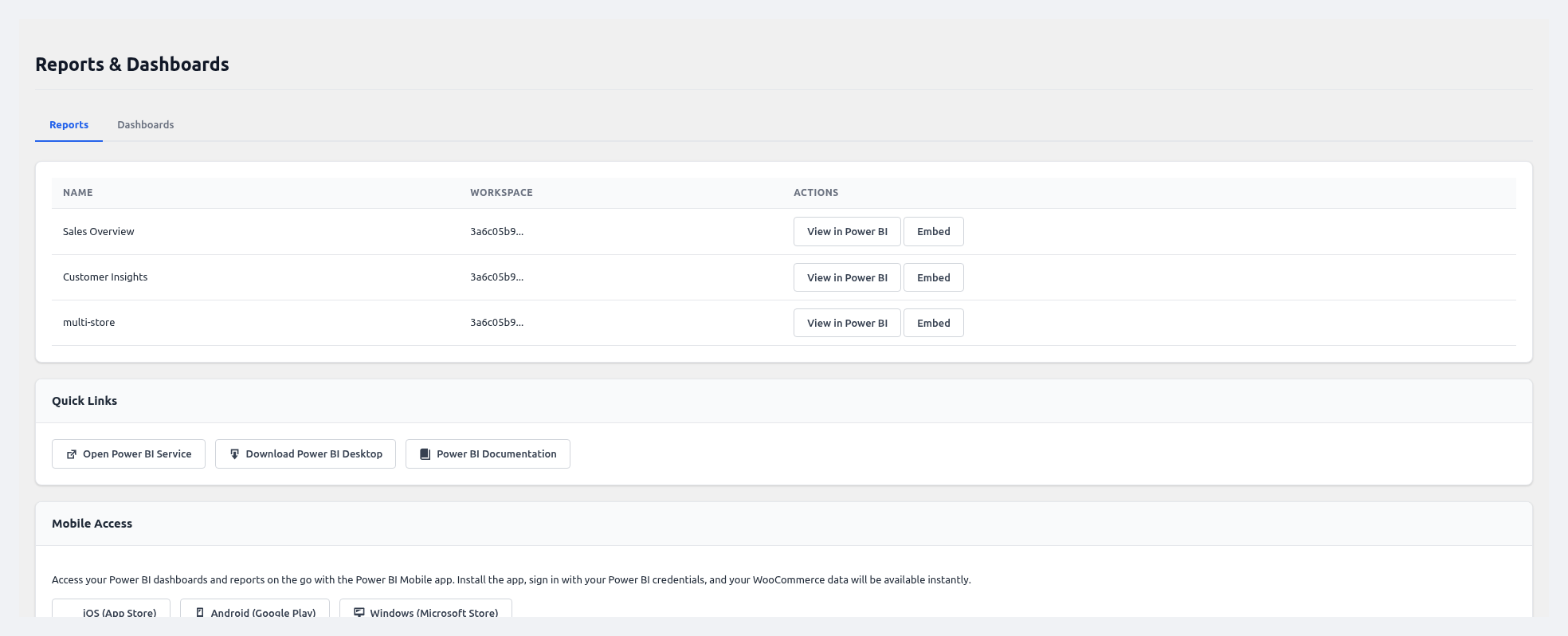 Reports page — import, embed, and manage Power BI reports and dashboards.
Prerequisite
Report embedding requires a Power BI Pro or PPU license for every user who views the embedded report. See Power BI Account Setup.
Workflow Overview
  Push data       Build report in       Import report       Embed report in
 to Power BI  →    Power BI Service  →   inside plugin   →   WP admin / frontend
  (Sync page)      (app.powerbi.com)    (Reports page)      (via shortcode)
The plugin does not build reports for you — you design them visually in Power BI Service using the datasets it pushes. Then you come back and embed them.
Tabs
The Reports page has two tabs: Reports and Dashboards.
Reports tab
| Element | Description |
|---|---|
| Import Report button | Opens a modal that lists every report in the active workspace. Pick the one to embed. |
| Reports Grid | Shows imported reports with: Name, Workspace, Last Updated, Embed Status, Actions |
| Actions | View (open embedded), Refresh Token, Copy Shortcode, Remove |
Dashboards tab
The same UI but for Power BI dashboards (which are collections of tiles from multiple reports).
Importing a Report
- Make sure the Power BI workspace is set as Active on the Workspaces page.
- Click Import Report.
- The plugin calls the Power BI API and lists all reports you have access to.
- Select one or more and click Import Selected.
- The report metadata is saved locally. An embed token is generated server-side (your credentials are never exposed to the browser).
Embedding in WordPress Admin
After import, click View on any report. A new tab opens inside the WordPress admin with:
- Full interactive embedding via the Power BI JavaScript SDK
- Page navigation
- Filters, slicers, drill-down
- Fullscreen toggle
- "View in Power BI" link that opens the report in app.powerbi.com
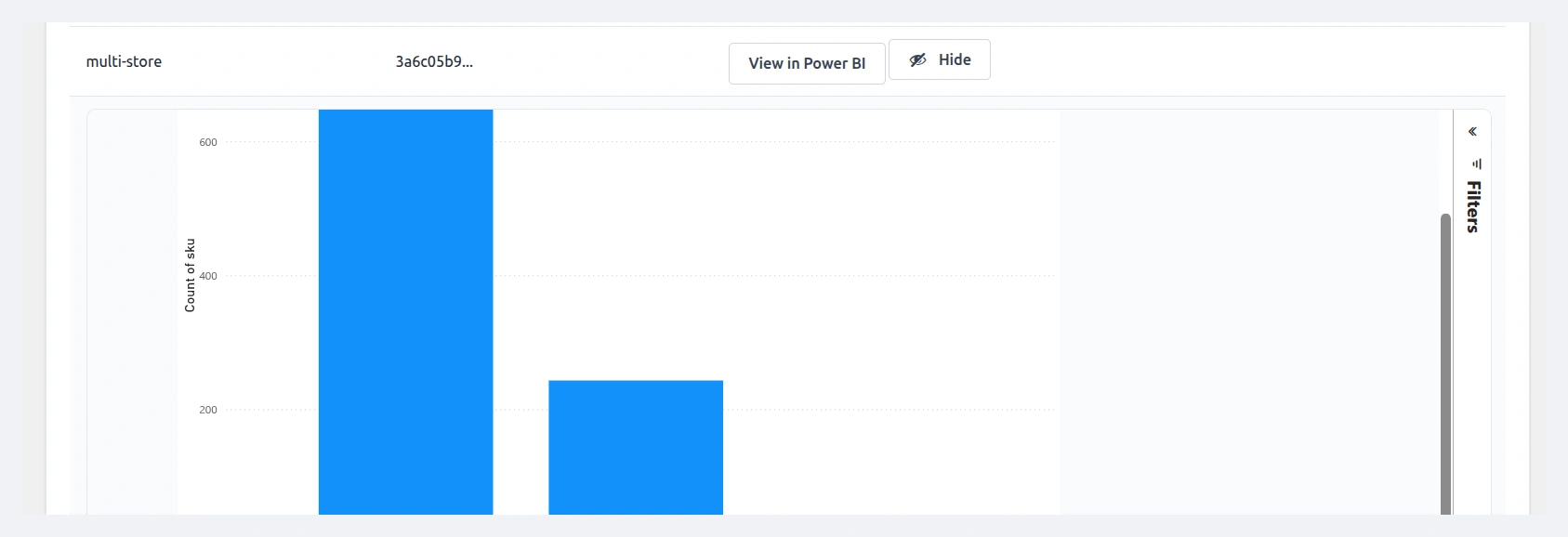 A Power BI bar chart embedded inside the WordPress admin — with "View in Power BI" and "Hide" controls.
Embedding on the Frontend via Shortcodes
To show a Power BI report on any WordPress page or post:
Report shortcode
[wkpbic_report id="REPORT_ID"]
Dashboard shortcode
[wkpbic_dashboard id="DASHBOARD_ID"]
Optional attributes
| Attribute | Default | Description |
|---|---|---|
id | (required) | The Power BI report / dashboard ID |
height | 600 | Iframe height in pixels |
width | 100% | Iframe width |
page | first page | Open on a specific report page by name |
filter | — | Apply a Power BI filter, e.g. filter="Orders/Status eq 'completed'" |
fullscreen | true | Show the fullscreen toggle button |
role | — | Restrict to a specific WordPress role (e.g. role="shop_manager") |
Example
[wkpbic_report id="f47ac10b-58cc-4372-a567-0e02b2c3d479" height="800" page="Sales Overview"]
Copying the shortcode automatically
On the Reports page, click Copy Shortcode next to any imported report — the correct id is filled in for you. Paste it into a page, post, widget, or Gutenberg/Elementor block.
Access Control
Embedded reports are only visible to logged-in users who have the view_reports capability. You can assign this capability from the Access Control page.
Public (non-logged-in) visitors will see a "Please sign in to view this report" message unless your Power BI workspace is on Premium capacity with anonymous embedding enabled.
Embed Tokens
- Each embedded view requests a short-lived token (default 60 minutes) from Power BI via the plugin's server.
- Tokens are never exposed to the browser directly — the JS SDK receives them via a secure nonce-protected AJAX call.
- Click Refresh Token on any report to force a new token immediately.
Mobile Access
At the bottom of the Reports page there's a Mobile Access section with deep links to download:
- 📱 Power BI Mobile for iOS
- 🤖 Power BI Mobile for Android
- 🪟 Power BI Mobile for Windows
Your team can view the same reports natively on their phones.
Troubleshooting
| Problem | Fix |
|---|---|
| "No reports found" after Import | Make sure the active workspace actually contains reports. Refresh the workspace list. |
| Embedded report shows "You don't have access" | The logged-in user's Power BI account lacks permission. Share the workspace in Power BI Service. |
| Shortcode renders a blank iframe | Open browser devtools — you probably have a CSP policy blocking *.powerbi.com. Whitelist it. |
| "Token expired" | Click Refresh Token, or shorten token lifetime in Settings → Advanced. |