
Query Builder
The Query Builder is a visual, no-code interface for constructing custom WooCommerce queries. Pick an entity, choose columns, add filters, preview the result, and either run a one-off export or save the configuration as a Load Profile.
URL: /wp-admin/admin.php?page=wkpbic-query-builder
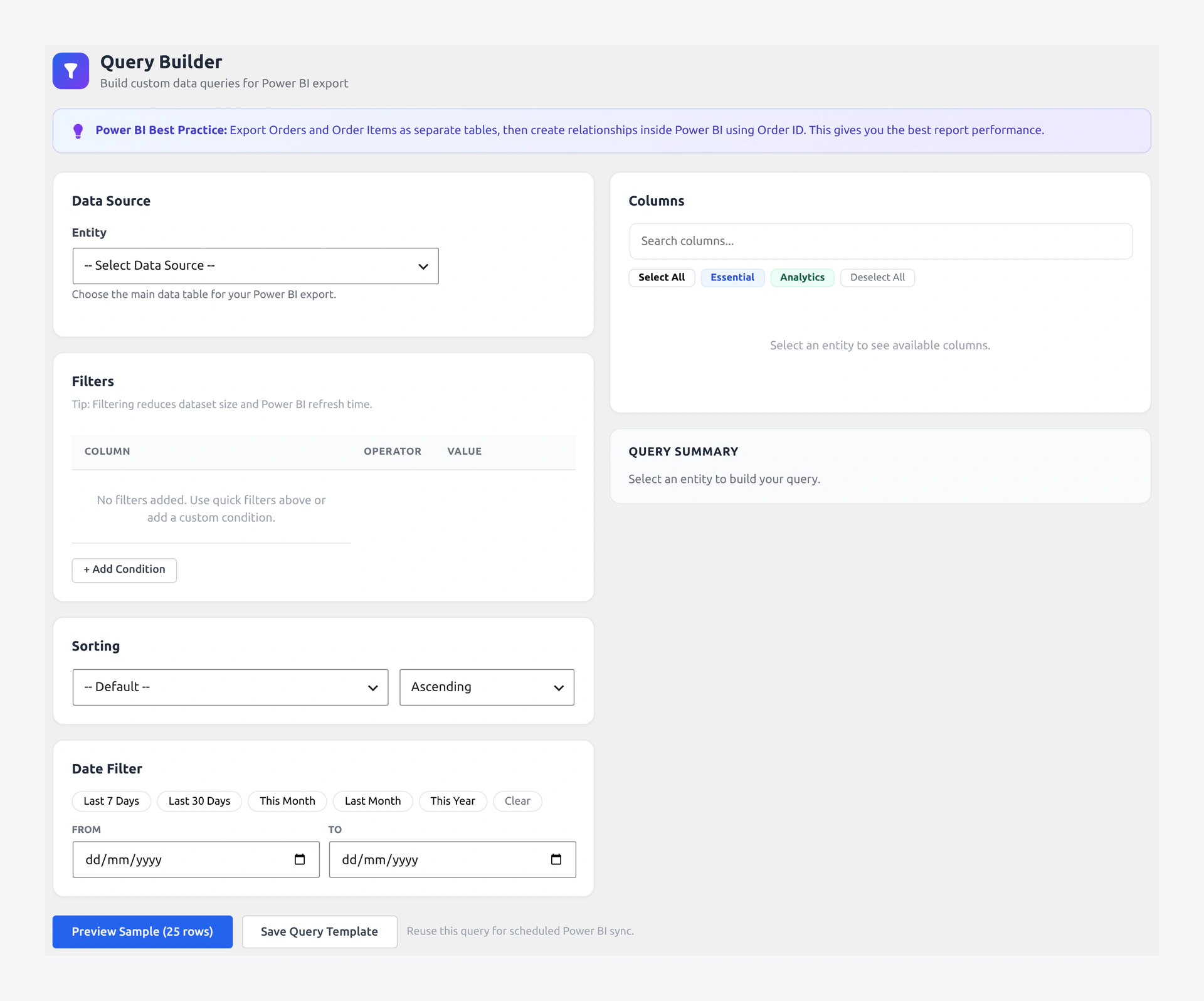 The Query Builder — entity selector, column picker, filters, and live preview.
Who is this for?
- Business users who want to build custom data extracts without writing SQL or PHP
- Analysts who need to prototype a dataset before committing to a full load profile
- Developers testing new filter combinations
Layout
┌─ Left Panel ──────────┬─ Center Panel ───────────┬─ Right Panel ───┐
│ Entity Selector       │ Column Picker            │ Query Summary   │
│ [ Orders  ▼ ]         │ ☑ order_id               │ Entity: Orders  │
│                       │ ☑ billing_email          │ Columns: 12     │
│ Quick Presets         │ ☑ total                  │ Filters: 3      │
│ • Select All          │ ☐ shipping_method        │ Est. Rows: 412  │
│ • Essential           │ ☐ customer_note          │                 │
│ • Analytics           │ ...                      │ [ Preview ]     │
│ • Deselect            │                          │ [ Run Query ]   │
│                       │                          │ [ Save Profile ]│
├───────────────────────┴──────────────────────────┤                 │
│ Filters                                          │                 │
│ ┌──────────────────────────────────────────────┐ │                 │
│ │ status  | equals     | completed           ✕│ │                 │
│ │ total   | > greater  | 100                 ✕│ │                 │
│ │ + Add Filter                                │ │                 │
│ └──────────────────────────────────────────────┘ │                 │
└──────────────────────────────────────────────────┴─────────────────┘
Step 1 — Select an Entity
The Entity Selector lists every registered WooCommerce data type (Orders, Customers, Products, Refunds, etc.). Selecting one loads the complete list of available columns in the Column Picker.
Step 2 — Pick Columns
Columns are grouped for easy navigation (e.g. for Orders: Order Info, Billing, Shipping, Financial, Dates, Meta). Use the search box to jump to a specific field.
Quick Presets
| Preset | Selects |
|---|---|
| Select All | Every available column |
| Essential | The most useful columns for reporting (e.g. id, email, total, status, date) |
| Analytics | Numeric/date fields suitable for Power BI charts |
| Deselect All | Clear the selection |
Step 3 — Add Filters
Click + Add Filter. Each filter has three parts:
| Part | Description |
|---|---|
| Field | Any column in the selected entity |
| Operator | Equals, Not Equals, Contains, Greater Than, Less Than, Between, In List, Is Empty, Is Not Empty |
| Value | The comparison value — type depends on the field |
Quick Filters
Each entity also has a set of one-click quick filters:
| Entity | Quick Filters |
|---|---|
| Orders | Completed, Processing, Cancelled, Refunded, Last 7 Days, Last 30 Days, This Month, This Year |
| Products | In Stock, Out of Stock, Low Stock, Published, Draft, On Sale |
| Customers | New This Month, Returning, VIP (5+ orders) |
| Refunds | Last 30 Days, This Year |
Date Range Presets
A dedicated date widget lets you pick: Today, Yesterday, Last 7 Days, Last 30 Days, This Month, Last Month, This Year, or a Custom Range.
Step 4 — Sort
Choose a Sort Field and direction (Ascending / Descending). You can chain multiple sort fields.
Step 5 — Preview
Click Preview to execute the query against your local database and show the first 100 rows in a table. Previews run server-side and apply every filter — so the preview accurately reflects what will be pushed to Power BI.
The Query Summary panel (right side) shows:
- Selected entity
- Column count
- Active filter count
- Estimated row count (from a SQL
COUNT(*)) - Last preview timestamp
Step 6 — Run or Save
After previewing, you have three choices:
| Action | Effect |
|---|---|
| Run Query | Executes a one-time push to Power BI using the current config |
| Save as Profile | Saves the query as a reusable Load Profile |
| Export CSV | Downloads the preview as a CSV file for offline use |
Example Walkthrough — "Last Month Completed Orders over $100"
- Entity → Orders
- Columns → click Essential preset, then add
billing_countryandpayment_method - Filters:
statusequalscompletedtotalgreater than100date_createdbetween2026-03-01and2026-03-31
- Sort →
date_createddescending - Click Preview — see the first 100 matching orders
- Click Save as Profile → name it
March Big Orders→ Save - Open Data Load Profiles, find
March Big Orders, and click Run Now.
Troubleshooting
| Problem | Fix |
|---|---|
| Preview returns 0 rows | Check filter operators. Date ranges in particular often exclude the target date — use between with inclusive bounds. |
| "Query too complex" error | Reduce the number of filters or split into two profiles. |
| Columns missing from the picker | That entity may not expose the field. Check the entity registry, or file a feature request. |
| Preview times out | Narrow the date range. Large stores may need a server-side index on the filtered field. |