
Export Center
Large exports on shared hosting?
Lower the batch size in Settings → General to avoid PHP timeouts. Start with 100 rows per batch and increase if your server handles it.
The Export Center is the page where you orchestrate data pushes and see the real-time status of every export. Where the Query Builder is for designing queries and Data Load Profiles is for saving reusable configurations, the Export Center is where you run and monitor them.
URL: /wp-admin/admin.php?page=wkpbic-export-center
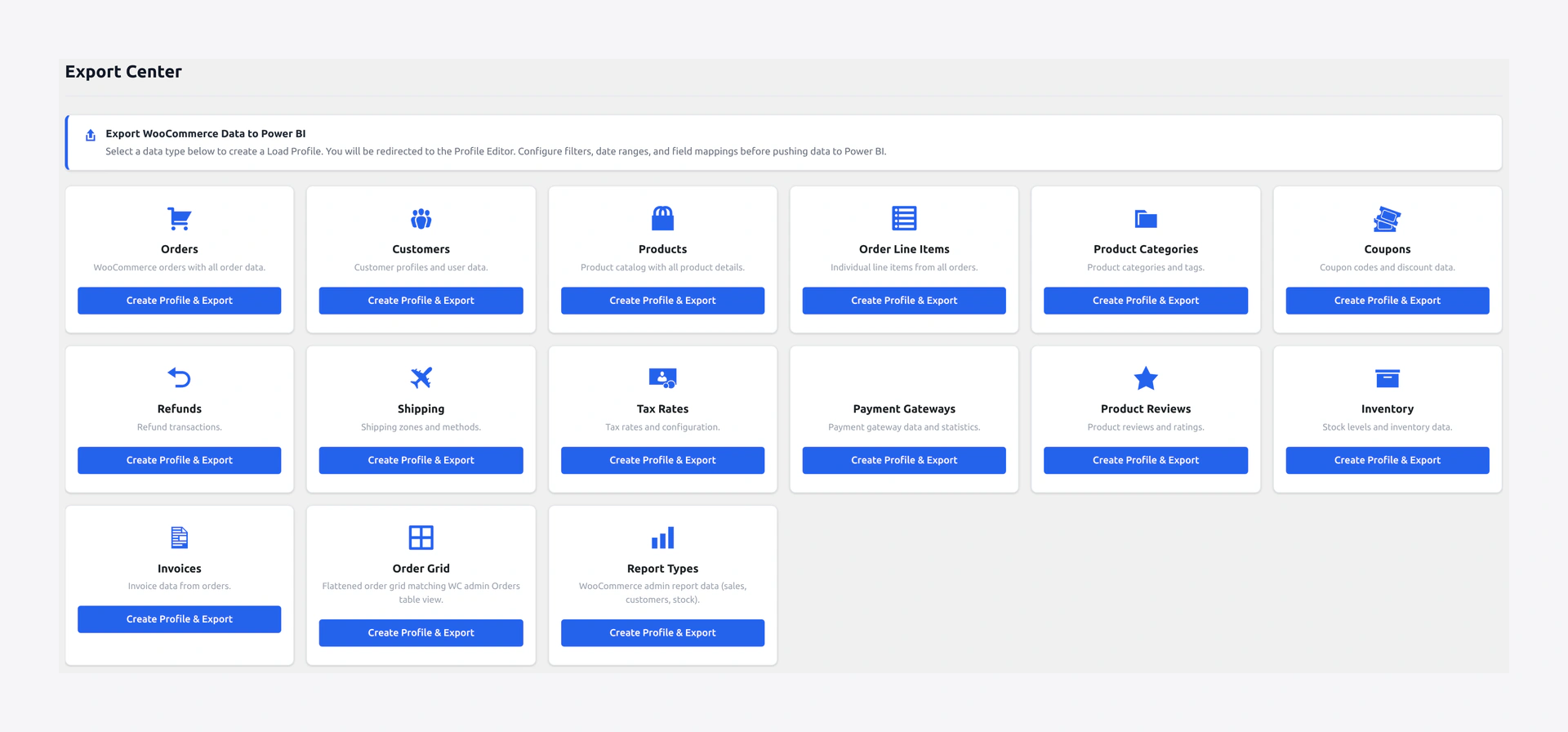 Export Center — run saved profiles, monitor live progress, and review recent runs.
What you can do
- Run any saved profile on demand
- Create ad-hoc exports without saving
- View live progress (current batch, rows pushed, ETA)
- Cancel a running export
- View the execution log for any recent run
- Compare runs side-by-side
Profile List
The top half of the page shows every saved Load Profile with:
| Column | Description |
|---|---|
| Profile Name | Custom label |
| Entities | Data types included |
| Dataset | Target Power BI dataset |
| Last Run | Timestamp of last execution |
| Status | Success / Failed / Running |
| Actions | Run, View Log, Edit (opens Data Load), Duplicate |
Click Run to push the profile to Power BI immediately.
Ad-Hoc Export
Don't want to save a profile? Click + New Export. A simplified form lets you pick:
- Entity
- Columns (quick presets supported)
- A single filter (e.g. date range)
- Target dataset
Click Run. The export executes once and is logged to Logs, but no profile is saved.
Live Progress Panel
While an export is running, the panel shows:
┌─ Running: "Daily Orders"  ─────────────────┐
│ Stage: Pushing rows                        │
│ Entity: Orders                              │
│ Batch: 7 / 14                              │
│ Rows pushed: 3,250 / ~6,500                │
│ Duration: 00:42                             │
│ ETA: 00:45                                  │
│ [ Cancel ]                                  │
└─────────────────────────────────────────────┘
The Cancel button gracefully stops the export after the current batch finishes (so you never end with half-written rows).
Execution Log
Below the profile list is a recent runs grid:
| Column | Description |
|---|---|
| Profile | Which profile ran |
| Start Time | When it began |
| Duration | How long it took |
| Rows | Total rows pushed |
| Entities | Which data types were touched |
| Status | ✅ Success / ❌ Failed / ⚠️ Partial |
| Error | First error message (if any) |
| Actions | View full log, Retry failed batches |
Click View full log to open the detailed Logs view filtered to that run.
Retry Failed Batches
If an export partially failed (e.g. network blip mid-sync), you'll see a Retry button. Clicking it:
- Re-pushes only the batches that failed (not the successful ones).
- Respects the watermark so successful rows are not duplicated.
- Logs the retry as a new run linked to the original.
Combine with Alerts
You can configure the plugin to email you every time a profile finishes (success or failure). Open Alerts → Create Alert → pick "Profile Completion" as the trigger.
Keyboard Shortcuts
When the Export Center is focused:
| Key | Action |
|---|---|
R | Run the selected profile |
C | Cancel a running export |
L | Open the log panel |
N | New ad-hoc export |